Last updated: November 19, 2026
Quick Answer: In 4 steps, you can print a test page from Windows, Mac, iPhone, and Android to confirm that the printer can receive a job, feed paper, and produce readable output. If the page prints cleanly, the basic setup is usually working; if it does not, the fault is usually in the connection, driver, or print path. On Windows and Mac, the test page usually starts from printer settings or the print dialog; on iPhone and Android, the path often runs through the printer app, AirPrint, or the print menu. For platform-specific setup menus, see Microsoft’s printer help, Apple’s AirPrint support, and Google’s print help. (Microsoft, Apple, Google)
Key takeaways
- A printer test page is a quick setup check, not a full repair.
- Windows usually sends it from printer properties, while Mac often uses the printer’s queue or settings.
- iPhone and Android may show fewer options than a computer, so the exact menu names can differ by printer.
- If the test page prints cleanly, the connection and basic driver setup are usually working.
- If the test page fails, the clue is in the output: no page, garbled text, streaks, missing color, or the wrong paper source.
What does a printer test page tell me?
A printer test page tells you whether the printer can receive a job, feed paper, and place ink or toner correctly. A single page can also show whether the printer is using the right connection, the right paper tray, and the right driver. That makes it a useful first check after setup, after a move, or after a network change.
The value is simple: it separates a setup problem from a document problem. If the test page prints, the printer is at least talking to the device that sent the job. If it does not, the issue is still in the path between your screen and the printer.
A generic test page is not the same as a nozzle check or a network test page, though the names are easy to mix up. A nozzle check is usually for ink printers and shows whether the nozzles are firing. A network test page is more about the connection details, like the IP address or wireless status. A standard printer test page focuses on basic output and confirmation.
This page fits the setup stage, not the long troubleshooting path. If your goal is to confirm that a new printer is ready before you print a work document, a test page is the shortest 1-page check you can do.
How do I print a test page from Windows?
You print a test page from Windows by opening the printer’s properties and choosing the built-in test-page option. On many Windows setups, this is a quick way to confirm that the printer driver and device name are correct, though the menu path can vary by version. Microsoft’s printer support pages use the same general workflow. (Microsoft)
- Open Settings and go to Bluetooth & devices or Printers & scanners. Pick the printer you want to check.
- Open Printer properties from that printer’s page. This is the place where Windows stores device-specific options, not the general print dialog.
- Choose Print Test Page on the General tab if it is available. Windows sends a standard page to the printer, usually with a few lines of system text.
- Wait for the page and look for clean text, proper alignment, and normal paper feed. A page that lands in under a minute is often enough to confirm the setup path.
If you do not see a test-page button, the printer may expose it through the classic control panel view rather than the newer Settings app. Some printers also place the option inside the device’s own utility, which can sit beside the driver software.
One useful habit on Windows is to confirm the printer name before you print. If there are two near-identical entries, such as a direct USB name and a network name, the test page can go to the wrong one. That mistake wastes more time than the page itself.
How do I print a test page from Mac?
You print a test page from Mac by opening the printer queue or printer settings and using the printer’s built-in maintenance option. The exact label can vary, but the goal is the same: send a small job that proves the Mac and printer can talk. Apple’s AirPrint support and printer setup guidance both point to the printer queue or system print settings as the normal starting point. (Apple)
- Open System Settings and go to Printers & Scanners. Select the printer you want to confirm.
- Open the print queue or the printer options panel. This is where macOS shows the jobs waiting to print.
- Choose a test page or maintenance item if the printer software offers one. Many printers put this beside the supply or utility tools rather than inside a normal document print box.
- Print a sample page and check for paper feed, text clarity, and the correct color bands or marks if the page includes them.
Because the printer may appear once in the system list and again in the print dialog, the entry matters. If one entry says AirPrint and the other uses the vendor driver, the test page is a clean way to see which route is actually working.
If the printer only gives you a generic sample page, that still helps. A plain text page is enough to confirm the device is reachable, which is the point of the step after setup. You do not need a fancy page for a basic check.
How do I print a test page from iPhone and Android?
You print a test page from iPhone and Android by using the printer option inside the print menu, or by opening the printer app if the printer needs one. Phones give you fewer controls than a computer, so the menu path depends more on the printer model and connection method.
| Device | Usual path | What to look for | Main limit |
|---|---|---|---|
| iPhone | Print from a document, photo, or file, then use AirPrint or the printer app | Printer name, paper size, and a test or utility option | Fewer device settings than on Mac or Windows |
| Android | Open the share or print menu, then choose the printer or app | Printer selection, page preview, and maintenance tools in the app | Menu names vary by phone brand and printer model |
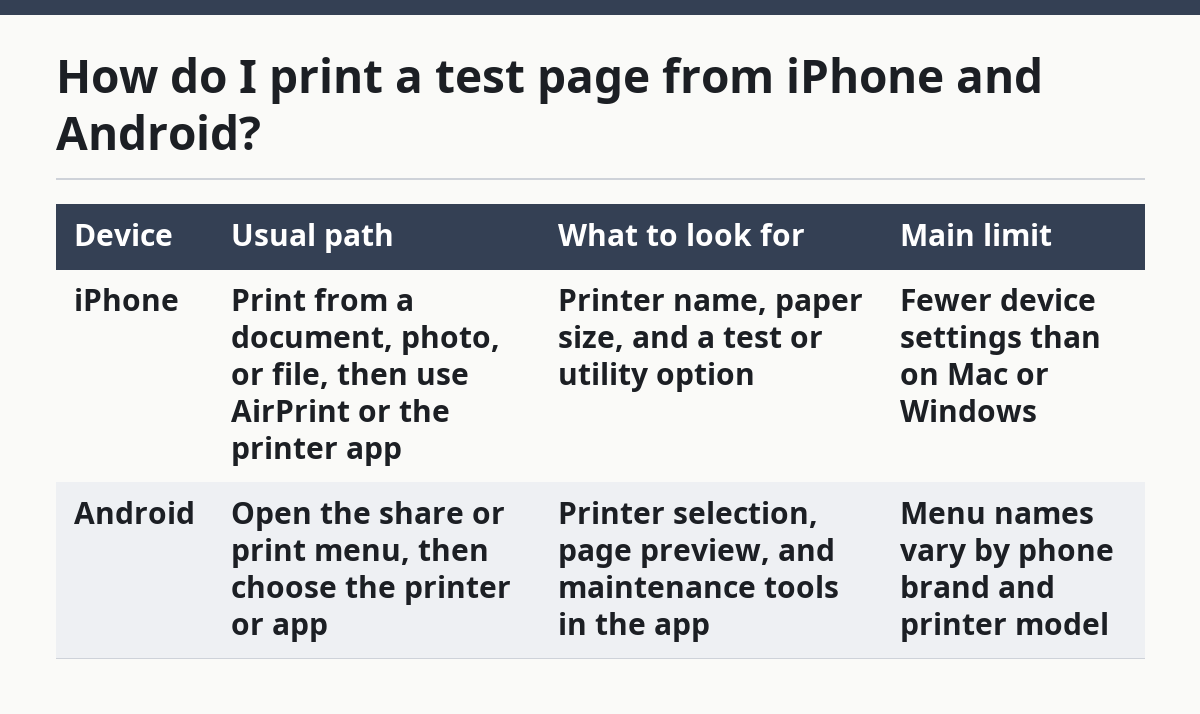
On iPhone, a true test page may live inside the printer’s own app rather than the system print sheet. AirPrint can still be useful because it confirms the phone sees the printer on the same network. If the page prints from the app, the connection path is likely fine.
On Android, the print path usually starts from the app you are using, then moves into a print menu or plug-in. Some printers expose a maintenance page only after the printer service or plug-in is installed. If you do not see a test-page choice, print a simple 1-page document instead and, if you are unsure how to interpret the result, consult the printer maker’s help or a qualified professional with the printer model details and the page output. (Google)
The phone workflow is often shorter, but the result is still clear. You may get fewer clues about drivers, color management, or tray selection, yet you still learn whether the phone can reach the printer and send a job.
What if the test page prints but normal documents do not?
If the test page prints but normal documents do not, the printer connection is working and the problem is likely in the document, app, or print settings. That is a useful split because it tells you not to chase the printer hardware first.
The test page uses the printer’s own simple output path. A normal document may involve a different paper size, a PDF viewer, a cloud app, or a tray setting that does not match the page. A 2-page file can also fail where a 1-page test page succeeds because the document asks for a specific source, orientation, or layout.
A few common mismatches show up here:
- The document is set to a different paper size than the tray, such as letter versus A4.
- The app is sending to a different printer entry than the test page used.
- The job is using duplex, color, or scale settings that the printer rejects.
- The file is corrupt or the app is holding the job instead of sending it.
This is the point where a printer test page earns its place. It narrows the problem to the document path instead of the device path. That saves time when the printer itself is already confirmed.
If the test page looks bad, the issue is still inside the device or its setup. Smudges, streaks, missing colors, or repeated lines point to output problems rather than file problems. A clean test page, on the other hand, usually means the printer is ready for normal use.
Which result means setup is confirmed?
Setup is confirmed when the test page prints, lands on the right paper, and looks normal from top to bottom. That means the device can receive a job, use the selected printer path, and produce readable output.
A good result does not need to be perfect. A 1-page sheet with clear text and proper alignment is enough to show that the connection is alive. If the page includes color bars or a grid, those should appear complete and even, not broken or faded.
Use this quick comparison to read the result:
| Test page result | What it usually means | What to do next |
|---|---|---|
| Page prints cleanly | Basic setup is working | Print a normal document |
| Page prints with wrong layout | Paper size or tray setting is off | Check page size and source |
| Page prints with streaks or missing areas | Output quality issue | Run the printer’s maintenance tools |
| No page prints | Job did not reach the printer | Recheck the selected printer and connection |
This is the right place to stop if your goal was only confirmation after setup. A test page is not meant to prove every feature, only the basic path from device to paper. For a reader working through the larger setup flow, that is enough to move on with confidence.
If you are working through the broader printer setup and connectivity steps, this check belongs near the start, before you worry about document design or app settings.
What does a test page tell me?
A test page tells me whether the printer can receive a job and produce a page without the rest of your document workflow in the way. It helps separate setup problems from file problems, which is why it is useful right after installation or a network change.
It does not tell you everything. A good test page does not prove that every app, tray, or color mode will work the same way, only that the basic print path is alive.
Why does a test page print but normal documents do not?
A test page can print while normal documents fail because they often use different settings, file formats, or paper requirements. The test page is usually simple, while a document may ask for a certain tray, orientation, or size such as letter or A4.
That difference is useful. It usually means the printer is connected and the trouble sits in the document or app, not in the printer’s basic setup.
Can I use a test page as a network test?
Yes, a test page can act like a basic network test if the printer is on Wi‑Fi or Ethernet and the page reaches the device without errors. It confirms the device name, connection path, and print job delivery at a basic level.
It is not a full network diagnostic. For deeper connection details, a printer-specific network status page gives more information than a plain test page.
Do I need a test page every time I set up a printer?
No, you do not need one every time, but it is a smart check after a new setup, reset, or move to a different network. A single page is often enough to confirm that the printer is ready before you print a longer document.
If you are only reusing a printer that already works, you may not need the extra page. But if the printer changed location, driver, or device, the test page is the quickest 1-step confirmation.
Drafted with AI; not yet reviewed by a person.