Last updated: November 19, 2026
Key Takeaways
- Android sends the job from the share sheet or app menu to the Android print dialog.
- Open the file, choose Print, pick the printer, and send the job from Android.
- Turn on a print service before Android can see many wireless printers.
- Google Photos can send a photo into the same Android print dialog through its own print path.
How to print from Android to a wireless printer usually starts with the phone’s system print dialog and a wireless printer on the same Wi‑Fi network. If the printer shows up, you can print from Android without a cable or a separate desktop.
This guide shows the exact path, the settings that matter, and what to do when Android cannot find the printer. It focuses on how to print from Android to a wireless printer in a few taps.
Android printing: the fastest path from phone to page
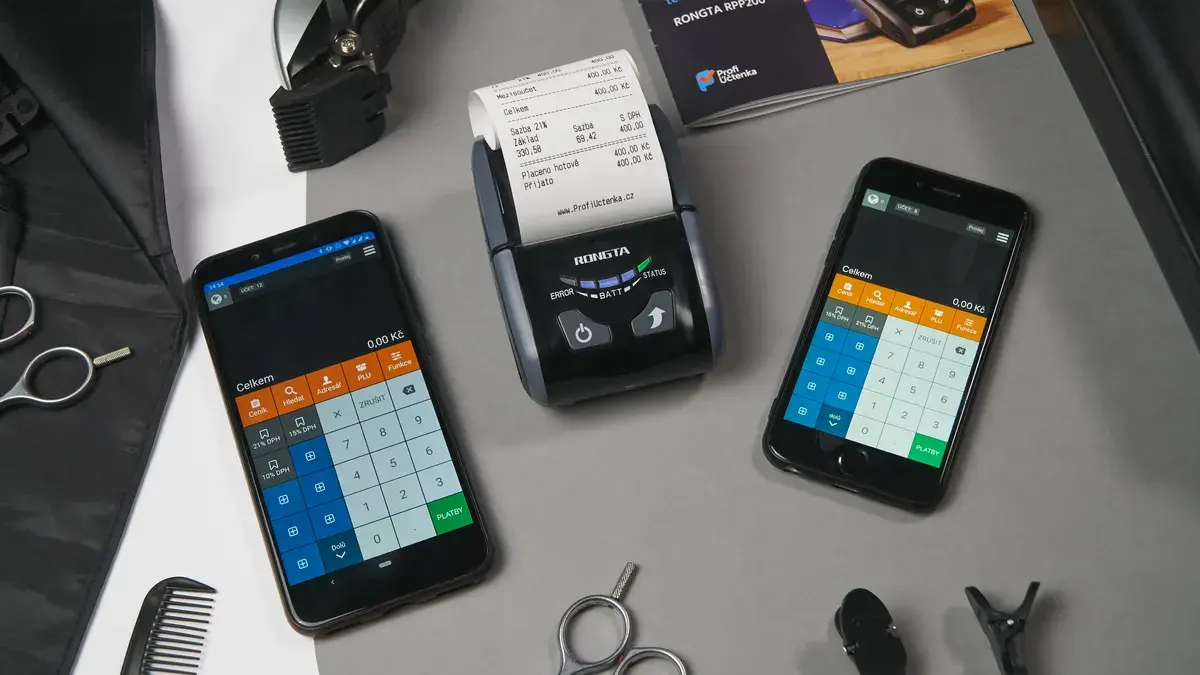
Android often prints through the share sheet or the app menu, then hands the job to the system print dialog. If the printer is on the same Wi‑Fi network, set up with Mopria Print Service or a built-in service, the job usually appears in a few taps.
The truth is, the phone does not “print” by itself. It sends the file to a print service, then that service talks to the wireless printer. That is why one app prints fine while another refuses to show a device.
Here’s the catch:
- Your phone and printer need the same network.
- Some brands need their own app before the printer appears.
- A PDF or photo is often easier to print than a document trapped inside a random app.
For a broader setup path across devices, the hub on wireless printing setup and access control is the right next stop.
How do I print from Android to a wireless printer?
You print by opening the file, choosing Print, picking the printer in the Android dialog, and sending the job. If you can see the printer name, the rest is simple.
The path is similar for a photo, a PDF, and many app documents. Button names can vary, but the flow stays the same.
- Open the photo, PDF, email, or document in its app.
- Tap the app menu or Share button, then choose Print.
- Select the printer in the Android print dialog.
- Check the paper size, color, and page range.
- Tap the print button and wait for the job to leave the queue.
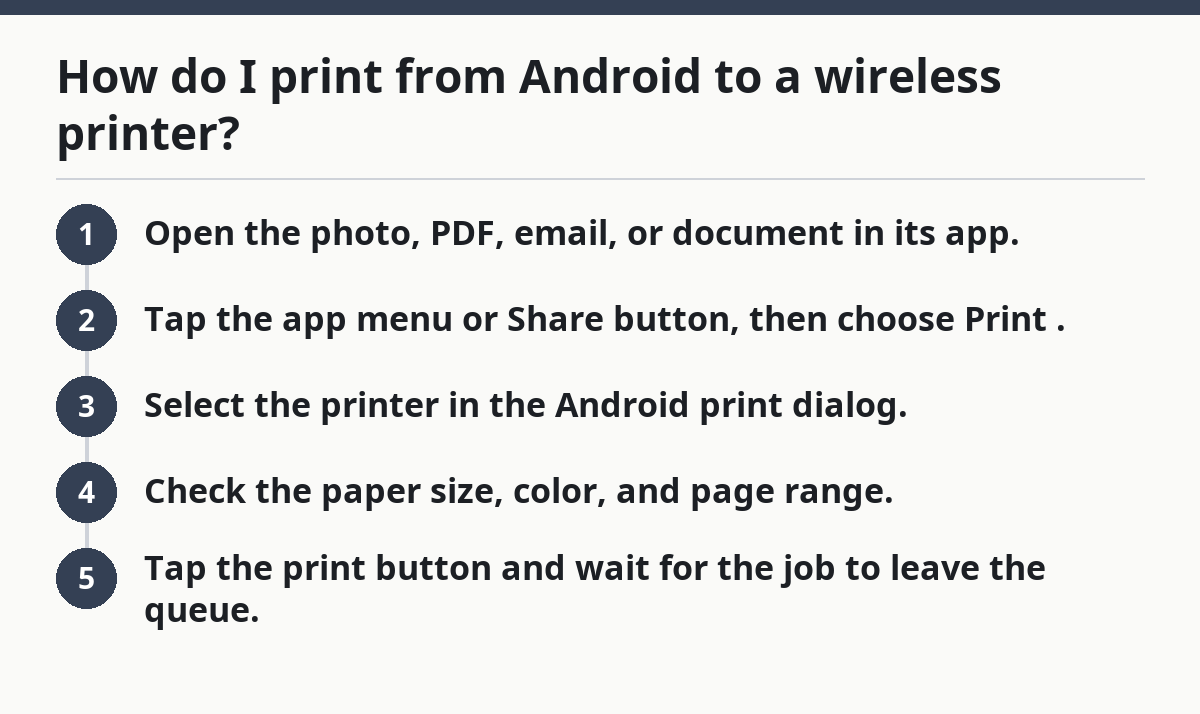
If the print option is missing inside the app, the app may not support direct printing. On many Android phones, the print dialog still appears through the share menu or the three-dot menu.
A few details matter here:
- A Wi‑Fi printer must already be online.
- The phone often needs the same network band if the router separates bands.
- A PDF often prints cleaner than an image of a document.
Set up the Android print service before you send a job
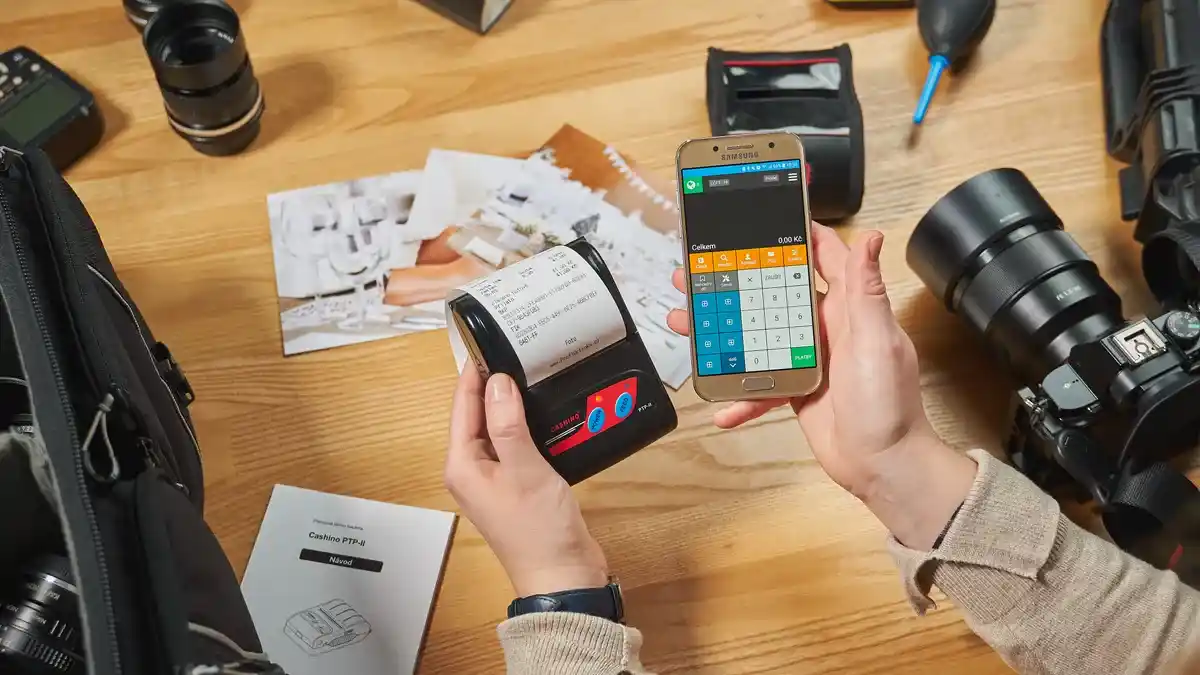
You need a print service turned on before Android can see many wireless printers. The most common path is Mopria Print Service, or the built-in service from the printer brand.
Picture this: you’re standing at your desk with a file open on your phone, and the print menu says “No printers found.” That usually means the service is off, missing, or blocked from scanning the network.
- Open Android Settings.
- Search for Printing or Default print service.
- Turn on the built-in service or Mopria Print Service.
- Open the service and let it scan for the wireless printer.
- Select the printer when it appears.
A printer app can help when the built-in service fails, but it also adds one more place for errors. Some brand apps want the printer already added to the account; others want nearby-device permission plus location permission on Android. That can feel fussy.
What usually goes wrong:
- The print service is off.
- The printer app is installed but not enabled.
- Android cannot see the device because discovery is blocked.
If the service is on and the printer still does not appear, restart both the phone and the printer.
Print a photo from Google Photos without guessing
You can print a photo from Google Photos through the app’s own print path, then send it to the same Android print dialog. That is usually the cleanest route for pictures.
Picture this: you want a family photo on glossy paper, not a screenshot buried inside messages. Google Photos gives you a direct path to the image, which reduces the chance that Android prints the wrong file or the wrong crop.
- Open Google Photos.
- Choose the photo you want.
- Tap the menu or share option and select Print if it appears.
- Pick the wireless printer in the Android dialog.
- Adjust orientation, paper size, and color, then send it.
Some photo apps show a stronger print interface than others. Google Photos is often easier because it handles the image first, then hands it to Android. That matters when the printer wants 4 x 6 paper or another photo size.
Keep these points in mind:
- A photo can print full-bleed only if the printer supports borderless output.
- Cropping in the app is safer than cropping on the printer panel.
- If the image looks too dark on paper, the app preview may already show it.
On the flip side, photo printing is not a fit for every Android app. Messaging apps and social apps often compress images before you ever reach the print step.
Print a PDF from Android when the layout matters
You should print a PDF from Android when the spacing, fonts, or margins matter. PDFs hold their layout better than many word-processing files.
Picture this: you have a ticket, form, or handout on your phone and one bad crop makes it useless. A PDF gives the Android print dialog a fixed page, which lowers the odds of shifting text.
- Open the PDF in your file app, email app, or browser.
- Tap Print from the menu or share sheet.
- Choose the wireless printer.
- Set page range, paper size, and color if needed.
- Preview the page before you print.
The preview is not optional. A PDF can still print wrong if the app defaults to the wrong paper size, such as letter instead of A4. That can cut off edges or move content to a second page.
Use these checks:
- The page count matches the file.
- The margins look even in preview.
- The printer name is the one you expect, not a nearby office device.
If the PDF opens in a browser tab, printing from the browser can work too. That route is fine when the PDF viewer app is limited, but it may give you fewer controls.
Why won’t my Android phone find my printer?
Your Android phone usually cannot find the printer because the network, the print service, or the app permissions are wrong. Start with those three before you assume the printer is broken.
Picture this: the printer is on, the phone is on, and nothing shows up in the list. That is almost never a paper problem. It is usually discovery.
Check these common causes:
- Same Wi‑Fi network: the phone and printer must be on the same router network.
- Default print service: Android printing or Mopria may be off.
- Permissions: some printer apps need nearby-device or location permission.
- Router isolation: guest networks often block device discovery.
- Wrong band or SSID: the phone may be on one network name and the printer on another.
A few fixes are worth trying in order:
- Restart the phone.
- Restart the printer.
- Reopen Settings > Printing and verify the service is enabled.
- Reopen the printer app and let it scan again.
- Try a different app to see whether the print button appears there.
If the printer only shows up after you open its brand app, keep that app installed. Some brands depend on it for discovery even though Android owns the actual print dialog.
App-based printing still matters for some brands
You still need a brand app for some printers because Android’s built-in path does not cover every model feature. That is common with older devices, specialty trays, and some photo tools.
Picture this: the printer appears in Android, but the duplex setting, tray choice, or toner warning is missing. The brand app can expose those extra controls, even if the job still ends in the Android print dialog.
Use the app when you need:
- Tray selection
- Maintenance tools
- Firmware prompts
- Ink or toner status
- Model-specific scanning and printing options
The trade-off is simple. The app can solve discovery and feature gaps, but it also adds another layer that can break. Some apps are heavy, want an account, or hold onto old settings after a firmware update.
This is the right choice for:
- Someone printing from one specific brand every day.
- Someone who needs tray control or specialty paper.
- Someone whose printer never appears in Android without the brand app.
Skip this route if:
- You only print a PDF once in a while.
- You want the lightest possible setup.
- Your printer already shows up in the Android print dialog with no extra app.
How to print from Android without an app
You can print from Android without a separate app if the printer appears in the system print dialog. That is the cleanest route for most common wireless printers.
Picture this: you want to avoid yet another app on your phone. If Android already sees the printer through Mopria Print Service or the built-in service, you do not need a brand app at all.
Use the app-free path when:
- The printer is already listed in Android printing.
- The phone and printer are on the same network.
- You are printing a standard PDF or photo.
The limits are real:
- Some printer models never appear without a brand app.
- Some advanced settings are missing without the app.
- Some office networks block discovery until IT allows it.
If the phone prints after you install a brand app but not before, that is not a failure of Android. It is the printer’s setup model. Android still sends the job; the app just helps find the device.
For the cleanest workflow, keep one print service enabled, one wireless printer on the same network, and one file type that you know prints well. PDF is the safe default.
What should I do if the print option is missing?
If the print option is missing, open Android Settings and check Printing or Default print service first. Then open the file in another app, because not every app exposes the same menu.
Some apps hide printing behind Share or a three-dot menu. If you still cannot find it, the app may not support printing at all. In that case, move the file into Google Photos for images or a PDF viewer for documents.
How do I add a printer on Android?
You add a printer on Android by turning on the system print service and letting it scan for the device. Open Settings, search for Printing, enable Mopria Print Service or the built-in service, and wait for the printer name to appear.
If the printer still does not show, add it through the brand app instead. That is common for models that rely on their own discovery tool.
Why won’t my Android phone find my printer?
Your Android phone usually cannot find the printer because of network mismatch, disabled printing services, or blocked discovery. Start by checking that both devices are on the same Wi‑Fi network and that Default print service is turned on.
If the printer sits on a guest network or a separate band, Android may never see it. Restarting both devices and reopening the print service often clears the problem.
Can I print from Android without an app?
Yes, you can print from Android without an app if the printer shows up in the system print dialog. That works best with printers that support Android printing through built-in service discovery or Mopria Print Service.
If the printer never appears, a brand app may still be needed. The app sometimes supplies the discovery step Android cannot do on its own.
Drafted with AI; not yet reviewed by a person.