Last updated: November 18, 2026
Key Takeaways
- The discovery issue comes from a mismatch between how the printer advertises itself and how the computer looks for it.
- Different networks, bands, or address ranges can stop a printer from appearing even when both devices seem connected.
- The fix depends on the connection path the printer uses, not its brand.
- Bonjour, sharing, and firewall rules can block discovery even when the printer is on and the network works.
Your computer usually cannot find your printer because the two devices are not on the same discovery path. That can mean a network problem, a missing printer driver, a blocked Bonjour service, a broken USB connection, or printer sharing turned off.
What the printer discovery problem usually is
The printer discovery problem is a mismatch between how the printer is being offered and how the computer is trying to see it. A Windows PC, a Mac running macOS, and a printer on a router do not all discover devices the same way, so one broken link can make the printer disappear even when it is still powered on.
Start with the simplest question: is the printer supposed to be found over Wi‑Fi/Ethernet, over USB, or through another computer that is sharing it? That one detail matters more than the brand on the front. A USB printer that is fine on a desk can vanish because the cable is loose by 1 centimeter; a network printer can vanish because it changed IP address after a router reboot.
This is also why “the printer is on” is not a real diagnosis. The display can be lit while the discovery service is blocked, the driver is wrong, or the computer is looking on the wrong subnet. If the printer appears on one device and not another, the printer itself may be fine.
If the problem keeps returning after a restart, the issue is usually in the network layer, not the paper tray. That is the point where a basic check pays off: same network, proper driver, discovery service enabled, and no firewall rule silently blocking printer traffic. The wider guide to printer connectivity and device discovery belongs here as the next step, not as a replacement for it.
Why won’t my computer see my printer on the same network?
Your computer will not see the printer on the same network if they are actually on different networks, different bands, or different address ranges. A printer on 2.4 GHz Wi‑Fi, a laptop on 5 GHz, and a mesh router that isolates guest traffic can look “connected” while discovery still fails.
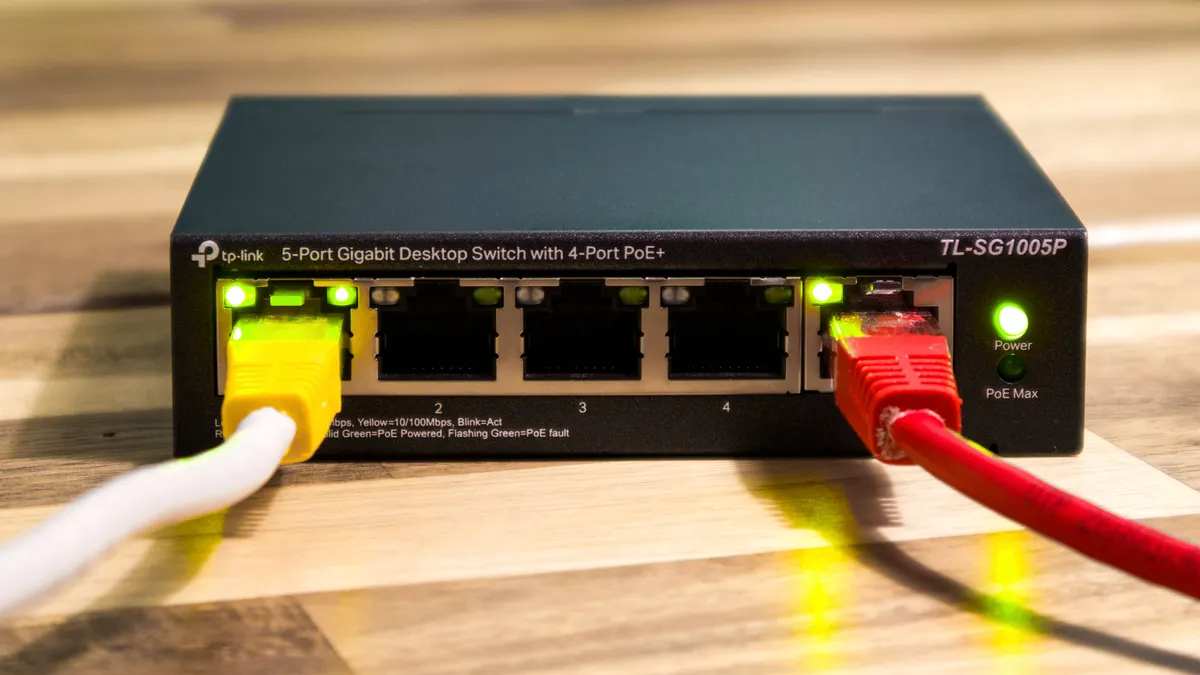
Check the network name on both devices first. The names must match exactly, including any guest network suffix. If the printer is wired by Ethernet, confirm that the computer is not connected to a separate guest Wi‑Fi network that cannot see wired devices. Many routers also separate traffic between 2.4 GHz and 5 GHz in ways that break discovery even when internet access works.
The router matters because printer discovery often relies on local traffic, not cloud sign-ins. A router reboot, a new DHCP lease, or a changed IP address can move the printer to a different number the computer no longer knows. That is why a printer can still print from an old saved queue on one machine but refuse to appear on a fresh search.
Use this order:
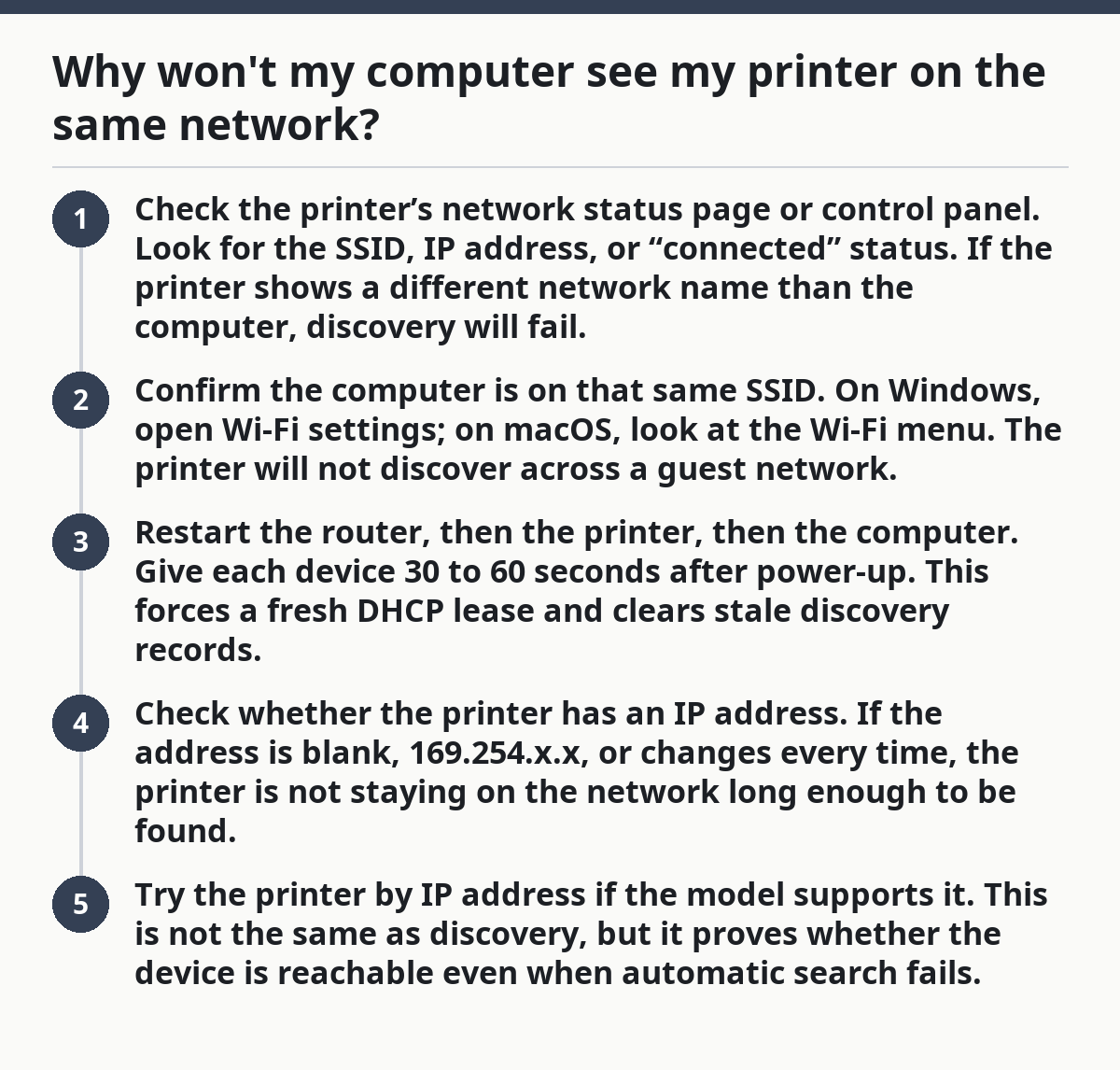
- Check the printer’s network status page or control panel. Look for the SSID, IP address, or “connected” status. If the printer shows a different network name than the computer, discovery will fail.
- Confirm the computer is on that same SSID. On Windows, open Wi‑Fi settings; on macOS, look at the Wi‑Fi menu. The printer will not discover across a guest network.
- Restart the router, then the printer, then the computer. Give each device 30 to 60 seconds after power-up. This forces a fresh DHCP lease and clears stale discovery records.
- Check whether the printer has an IP address. If the address is blank, 169.254.x.x, or changes every time, the printer is not staying on the network long enough to be found.
- Try the printer by IP address if the model supports it. This is not the same as discovery, but it proves whether the device is reachable even when automatic search fails.
Do not assume the router is “fine” because the web works. Local discovery is more fragile than internet browsing.
Why can’t Windows or macOS find the printer?

Windows or macOS may miss the printer because the operating system is searching through the wrong discovery method, the printer driver is missing, or the system is not allowed to use local discovery services. The fix depends on which path the printer uses, not on the printer’s brand.
On Windows, printer discovery often depends on the Print Spooler service, network discovery settings, and a correct printer driver. If the driver is absent or too generic, Windows may show nothing useful even when the printer is visible on the network. On macOS, discovery often relies on Bonjour, Apple’s service discovery system. If Bonjour is not responding, a network printer can stay invisible in the add-printer window.
The printer driver deserves special attention because it is not just a name in a list. It tells the computer which features the printer supports, which language it speaks, and sometimes how it announces itself on the network. A wrong driver can make a printer look absent, or make it appear only as a generic device without the right model name.
Here is the cleanest way to sort out the computer side:
- Open the printer settings panel. On Windows, go to the Printers & scanners area. On macOS, open Printers & Scanners in System Settings.
- Look for the printer by exact model name. If you only see a generic entry or nothing at all, the driver may not be installed correctly.
- Remove stale printer entries. Old queues can confuse the search result and point the computer at an offline destination.
- Install the correct printer driver from the manufacturer. Use the exact model family, not a close match. A driver for an OfficeJet, LaserJet, or EcoTank line is not interchangeable just because the machine prints.
- Restart the print subsystem. On Windows, that means the Print Spooler; on macOS, a restart is often enough if Bonjour is the issue.
- Search again after the restart. Give the computer about a minute to rebuild the discovery list.
If you are on a managed work network, a policy can also hide printers from search. That is not a home-user problem to solve by guessing; it is a sign the machine is being filtered by admin rules.
How do I tell whether Bonjour, printer sharing, or firewall settings are blocking discovery?
Bonjour, printer sharing, and firewall settings can block discovery even when the printer is powered on and the network is working. These three controls decide whether your computer is allowed to hear the printer announce itself.
Bonjour matters on macOS and on many cross-platform printers because it advertises the device on the local network without manual setup. If Bonjour is disabled, the printer can still exist on the network but remain invisible to automatic search. Some Windows systems can also rely on Bonjour if the printer software installed it as part of the driver package.
Printer sharing creates a different path. Instead of the printer talking directly to every computer, one computer shares it to the network. If that host computer sleeps, disconnects from Wi‑Fi, or has sharing turned off, every other machine stops seeing the printer. This is common in small offices and older home setups.
Firewall settings are the quiet blocker. A firewall can allow internet access while blocking local discovery traffic. That means web pages load, email syncs, and the printer still cannot be found. On Windows, the issue may be in the allowed-app list or network profile. On macOS, it may be a firewall rule that blocks incoming connections or discovery services.
Use this simple test sequence:
- If the printer is shared from another computer, check that host first. It must stay awake, stay on the same network, and keep sharing turned on.
- If the printer is meant to be direct on the network, check Bonjour or the manufacturer discovery tool. If the tool cannot find the printer, the announcement service may be blocked.
- Temporarily disable the firewall for a brief test, then turn it back on. If the printer appears while the firewall is off, the rule set needs adjustment, not a new printer.
- Make sure the printer software is allowed through the firewall on a private network. Public-network rules are often stricter and can hide local devices.
Do not leave a firewall open longer than needed just to “see what happens.” The right fix is to allow the printer traffic you need and keep the rest blocked.
Why does a USB printer disappear when the cable is fine?
A USB printer can disappear because the cable is good but the computer is no longer reading the connection correctly. USB discovery depends on the port, the cable, the printer driver, and the operating system noticing the device again after a reset.
The easiest mistake is assuming any USB cable will do. Some low-quality or worn cables only carry power well enough to light the printer but do not carry stable data. A printer may wake up, then vanish from the computer list because the USB link drops during enumeration. The same thing can happen if the cable is longer than needed, bent sharply, or plugged into a weak hub.
A direct connection is better than a hub when troubleshooting. Plug the printer into the computer itself, not into a docking station or USB hub, and give it 10 to 20 seconds to show up. If the printer has multiple USB ports or a front and rear connection option, use the port the manufacturer expects for data, not a charging port or accessory port.
If the printer disappears after a sleep cycle, the issue may be power management. Some computers turn off USB ports to save energy, and some printers do not reconnect cleanly afterward. In that case, the printer may come back only after both devices are restarted or after the USB controller is reset.
Check these items in order:
- Try a different USB cable. Use a short, known-good cable, ideally the one specified for the model if the printer uses a USB-B connection.
- Change the USB port on the computer. A direct rear port on a desktop is often more reliable than a front-panel port.
- Remove the printer from the system and add it again. That clears a stale USB device entry.
- Disable USB selective suspend or similar power-saving settings if the printer vanishes after idle time. This is a common reason the printer seems fine one hour and missing the next.
- Watch for the printer’s connection sound or light. If the printer never reacts, the problem is hardware or power; if it reacts but is not listed, the driver or OS is the issue.
This path is not the same as network discovery. A USB printer can be completely healthy and still never appear on the Wi‑Fi search screen.
What is the fastest way to narrow it down without guessing?
The quickest reliable way to narrow it down is to separate network, driver, and cable problems with a 5-minute decision tree. That keeps you from reinstalling software when the real fault is a guest Wi‑Fi network or a loose USB cable.
Start with the simplest proof: can the printer be found by another device on the same network? If yes, the printer is likely fine and the problem sits on the computer that cannot see it. If no, the printer, router, or shared-host path is the likely failure.
Then use the following order:
- Pick the connection type. Decide whether this is Wi‑Fi/Ethernet, USB, or printer sharing. One wrong assumption wastes the whole fix.
- Check the same network. If it is networked, confirm both devices are on the same SSID and not on guest Wi‑Fi.
- Check the driver. Make sure the exact printer model driver exists on the computer.
- Check Bonjour or printer sharing. On macOS, Bonjour is often essential; on shared setups, the host computer must be awake.
- Check the firewall. If discovery fails on an otherwise healthy network, local traffic may be blocked.
- Check USB only if the printer is cabled. Swap the cable and port before you spend time on software.
A good rule: if the printer can print from one device but not another, stop blaming the printer first. The missing link is usually the device that cannot discover it, not the printer hardware itself. If you need the broader map of how printer discovery behaves across devices and connection types, the hub on printer connectivity and device discovery is the right follow-on read.
Why does the printer show up on one device but not another?
That usually means the printer is fine and the missing device has a local problem. The difference is often a driver, Bonjour, firewall rule, or saved network profile. A Mac may find a printer by Bonjour while a Windows PC with an old driver never sees it.
What should I check first if the printer is missing?
Check the network name first, then the connection type. If the printer is on Wi‑Fi, make sure both devices are on the same SSID, not guest Wi‑Fi. If it is USB, try a different cable and port before touching the software.
Can firewall settings hide a printer?
Yes, a firewall can block local discovery while leaving internet access untouched. That is especially common on private vs. public network profiles or with printer software that is not allowed through the firewall. If the printer appears when the firewall is off, the rule set needs adjusting rather than replacing the printer.
Drafted with AI; not yet reviewed by a person.