Last updated: November 18, 2026
Key Takeaways
- Printer alignment sets the print head or cartridge position so color and text land where the printer expects.
- You need the printer utility, plain paper, and a printer that is already connected and ready to print.
- You align a printer by opening the printer utility, choosing the alignment option, printing the alignment page, and then confirming or scanning the page back in.
- The alignment page helps the printer learn where the print head should fire.
Printer alignment fixes small but obvious errors that make text look doubled, colors shift, or lines miss each other. How to align a printer usually starts in the printer utility, where you run the alignment page or automatic alignment tool and save the result if the printer asks for it. HP, Epson, Brother, and Canon all document alignment in their support materials for their own utilities.
What printer alignment actually fixes
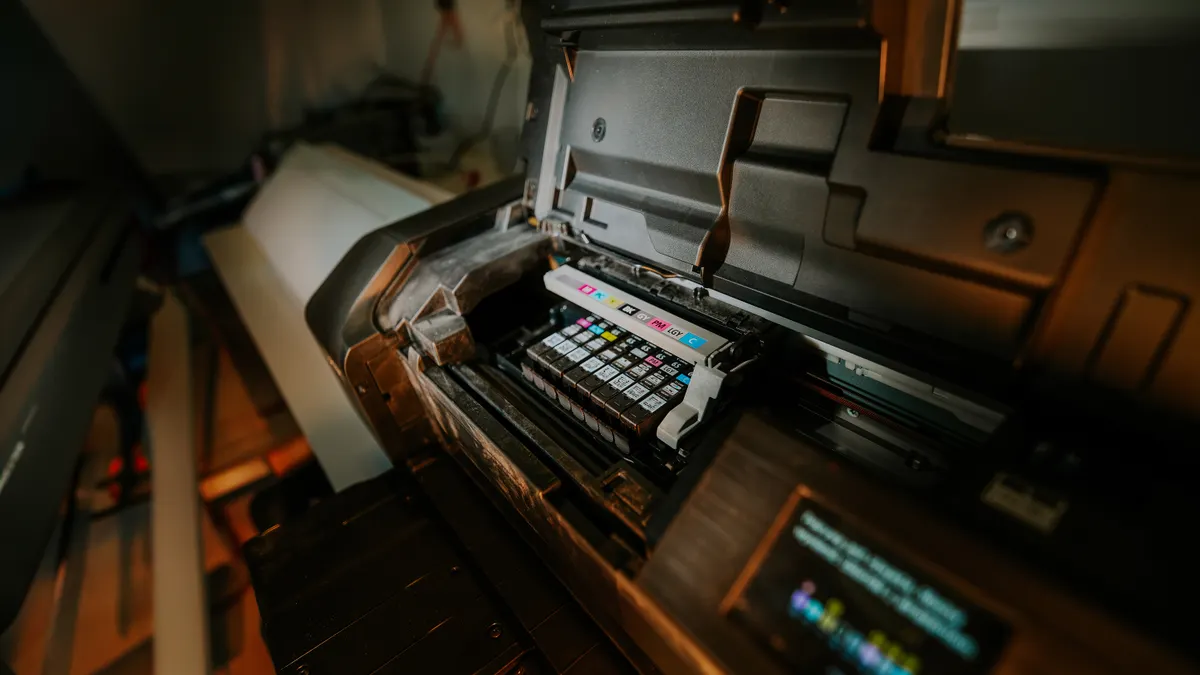
Printer alignment corrects the position of the print head or cartridge so each color lands where the printer expects it to land. On an inkjet printer, the result is usually sharper text, cleaner borders, and fewer color fringes on the same 8.5 x 11 inch page. On some laser printer models, alignment is part of a different maintenance routine and may be handled inside the printer utility rather than by a separate alignment page.
The need for alignment usually shows up after a new cartridge, after the printer has been moved, or when print quality starts to look slightly off even though the machine still prints. A crooked line, a faint shadow beside a letter, or a thin white gap in a grid can be enough reason to run it. This is a maintenance task, not a fix for every print problem. If the printer is completely unresponsive, alignment is the wrong first step.
Alignment is also different from cleaning. A cleaning cycle clears clogged nozzles; alignment adjusts where the printer places ink or toner. Many people do both from the same maintenance utility, but they solve different problems. A page that prints cleanly but looks offset often needs alignment, not a deeper repair. For broader upkeep, the hub on printer maintenance and consumables belongs next to this topic.
What you need before you start
You need the printer utility, plain paper, and a printer that is already connected and ready to print. Most manufacturers hide alignment under a Maintenance, Tools, or Printer Services tab in the utility, and the printer usually prints an alignment page on one sheet of plain white paper. A clean stack of 20 to 25 sheets nearby helps the tray feed properly.
Have the printer’s paper size set correctly before you begin. If the utility expects Letter and the tray is set to A4, the alignment page may print with shifted edges or may not scan back correctly. If the printer uses ink cartridges, make sure the cartridges are seated firmly. A slightly loose cartridge can make alignment fail even when the printer appears to work.
If your printer has a flatbed scanner glass, clean that glass before you run a scan-based alignment. Dust, fingerprints, or one strip of toner dust can make the printer read the alignment page incorrectly. Use a lint-free cloth and a little glass cleaner on the cloth, not directly on the glass. Let it dry before you place the page.
For some printers, alignment works only from the computer utility and not from the device panel. For others, the panel starts the process but the utility finishes it. If you are unsure, look for a menu named Printer Maintenance, Print Quality, or Tools in the printer software installed on the computer.
How do you align a printer from the printer utility?
You align a printer by opening the printer utility, choosing the alignment option, printing the alignment page, and then confirming or scanning the page back in. That is the standard process on most inkjet printers and many all-in-one models.
-
Open the printer utility on the computer that controls the printer.
Look for the printer name in the system settings, then choose Maintenance, Tools, or Printer Services. When it works, you will see options such as Align Print Head, Align Printer, or Print Alignment Page. -
Start the alignment command.
Most utilities show a button or menu item with a label close to “Align,” “Printer Alignment,” or “Print Head Alignment.” When you click it, the printer should warm up and feed one sheet of paper. -
Load plain paper if the utility asks for it.
Use one clean sheet unless the printer manual asks for more. The alignment page should print with blocks, bars, or numbered patterns rather than a normal document. -
Follow the matching step the utility gives you.
Some printers ask you to place the printed page on the scanner glass and press Scan. Others ask you to choose the best-looking pattern from a list on screen. If the process works, the utility will confirm that alignment data has been saved. -
Save or apply the settings if the printer asks.
Some models do not store the new alignment automatically. If there is a Save, Apply, or Finish button, click it. A printer that finishes the page but never saves the result may still print off-center the next time. -
Print a short test page.
Use a text document, a border test, or the printer’s own test page. The print should look even, and straight lines should sit where they belong without a doubled edge. If the result improved but is still not clean, run alignment one more time before you assume the printer is broken.
If the printer utility offers both automatic and manual alignment, start with automatic. Manual alignment takes longer and asks you to compare patterns by eye, but it can help when the printer’s sensor struggles with the page. One useful caution: alignment can drift again after rough shipping, cartridge replacement, or months of light use, so the same printer may need the same task more than once.
Why does the alignment page matter?
The alignment page matters because the printer reads that page to learn where the print head should fire. On inkjet models, it often contains a row of patterns or bars that the scanner glass or internal sensor checks against expected positions. If the page is bent, smeared, or printed on the wrong size paper, the printer can save the wrong adjustment.
This is why paper handling matters during alignment. A curled edge, a damp sheet, or a page with a fingerprint near the target blocks can throw off the reading. Plain paper works best because coated paper can reflect light badly during scanning. If the utility asks for a specific paper size, use that size instead of improvising with a trimmed sheet.
A generic article often skips the fact that some alignment pages are not meant to be judged by the human eye alone. On many printers, the page is only a measurement tool for the scanner or print mechanism. That means the “ugly-looking” page is not a failed print job. It is a diagnostic sheet. The real result is the settings the printer stores afterward.
Alignment pages also tell you something about the printer’s health. If the pattern comes out heavily skewed, incomplete, or washed out every time, the issue may be more than alignment. At that point, cartridge seating, dirty scanner glass, or a failing print head becomes a more likely cause than the alignment routine itself. A printer utility can only correct so much.
For vendor-specific guidance, the printer manufacturer’s support pages are usually the most reliable source. HP, Epson, Brother, and Canon all document alignment in their own printer utilities, and their wording differs enough that the exact buttons can change from one model to another. Adobe also notes that printer driver and utility choices can affect how print settings are applied.
What to check if alignment does not improve print quality
Alignment is worth repeating once, but not endlessly. If the second run looks the same as the first, the problem is usually not just position. That is the point where you check the cartridge seating, the scanner glass, and the maintenance utility’s other tools.
First, reseat the ink cartridge or toner cartridge. Open the access door, remove the cartridge, and reinstall it until it clicks into place. A cartridge that is not locked in can shift a fraction of a millimeter, which is enough to ruin the alignment result. On a laser printer, also confirm that the toner cartridge and imaging components are seated the way the manual shows.
Second, clean the scanner glass if your printer scans the alignment page. Even a small mark can make the printer misread the page. Clean the full glass, not just the center strip, because some all-in-one printers read from a wider area than people expect. If there is a white backing strip or lid liner, wipe that too.
Third, run the printer utility’s other maintenance tools before you repeat alignment again. A print head cleaning or nozzle check may be listed next to alignment in the same menu. If the nozzle check shows gaps, alignment alone will not fix the page because ink is missing, not merely misplaced.
Fourth, confirm that the printer driver matches the model installed. A driver for a closely related model can expose the wrong utility options or send the alignment page through the wrong path. If the printer is a multifunction unit, make sure the scanner portion is also recognized. A utility that cannot see the scanner cannot complete a scan-based alignment.
The trade-off here is simple: repeated alignment can help a slightly off printer, but it cannot rescue a clogged or misconfigured one. If the print quality still looks wrong after a clean alignment page, the next step is diagnosis, not more alignment.
Is printer alignment different on a laser printer?
Printer alignment is usually handled differently on a laser printer because toner placement and paper feed calibration matter more than ink nozzle position. Many laser printer models do not use an ink-style print head alignment page at all. Instead, they offer registration, calibration, or image position settings inside the printer utility.
On a laser printer, the thing to watch is whether text is shifted left, right, up, or down on the page, or whether front and back printing on duplex jobs is not lined up. The utility may offer image registration or paper calibration rather than “align printer.” That is normal. The machine is adjusting toner placement, not an ink cartridge array.
Do not assume every misprint on a laser printer needs the same fix as an inkjet. A streak, smear, or repeating mark can point to the drum, fuser, or toner path, not alignment. If the printer utility offers a calibration page, use that first. If it offers separate settings for tray registration and duplex registration, use the one that matches the problem.
A laser printer often benefits from a simple reboot and a fresh utility calibration after it has been moved or after a tray has been changed. Still, the same caution applies: alignment is a precision adjustment, not a cure-all. If the printed page is consistently light, patchy, or dirty, consult the printer manufacturer’s support pages or a professional technician; the machine may need a different maintenance step.
When should I align a printer?
You should align a printer when text looks offset, borders print with shadows, or a new cartridge changes the look of the page. It also makes sense after moving the printer, after a cartridge change, or when the printer utility suggests it during maintenance. A one-time alignment usually takes only a few minutes.
Does alignment use a lot of ink?
No, alignment usually uses only a small amount of ink compared with a full cleaning cycle. The printer may print one or a few alignment pages, and those pages use ink in a controlled pattern. If you repeat alignment many times, the usage adds up, so it is better to check cartridge seating and scanner glass before running it again.
Why does the alignment page fail?
The alignment page fails when the printer cannot read the page cleanly or cannot save the new setting. Common causes include dirty scanner glass, the wrong paper size, a loose cartridge, or a mismatch between the printer driver and the device model. If the page keeps failing after one clean retry, the issue is probably not alignment alone.
Can I align a printer from the control panel instead of the computer?
Sometimes, but the printer utility is the more reliable place to start. Many printers let you begin alignment from the device panel and finish it in software, while others keep the full process in the utility only. If both are available, use the printer utility first because it usually gives clearer prompts and saves the result more reliably.
Drafted with AI; not yet reviewed by a person.