Last updated: November 19, 2026
Key Takeaways
- Pair the Bluetooth printer first, then print from the phone or tablet menu.
- Use a compatible phone or tablet, a supported printer, and Bluetooth on both devices.
- Open the file, choose the printer, and send the job from the share or print menu.
- Pairing mode is what lets your smartphone discover the printer; without it, the list may stay empty.
Quick Answer
How to print to a printer over Bluetooth: put the Bluetooth printer in pairing mode, connect it from your phone or tablet, then open the file and print. In most cases, the setup takes 3 steps: pair, open, print.
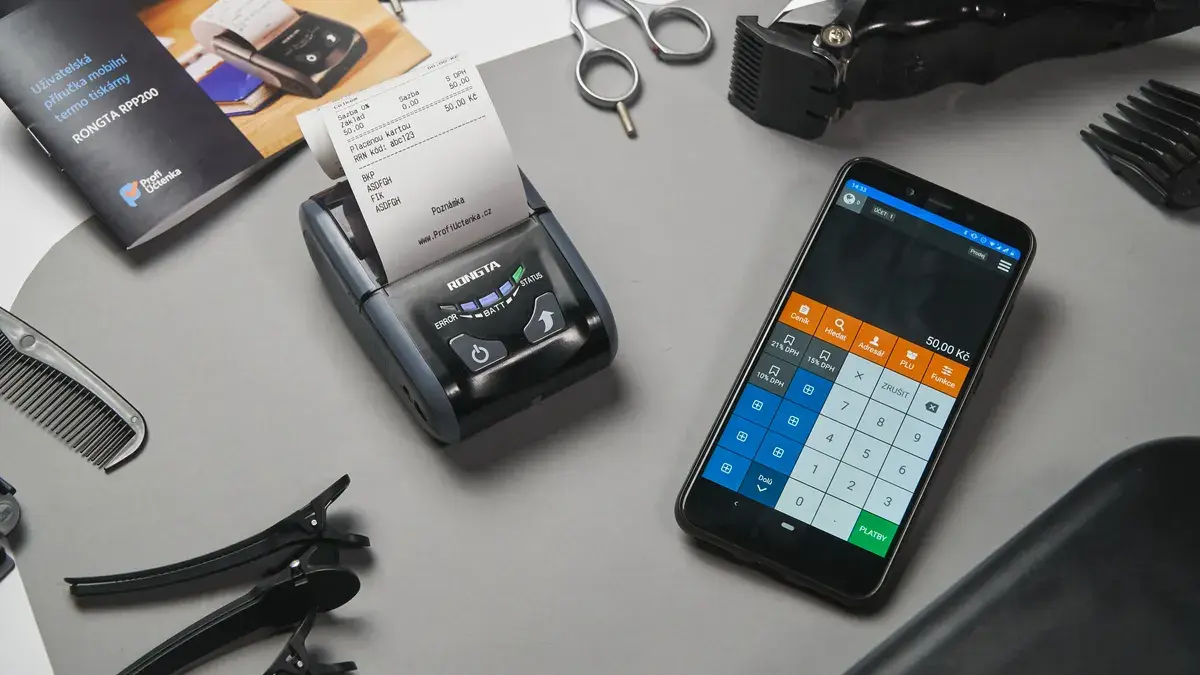
Bluetooth printing works when your phone or tablet pairs with a Bluetooth printer, then sends the file from the print menu.
The fix is usually pairing mode, permissions, and the right printer choice.
How to print to a printer over Bluetooth starts with the printer, not the app. The steps below settle what to tap, what to expect, and where Bluetooth printing stops working.
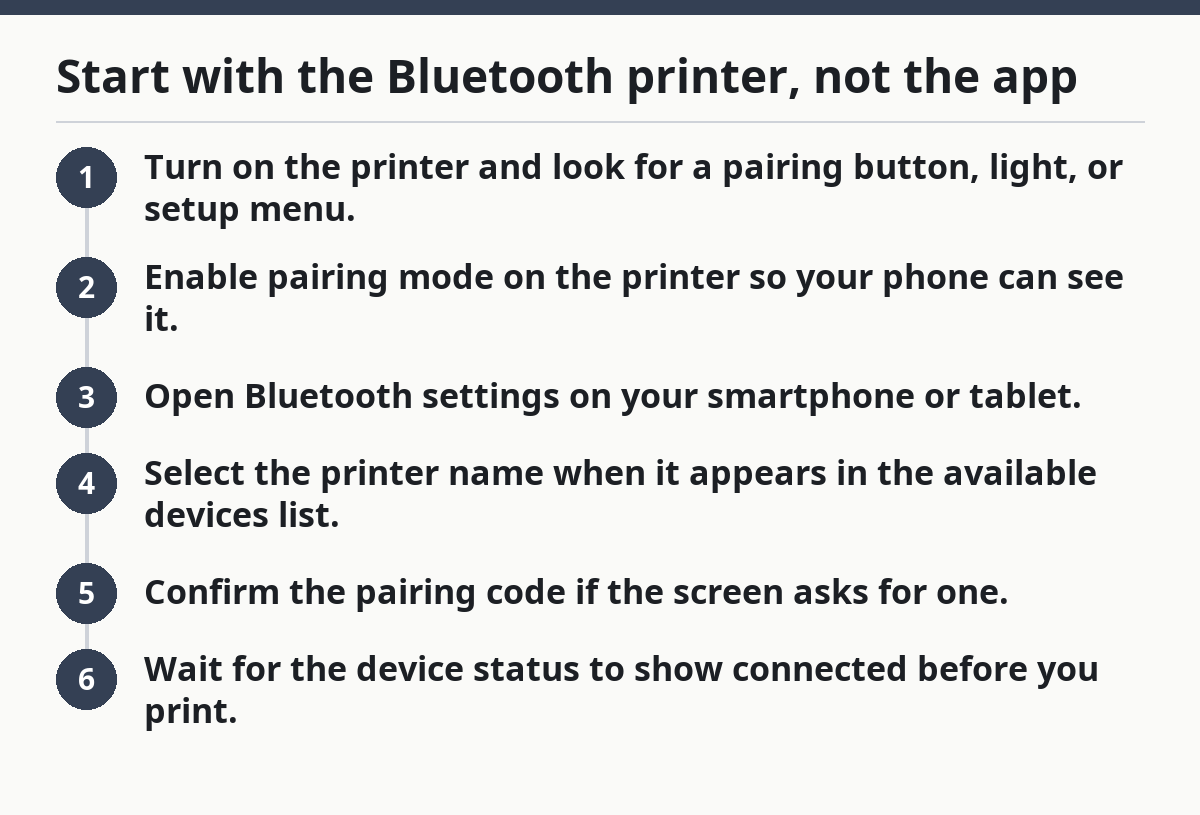
Start with the Bluetooth printer, not the app
Picture this: you have a file open on your smartphone, the printer is nearby, and nothing shows up in the print list. How to print to a printer over Bluetooth usually starts by putting the Bluetooth printer into pairing mode first, then connecting from the phone or tablet settings before you open the document.
- Turn on the printer and look for a pairing button, light, or setup menu.
- Enable pairing mode on the printer so your phone can see it.
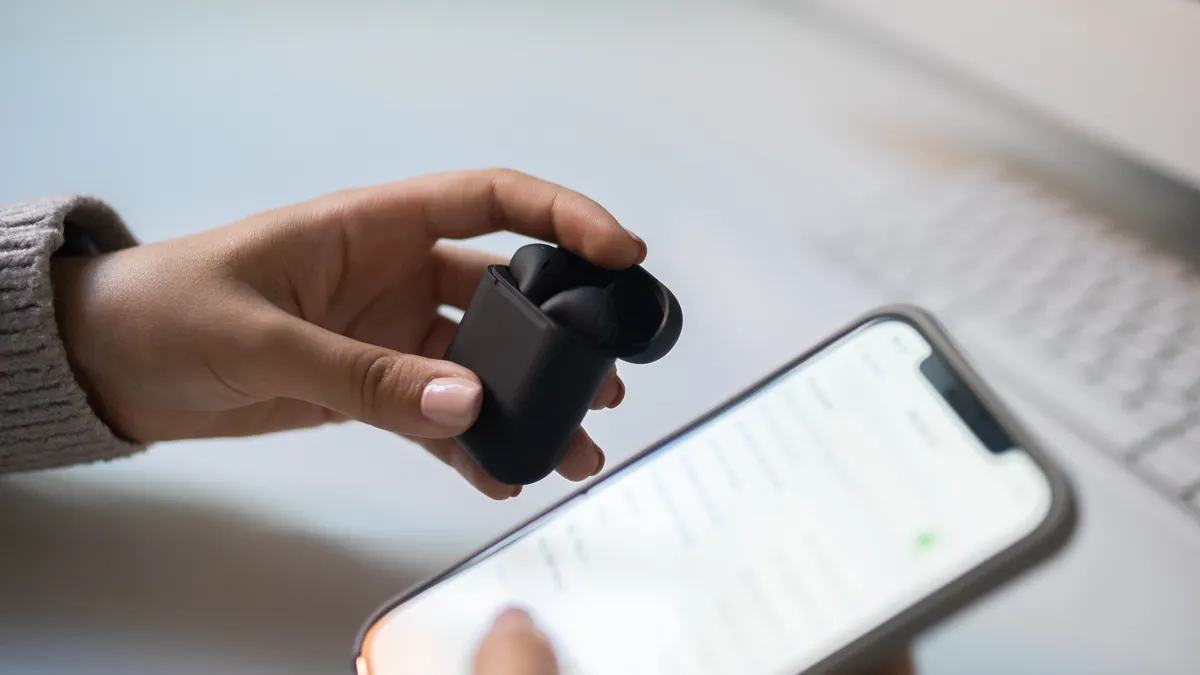
- Open Bluetooth settings on your smartphone or tablet.
- Select the printer name when it appears in the available devices list.
- Confirm the pairing code if the screen asks for one.
- Wait for the device status to show connected before you print.
The catch is that some printers only accept Bluetooth through a companion app, while others appear as a system device in the settings panel. If the printer never shows up, the model may not support direct mobile printing over Bluetooth at all. That is where the manual matters. So does the model number.
What you need before you tap Print
You need a compatible phone or tablet, a supported printer, and Bluetooth turned on for both devices. A lot of failed print jobs come from skipping one of those three pieces, not from a bad document.
Use this quick check before you waste time:
- Phone or tablet: iPhone, Android device, or another mobile device with Bluetooth turned on
- Printer support: a Bluetooth printer or a model that lists Bluetooth printing in the manual
- Range: stay within the usual Bluetooth range, often about 10 meters in open space
- Permissions: allow nearby device access, Bluetooth access, or printing access if your system asks
Here’s the part many guides skip: some printers support Bluetooth for setup only, not for actual document transfer. Others support it through a vendor app, but not from the system print sheet. That difference decides everything. It also explains why a printer can pair and still refuse to print.
For compatibility checks, the printer maker’s support page and the Bluetooth Special Interest Group are useful references. The Bluetooth SIG’s site explains Bluetooth device behavior, and Apple Support and Google support pages cover device permission prompts on mobile systems. See also wireless printing setup and access control for broader device-permission steps.
How to print to a printer over Bluetooth
How to print to a printer over Bluetooth works best when you pair first, then open the file, then choose the printer from the share or print menu. The order matters because most phones will not list the device until the Bluetooth link is active.
- Pair the printer in Bluetooth settings and wait for the connection status.
- Open the document in your notes app, photo app, PDF reader, or email app.
- Tap Share or Print to open the system print menu.
- Choose the Bluetooth printer from the printer list or destination menu.
- Set copies, pages, or paper size if the app gives those options.
- Tap Print and wait for the job to send.
- Check the printer display or light to confirm the job started.
Now, you might be wondering why the print menu sometimes shows no printer at all. The answer is usually one of three things: the printer is out of range, the pair has dropped, or the app does not support Bluetooth printing from inside the document. Reconnect the Bluetooth printer if the list is empty. Restart the app if the system menu is stuck.
One more detail: some mobile apps send only images or PDFs cleanly over Bluetooth. Text-heavy documents may look different if the app rasterizes them before sending. That is normal for many mobile printing stacks, not a sign that your file is broken.
Why pairing mode matters more than the document
Pairing mode is the gate that lets your smartphone find the printer, and without it the device list often stays empty. If the printer is asleep or already paired to another phone, your own device may never see it.
Use these checks when pairing fails:
- Power cycle the printer if the status light is frozen
- Clear old pairings on the printer if it remembers too many devices
- Forget the printer on your phone, then pair again
- Move within a few feet during setup, then back away after it connects
- Check for app-only setup if the printer does not appear in system Bluetooth
The trade-off with Bluetooth is simple. It’s convenient for one-to-one printing, but it is less forgiving than Wi‑Fi when a printer lives across a room or shares a space with other users. Bluetooth range is often about 10 meters, so distance matters.
That is why Bluetooth printing fits a bedside printer, a travel setup, or a small office corner better than a shared department machine. It is not the right fit for a place where five people need to send jobs all day.
What if the printer pairs but still won’t print?
A paired device can still refuse a job if permissions, range, or file type are wrong. That is the most frustrating part, because the connection looks fine while the print queue goes nowhere.
Use this checklist when you hit that wall:
- Open phone permissions and allow Bluetooth or nearby device access
- Keep the devices close and remove obstacles like thick walls or metal cases
- Close other printer apps that may have grabbed the connection
- Try a plain PDF or photo instead of a complex file
- Restart both devices if the printer name shows but the job hangs
The most common mistake is assuming pairing equals printing. It does not. Pairing only creates a trusted link; the app still has to send the job in a format the printer accepts. If your phone asks for location, nearby device, or Bluetooth access, grant it. On many mobile systems, those permissions control device discovery.
A second mistake is expecting Bluetooth to behave like a network printer. It usually does not. Range is shorter, discovery is pickier, and multiple users can get in each other’s way. If you need constant shared access, the better tool is usually a network-based printer setup handled elsewhere in this wireless printing guide.
Bluetooth printing on a smartphone or tablet
How to print to a printer over Bluetooth on a smartphone or tablet is usually the easiest path, because the pairing menu and print sheet are already built into the device. The job starts from the app you are already using, not from a desktop driver panel.
Typical mobile flow:
- On iPhone or iPad: open the file, tap Share, then choose Print if the app offers it
- On Android: open the file, tap the menu or share icon, then choose Print
- Choose the paired printer from the destination list
- Adjust basic settings like copies or page range
- Send the job and keep the screen awake until the transfer starts
On mobile devices, the biggest trap is assuming every app exposes the same print button. Some apps hide printing under Share. Some do not support it for every file type. A photo app may print easily, while a messaging app may only let you export first. That is not a Bluetooth problem by itself; it is an app limitation.
For a detailed setup path around wireless access control and device permissions, the hub on wireless printing setup and access control is the right place to go next. This page stays focused on Bluetooth-only and Bluetooth-assisted printing.
Common Bluetooth printing mistakes that waste time
Bluetooth printing fails most often because the setup is half done, not because the printer is broken. The fix is usually small, but only if you catch the real cause.
The usual mistakes are these:
- Skipping pairing mode on the printer, so the phone never finds it
- Using the wrong printer model, especially one with no Bluetooth print support
- Leaving old pairings active on another phone or tablet
- Ignoring permissions when the phone asks for nearby device access
- Trying to print from too far away, especially through walls or floors
Here’s the catch: a printer can support Bluetooth and still not support the kind of printing you want. Some models use Bluetooth for setup, labels, or a vendor app, not for general document printing from every app on the phone. That is why model-level compatibility matters more than the Bluetooth logo on the box.
If you are choosing between two devices, read the support page for the exact model number, not the family name. One line in the manual can save an hour of guessing.
When Bluetooth is the right tool, and when it is not
Bluetooth is the right tool when you want short-range, one-device-at-a-time printing from a smartphone or tablet. It is the wrong tool when the printer sits across a large room, when several people need access, or when you want the same job available from multiple devices without re-pairing.
Use Bluetooth when you need:
- A quick one-to-one link
- A travel setup
- A small space with one user
- A printer near the device
Skip Bluetooth when you need:
- Shared access for several people
- Longer range than a small room
- Easy switching between many devices
- A setup that behaves like a normal network printer
The truth is, Bluetooth printing is useful, but narrow. It solves a specific problem well: getting a nearby phone or tablet to talk to a nearby printer without a Wi‑Fi network in the middle. That makes it a practical backup, a portable option, and a clean fit for some mobile workflows. It is not the broadest printing method.
FAQ
Do printers use Bluetooth?
Some printers do, and some do not. Bluetooth support depends on the model, the year, and the intended use. A printer may support Bluetooth for pairing, setup, or mobile printing through an app, while another model may rely on Wi‑Fi or USB instead.
How do I pair my phone with a Bluetooth printer?
Turn on the printer, put it in pairing mode, then open Bluetooth settings on your phone and select the printer name. If the phone asks for a code, confirm it on both screens. After pairing, open your file and choose the printer from the print menu.
Is Bluetooth printing different from Wi‑Fi printing?
Yes, Bluetooth printing is usually shorter range and more direct, while Wi‑Fi printing is better for shared access and wider coverage. Bluetooth is often better for one phone or tablet near one printer. Wi‑Fi is usually better when several devices need to print without re-pairing.
Drafted with AI; not yet reviewed by a person.