Last updated: November 19, 2026
Quick Answer: in most cases, it takes 3 steps to print from Linux to a wireless printer: connect both devices to the same network, add the printer in Settings or CUPS, and print a test page. Linux can print to a wireless printer through CUPS, IPP, or your system print settings once the printer is on the same network and visible to your machine.
The route below shows how to find it, add it, and fix the usual failures without guesswork.
Key Takeaways
- Most Linux setups work best when the printer supports IPP or shows up in CUPS.
- Start with the built-in print settings before hunting for drivers.
- When auto-discovery fails, a manual IP address usually gets you moving faster.
- Linux printing issues are often network issues wearing a printer mask.
- A good setup saves time later when the printer sleeps, renames itself, or changes Wi‑Fi.
What Linux needs before it can print over Wi‑Fi
Picture this: you’re at your desk, the file is ready, and the wireless printer is already on the network, but Linux still acts like it does not exist. Usually, the fix is simple — the printer and the Linux machine need to share the same network, and CUPS needs a path to it.
Most desktop printing on Linux starts in one of three places: the Settings app, the CUPS web page, or an IPP address. IPP is the cleanest path when the printer supports it. Older machines may still need a manufacturer driver; newer ones often work with the built-in Linux driver. Nice when it clicks. Annoying when it does not.
Use this quick check before you add anything:
- Make sure the printer is powered on and joined to Wi‑Fi.
- Make sure your Linux device is on the same router, not guest Wi‑Fi.
- Find the printer’s IP address on its screen, label, or network report.
- If you use Ubuntu or another GNOME desktop, open Settings > Printers first.
For a broader setup path, the hub page on wireless printing setup and access control covers the network side. This page stays on the Linux path only.
How do I add a printer in Linux?
From Settings or CUPS, add the printer by choosing the discovered device or typing its IP address by hand. On Ubuntu, Fedora, Mint, and many other desktop systems, that is often the fastest route.
Start with the desktop menu if you want the shortest path. And if the printer does not appear there, jump to CUPS in a browser. CUPS still matters on Linux because it gives you a direct view of queues, drivers, and IPP connections.
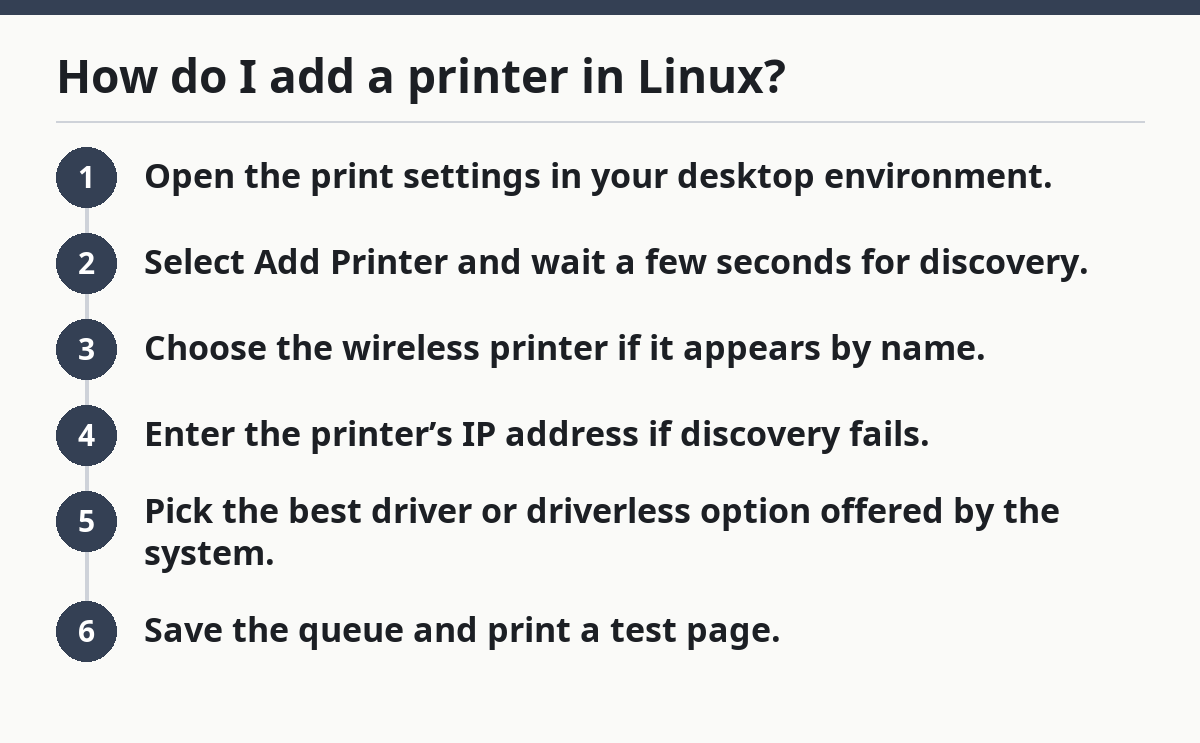
- Open the print settings in your desktop environment.
- Select Add Printer and wait a few seconds for discovery.
- Choose the wireless printer if it appears by name.
- Enter the printer’s IP address if discovery fails.
- Pick the best driver or driverless option offered by the system.
- Save the queue and print a test page.
If you land in CUPS, open http://localhost:631 in a browser and add the printer there. CUPS often shows the same device in a more direct way than the desktop panel.
Use these checks if the add screen stalls:
- Try
IPP Everywhereor another driverless option first. - If the printer is listed twice, pick the network entry, not a USB ghost.
- If the device asks for a queue name, use a short one like
office-laser.
Use CUPS when the desktop panel misses the printer
CUPS can add a wireless printer even when the Linux desktop misses it, because it talks to the print system directly. That helps with devices that advertise themselves through IPP but do not show up in the Settings app right away.
Open a browser and go to http://localhost:631. If the page loads, CUPS is running. If it does not, your print service may be missing or stopped. On many distributions, CUPS is the service that handles queues, filters, and jobs in the background.
Here’s the catch: CUPS is not a magic fix if the printer is off the network. It only helps once Linux can reach the device by name or IP. If you can ping the printer’s address, CUPS has a much better chance of adding it cleanly. Otherwise, it is like trying to mail a package with no street number.
Instead, follow this route:
- Click Administration.
- Choose Add Printer.
- Log in with your Linux user password if asked.
- Select the discovered wireless printer or the IPP option.
- Finish the queue setup and send a test page.
Two common mistakes show up here:
- Picking a USB-local entry when the printer is actually on Wi‑Fi.
- Choosing the wrong model from a long driver list when a generic IPP option would work better.
A clean CUPS queue usually beats a guessed driver.
What if Linux finds the printer but won’t print?
Linux usually fails to print because of the driver, the queue, or the network path, not because the file is broken. A job may sit there for 10 minutes, vanish, or print blank pages if the wrong PPD or filter is in play.
Check the queue first before you change the whole system. If the printer has an IP address like 192.168.1.45, open the printer’s page in the browser if it has one, or at least confirm that the address still belongs to that device. Many home routers reshuffle IPs after a restart.
Then try these fixes in order:
- Remove the queue and add it again with the printer’s current IP.
- Switch to a driverless IPP option if the device supports it.
- Install the printer driver from the distribution’s package manager if the model needs vendor support.
- Restart the CUPS service if the queue looks right but jobs never leave the spool.
One useful clue: if a test page fails but the printer’s control panel says it is online, the issue is usually Linux-side. If the printer cannot even show up in discovery, the network is more likely the problem.
A short list of symptoms helps narrow it down:
- Printer discovered, job stuck: queue or driver problem.
- Printer not discovered at all: network, IP, or broadcast issue.
- Pages print with odd symbols: wrong driver or language mode.
- Nothing happens after clicking Print: CUPS service or access issue.
Do I need special drivers to print from Linux?
Sometimes, but not always. Many wireless printers work with driverless printing, especially through IPP Everywhere or similar standards, so Linux can print without a vendor package.
Older models and some multifunction devices still need a printer driver. That usually happens with machines that predate driverless support or with brands that expose only part of their features through standard IPP. For plain black-and-white pages, a generic driver may be enough. Want duplexing, scanning, or tray control? A vendor package may do more.
On many current desktops, the system offers the right driver automatically when the printer is visible on the LAN. Convenient, yes; perfect, not always.
Use this rule of thumb:
- Try IPP Everywhere first.
- If that fails, check the distribution’s packages for your model.
- If the manufacturer has Linux support, use that before random downloads.
- If the model is very old, expect more manual setup.
Avoid grabbing a Windows driver and hoping it will help. It won’t. Linux needs Linux-compatible support files, not a copied .exe.
How to tell if network discovery is the real problem
Network discovery is the part that makes Linux “see” the wireless printer without typing an address, and it is often the part that fails first. When the printer only appears after a manual IP entry, the issue is usually discovery, not printing.
Discovery depends on the network announcing the device. That can fail on guest Wi‑Fi, on networks that block multicast, or when the printer sleeps too deeply. Some routers also isolate wireless clients from each other, which breaks auto-detection even when web browsing still works.
Here’s what to check:
- Confirm both devices are on the same subnet, such as
192.168.1.x. - Disable guest network mode for the Linux machine.
- Wake the printer before adding it.
- Reboot the router if discovery used to work and suddenly stopped.
A manual IP path is often the better move on Linux. It feels less automatic, but it is usually more stable than waiting for discovery to recover on its own.
If your router has a setting for client isolation, turn it off for the normal home network. That one setting can block discovery across every desktop in the house.
Keep the queue stable after the first successful print
A working wireless printer on Linux can stop working later if the IP address changes, the queue points to the wrong driver, or the printer name changes after a router reboot. Stability comes from fixing the address and keeping the setup simple.
Use a static or reserved IP if your router allows it. That keeps the printer on the same address, which makes CUPS and the desktop settings far less fragile. If you do not want to edit router settings, at least write the current IP down. That one number saves time later.
If the printer works today but not next week, check these in order:
- Is the printer still on the same Wi‑Fi network?
- Did the IP address change?
- Did the queue get recreated with a different driver?
- Is CUPS still running?
That is why a manual IP setup often outlasts auto-discovery. It gives Linux a fixed path instead of a guess.
Where to go next when Linux printing still feels messy
Linux printing gets much easier once the printer is reachable by IP and the queue uses the right driver or IPP path. The hardest part is usually not the print button; it is the first clean connection.
If you want the network side in one place, the hub page on wireless printing setup and access control is the next stop. This article stays on the Linux side of the job: finding the device, adding it in Settings or CUPS, and choosing the least painful print path.
How do I add a printer in Linux?
You add a printer in Linux through the desktop print settings or through CUPS in a browser. Start with discovery, then use the printer’s IP address if it does not appear automatically. If the device supports IPP Everywhere, choose that before trying a vendor driver.
Why won’t Linux find my network printer?
Linux usually cannot find a network printer because discovery is blocked, the printer is on a different network, or the device is asleep. Guest Wi‑Fi, router isolation, and changing IP addresses are common causes. A manual IP entry often works even when discovery fails.
Do I need special drivers to print from Linux?
Not always. Many modern wireless printers support driverless IPP printing, so Linux can print without a separate vendor driver. Older models may still need a Linux-compatible driver package, especially if you want full feature support or the printer is not advertising itself properly.
Drafted with AI; not yet reviewed by a person.