Last updated: November 19, 2026
Quick Answer: OCR scanning usually works best at 300 dpi with the correct language selected and a cleanup pass after the scan.
OCR scanning turns a paper page into editable text or a searchable PDF that you can copy, fix, and export.
The fastest practical route is scanner software with OCR turned on, the right language selected, and a cleanup pass after the scan.
The steps below settle how to get text recognition that actually saves time instead of creating a mess.
Key Takeaways
- OCR scanning turns a page image into text you can edit or search.
- Scan well, choose the right language, run OCR, and export to an editable format.
- Language, resolution, and file type matter most before OCR runs.
- Your export choice should match the next task; searchable PDF is not the same as editable text.
What OCR scanning has to do for you
OCR scanning gives you text you can edit, not just a picture of a page. That matters if you need to reuse a contract, clean up meeting notes, or search a batch of paper files later.
Picture this: you have a stack of printed pages, and you want the words inside them, not another image locked in a PDF. The job is to scan once, run OCR, and end with text you can copy into Word, Google Docs, or another editor.
A good result usually starts with a scanner software app that can save a searchable PDF or export plain text, DOCX, or RTF. If the software only saves images, OCR has not happened yet.
- Editable text: best when you plan to fix wording and reformat the page.
- Searchable PDF: best when you want to keep the page layout but still search the words.
- Export formats: useful when you need the text in a document editor or CMS.
For background on the wider capture process, the hub on scan quality, file handling, and capture workflow is the right next stop. See also the guide on scan quality, file handling, and capture workflow.
How do I turn a scan into editable text?
You turn a scan into editable text by scanning at decent quality, running OCR, choosing the correct language, and exporting the result into a text-friendly format. The software does the reading; you do the setup.
Picture this: you have a 6-page form, and the text recognition software keeps missing names, dates, and line breaks. The fix is not magic. It is the right scan settings, the right OCR language, and a cleanup pass in a text editor.
-
Open scanner software and choose the OCR scan mode.
Pick a mode that mentions text recognition, searchable PDF, or “scan to text.” If the app has a separate OCR button, use that instead of plain scan. -
Set the document language before scanning.
Choose the language that matches the page, such as English or Spanish. OCR engines get worse when the language is wrong. -
Scan at a readable resolution.
A standard document scan at 300 dpi is usually the practical baseline for printed text. The result should look sharp enough that the letters are clean and not fuzzy. -
Save to a searchable PDF or text export.
Use searchable PDF if you want the page image plus hidden text. Use DOCX, TXT, or RTF if you want the words editable right away. -
Open the file and clean up OCR errors.
Check names, numbers, headers, and bullets first. Those are the spots OCR gets wrong most often. -
Re-export the cleaned file in the format you need.
Keep a clean editable copy and, if needed, a searchable PDF for filing.
Here’s the catch: OCR is not reading like a person. It is pattern matching, and that means a blurred scan, curved page, or cramped font will produce junk in the places you care about most.
- Save one master file before editing.
- Keep the original scan if the OCR output goes sideways.
- Review line breaks, because OCR often inserts odd ones.
- Check numbers twice, because “8” and “0” are easy to confuse.
What settings matter most before OCR runs?
Language, resolution, and file type matter most before OCR runs. Those three choices decide whether the software has a clean page to read or a noisy image to guess from.
Picture this: you scan the same sheet twice, once as a low-detail image and once with the right OCR settings. The second version is the one that usually gives you usable text. The first version often forces you into manual repair.
Most scanner software gives you a few levers that matter more than the rest:
- Language selection: match the page language exactly when you can.
- 300 dpi: a practical standard for printed pages.
- Black-and-white or grayscale: often better for text than full color, unless the page has marks you need to preserve.
- Searchable PDF: useful when layout matters.
- DOCX or TXT: useful when you need editing speed.
A searchable PDF keeps the look of the page, but the text layer may not be clean to edit. A DOCX export is easier to change, but the layout can shift if the page had columns, tables, or odd spacing.
If your OCR tool offers language packs or recognition profiles, use them. A German page scanned with English OCR will often produce real words in the wrong places, which is more annoying than obvious gibberish.
- Use the exact page language.
- Prefer 300 dpi for text.
- Pick grayscale when the page is mostly words.
- Use color only when marks, highlights, or stamps matter.
Which file format should I export?
The right export format depends on what you need to do next, and searchable PDF is not the same thing as editable text. One keeps the page image; the other gives you text you can work with directly.
Picture this: you finished OCR, and now you need to email the file, archive it, or paste the words into another system. If you choose the wrong export format, you will spend another half hour fixing something that should have been easy.
Use the format that fits the task:
| Format | Best use | Strength | Weak point |
|---|---|---|---|
| Searchable PDF | Archiving and sharing | Keeps the page image and adds hidden text | Harder to clean up paragraph flow |
| DOCX | Editing in Word or similar apps | Easy to revise | Layout can drift |
| TXT | Plain text extraction | Fast and simple | Loses formatting |
| RTF | Light editing across apps | More flexible than TXT | Not ideal for complex layouts |
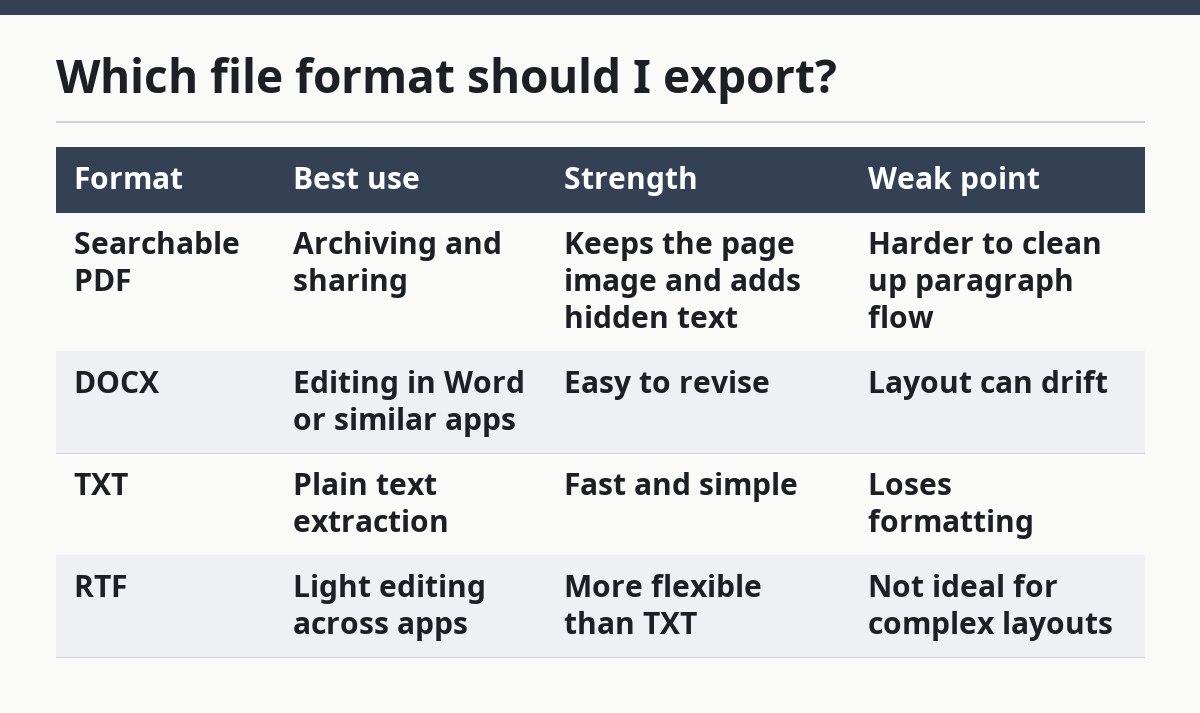
You do not need one perfect file for everything. Many people keep a searchable PDF for records and a DOCX or TXT file for editing.
A generic article often skips this point and leaves readers with a file they cannot use. That is why OCR “success” sometimes still feels broken: the words are there, but the format is wrong for the job.
- Choose PDF when the page layout matters.
- Choose DOCX when the text needs rewrites.
- Choose TXT when you only need raw words.
- Keep the original scan if you may need to re-run OCR later.
Why does OCR make mistakes?
OCR makes mistakes because the page image is messy, the font is odd, or the language setting does not match the document. It also struggles with tables, stamps, handwriting, and low-contrast copies.
Picture this: you scan a receipt, a memo, or a typed form and find one wrong digit can change the meaning. OCR is good at clean print, but it is not a proofreader. If the source page is weak, the output will be weak too.
Common trouble spots include:
- Blurry text from a page that moved during scanning.
- Shadowed edges from book spines or curled paper.
- Fancy fonts that look decorative to you and confusing to OCR.
- Tables and columns that break reading order.
- Handwriting, which many OCR tools handle poorly or not at all.
Now, you might be wondering whether a better scanner fixes everything. It helps, but the bigger win is a cleaner original page. Flatten the sheet, remove folds, and avoid dark backgrounds that create contrast problems.
Use these cleanup habits before and after OCR:
- Rescan the page if the letters are fuzzy.
- Crop out the scanner bed edges.
- Straighten the page so lines run horizontal.
- Check the OCR text against the original, especially for names and numbers.
- Fix paragraph breaks and bullet lists by hand.
A good OCR result is usually the one with the fewest surprises, not the fanciest software label.
Can OCR read handwritten notes?
OCR can sometimes read neat handwriting, but it is not reliable for most handwritten notes. Printed text is the safe target; handwriting is the hard case.
Picture this: you want to digitize a notebook page or a signed form. The software may catch a few words, but it often misses whole lines, substitutes the wrong letters, or turns one word into several guesses.
That is why handwriting is a poor fit for standard OCR scanning. Some text recognition software has handwriting modes, and some cloud tools are better than older desktop apps, but even then the output needs manual correction.
Use a different approach when handwriting matters:
- Scan the page for storage.
- Export a searchable PDF only if the print and handwriting are mixed.
- Type the notes manually if the text must be exact.
- Keep the original image for reference.
This is where many people waste time. They expect OCR to behave like transcription software. It does not. If the note is short, typing it may be faster than cleaning a broken OCR result.
One more practical point: if a page mixes print and handwriting, OCR may handle the printed part well and still fail on the handwritten part. That partial success can be misleading.
How do I get better OCR accuracy without starting over?
You get better OCR accuracy by fixing the source image first, then rerunning text recognition with the right language and format. That is usually faster than editing a bad export line by line.
Picture this: you already have a scan, but the OCR output is full of errors in a 2-column report or a memo with small type. The right move is not to wrestle with every typo at once. Improve the input, then run OCR again.
Start with the parts that matter most:
- Re-scan at 300 dpi if the text is small or fuzzy.
- Switch to grayscale if color adds noise.
- Pick the exact language of the page.
- Straighten skew so the lines are level.
- Avoid JPEG-heavy workflows when the software can keep a cleaner scan source.
If the software offers advanced text recognition settings, look for options tied to deskewing, page orientation, and column detection. Those settings can change whether the OCR reads a magazine-style page in the right order.
The truth is, OCR cleanup is part of the job. Even strong scanner software will miss accents, punctuation, or footnotes on a bad scan. The goal is a text file that needs only light repair.
For the wider workflow around capture, storage, and file handling, the hub article on scan quality, file handling, and capture workflow fills in the next layer. See also the guides on scan quality, file handling, and capture workflow.
- Fix the scan before the text.
- Rerun OCR after changing language or resolution.
- Keep a copy of the original image.
- Correct the most important errors first.
What is OCR in scanning?
OCR in scanning is text recognition that converts a scanned page image into machine-readable text. It can make a file searchable, editable, or both. Without OCR, a scan is usually just a picture of paper.
How do I turn a scan into editable text?
You turn a scan into editable text by using scanner software with OCR, selecting the correct language, scanning at a readable resolution such as 300 dpi, and exporting to DOCX, TXT, or another text-friendly format. Then you review the output and fix the errors that OCR missed.
Can OCR read handwritten notes?
OCR can read some neat handwriting, but it usually struggles with real-world notes. Printed text gives much better results, so handwritten pages often need manual typing or heavy cleanup. If the handwriting is mixed with print, OCR may still help with the printed parts.
Drafted with AI; not yet reviewed by a person.