Last updated: November 19, 2026
Quick Answer: In 3 steps, most printer setup and connectivity problems can be narrowed down to the connection type, the network path, and the queue. Printer setup and connectivity: The Complete Guide starts with the connection that matches the job, not the one with the most features. If the printer is on the same Wi‑Fi network, a wireless setup is usually simplest; if it sits beside one desk, USB is often the least trouble; if it serves a whole office, Ethernet or managed Wi‑Fi is the safer choice.
Key takeaways
- Pick the connection first: USB, Wi‑Fi, or Ethernet each solves a different problem.
- A printer that will not show up is usually a network, driver, or queue issue, not a dead machine.
- Wi‑Fi setup fails most often when the printer and computer are on different bands, different SSIDs, or an overcomplicated router.
- USB is often the quickest path for one computer, but it does not help a shared workspace.
- Ethernet is the cleanest answer when a printer stays in one place and several people need it.
- If the queue is stuck, clear the print spooler or delete the job queue before you keep clicking Print again.
What actually determines the right setup?
The right setup depends on where the printer sits, how many people use it, and what kind of network is already in place. If the printer is for one laptop in one room, a USB cable is the shortest path. If the printer has to be visible to multiple devices, then Wi‑Fi or Ethernet matters more than the printer brand.
Consult a professional or the maker’s setup guide if the printer will be shared in a business or mixed-device environment, because printer classes and network policies differ more than they look. Microsoft and Apple both document printer discovery and driver behavior as separate setup paths, which is one reason a single answer does not fit every model or office: Microsoft printer support and Apple printer setup. The biggest mistake is treating all printers the same, so if the printer serves more than one user, consult the manufacturer or an IT professional before you standardize the setup.
A quick way to decide is to ask three questions before you touch any button: does the printer need to move, does it need to be shared, and does the network allow new devices? If the answer to the first two is “no,” a direct USB setup is hard to beat. If the answer to the third is “not sure,” network setup may need help from whoever manages the router. For a home printer, that can mean a 10-minute check; for an office printer, it can mean a managed change window.
| Situation | Best Path | Why Other Options Fail |
|---|---|---|
| One computer, printer beside the desk | USB | Wi‑Fi adds setup steps you do not need, and Ethernet is extra hardware for no gain |
| Several devices in one home | Wi‑Fi | USB ties the printer to one machine; Ethernet can work but may be unnecessary if Wi‑Fi is stable |
| Small office with fixed desks | Ethernet | Wi‑Fi can be crowded, and USB does not share well |
| Printer moves between rooms | Wi‑Fi | Ethernet and USB both limit placement |
| Guest users must print often | Network sharing or print server | Direct USB setup is too tied to one computer |
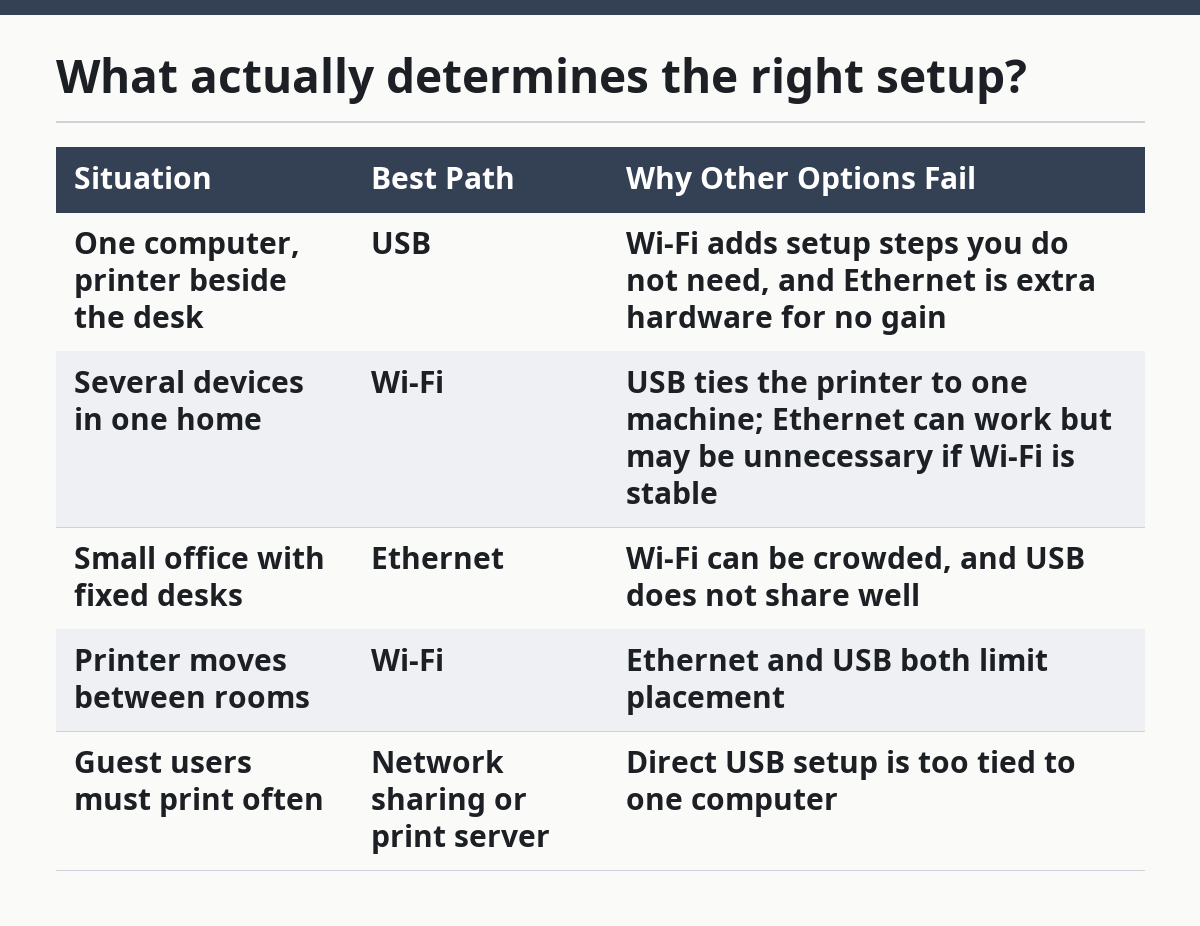
For step-by-step setup, the path changes by connection type:
- Identify the printer’s connection ports and labels. Look for USB-B, Ethernet, Wi‑Fi, or Wi‑Fi Direct support in the manual or on the back panel.
- Decide whether the printer should be local or shared. Local means one device sends jobs directly; shared means the printer must be visible to more than one device.
- Check the computer’s operating system and the printer model. Windows 11, macOS, and mobile systems often handle discovery differently.
- Confirm the network details if you plan to use wireless. Match the printer to the correct SSID and password, not just “the Wi‑Fi that works.”
- Install the correct driver or print app if the system does not find the printer on its own. The maker’s support page is often the safest starting point, though office-managed devices may need a different source.
- Print a test page before you move on. That one page tells you if the printer, driver, cable, and queue are all behaving.
Quick check: if you only need one printer for one nearby computer, USB is usually enough; if the printer must live on the network, keep reading with the Wi‑Fi or Ethernet path in mind.
Should you use USB, Wi‑Fi, or Ethernet?
USB is best when the printer stays close to one computer, Wi‑Fi is best when the printer must be shared without cables, and Ethernet is best when you want steady network access in one fixed spot. The “best” option changes when the printer is being used by more than one person or when the Wi‑Fi signal is weak.
USB setup is usually the least confusing. Plug the cable in, wait for the system to detect the printer, and install the driver if needed. The drawback is obvious: one cable usually means one main computer, and that can become a bottleneck in a house with multiple people or in a small office with shared printing.
Wi‑Fi is convenient, but it asks more of the network. The printer must join the right network, stay within range, and survive router changes. If the printer vanishes after a router reboot, the issue is often not the printer at all; it is the network path it depends on. A printer on Wi‑Fi also needs a stable name or IP address if you want repeatable results in a busy setup.
Ethernet is the least flashy and often the most dependable. A printer connected by Ethernet gets a direct line into the local network, which cuts down on discovery problems. The trade-off is that the printer must sit near a network jack or switch, and the cable becomes part of the room plan. For offices that print often, that trade-off is usually worth it.
Here is the practical choice rule: if you are setting up a printer for the first time and do not need sharing, start with USB. If you need room-to-room printing without moving the device, use Wi‑Fi. If the printer belongs in one place and must be reliable for multiple users, choose Ethernet.
Microsoft’s printer setup guidance for Windows and Apple’s printer guide for Mac both assume that the printer can be added by discovery or by driver install, which is why connection choice matters so much before you begin. If the computer and printer are set up for different connection styles, discovery often fails even though nothing is “broken.” For Microsoft’s own guidance, see Add a printer in Windows and Apple’s Add a printer on Mac.
Quick check: if your printer keeps moving or the room has no network jack, Wi‑Fi is the likely fit; if it never moves and the network is crowded, Ethernet is the safer pick.
How do you set up a printer on Wi‑Fi?
Wi‑Fi setup works when the printer joins the same network as the computer and keeps that connection after the first install. If the printer is not appearing, the most common fix is not a new driver; it is a network match problem.
Start with the printer in setup mode. Many models use a menu on the screen, a Wi‑Fi button, or a temporary wireless setup app from the manufacturer. If the printer has a display, use it to choose the correct SSID and enter the password carefully. If it has no screen, the setup process may depend on a phone app, a temporary USB connection, or WPS if the router and printer both support it.
WPS is simple when it works, but it is not ideal for every home or office. Some routers disable it, some printers hide the option, and some networks are better off with full manual setup. Manual setup takes longer, but it gives you more control over the network name and password, which matters when the printer must be found later by several devices.
After the printer joins Wi‑Fi, add it on the computer or phone. If the device still does not find it, check the basics in this order: same network name, same band rules, correct password, and no guest-network restriction. A printer on a guest SSID may print for the setup phone but stay invisible to a work laptop on the main network.
For a stable Wi‑Fi setup, use these steps:
- Place the printer close to the router for the first setup, even if it will move later. A short path can reduce the chance of signal drop during configuration.
- Use the printer’s screen or setup app to choose the exact Wi‑Fi network name. If there are multiple similar names, confirm the SSID before you continue.
- Enter the password carefully. A single wrong character can make the printer look dead when it is only locked out.
- Print or display the network status page if the printer offers one. That page often shows whether the printer got an IP address.
- Add the printer on the computer only after the printer shows it is connected to Wi‑Fi.
- Print a test page from the computer, not just from the printer’s own menu, so you know the full path works.
A hidden trap is band confusion. Many routers offer more than one band, and the printer may work better on one than another. If setup keeps failing, do not keep retrying blindly. Try the network name the router actually uses for the main band your devices share.
Quick check: if the printer joins Wi‑Fi but disappears later, the network is probably unstable or the printer was added to the wrong SSID.
What if the printer is connected but will not print?
A connected printer that will not print is usually blocked by the queue, the driver, or the default printer setting. If the computer sees the device but every job sits there, the fault is often in the software path, not in the hardware.
The print queue is the first place to look. A stuck job can hold up every file behind it, even if the printer is on and online. Clear the queue, cancel the stuck job, and then try a simple one-page test. If the printer still refuses, check whether the device is paused or set offline. In Windows, that status can be easy to miss; on macOS, a paused queue can also hide the real problem.
Drivers matter too. If a printer was added with a generic driver, some features may fail or the printer may not respond at all. This is common after a system update, a router change, or a move from USB to Wi‑Fi. Install the maker’s current driver or print utility if the default one does not behave.
The default printer setting can also cause confusion. If the operating system keeps sending jobs to a different printer, the right printer may be online while the wrong one gets the job. That looks like a connection problem, but it is really a destination problem.
Use this repair order:
- Cancel every job in the queue.
- Restart the printer and the computer.
- Check that the printer is not paused, offline, or set to “Use Printer Offline.”
- Confirm the correct printer is selected as the default.
- Update or reinstall the printer driver from the manufacturer’s support page.
- Send a plain test page before trying a large PDF or photo file.
If the printer worked yesterday and stopped today, a queue issue is more likely than a dead printer. If it never worked after setup, the connection path is the better place to inspect first. Either way, do not keep sending the same job over and over. That only fills the queue again.
Quick check: if the printer shows online but nothing comes out, you are likely dealing with queue, driver, or default-printer trouble.
When is Ethernet better than Wi‑Fi?
Ethernet is better than Wi‑Fi when the printer stays in one place, more than one person uses it, or the wireless network is already busy. If the printer is tucked into an office, copy room, or shared desk area, Ethernet removes a lot of guesswork.
The main benefit is steadier discovery. Network printers over Ethernet are often easier for operating systems to find because the device stays tied to the local network in a simple way. That matters when a print queue needs to be cleared, when users come and go, or when the router has a habit of changing wireless details.
The downside is practical, not technical. You need a cable path and a place to plug in. If the printer is on a cart, in a corner, or far from the router, Ethernet may be awkward. For home setups, that can make Wi‑Fi the more realistic answer even if Ethernet would be cleaner on paper.
Ethernet also helps when you want to assign a stable network identity. Many office printers work best when the IP address does not change every time the router restarts. That can reduce the “printer unavailable” problem that happens after updates or power outages. A static or reserved address is not mandatory for every home, but in shared spaces it can save a lot of repeat setup.
Use Ethernet if these are true:
- The printer will not move.
- More than one person prints to it.
- Wi‑Fi drops in the room.
- The office already has network drops.
- You want fewer discovery problems after reboots.
Use Wi‑Fi instead if the printer must live far from the network gear or needs to move around the room. If the printer is for one desk and one person, either path can work, but Ethernet is usually the quieter choice when reliability matters more than convenience.
Quick check: if the printer lives in the same spot all year and other people need to find it quickly, Ethernet is probably the better fit.
Why does a printer show up on one device and not another?
A printer shows up on one device and not another when the devices are not actually looking at the same printer path. The issue is often network mismatch, driver mismatch, or one device using a different discovery method.
A phone, a laptop, and a desktop do not always find printers the same way. One may see a printer through AirPrint, Mopria, or built-in discovery, while another needs a full driver package. That is why a printer can appear on one machine and stay invisible on another even though both are on the same table. The two devices may be using different print stacks.
Network mismatches are just as common. One device may be on the main Wi‑Fi network, another on a guest network, and a third on Ethernet. If the printer is on the guest side, the main network device may never find it. If the printer is on Wi‑Fi Direct, it may be visible only while the other device joins that temporary network.
Operating system support matters too. Windows, macOS, ChromeOS, iPhone, and Android each have their own print behavior. A printer that installs cleanly on one system may need extra steps on another. This is why “it works on my laptop” is not a useful end point.
A good fix order is:
- Check that both devices are on the same network name.
- Confirm the printer is on the same network, not a guest or direct-connect mode.
- Install the correct driver or companion app on the device that cannot see it.
- Remove old printer entries that point to stale IP addresses or old names.
- Re-add the printer from scratch after the network is confirmed.
- Test with a short document before trying a long PDF or photo file.
If a printer appears on a phone but not a PC, the PC often needs a driver or port refresh. If it appears on a PC but not a phone, the phone may need the printer’s supported print service or a network reset. The fix depends on which device is the odd one out.
Quick check: if one device can print and another cannot, stop blaming the printer first and check network path plus driver support instead.
What are the edge cases that break the normal advice?
These cases break normal advice because the printer is not acting like a simple home device. If you are in one of these situations, the standard “just add the printer” advice wastes time.
-
The printer has no screen and no WPS button.
What changes: you cannot complete setup from the printer alone. What to do instead: use the maker’s setup app, temporary USB setup, or the included setup guide. A no-screen printer often needs a phone or computer to finish Wi‑Fi pairing. -
The printer is on a guest network.
What changes: other devices may not see it even though it has internet access. What to do instead: move the printer to the main network or put the printing device on the same guest network during setup. Guest isolation is common on many routers. -
The printer worked after setup, then failed after a router change.
What changes: the printer may still be fine, but the network name, password, or IP address changed. What to do instead: reconnect the printer to the new network, then remove and re-add it on every device that lost contact. -
The printer is shared through one always-on computer.
What changes: the host computer becomes part of the printing path. What to do instead: keep that computer awake, check sharing settings, and clear its queue if jobs stall. If that computer sleeps often, the shared setup will feel unreliable. -
The printer keeps asking for the wrong driver.
What changes: the system may be pulling a generic driver or a leftover entry from an older install. What to do instead: remove the old printer entry, install the current driver from the manufacturer, and reconnect from scratch. -
The printer is near the router but still drops off Wi‑Fi.
What changes: the problem may be router settings, not distance. What to do instead: check band choice, security settings, and whether the printer supports the router’s current wireless mode. Sometimes a different band solves what distance never could.
These are the places where a normal setup guide runs out of steam. The printer is not just “not cooperating”; it is caught in a setup path that no longer matches the network or the device stack.
Quick check: if your issue started after a router change, a move to a guest network, or a shared-computer setup, you are in edge-case territory.
What should you do first if you just want the printer working today?
You should start with the simplest connection that matches the job, then add complexity only if the printer needs to be shared. If the goal is “print one document today,” USB is the fastest route for a single nearby computer. If the goal is “everyone can print without moving cables,” Wi‑Fi or Ethernet is worth the extra setup time.
A short practical path helps. Plug in the printer, power it on, and look for the connection type it actually supports. If it is USB-only, connect it directly and install the driver. If it is wireless, connect it to the correct SSID, then add it to the computer after the printer confirms the link. If it is networked by Ethernet, make sure the cable is live and then find the device through the system’s printer add screen.
If the printer is for a shared room, do not start by reinstalling everything at once. That creates new problems before the old ones are clear. The most useful order is physical connection first, network next, driver third, and queue last. That order fits both home use and light office use, and it keeps you from chasing the wrong layer.
If you are blocked by a queue, clear it before you change the connection. If you are blocked by discovery, check the network before you reinstall the driver. If you are blocked by multiple devices, confirm they are all looking at the same printer path. Those three checks solve more problems than a full reset does.
For official setup guidance, see Apple’s printer setup guide for Mac and Microsoft’s printer help for Windows. Those pages are useful when you already know which connection type you are using and want the operating system steps to match it. For more device-specific guidance, use the printer maker’s support page for the model you own.
Quick check: if you only have time for one pass, fix the physical connection first and the queue second.
FAQ
Why does my printer not show up on Wi‑Fi?
Your printer usually does not show up on Wi‑Fi because it is on the wrong network, the password was entered incorrectly, or the computer and printer are on different sides of the router setup. Check the printer’s network status first, then confirm both devices are on the same SSID. If the router uses a guest network or separate bands, that can block discovery.
Should I use USB or wireless for a home printer?
USB is better if one computer sits next to the printer and you want the fewest setup steps. Wireless is better if more than one device needs to print without moving cables. If the printer will stay in one room and serve several devices, wireless is usually the better fit.
Why does the printer say it is connected but still not print?
That usually points to the queue, the driver, or the default printer setting. Clear the queue, restart the printer, and make sure the correct printer is selected before you send another job. If the problem started after a system update, reinstalling the driver is often the next move.
Is Ethernet really better than Wi‑Fi for printers?
Ethernet is better when the printer stays put and several people use it. It gives the printer a more stable network path and often reduces discovery problems. Wi‑Fi is still fine for a home printer that needs flexibility, but Ethernet is usually the calmer option in offices and shared spaces.
Why does the printer work on my phone but not my laptop?
Your phone and laptop may be using different print methods, different drivers, or different networks. The printer may also be visible only to one device because the other is on a guest network or still tied to an old printer entry. Recheck the network first, then remove and re-add the printer on the laptop.
Drafted with AI; not yet reviewed by a person.