Last updated: November 06, 2026
Key Takeaways
- Choose the printer connection type by location and sharing needs.
- USB usually means one printer, one device, and a direct cable.
- Ethernet puts a printer on a wired network for shared access.
- Wi‑Fi and direct wireless both print without a cable, but they work differently.
Printer connection types are the ways a printer talks to your computer, phone, or network. The main ones are USB, Ethernet, Wi‑Fi, Bluetooth, and direct wireless, and each one changes how the printer is set up, shared, and used day to day. Quick answer: most homes need Wi‑Fi, and one-user setups often work best with USB.
Which printer connection type should I choose?
The right printer connection type depends on where the printer lives and who needs to use it. If one desk uses one printer, USB is the simplest. If several computers need the same printer in an office, Ethernet is often the cleanest choice. If phones and laptops need quick access without a cable, Wi‑Fi or direct wireless matters more than a wired port.
A useful way to think about it is this: USB is a point-to-point cable link, Ethernet ties the printer into a local network, Wi‑Fi puts it on a wireless network, Bluetooth pairs it over short range, and direct wireless creates a printer-to-device link without joining your home router. That last one is often confused with Wi‑Fi, but they are not the same thing.
For most homes, the decision comes down to two questions. Does the printer stay in one place? How many devices need to print? A single desktop PC and an all-in-one printer near it usually do fine with USB. A family with laptops, phones, and tablets usually wants Wi‑Fi. A small office with a static printer in a shared room should look hard at Ethernet, because it is easier to keep stable when 5, 10, or 20 devices are printing at once.
The wrong choice costs time later. A USB-only printer is annoying if the cable has to reach across a room. A Wi‑Fi-only setup can frustrate you if the signal is weak or the router changes. Bluetooth is convenient for quick mobile jobs, but it is not a substitute for a real office connection. Direct wireless is useful for temporary or guest printing, but it may not be the best fit for a house full of devices.
If the printer will sit on a shelf, serve more than one person, and print often, I would rule out Bluetooth first. If the printer will live next to one computer and rarely move, I would rule out the more complicated network setup.
USB printing: the simplest one-cable setup
USB printing is a direct cable connection between one printer and one device, usually over a USB-A to USB-B cable or USB-C on newer hardware. It is the most familiar printer connection type because it needs the fewest moving parts.
Here is how it works in practice: the computer sees the printer as a local device, the operating system sends the print job over the USB cable, and the printer responds without needing the router at all. That makes USB a good match for a home office, a classroom desk, or a single-user setup where the printer does not need to be shared across a network.
A basic USB setup usually goes like this:
- Plug the printer into power and turn it on. You should see the display light up or a status light come on.
- Connect the USB cable from the printer to the computer. A standard USB 2.0 cable is common on older devices, while some newer printers use USB-C.
- Wait for the operating system to detect the printer. The device should appear in the printer list after the driver loads.
- Print a test page or a small document. You are checking that the cable link, driver, and print queue all work together.
- If the printer is not detected, try a different USB port or cable before changing settings. A bad cable is often the simplest failure point.
USB has a few real trade-offs. It is stable, but it is tied to distance and physical placement. It is hard to share across several devices unless one computer acts as the host. It is also not the best choice if you want to print from a phone without extra software or a special sharing setup. That makes USB a poor fit for a kitchen printer, a family room printer, or anywhere a cable run becomes awkward.
Where USB still wins is simplicity. If a printer only needs to serve one nearby computer, USB removes network setup from the equation and keeps the setup path short.
Ethernet printing: the networked choice for shared printers
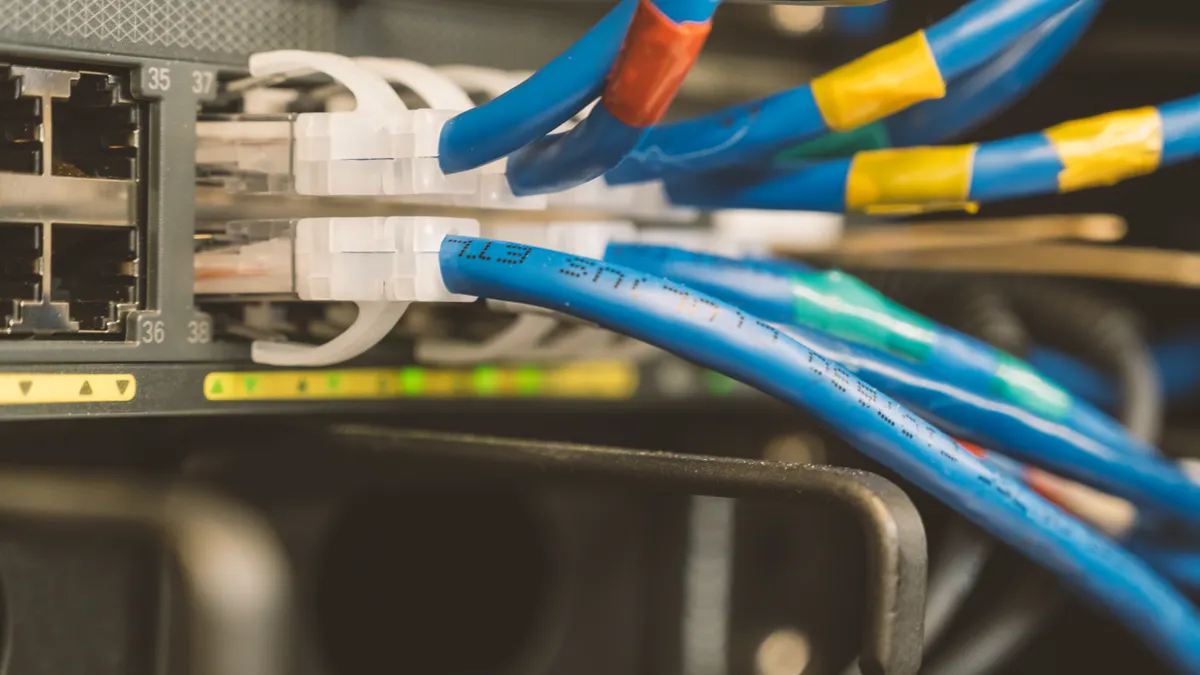
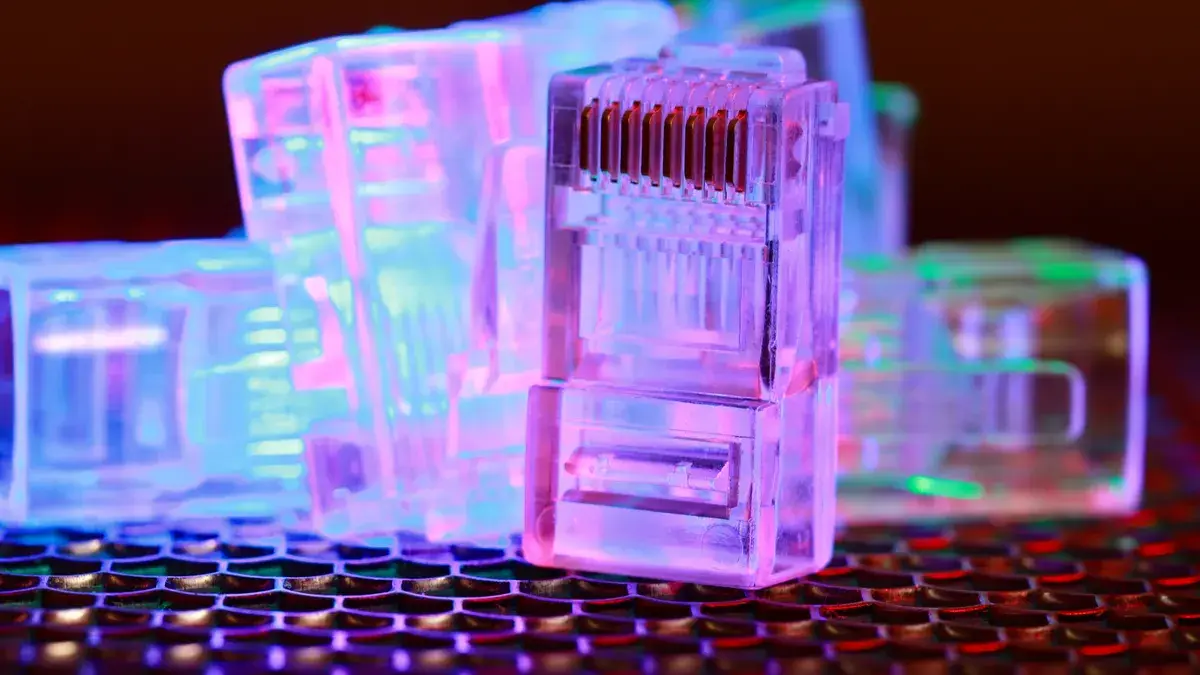
Ethernet printing is a wired network connection that plugs the printer into a router, switch, or office network with an Ethernet cable, usually an RJ45 connector. It is the printer connection type most people choose when they want a printer to stay put and stay available.
The printer gets its own place on the local network, usually through DHCP from the router or a manually assigned IP address. Once it is on the network, any authorized computer on that same network can send jobs to it. That is why Ethernet shows up so often in offices, schools, and other places where 5, 10, or 20 devices may all print to the same machine.
The main advantage is consistency. A wired network link does not depend on radio signal strength, and it does not care whether a laptop is a few rooms away. It also avoids some of the confusion that comes with wireless printer discovery, especially when a network has multiple access points or guest access rules.
The drawback is obvious: you need a cable and a network port near the printer. If the printer sits far from the router, you may need a longer run, a wall port, or a small switch. Ethernet also does not help if the device you want to print from is not on the same network segment or if the network is poorly managed. That is why Ethernet is great for a fixed office setup and less useful for a printer that keeps moving between rooms.
A common mistake is treating Ethernet as if it were just “a better USB.” It is not. USB binds one printer to one machine. Ethernet makes the printer a network device, which changes how people find it, how it gets an address, and how shared access works. If the goal is a stable shared printer, that difference matters. If the network design is unusual, consult an IT professional and check the printer manual before you assume Ethernet will behave like a cable extension.
For readers who want a technical reference on the physical layer and connector standard, the Ethernet Alliance is a useful starting point, and the same goes for IEEE 802.3 documentation on Ethernet networks.
How Wi‑Fi printing and direct wireless differ
Wi‑Fi printing sends jobs over your wireless network, while direct wireless creates a direct device-to-printer link without using the home router in the usual way. The two are easy to confuse because both feel wireless, but they solve different problems.
Wi‑Fi printing joins the printer to your existing network. Once connected, the printer behaves like another network device, just like a laptop or smart TV. That means phones, tablets, and computers on the same Wi‑Fi can usually see it. It is a common option for homes where the printer needs to serve multiple devices without a cable.
Direct wireless is different. It creates a printer-hosted wireless connection that a device can join temporarily. A phone can connect straight to the printer to send a job, even if there is no router nearby. That makes it handy for guest printing, pop-up setups, or places where a network is not available. It is also the reason many people see the phrase “Wi‑Fi Direct” in printer menus; that is a direct link, not a normal network join.
The trade-off is that direct wireless often behaves like a temporary bridge, not a full-time network home. A device may have to switch connections to use it, and that can interrupt internet access while the phone is linked to the printer. Wi‑Fi printing avoids that because the printer lives on the network all the time.
If you are choosing between them, ask which problem matters more. For everyday household printing from several devices, Wi‑Fi printing is usually the better fit. For quick, no-router printing from a phone or guest device, direct wireless is often enough. I would not choose direct wireless as the only connection for a printer that needs to serve a whole household every day.
The distinction is important because a lot of printer manuals mix the terms loosely. A “wireless” printer may mean Wi‑Fi, Wi‑Fi Direct, or both. Read the label carefully before you assume the printer will join your network the way a laptop does.
Bluetooth printing: when short range is enough
Bluetooth printing is a short-range wireless link between a printer and a nearby device, usually used for simple mobile jobs rather than full-time shared printing. It works best when the device is already close to the printer and you want a quick print without joining a network.
Bluetooth has the shortest practical reach of the major printer connection types discussed here, and that is its biggest clue. It is not for a whole floor of devices. It is for one nearby phone, tablet, or laptop that needs to send a small job without going through the router. Some portable label printers and compact photo printers use Bluetooth because they are designed to travel.
The upside is convenience. Pair once, print nearby, and you do not need to depend on an office network or a router password. The downside is that Bluetooth is not the strongest choice for general-purpose printing. Range, pairing, and device support can all be less forgiving than USB or Wi‑Fi. If the printer is expected to serve several users, Bluetooth is usually the wrong primary connection.
A common mistake is assuming Bluetooth means the printer will work like a normal network printer. It usually will not. Bluetooth often requires pairing, the device must stay within short range, and some printers only support certain mobile workflows rather than broad desktop support. That can be fine for a thermal receipt printer or label printer, but it is limiting for a family inkjet.
So Bluetooth is for lightweight, close-up printing where portability matters more than shared access. It is not for anyone who wants a main household printer or an office machine that many people use every day.
Mobile printing: what your phone is actually using
Mobile printing is the way a phone or tablet sends a document to a printer, and it usually rides on USB, Wi‑Fi, direct wireless, or Bluetooth rather than being its own separate connection type. That is the part many people miss.
A mobile printing app or built-in feature may look like a connection method, but it is really the software layer on top of the link. For example, a phone may print over Wi‑Fi to a printer on the same network, or it may join a direct wireless session with the printer, or it may use Bluetooth if the printer supports it. The app does not replace the connection; it uses one.
That distinction helps when something fails. If a phone cannot see the printer, the problem may not be the app at all. It may be the connection type underneath it. A phone on guest Wi‑Fi may not find a printer on the main network. A Bluetooth printer may need pairing again. A direct wireless session may have to be re-established before the print dialog appears.
Mobile printing is also where printer naming gets messy. A printer can be “wireless” in the box text, yet your phone may still need to be on the same Wi‑Fi network as the printer. Another device may support direct wireless but not normal network printing. If you are buying or setting up a printer for phone use, check for the exact supported methods instead of relying on the marketing word “wireless.”
A practical rule helps here: if the printer must work from many devices over time, favor Wi‑Fi or Ethernet; if it must work from one nearby phone in a pinch, Bluetooth or direct wireless may be enough; if it is for one computer in one place, USB is still the cleanest option.
What people get wrong about printer connection types
Printer connection types are often confused because the menu labels hide the real differences, especially around “wireless.” The most common mistake is assuming that any wireless printer can join a network automatically and serve every device the same way. That is not always true.
One error is buying a printer that only has USB when the user wanted phone printing. That mistake usually leads to extra adapters, awkward sharing from a PC, or a return. Another is choosing Bluetooth for a printer that will sit in a fixed office spot. Bluetooth saves cable clutter, but it does not replace network access well. A third is assuming direct wireless is the same as Wi‑Fi. Direct wireless can work without the router, but that also means it behaves differently from a printer that lives on the home network.
The easiest way to avoid trouble is to match the connection to the use case before you buy or set up the printer. One device, one desk, one cable: USB. Shared printer in a stable location: Ethernet or Wi‑Fi. Quick mobile-only printing close to the printer: Bluetooth or direct wireless. If you need phone access, make sure the printer actually supports the kind of mobile printing you want, not just a generic wireless label.
For a deeper standards reference, the Bluetooth SIG explains Bluetooth profiles and device behavior, and the Wi‑Fi Alliance describes Wi‑Fi and Wi‑Fi Direct as separate concepts.
The practical takeaway on choosing a printer connection
The safest choice is the one that matches the printer’s job, not the most modern-sounding label. USB is the simplest for one nearby computer. Ethernet is the strongest option for a fixed shared printer. Wi‑Fi is the flexible choice for a household with several devices. Bluetooth is narrow and close-range. Direct wireless is useful for quick device-to-printer links when a router is not part of the plan.
If I had to compress the decision into one sentence, it would be this: use USB for one user, Ethernet for many users, Wi‑Fi for everyday home sharing, Bluetooth for short-range mobile jobs, and direct wireless when you need a temporary link without joining the network.
The wrong choice usually shows up as friction later: cables that do not reach, printers that disappear from the list, or phones that cannot see a machine because it is on the wrong kind of wireless connection. That is why the connection type matters before the printer is even unpacked.
Which printer connection type is easiest for home use?
Wi‑Fi is usually the easiest for home use because it lets several devices print without moving the printer or plugging in a cable every time. USB is simpler for one computer, but it is less convenient if the printer needs to serve phones, laptops, and tablets. The better choice depends on whether the printer is shared.
Does every printer support Bluetooth?
No, not every printer supports Bluetooth. Many full-size home and office printers skip it entirely, while some portable label and photo printers include it because they are designed for nearby mobile use. Check the printer’s specs for Bluetooth support rather than assuming “wireless.”
Drafted with AI; not yet reviewed by a person.