
Last updated: November 18, 2026
Key Takeaways
- Usually, one link in the chain fails, not the whole printer or scanner.
- Start with the printer status, queue, and connection; those checks solve many everyday failures.
- A device can appear discovered and still fail to communicate, so visibility is not enough.
- The right fix depends on whether the fault is local, networked, simple, or feature-specific.
A quick answer: in most cases, printer and scanner troubleshooting starts with the queue, the connection, and the device’s own test page, because those checks quickly separate software problems from hardware problems. Printer and scanner troubleshooting: the complete guide works best as a step-by-step process, not a single reset. A printer or scanner problem is usually one of four things: connection, driver, software, or hardware. Start with the simplest layer first, because a paper jam, wrong default printer, or stale driver causes more failures than a dead machine does.
I write about office hardware, device setup, and document workflows, so I know where these devices break in real use: not in theory, but at the seams between Windows, macOS, Wi‑Fi, and the printer’s own firmware. Printer and scanner troubleshooting: the complete guide matters most when one device has to work across 2 systems and 3 or 4 software layers.
What is actually broken?

The problem is usually not “the printer” or “the scanner”; it is one specific link in the chain. A print job has to leave the app, reach the operating system spooler, pass through the driver, and arrive at the device over USB, Ethernet, Wi‑Fi, or AirPrint/Mopria. A scan has to do the reverse, often through TWAIN, WIA, ICA, or a vendor app, which is why scanning breaks in different ways than printing.
That distinction matters because the fix changes with the failure point. If jobs sit in the queue, the spooler or driver is the likely culprit. If the device is invisible on Wi‑Fi but works over USB, the network path is the problem. If prints come out with streaks, bands, or blank pages, the issue is in the mechanism or consumables, not the software. If a scanner opens but returns a black page, the lamp, lid sensor, driver selection, or file permissions are usually where to look.
Therefore, the fastest way to avoid wasted time is to classify the symptom before you touch settings. A “not printing” complaint is too broad to diagnose, so consult a professional or use vendor support if the symptoms stay unclear; Microsoft’s printer troubleshooting guidance also starts with identifying the exact failure. “Print queue shows paused,” “scanner is seen in Device Manager but not in the app,” and “MFP copies fine but scan-to-email fails” are three different problems. That is the mindset that saves the most time, especially on all-in-one devices that mix print and scan functions in one chassis but use separate software paths. Printer and scanner troubleshooting: the complete guide works best when you name the layer before you change it.
My printer won’t print — what should I check first?
The first checks are the printer’s own status, the queue, and the connection, because those three solve a large share of day-to-day failures without a reinstall. Start at the device: look for warning lights, paper errors, an empty tray, a jam in the rear path, or a door that is slightly open. Even a small obstruction can stop the whole job, especially on laser printers that refuse to run if the fuser area is not latched properly.
Then check the print queue on the computer. In Windows, a paused queue, a stuck job, or “Use Printer Offline” can make a healthy printer look dead. In macOS, a printer can be present but unreachable if the queue has gone stale after a sleep or IP change. Clear the queue, cancel every pending job, and resend one simple test page. A queue full of failed PDFs, spreadsheets, or large images can block later jobs until it is emptied.
Next, verify the connection path. USB printers fail when the cable is loose, too long, or connected through a flaky hub. Network printers fail when the IP address changed after a router restart or DHCP lease renewal. If the printer has a built-in menu, print its network configuration page and compare the address with what the computer thinks it is using. If they do not match, the operating system may be pointing at an old address.
A useful rule: if the printer’s own test page works but the computer’s print job does not, the hardware is probably fine and the issue is higher up the stack. If even the printer’s internal test page fails, stop chasing drivers for the moment and inspect paper, toner, ink, and mechanics. Printer and scanner troubleshooting: the complete guide always starts with that split.
Why does the computer see the printer, but nothing prints?

The computer can “see” a printer and still fail to send a usable job because discovery is not the same as communication. On Windows, this often means the device appears in Settings, but the port, driver, or spooler is wrong. On macOS, the printer may show in Printers & Scanners, but the queue cannot talk to it because the driver is stale, the protocol changed, or the device was added by AirPrint when the vendor driver is needed for special functions.
The single most common software fix is to remove the printer completely and add it again using the correct connection method. That sounds basic because it is, but it clears bad port assignments, stale PPD references, and half-installed drivers. For network printers, add by IP address if the model supports it and if the address is stable. For USB, plug directly into the computer rather than through a dock or hub while troubleshooting.
Specifically, driver mismatch is another frequent cause. A class driver may print plain documents, yet fail on duplexing, stapling, tray selection, or color management. A vendor package may fix those functions, but it can also introduce bloat, background services, or old utilities that fight the operating system’s built-in printing stack. That trade-off is real: the built-in driver is simpler and often more stable; the vendor driver is more capable but more likely to break after an update.
Spooler corruption is worth checking if every job fails the same way. On Windows, restarting the Print Spooler service and clearing the spool folder often restores normal behavior. The consequence of ignoring a spooler issue is that troubleshooting gets misread as a printer failure when the machine itself is fine. Printer and scanner troubleshooting: the complete guide treats discovery, communication, and queue handling as separate steps.
The honest side-by-side: what fixes printing problems faster?
The best practical path depends on whether the failure is local or networked, simple or feature-specific, because different tools solve different layers of the problem. The comparison below shows where the two main repair paths diverge.
| Criteria | Basic reset and queue cleanup | Driver, port, and network repair | Winner for this condition |
|---|---|---|---|
| Best first move | Cancel jobs, power-cycle printer, restart computer | Check driver version, port/IP, and print service | Basic reset for first-time failures |
| Time to try | Usually minutes | Often 10–30 minutes | Basic reset when you need a quick test |
| Works well on USB | Yes, if the queue is stuck | Yes, if the port is wrong | Depends on symptom |
| Works well on Wi‑Fi printers | Sometimes | Yes, especially after router changes | Driver, port, and network repair |
| Fixes “offline” status | Sometimes | Usually, if the IP changed | Driver, port, and network repair |
| Fixes missing advanced features | No | Yes, if the correct package is installed | Driver, port, and network repair |
| Risk of side effects | Low | Moderate, because reinstalling can reset preferences | Basic reset for low-risk troubleshooting |
| Best for shared office printers | No, if the queue problem is recurring | Yes, if several users fail on the same device | Driver, port, and network repair |
| Best for home users | Yes, if printing stopped after sleep or reboot | Yes, if the printer moved to a new router or subnet | Depends on the setup |
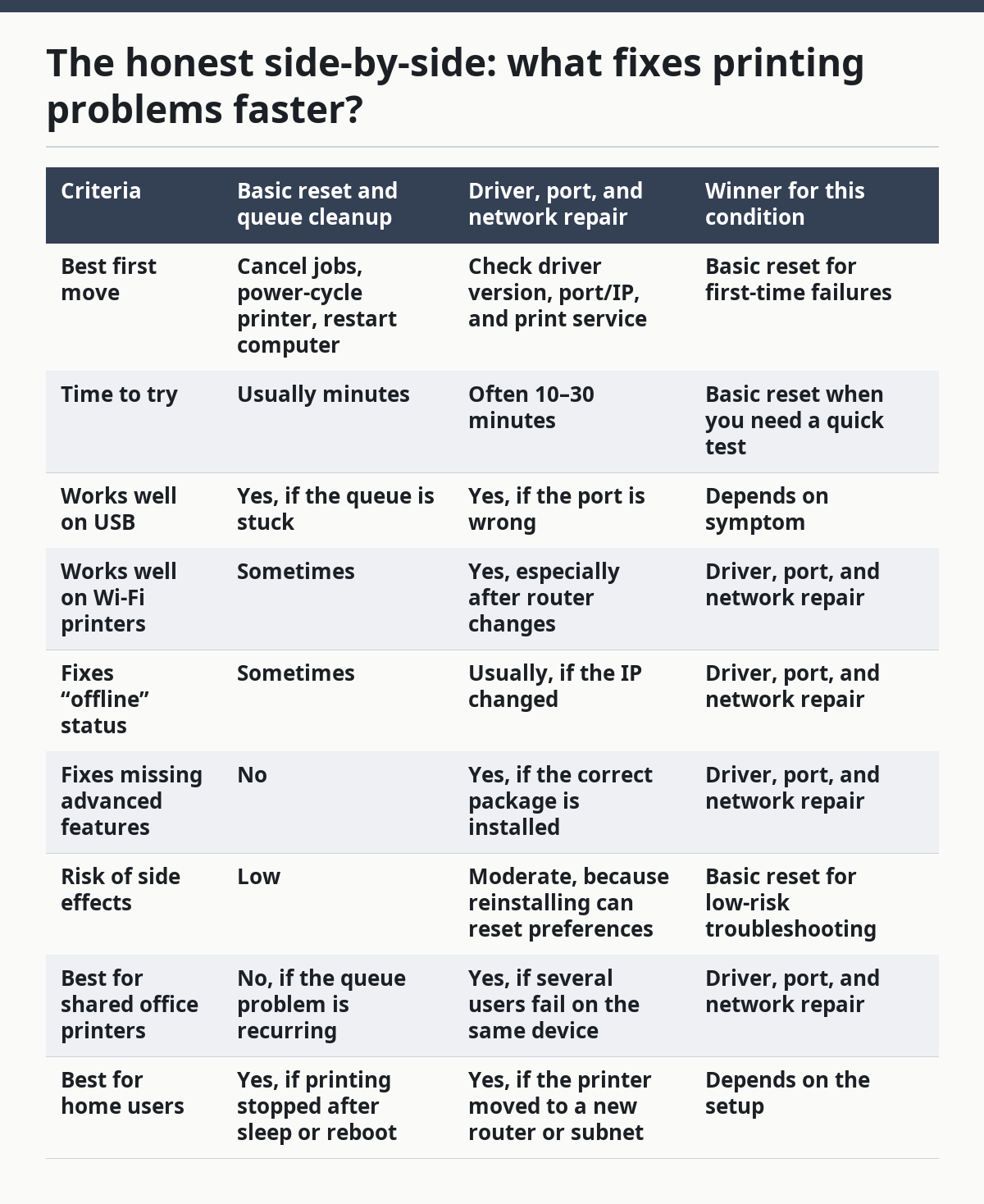
The practical takeaway is simple: a reset gets you a fast answer, but a port or driver fix is what solves repeat failures. If the printer is a small USB model used by one person, queue cleanup and a reboot often tell the story. If it is a networked MFP in a busy office, a correct IP, a stable driver, and a known-good queue matter more than any one restart. The basic path is easier; the deeper path is more durable.
One honest limitation belongs here: the simpler fix is not always the right fix, and the stronger fix is not always the first one to try. If the device repeatedly loses contact after a router reboot, a basic reset only buys you one afternoon. That is why a troubleshooting guide needs both tracks, not just “turn it off and on again.” Printer and scanner troubleshooting: the complete guide includes both because the failure mode changes the repair.
My scanner won’t scan — what is different from printing?
Scanning fails for different reasons than printing because the computer has to receive data back from the device, not just send data to it. That means permissions, preview software, file save locations, and scanner protocols matter more. A printer can often accept a job through a generic driver; a scanner often needs the right interface layer, such as TWAIN, WIA, ICA, or a manufacturer’s own utility.
Start with the simplest scan path: make a copy directly from the machine. If copy works but scan does not, the scanner optics are likely fine and the break is in the data path. Then try the vendor’s own scan app before blaming the hardware. Many all-in-ones behave differently in a built-in utility than they do in Adobe Acrobat, Windows Fax and Scan, Image Capture, or a third-party document app.
Because the source matters, a black, blank, or distorted image often points to the lid, platen, or original placement. A dark scan can be caused by the original not lying flat, the scanner lid sensor misreading an open cover, a privacy film left on a glass strip, or a driver that is pulling the wrong source setting. Auto document feeders can also fail on worn rollers or on paper below the minimum size the feeder can reliably grip.
File save errors are another common trap. A scan may complete but never appear because the app cannot write to the chosen folder, the filename is invalid, or the destination path points to a disconnected network share. On managed systems, permissions matter. On home systems, cloud-synced folders sometimes create conflicts if the app tries to save multiple pages at once.
The rule for scanners is sharper than for printers: if the machine can copy internally, focus on software and workflow first. If it cannot copy either, then the scanner section of the device needs attention. Printer and scanner troubleshooting: the complete guide treats copy tests as the fastest shortcut.
Should I reinstall the driver or replace the device?
Reinstall the driver first if the printer or scanner still works at the hardware level, because software faults are far more common than failed mechanisms. Replace the device only when the mechanics, electronics, or age-related wear make repair uneconomic or unrealistic. That split is the cleanest way to avoid throwing away a machine that only needs setup work.
A driver reinstall makes sense when symptoms are specific to one computer, one operating system update, or one application. It also makes sense when the device shows up by name but behaves badly: wrong paper size, broken duplexing, missing scan button, or a printer that can only output raw text. On Windows, removing the device, deleting the driver package where appropriate, and reinstalling the vendor package or a known-good generic driver can clear the fault. On macOS, removing the printer and re-adding it, or resetting the printing system, can do the same.
Replacement makes more sense when the failure is mechanical and recurring. Repeated paper pickup failure on multiple trays, a scanner lamp that flickers or never initializes, constant feed jams from a worn ADF, fuser errors on a laser printer, or ink delivery problems that persist after proper maintenance are signs that the device itself is wearing out. If the printer is a bargain inkjet with unavailable cartridges or a scanner with no current software support for your operating system, replacement can be the less frustrating path.
The drawback of replacement is obvious: it costs more and risks buying a device with the same bad fit, such as poor Linux support, no duplex scanning, or a bad mobile-printing app. The drawback of repair is time: if the machine is off warranty and the failure is mechanical, you can spend an afternoon proving what should be obvious. The right choice depends on whether the fault follows the computer or stays with the device. Printer and scanner troubleshooting: the complete guide is most useful when it helps you decide that difference quickly.
What if the problem keeps coming back after the fix?
The problem keeps coming back because the root cause was never removed, only hidden for one session. Recurring failures usually point to one of four patterns: unstable network addressing, conflicting drivers, bad consumables, or environmental stress such as heat, dust, or power interruptions.
If the device is on Wi‑Fi, stop using a moving target. A printer whose IP address changes after every router restart will keep reappearing offline unless you reserve an address in the router or give the device a static configuration that your network can support. That one change often matters more than repeated reinstallation. If multiple computers fail at once, the network or printer firmware is more suspect than any individual workstation.
If the issue returns after updates, driver conflicts are the next place to look. A recent operating system update can swap in a different driver, disable an older port, or change the default device. A vendor utility may also keep an old background service alive. When that happens, remove the extra software you do not need and keep only one printing path.
Then consumables can also mimic software trouble. Low-quality third-party toner, dried ink, or a worn pickup roller can create symptoms that feel random: faint output, repeated jams, feed failures, or streaks. A scanner with dust on the narrow calibration strip can look inconsistent from one page to the next. Clean the glass, the white backing strip, and the feeder path before assuming the electronics are at fault.
The final pattern is power quality. A printer that loses power abruptly or sits on a failing surge protector may behave unpredictably. A scanner attached through a hub that does not supply enough power can fail to initialize or disappear during long jobs. Stable power and a direct connection are boring fixes, but they prevent repeat pain.
When should you stop troubleshooting and call support?
You should stop when the device shows a hardware error you cannot clear, the same failure survives a full reinstall, or the unit is under warranty and the vendor can still replace parts or the whole machine. Past that point, the time cost of DIY diagnosis often exceeds the value of the result, especially for business MFPs with service menus, fusers, transfer belts, or scanner assemblies that are not meant for casual repair.
Specific stop signs matter. A laser printer that reports a persistent fuser error, a scanner that makes grinding noises from the carriage, an ADF that tears paper after roller cleaning, or a printer that repeatedly pulls multiple sheets despite fresh rollers usually needs parts. A machine that smells hot, shows scorch marks, or trips protection repeatedly should be powered off and inspected by a qualified technician before more testing.
Support is also the smarter move if the printer or scanner is central to work and the failure affects several users. Shared devices are less about convenience and more about throughput. If a department cannot scan contracts or print shipping labels for a day, the hidden cost is larger than the repair ticket. In that setting, the fastest path is often the support contract, the vendor knowledge base, or an onsite tech rather than another round of menu changes. See Microsoft printer troubleshooting and Apple printer support for vendor guidance.
One practical threshold: if you have already confirmed the queue, the driver, the port, the network address, the cable, the paper path, and the device still fails the same way, the problem is no longer ordinary troubleshooting. At that point, it is repair or replacement, not diagnosis. Printer and scanner troubleshooting: the complete guide reaches its limit there.
Which fix should I try first?
Choose the basic reset and queue cleanup if the printer or scanner stopped after a sleep, reboot, or single failed job. Choose the driver, port, and network repair if the device shows offline, disappears from multiple computers, or lost advanced functions after a router change or OS update. Neither path is right if you already have mechanical symptoms such as grinding, repeated jams, fuser errors, or a dead scanner lamp.
The reason for that split is simple: temporary failures and configuration failures look similar at the surface but behave differently under pressure. One clears when the job stack clears. The other returns until the address, driver, or protocol is fixed. If you want the shortest path to a result, start with the lightest fix that matches the symptom, not the heaviest fix you can think of.
Choose a reset if you need a quick yes-or-no answer and the device itself still passes its own test page or copy function. Choose a reinstall or port repair if the operating system is misidentifying the device or if every new job fails the same way. Neither is enough if the hardware cannot pass a self-test. Printer and scanner troubleshooting: the complete guide is most efficient when the first fix matches the failure layer.
What should I do right now, in order?
Start with the device, then the queue, then the connection, then the driver, then the hardware. That order wastes the least time because it moves from the cheapest, least invasive checks to the ones that take longer or change more settings.
- Check the printer or scanner for error lights, jams, empty paper trays, open covers, and power issues.
- Print or copy a built-in test page or copy a page from the glass.
- Cancel all queued jobs and restart the device and computer.
- Verify the cable or Wi‑Fi path, including the printer’s IP address if it is networked.
- Remove and re-add the device with the correct driver or protocol.
- Test with one simple file, not a large PDF or a complex document.
- Clean the glass, rollers, or feeder path if scanning or feeding is inconsistent.
That sequence is intentionally boring. It works because it avoids the two classic mistakes: changing too many things at once, and blaming the wrong layer. The fastest way to solve printer and scanner problems is to isolate the layer that fails, not to guess at the most dramatic fix first. Printer and scanner troubleshooting: the complete guide ends with that order because it is the shortest path through most faults.
FAQ
Why does my printer say offline when it is clearly turned on?
It usually means the computer cannot reach the printer, not that the printer is off. The cause is often a stale IP address, a paused queue, or an OS setting that kept an old device path. Re-adding the printer and checking the current address usually fixes it faster than repeated power cycles.
Why does my scanner work in one app but not another?
The app is likely using a different scanning interface or file path. One program may call TWAIN or ICA directly, while another relies on WIA or a vendor utility, and those paths do not always behave the same way. Permissions, destination folders, and 32-bit versus 64-bit support can also change the result.
Why do I get blank pages from the printer?
Blank pages usually point to consumables, toner/ink delivery, or a driver that is sending the wrong output format. On laser printers, check cartridge seating and fuser-related errors; on inkjets, check nozzle status and ink flow. If the printer’s own test page is also blank, the hardware path is the first place to inspect.
Can a bad cable really cause scan or print failures?
Yes, especially on USB devices and long or poor-quality cables. A flaky cable can let the device appear briefly, then fail when the job starts or when the scanner sends data back to the computer. For troubleshooting, a short direct cable is better than a hub, dock, or extension.
When is it not worth fixing the device?
It is usually not worth fixing when hardware faults repeat after a proper reinstall, when the machine is out of support and parts are scarce, or when the device fails its own internal test. If repair time is starting to look like the cost of a replacement and the model no longer fits your software or network needs, replacement is the cleaner choice.
Drafted with AI; not yet reviewed by a person.
