Last updated: November 19, 2026
Key Takeaways
- Printer ink or toner is low when the printer’s own estimate, warning light, or test print all point the same way.
- The status monitor tells you the printer’s own estimate, and that is usually the fastest clue you have.
- A printer test page is the fastest way to confirm low ink or toner because it shows the print quality directly, not just the printer’s estimate.
- Print quality changes before the cartridge is empty, and the pattern of those changes tells you a lot.
Printer ink or toner is low when the printer’s status monitor shows a warning, estimated levels drop, or a test page starts fading before the page goes blank. Check the printer status monitor first, then confirm with a test pattern. The steps below will tell you which signs matter and which ones are false alarms.
How to tell if printer ink or toner is low
Printer ink or toner is low when the printer’s own estimate, warning light, or test print all point the same way. That beats guessing from one weak page. If you want the short version, check the status monitor, print a test page, and watch for faded areas or streaks.
-
Open the status monitor on your computer, phone app, or printer screen and read the supply estimate.
Look for labels like Low, Replace Soon, or a bar that is well below full. Many printers show ink cartridges and toner cartridges separately, which helps if one color or one toner unit is the problem. -
Print a test page from the maintenance or settings menu.
A clean test pattern with solid bars and sharp text means you still have room. Faded bars, missing lines, or weak gray blocks point to a low supply before the page turns bad. -
Check the front-panel warning light or message on the printer.
A yellow triangle, blinking ink icon, or “replace cartridge” message is a stronger signal than a page that just looks a little dull. -
Compare the page to a recent print from the same printer.
If the same file now looks lighter after normal settings, the supply may be dropping. This is especially useful on laser printers, where toner often fades gradually before it runs out. -
Open the printer software settings and look for estimated levels by color.
A single black cartridge can be low while the color cartridges still look fine. On a color printer, one weak tank can cause strange results even when the others still show healthy levels. -
Watch for repeatable defects across 2 or 3 pages.
Random specks can be paper dust. Repeated pale bands, missing corners, or a steadily lighter print after several pages usually means the consumable is nearing the end. -
Compare the result to the printer’s replacement prompt and save the check for later.
If the warning appears but the print still looks normal, you do not need to replace the cartridge right away. That is the point of checking early: you can plan before quality drops in the middle of a job.
On the flip side, a single bad page does not always mean low ink or toner. Clogged nozzles, a dirty drum, or a loose cartridge can mimic low supply. The best part? The printer usually gives a second clue.
What the printer’s status monitor tells you
The status monitor tells you the printer’s own estimate, and that is usually the fastest clue you have. It is not perfect, but it is better than waiting for obvious streaks or blank pages. A lot of printers call this feature supply status, ink levels, or toner status.
Picture this: you are about to print a 20-page report and the screen shows “Low Ink” on one cartridge, but the pages still look fine. That is the moment to act, not after the last sheet comes out washed out. The monitor often gives you a percentage, a bar graph, or a warning word.
- Estimated levels are useful for planning, not for precision. A cartridge can show 20% and still print clearly for a while.
- Low supply warnings usually appear before print quality drops badly. That gives you time to order a replacement.
- Replace now messages mean the printer believes the cartridge is at the end, but they still do not tell you the exact last page it can print.
Here’s the catch: not every printer estimates the same way. Some models watch pages printed, while others judge by ink flow or toner use. That means two printers can show different numbers for the same real supply.
If the status monitor is missing or vague, use the next section’s test pattern. It is the better tie-breaker.
The signs in the monitor that matter most
A few messages are worth taking seriously right away.
- Low means you should start paying attention.
- Replace Soon means the cartridge is on borrowed time.
- Order Supplies means the printer expects the level to drop enough soon that a backup makes sense.
- Out of Ink or Toner Empty means the printer thinks the supply is done, even if one more page still prints.
Do not confuse a warning with a final failure. A printer can still work for days after a low-supply message, especially if you print only short text pages.
How do I read a printer test page?
A printer test page is the fastest way to confirm low ink or toner because it shows the print quality directly, not just the printer’s estimate. You are looking for faded areas, missing lines, or weak solid blocks. Most printers can print one from the settings or maintenance menu in under a minute.
Picture this: the status monitor says the black cartridge is low, but the text still looks dark enough on regular pages. A test page settles the argument fast. It gives you a clean look at each color and each section of the print engine.
-
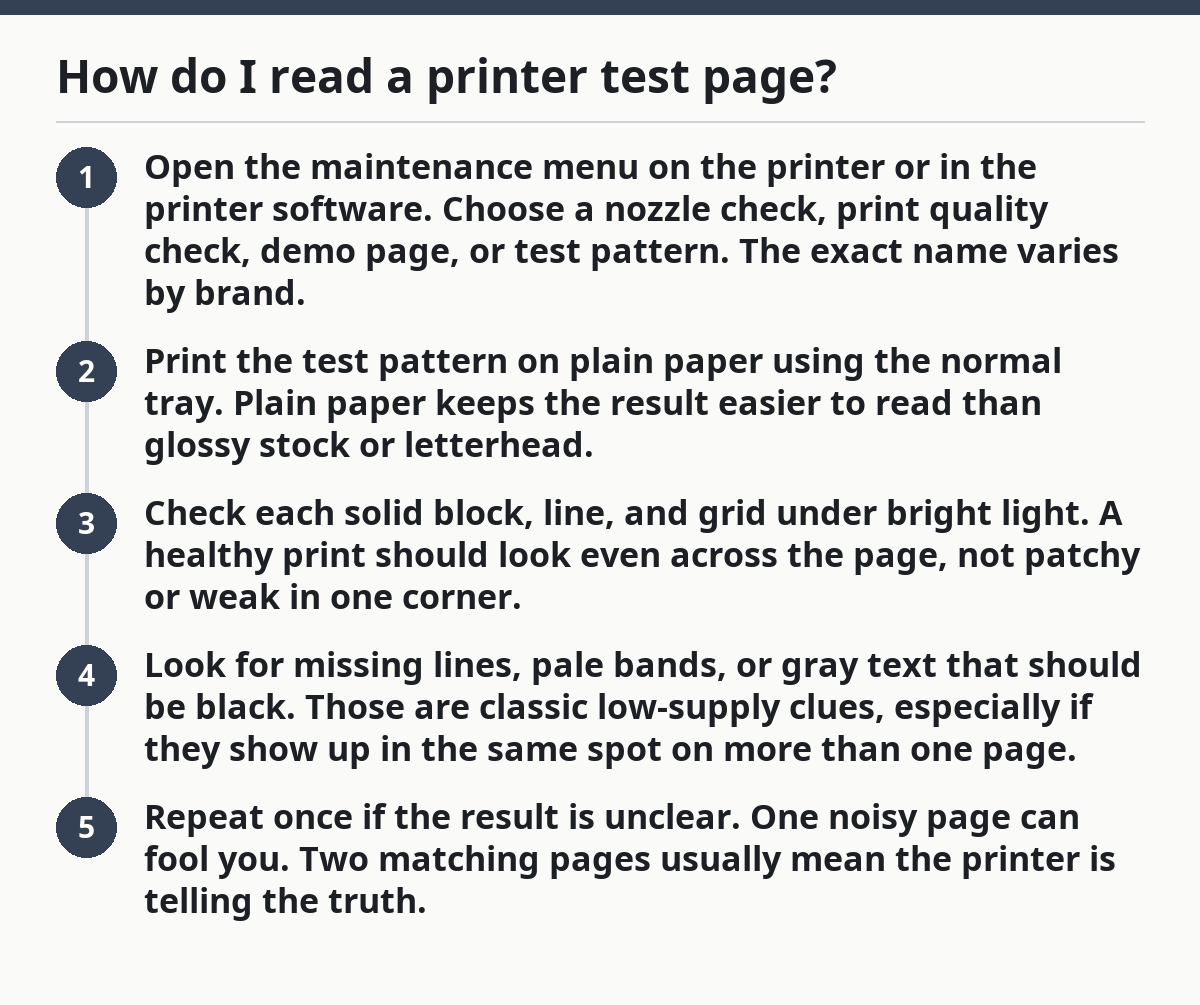
Open the maintenance menu on the printer or in the printer software.
Choose a nozzle check, print quality check, demo page, or test pattern. The exact name varies by brand. -
Print the test pattern on plain paper using the normal tray.
Plain paper keeps the result easier to read than glossy stock or letterhead. -
Check each solid block, line, and grid under bright light.
A healthy print should look even across the page, not patchy or weak in one corner. -
Look for missing lines, pale bands, or gray text that should be black.
Those are classic low-supply clues, especially if they show up in the same spot on more than one page. -
Repeat once if the result is unclear.
One noisy page can fool you. Two matching pages usually mean the printer is telling the truth.
The truth is, a test page also helps you catch problems that are not low supply. A clogged ink nozzle can make a pattern look weak even when the cartridge still has ink. A damaged toner drum can leave bands. That is why the test page matters more than a rough guess from everyday documents.
What to look for on the page
A low ink cartridge usually shows up as missing lines, pale colors, or gaps in one section of the pattern. Low toner often looks like light text, faded gray blocks, or streaks that get worse as the page runs on.
- Ink signs: broken nozzle lines, missing dots, uneven color blocks.
- Toner signs: light print, gray instead of black, white streaks through filled areas.
- Mixed signs: one color fades while the others stay normal.
If the test page is fine, stop worrying about the cartridge for now. If it is weak in the same place twice, the supply is probably low or the print path needs cleaning.
What print quality changes happen before the cartridge is empty?
Print quality changes before the cartridge is empty, and the pattern of those changes tells you a lot. Ink usually fades in spots first. Toner often gets lighter in broad areas before the print fails outright. That difference matters because it helps you spot low supply before a work document looks bad.
Picture this: your invoices still print, but the logo has gone soft and one line of text looks thin. That is the early warning stage. The printer is still working, yet the output no longer looks right.
- With ink cartridges, you may see broken text, missing color lines, or a light patch in a photo.
- With toner cartridges, you may see a generally pale page, weak black text, or gray bands across the sheet.
- With both, the first sign is often inconsistency from page to page.
A fresh cartridge should produce the same look from the first page to the 50th, at least for normal office use. When the print suddenly changes after a run of good pages, low supply moves up the list.
Here’s the catch: dull print is not always a low cartridge problem. A draft setting, paper mismatch, or a clogged nozzle can copy the same look. If you changed paper, driver settings, or quality mode, check those before you replace anything.
Common mistakes that make low supply hard to spot
People often miss the warning because they look only at the first page. That can cost you a bad print run.
- Ignoring a slow fade means you run out in the middle of a job.
- Trusting only one warning light means you may replace a cartridge too early.
- Reading a draft print as proof can hide the real problem because draft mode uses less ink or toner.
- Skipping the test pattern leaves you guessing from normal text alone.
The fix is simple: check the monitor, then print a test page, then compare the result to a normal document. That three-part check gives you a better answer than any one signal by itself.
When should you replace the cartridge before quality drops?
You should replace the cartridge before quality drops when the printer warns you, the test page weakens, and you depend on clean output. That is the point where planning beats squeezing out the last few pages. A low-supply message plus a weak pattern is enough to move from watching to replacing.
Picture this: you have a presentation in the morning and the printer says low toner tonight. The pages still look okay, but not perfect. That is the time to swap in a spare or order one, not after the slides print pale.
Use this timing rule:
- Replace soon if the status monitor warns and the test page is still only slightly faded.
- Replace now if the print has missing lines, obvious light areas, or repeated streaks.
- Keep printing a little longer only if the warning is early and your documents are not quality-sensitive.
Do not wait for a blank page if the job matters. A cartridge that is “almost empty” can fail suddenly on a long run, especially when the page coverage is heavy.
The best part? Early replacement is not wasted if you print often. It is a backup for the next job, and it keeps you from stopping halfway through a document. This is exactly the sort of maintenance topic that fits the print quality and maintenance hub, because the warning signs and the fix live close together.
How to avoid guessing wrong
You avoid guessing wrong by checking two sources, not one. The printer’s estimate tells you the supply state, and the test page tells you the print state. Put those together and you get a clean answer instead of a hunch.
Picture this: the monitor says one thing, the page says another, and you do not want to replace a cartridge you still need. This is where a quick decision tree helps.
- Monitor says low, page looks good: plan a replacement soon.
- Monitor looks normal, page looks weak: run a second test page and check for clogged nozzles or a dirty print path.
- Both say low: replace the ink cartridge or toner cartridge.
- Only one page looks bad: print again before you act.
For laser printers, toner can settle unevenly, and for inkjets, unused nozzles can clog. That means the same weak page can come from different causes. If you only watch the page, you can make the wrong call.
One more tip: keep an eye on page count and print habits. A printer used for heavy black text will empty a black cartridge faster than a machine used for light emails. The same goes for photos, which can drain color ink quickly.
FAQ
Do low ink and low toner look different in print quality?
Yes. Low ink often shows up as broken lines, missing dots, or faded color patches, while low toner usually looks like light gray text, pale fills, or broad white streaks. The exact look depends on the printer model, but the pattern is usually different enough to spot once you know what to check.
Can a printer still print when supplies are low?
Yes. Many printers keep printing after a low-supply warning, and some will print for quite a while before the output becomes unusable. That is why the warning is useful: it gives you time to plan before the page quality drops. The catch is that a long document can still fail halfway through.
What should I trust more: the status monitor or the test page?
Trust both, with the test page as the final check on print quality. The monitor is best for estimating remaining supply, but the test page shows whether the output is still clean. If both point to low supply, the cartridge is close to replacement time.
Why does my printer say low even though the page still looks fine?
Because the printer is estimating, not measuring every drop or grain. A cartridge can still print clearly after a low warning, especially on short text jobs. That warning is there so you can avoid getting caught out later, not because the printer is always at its last page.
Drafted with AI; not yet reviewed by a person.