Last updated: November 19, 2026
Wireless printing setup and access control is simple only if the network, device, and access rules all line up. The right setup is the one that lets the right people print without letting the wrong people print. This guide to Wireless Printing Setup and Access Control — The Complete Guide shows which path fits your office, school, or shared home, and what to do when guest access, PIN printing, or Wi‑Fi Direct changes the answer. Quick answer: in most shared settings, start with WPA2 or WPA3 Wi‑Fi, a separate staff or guest-isolated network, and authentication or secure release if the printer serves more than one person.
Key Takeaways
- A wireless printer is not really “set up” until it joins the right network and has a clear access rule.
- A common default is WPA2 or WPA3 Wi‑Fi, a separate guest network, and print rights limited by user or group.
- If the printer serves a shared space, turn on some kind of authentication before anyone can send a job.
- If people print from phones, confirm AirPrint, Mopria, or the vendor app before you lock down access.
- If jobs must stay private, use PIN release or badge release instead of an open queue.
What actually determines the right setup?
The right Wireless Printing Setup and Access Control path depends on three things: who can see the printer, who can send jobs, and who can release jobs. If those three are not separate in your head, wireless printing gets messy fast.
Picture this: you’re setting up one office printer for staff, guests, and a small finance team. You want easy printing from laptops and phones, but you also need to keep payroll files off the tray until the right person walks up. That is an access-control problem, not just a Wi‑Fi problem.
Here’s the catch: a printer on the network is usually visible to any device on that same network segment unless you block discovery, restrict drivers, or require authentication. The setup changes if the printer is at home, in a small office, or in a managed company network.
| Situation | Best Path | Why Other Options Fail |
|---|---|---|
| One home network, a few trusted people | WPA2/WPA3 Wi‑Fi, standard sharing, simple device permissions | Open access is too broad, and MAC filtering is weak security by itself; if in doubt, consult a professional and review vendor guidance such as Microsoft’s printer sharing documentation and NIST SP 800-153 |
| Shared office, mixed staff and guests | Separate VLAN or guest network, authenticated print server, user groups | Putting everyone on one Wi‑Fi makes discovery and abuse too easy; consult a professional and check Cisco’s network segmentation guidance or NIST guidance before deployment |
| Private documents, public print area | Secure release, PIN, badge, or login at the device | A normal queue prints sensitive pages before the owner arrives; consult a professional and verify device support with the manufacturer’s security guide |
| Mobile-first team | AirPrint, Mopria, or vendor mobile app with account sign-in | Direct IP printing can work, but it is harder to control and support; consult a professional and confirm device compatibility with Apple AirPrint or Mopria documentation |
| School, lab, or library | Quotas, job limits, identity-based release, logging | Anyone-allowed printing turns into misuse and waste fast; consult a professional and align with local policy and vendor logging options |
If you want one clean rule, use this: the network decides who can reach the device, and the print system decides who can use it. Those are not the same layer.
A lot of generic advice gets this wrong by treating the printer like a dumb accessory, but consult a professional if you are not sure how your model exposes services and review the manufacturer documentation. A modern device may expose Wi‑Fi Direct, Ethernet, cloud print paths, admin accounts, and local job storage. Each one is a door.
Quick check: if you can’t answer “who may print” and “who may collect” in one sentence each, the setup is not finished.
Should I put the printer on the main Wi‑Fi or a separate one?
A separate network is better when the device is shared, the job data is sensitive, or guests use the same building. If the printer is only for a single person at home, the main Wi‑Fi is often fine.
Picture this: you’re on a small office network with a guest SSID already running, and someone wants the printer on the same Wi‑Fi as the lobby tablets. That sounds easy. It also means more devices can discover the printer, send jobs to it, or probe its admin page unless you add controls.
Here’s the clean split:
- Main Wi‑Fi works best for a trusted home or a tiny team with low risk.
- Separate staff network works best when you want printers reachable only by employees.
- Guest network should almost never reach the printer unless you mean to allow guest printing.
- VLAN or subnet isolation is the stronger office choice when IT controls the router, switch, and firewall.
The standard advice says “put it on Wi‑Fi and share it.” That is too loose. In many environments, the better move is to treat the printer like any other network endpoint and limit where it appears.
A practical Wireless Printing Setup and Access Control path looks like this:
- Put the printer on the staff SSID or wired LAN, not on guest Wi‑Fi.
- Turn on WPA2-AES or WPA3 on that SSID.
- Block guest network access to internal devices.
- Allow only the ports and services needed for printing, such as AirPrint or IPP where appropriate.
- Turn off Wi‑Fi Direct if users do not need it.
- Change the admin password from the factory default.
- Confirm that the printer’s web page is reachable only from allowed devices.
If your router has simple network segregation, that may be enough. If not, a business router with VLANs and firewall rules is the better fit. This is not glamorous work.
Quick check: if guests, contractors, or students use the building, a separate network is usually the right answer.
How do I set up wireless printing without opening a security hole?
You set it up by joining the device to Wi‑Fi, locking down admin access, and deciding how jobs will be sent and released. If you skip any of those, you get a printer that works and a network that does too much.
Picture this: you’re in front of a device menu, typing the Wi‑Fi password into a tiny screen, and you just want laptops and phones to print without making the printer a free-for-all. The steps matter because the same device can support safe and unsafe paths at once.
Then follow this path:
- Pick the network the printer should join. Use the staff SSID or a dedicated device SSID, not the guest network.
- Join the printer to that network with the correct WPA2 or WPA3 password.
- Give the printer a known IP address through DHCP reservation or a static address if your network team prefers that.
- Change the admin login and disable remote management from the internet unless you truly need it.
- Choose the print path: AirPrint, Mopria, vendor app, Windows shared queue, or IPP printing.
- Decide whether jobs print at once or wait for release at the device.
- Test from one laptop and one phone before opening access to everyone else.
The best part is that you do not need every feature turned on. A smaller feature set is often safer and easier to support. For example, if nobody uses Wi‑Fi Direct, shut it off. If no one prints from the public internet, do not keep a cloud portal open.
One more thing: the phrase “wireless printing” often hides different technologies. AirPrint is common on Apple devices. Mopria is common across Android and many Windows setups. Vendor apps can be useful for scan-to-print workflows, but they often add their own sign-in path and update demands. IPP is the cleanest standards-based route in many managed settings.
Do not let convenience override access control. A printer that joins any device on the network is not a controlled device.
Quick check: if you can print from the right device, and only the right device, the setup is on track.
What access control methods actually work?
Because access control is what separates a working setup from a risky one, user authentication, secure release, and network isolation work. Still, consult a professional if you are not sure how to combine them, and review a source such as NIST SP 800-153 or your printer vendor’s security guide before you deploy them. MAC filtering, hidden SSIDs, and “nobody knows the password” do not hold up as real controls.
Picture this: you’re trying to stop visitors from printing to a shared office device, but you still need staff to print from laptops, phones, and meeting-room tablets. The answer is to control identity, not hope people behave.
The main options are:
- Network-level control: only devices on a trusted SSID or VLAN can reach the printer.
- User-level control: a login, badge, PIN, or print server account is required.
- Job-level control: the document sits in a queue until the user releases it at the device.
- Feature-level control: you disable copy, scan, fax, cloud access, or Wi‑Fi Direct where they are not needed.
The weakest options are the ones people love because they sound simple. MAC filtering can be copied. Hidden SSIDs do not help much against basic discovery tools. A shared Wi‑Fi password is not access control if every person in the building knows it.
Here’s the more durable path:
- Put the printer behind a staff-only network or firewall rule.
- Require user login on the print server or device, if the model supports it.
- Turn on secure release for sensitive teams.
- Give each department its own queue if usage needs to be tracked.
- Log who printed, when, and from which queue.
- Disable features that create extra attack paths, like Wi‑Fi Direct or unused cloud print links.
If you are dealing with a normal home setup, full enterprise controls may be overkill. In that case, a strong Wi‑Fi password, updated firmware, and access limited to household devices may be enough. But once visitors or shared desks enter the picture, the answer changes.
The truth is, access control is only useful if it matches the risk. Don’t bolt on five controls for a two-person home office. Don’t use one control for a 50-seat floor.
Quick check: if someone can walk up and print without being named, authenticated, or approved, your access control is too loose.
Which printing method should I choose: AirPrint, Mopria, vendor app, or IPP?
IPP is the safest default for managed environments, while AirPrint and Mopria are the easiest for mixed devices. Vendor apps help with special features, but they also add complexity.
Picture this: you’re trying to support MacBooks, iPhones, Android phones, and a few Windows laptops without making people install a different driver every time they change desks. The print method you choose decides how much pain shows up later.
Here’s the short version:
- AirPrint is best when Apple devices are common and you want driverless setup.
- Mopria is best when Android and Windows devices need a broad standard path.
- Vendor apps are best when you need finishing features, scan bundles, or model-specific controls.
- IPP is best when you want a standards-based path that fits modern networks and print servers.
The wrong choice is usually the one that looks easy on day one but becomes messy when access control gets tighter. A vendor app may feel friendly, but if it bypasses your network rules or creates its own account system, support gets harder.
Use this decision path:
- List the devices people actually use: iPhone, Mac, Android, Windows, ChromeOS.
- Check whether the printer supports AirPrint, Mopria, or IPP without extra software.
- Decide whether users need advanced finishing features like stapling, duplex defaults, or secure release.
- If the environment is managed, test with a print server or MDM policy first.
- Remove extra paths you do not need, especially direct guest printing and unused cloud connectors.
A common mistake is mixing too many methods. That leads to duplicate queues, duplicate drivers, and duplicate help tickets. Keep the number of supported paths as low as your users can tolerate.
One useful standard to know is IPP Everywhere, which many modern devices support. It helps reduce driver mess, especially in mixed-platform offices.
Quick check: if your team spans Apple, Android, and Windows, the best method is usually the one that needs the fewest special apps.
How do I keep guests, contractors, and staff separate?
Because those groups share space but not trust, you keep them separate by using different networks, different queues, or different release rules. If all three groups share one path, your controls will fail under normal use.
Picture this: you’re hosting outside contractors for a week and they need to print a few drawings, but they should not see internal queues or payroll jobs. That is the exact case where access control earns its keep.
A good setup usually looks like this:
- Staff print through the internal queue with normal authentication.
- Guests print through a separate guest queue, if you allow it at all.
- Contractors use a time-limited path or a temporary account.
- Sensitive teams use secure release and maybe a separate device.
The biggest mistake is letting guests join the same SSID as staff “just for a day.” That day often turns into months. Once the printer is visible on the same segment, you have to assume more devices can see it, probe it, and try to use it.
A cleaner path is:
- Create a guest SSID that cannot reach internal devices.
- If guest printing is needed, create a separate guest print queue.
- Set a time limit or remove the account when the work ends.
- Keep payroll, HR, legal, and finance off that queue.
- Use a separate release code or PIN for private documents.
- Review printer logs at regular intervals, especially after temporary access.
If your site has a receptionist, print station, or shared lobby device, that device should not sit in the same trust zone as internal workstations. Put it in the public path and give it only the permissions it needs.
The best part is that separation does not need fancy hardware in every case. A router that supports guest isolation and a printer with role-based access may be enough for a small office. Bigger sites usually need VLANs and a print server.
Quick check: if someone outside the core team can stand near the device, separate paths are not optional.
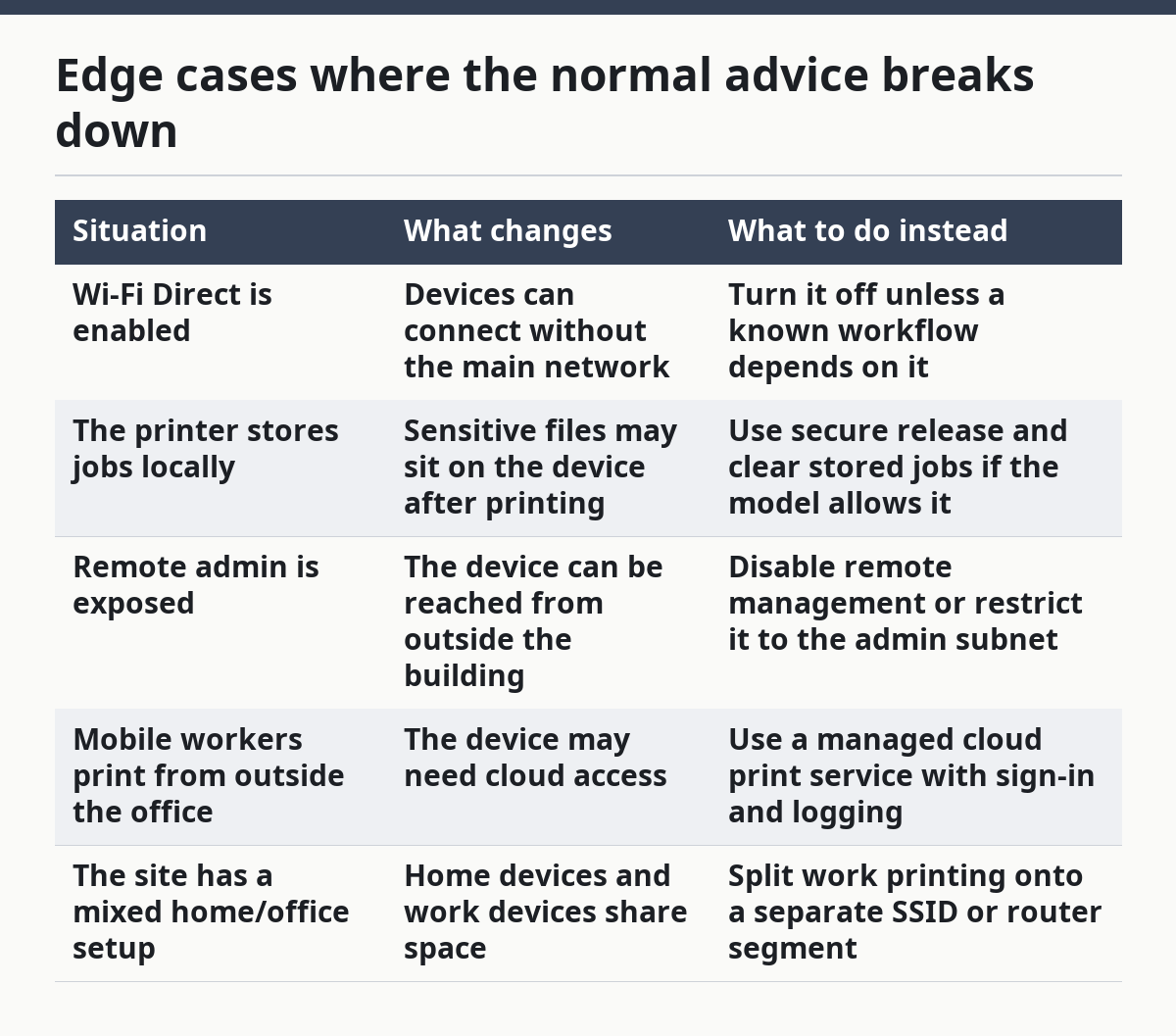
Edge cases where the normal advice breaks down
The normal advice breaks down when the printer can reach outside the office, store jobs locally, or talk to phones over Wi‑Fi Direct. Those cases need a different plan.
Picture this: you’re looking at a device that can print from the cloud, create its own hotspot, store jobs on internal memory, and expose an admin page on the LAN. One clean rule is not enough anymore. You have to decide which paths to close.
| Situation | What changes | What to do instead |
|---|---|---|
| Wi‑Fi Direct is enabled | Devices can connect without the main network | Turn it off unless a known workflow depends on it |
| The printer stores jobs locally | Sensitive files may sit on the device after printing | Use secure release and clear stored jobs if the model allows it |
| Remote admin is exposed | The device can be reached from outside the building | Disable remote management or restrict it to the admin subnet |
| Mobile workers print from outside the office | The device may need cloud access | Use a managed cloud print service with sign-in and logging |
| The site has a mixed home/office setup | Home devices and work devices share space | Split work printing onto a separate SSID or router segment |
A few specific edge cases matter a lot:
- Shared apartment or home office: If family members, roommates, and work devices all use the same Wi‑Fi, keep work printing on a separate network if possible. That keeps non-work devices away from the print path.
- School or library: If people rotate in and out all day, secure release and quotas matter more than convenience.
- Healthcare or legal use: If documents carry private data, job release and log retention matter more than easy discovery.
- Warehouse or shop floor: If tablets roam and sleep often, a stable IPP queue or vendor-managed queue is safer than ad hoc direct printing.
- Older equipment: If the model only supports weak admin controls, put it behind stricter network rules and plan for replacement.
The truth is, old printers and cheap office devices often lack the access controls people assume they have. If the model can’t do user auth, secure release, or current security updates, network isolation becomes the main defense.
Quick check: if your setup has mobile access, public users, or a printer that keeps jobs on board, the standard advice is not enough.
What should I check before I call it done?
You should check the network path, the user path, and the release path before you declare the job finished. If any one of those is loose, the setup is only half done.
Picture this: you’re ready to move on because a test page printed, but the device is still visible on guest Wi‑Fi, the admin password is untouched, and anyone in the office can release any job. That is not done.
Use this final checklist:
- Confirm the printer is on the right SSID or VLAN.
- Verify the admin password is changed from the factory default.
- Test from the intended devices only.
- Make sure guest devices cannot reach the printer unless you planned for that.
- Confirm whether jobs print immediately or wait for release.
- Check whether Wi‑Fi Direct, cloud connectors, and remote admin are turned on only if needed.
- Review the printer’s firmware update path and keep it current.
- Print a sample document that matches the real workflow, not just a test page.
If the printer supports logging, turn it on. That matters in shared environments, especially when multiple people use the same queue. If it supports account-based access, use it. If it supports secure release, test it with a real job.
A simple rule helps here: a working print test is not the same as a safe print setup.
Quick check: if you can trace every successful print job from user to network to release, the setup is ready.
Can I use wireless printing safely at home?
Yes, if you keep it on your own network, update the firmware, and don’t expose the admin page to the internet. The risk is low when only trusted devices share the same Wi‑Fi.
Picture this: you’re printing from a laptop in the kitchen, a phone in the bedroom, and a tablet on the couch. That is the easiest case. The danger appears when the printer is also visible to neighbors, guests, or a work device you don’t fully control.
A safe home setup usually means:
- WPA2 or WPA3 on the home router
- A changed printer admin password
- Firmware updates turned on or checked regularly
- AirPrint, Mopria, or built-in sharing used from trusted devices only
- Wi‑Fi Direct off unless you need it
- No open cloud print portal tied to a password you reuse elsewhere
If one person in the home prints school forms or tax records, secure release can still help. It is not only for offices. If the model does not support that feature, place the printer where output is not exposed to visitors.
The bigger home-office trap is mixing work data and family devices on one flat network. If your job has any confidentiality requirement, separate the work printer from the rest of the household devices. A second SSID or a travel router can be enough in some homes.
Quick check: if every device on the Wi‑Fi is yours and you keep the admin page private, home wireless printing is usually fine.
FAQ
How do I stop other people from printing to my wireless printer?
You stop it by limiting network access and requiring authentication or secure release. A shared Wi‑Fi password alone is not enough in a busy office or school, because anyone on that network may still discover the device.
Is Wi‑Fi Direct safer than normal wireless printing?
No, not by default. Wi‑Fi Direct can be useful for a one-off print job, but it creates a separate connection path that can bypass your normal network rules. Turn it off unless you need it for a specific workflow.
What is the safest way to print sensitive documents?
The safest common setup is secure release with a PIN, badge, or login at the device. That keeps the file in a queue until the right person is physically at the printer.
Do I need special software on every device?
Not always. AirPrint, Mopria, and IPP can remove the need for extra drivers on many devices. Special software is only worth the trouble if you need model-specific features or managed accounting.
Can I keep the printer on the guest network?
Usually no. Guest networks are meant to isolate visitors from internal devices, and a printer is an internal device in most offices. If guests must print, use a separate guest print queue or a controlled release workflow.
Drafted with AI; not yet reviewed by a person.