Last updated: November 19, 2026
Key Takeaways
- A multi-page PDF keeps a whole stack in one file, not one file per page.
- You make one PDF by scanning as a single job, not by starting over after each sheet.
- Set the scanner software first, because page order and file splitting are usually decided before scanning starts.
- Use the automatic document feeder, or ADF, for one-pass stack scanning.
Choose the scanner software’s multi-page PDF setting, then feed pages through the ADF in the right order so everything lands in one file. This guide lays out the exact steps, the settings that stop pages from splitting, and the small mistakes that turn a clean scan into a mess. To scan multiple pages into one PDF, the first move is to set the job before the first sheet hits the feeder.
What “multi-page PDF” means here
A multi-page PDF is one PDF file that holds every page of a stack, not a separate file for each sheet. On a document feeder, that usually means the scanner software is set to PDF output and page handling is set to append pages into the same file. In a 12-page contract, that means 12 pages in one PDF.
Picture this: you have a 12-page contract, a flatbed scanner, and a deadline in 10 minutes. You need one PDF, in the right order, with no duplicate files and no missing page 7. That’s the job.
When the scan app keeps saving one file per page, the fix is usually in the output format or page-combine setting, not in the scanner itself. The hardware only captures paper; the software decides whether how to scan multiple pages into one PDF works as one file or many. Clean split, ugly result.
- Use PDF as the output type.
- Pick a multi-page or combine into one file setting.
- Keep the pages in the ADF if you want a stack scanned in one pass.
The practical rule is simple: the feeder moves the paper, the software builds the PDF. Miss either side, and the job falls apart.
How do I combine scans into one PDF?
You combine scans into one PDF by scanning into a single PDF job instead of starting a new file after each page. Most scanner software has a checkbox or menu item for multi-page output, and many office scanners default to it when the ADF is active.
Picture this: you open the scan app, drop 6 pages into the feeder, and expect one file. If the app opens a “save after each page” flow, you’ll get a pile of PDFs instead of a document you can email. Change the output behavior before you scan.
- Open the scanner software and choose PDF as the file type.
- Select the ADF if your scanner has one, so the software expects a stack of pages.
- Turn on multi-page output or a setting named combine pages, append pages, or single PDF.
- Load the pages face up or face down the way your scanner asks, then align the guides.
- Start the scan and let the feeder finish the stack.
- Save the file with one name that matches the whole document.
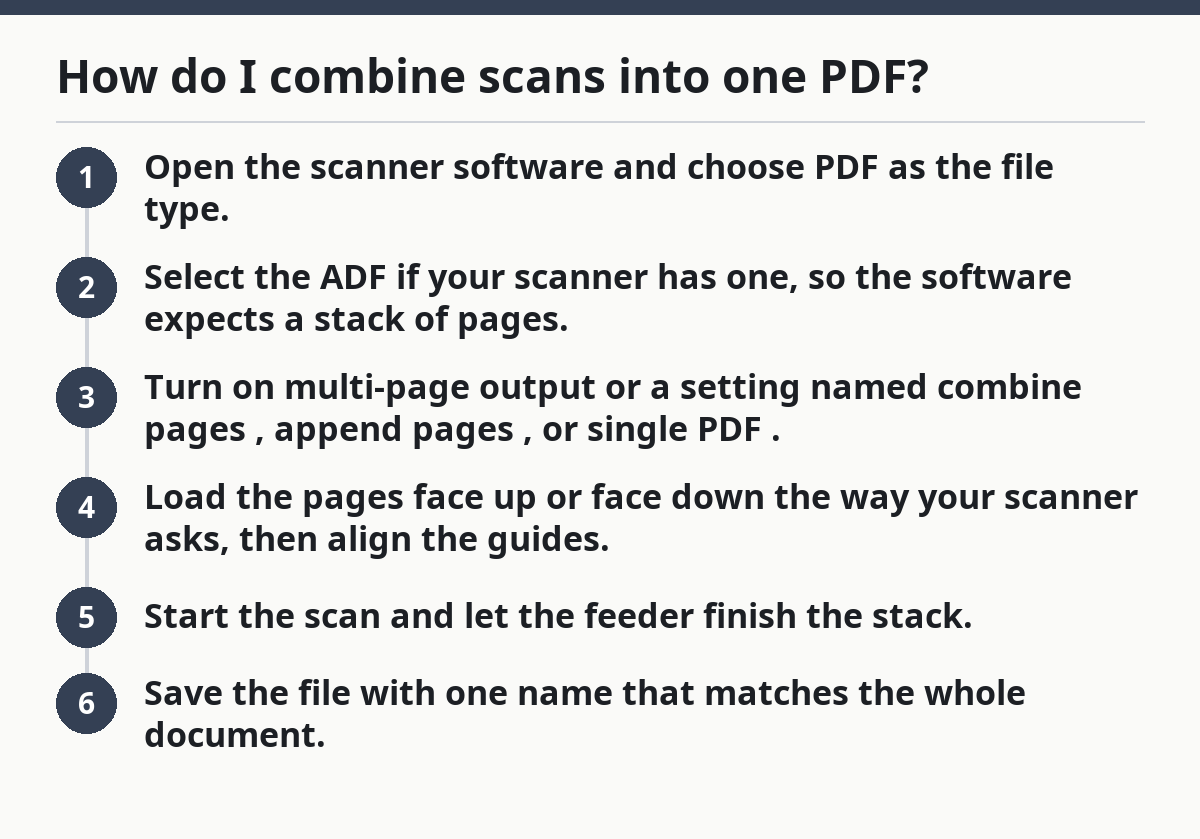
That workflow creates one PDF file with pages added in order. When the software asks whether to continue scanning, it usually means the same file is still being built. For how to scan multiple pages into one PDF, that prompt is actually a good sign.
On the flip side, some apps split files when “scan to image” is selected instead of “scan to PDF.” That setting is the usual culprit. Need to edit later? Scan to PDF first, then make a second copy if your software offers OCR or annotation tools.
Set the scanner software before you load the paper
Set the scanner software first because page order and file splitting are usually decided before the first sheet moves. A good scan app lets you choose PDF, page size, duplex, and naming rules before the feeder starts.
Picture this: your stack is ready, but the app is still on “JPEG” or “single-page.” You scan anyway, and now you’re renaming 18 files by hand. That’s a settings problem, not a paper problem.
Before you press scan, check these items:
- File type: PDF, not JPG or PNG.
- Pages per file: one multi-page PDF, not one file per page.
- Duplex: on, if both sides are printed.
- Resolution: use the same setting for the whole job so pages match.
- Color mode: black and white for text-only pages, color if the pages have marks or highlights you need to keep.
A lot of scanner software also has a file naming field. Use it. A name like lease_2026-02 or invoice_packet is easier to find than scan0004.pdf.
If your app supports profiles, save one. That keeps page order, output type, and naming from drifting. For how to scan multiple pages into one PDF, a saved profile makes the whole setup repeatable.
Use the automatic document feeder the right way
Use the automatic document feeder, or ADF, when you want a stack scanned in one run. The ADF is built for multiple pages, while the flatbed is better for odd pages, torn sheets, or anything too fragile for rollers.
Picture this: you have 30 standard pages and a scanner with an ADF tray. That is the easy case. Stack the sheets, set the guides snug, and let the machine feed them one by one into the scan path.
A clean ADF scan depends on paper prep:
- Remove staples, sticky notes, and paper clips.
- Fan the pages so they separate before loading.
- Square the stack against the tray guide.
- Keep the pages straight, not bent or folded.
- Mix in only one paper size if the software does not support mixed sizes well.
If the pages are skewed, the PDF will still be one file, but the pages may look crooked and harder to read. If you have double-sided pages, choose duplex scanning so both sides enter the same PDF in correct sequence.
The trade-off is simple. The ADF is fast, but it expects flat, clean paper. If the stack has receipts, torn edges, or book pages, the feeder can jam or mis-pick sheets. In that case, scan those pages on the flatbed and merge them afterward in the same PDF job if the software allows it. Fast is great; fussy paper can bite back.
Keep page order correct the first time
Keep page order correct by loading the stack, the feeder, and the software in the same sequence. If the document starts on page 1 and ends on page 20, you want the PDF to mirror that order with no hand sorting later.
Picture this: the first page you need is a cover sheet, then a signed form, then attachments. If page order slips, the file is still one PDF, but it becomes harder to read and harder to send.
Use this order check before scanning:
- Arrange the pages in final reading order.
- Choose simplex or duplex based on whether the pages print one side or both.
- Load the ADF so the top page is the first page the scanner should capture.
- Watch the preview thumbnails if the software shows them.
- Rescan any upside-down or out-of-order page before you save.
Many scanner apps let you rotate pages after the scan, but that’s cleanup, not a plan. When pages are badly out of order, rescanning is usually faster than dragging thumbnails around one by one.
A quick habit helps here: name the file before scanning, then compare the preview count with the paper stack count. If you put 11 pages into the feeder and only 10 show up in the preview, stop there. Do not save and hope it’s fine.
Why are my pages saving as separate PDFs?
Pages save as separate PDFs when the app is set to single-page output, when the feeder is not being used in multi-page mode, or when the scan job restarts after each sheet. That problem usually sits in software settings, not in the scanner glass.
Picture this: you scan five sheets and end up with five files named scan1.pdf through scan5.pdf. You did not fail at scanning. The app just treated each page as a new job. If that keeps happening, consult the scanner manual or a support technician before changing hardware.
Common causes and fixes:
- Wrong file type: switch from image output to PDF.
- Wrong job mode: look for single page, then change it to multi-page or append.
- Manual save prompts: disable any setting that asks to save after each page.
- Separate flatbed scans: if you scan one page at a time from the glass, the software may close the file after each run.
- Duplex mismatch: in some apps, duplex is on but multi-page output is off, so the sides split into separate files.
If the app has a preview window, keep scanning until the document is complete, then save once. That is usually the cleanest way to avoid split files.
A lot of people blame the scanner hardware when the real issue is a default setting buried in the scan app. Check the profile, not just the device. For how to scan multiple pages into one PDF, that setting matters more than the model name.
Make the PDF easier to send, open, and store
Make the PDF easier to send by keeping file size under control without wrecking readability. Scan quality, compression, and naming all matter once the file leaves your desk.
Picture this: the PDF opens fine on your machine, but someone else says it is too large to email or too slow to upload. That usually means the scan was saved at a higher quality than the job needed.
Use these practical choices:
- Text-only pages: black and white or grayscale is often enough.
- Photo-heavy pages: color may be worth the larger file.
- Compression: use PDF compression if the software offers it, but check that text stays sharp.
- Resolution: do not choose more detail than the document needs.
- File name: keep it short, plain, and searchable.
Compression helps when the scan is for sharing, archiving, or email. It is less useful if you need every mark and margin note preserved clearly. File size versus detail—that’s the trade-off. If the PDF is meant for filing, smaller is often fine. If it is meant for legal or visual review, clarity matters more.
If your software has an OCR option, it can make the PDF searchable. That is separate from merging pages, but it pairs well with multi-page PDF scanning when you want to find text later. For a broader workflow around scan quality and file handling, the hub on scan quality, file handling, and capture workflow fits that next step.
What to do when the scan still comes out wrong
Fix the scan by checking the file type, feeder mode, and paper stack again before you rescan. Most failures come from one of those three, and a second pass usually solves the problem faster than editing a bad file.
Picture this: the PDF exists, but the pages are blank, out of order, or split into pieces. That is annoying, but it is usually recoverable.
Use this short checklist:
- Blank pages: clean the scanner glass and rollers, then rescan.
- Split files: switch to multi-page PDF output.
- Wrong order: reload the stack and rescan with the page order corrected.
- Crooked pages: square the stack in the ADF tray.
- Large file: turn on PDF compression or lower the scan resolution.
If the scanner keeps misfeeding the same few pages, separate them and scan them on the flatbed. Do not force a brittle page through the feeder just because the rest of the stack is fine.
The best long-term fix is a saved profile in the scanner software, if the software supports it. One profile for text packets, one for mixed documents, one for duplex jobs. That keeps the ADF, page order, file naming, and PDF output in the same place every time.
How do I combine scans into one PDF?
You combine scans into one PDF by choosing PDF output and a multi-page or append setting before you start scanning. If you scan each page as a separate job, the software saves separate files. If you scan through the ADF in one job, most scan apps can keep the pages in one document.
Can I scan a stack of pages as a single file?
Yes. A stack of pages can be scanned as a single file when the scanner software is set to create one multi-page PDF. The ADF is the normal tool for that job, because it feeds each sheet into the same scan session. If the software is on single-page mode, you’ll get separate files instead.
Why are my pages saving as separate PDFs?
Your pages are usually saving as separate PDFs because the scan app is set to single-page output or image files instead of one PDF job. A flatbed scan can also trigger a new file for each page if you start and stop manually. Change the output to multi-page PDF and scan the full stack in one run.
Drafted with AI; not yet reviewed by a person.