Last updated: November 19, 2026
Key Takeaways
- Booklet imposition puts pages in folding order so page 1 sits beside the last page.
- A folded stack reads correctly when the page arrangement matches saddle stitch binding.
- Correct paper size keeps reduced booklet pages readable.
- Fold on the center line, then staple or stitch the booklet there.
Printing a booklet from a PDF at home means getting the pages in the right order, the right size, and on the right side of the paper. Quick answer: you can print a booklet from a PDF at home in 5 steps by using booklet print settings, selecting the correct paper size, and printing pages in paired order for saddle stitch. The topic “How to print a booklet from a PDF at home” starts with the print dialog, then moves to folding and assembly. The steps below settle page order, folding, and the common traps that waste paper. For a broader setup, see the guide to printing workflows and the page on output control.
Print booklet pages in the right order
Printing booklet pages in the right order means setting up imposition so page 1 ends up beside the last page after folding. If your file is a normal 8.5 x 11 PDF, the booklet print setting in Adobe Acrobat Reader, Preview, or another PDF viewer usually handles this for you. The print dialog does the heavy lifting. For Acrobat-specific help, see Adobe Acrobat Reader, and for Mac users, Apple Preview.
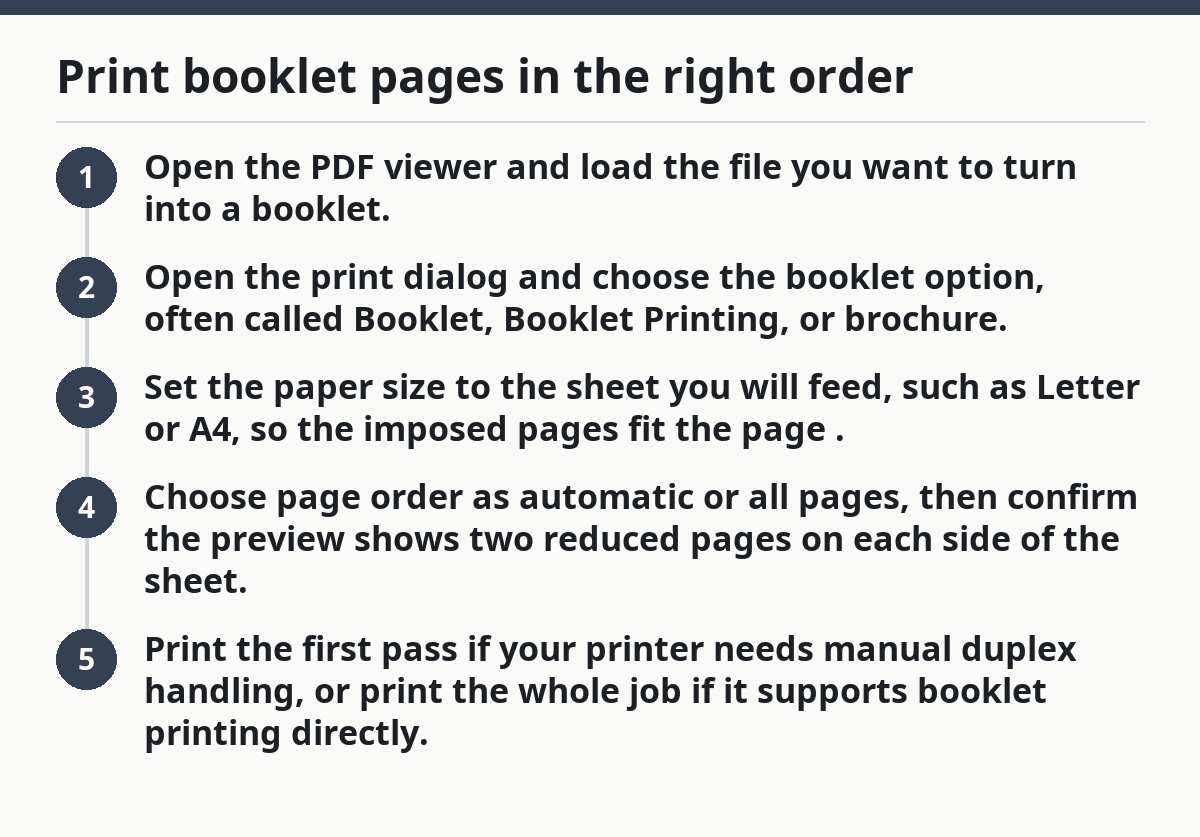
- Open the PDF viewer and load the file you want to turn into a booklet.
- Open the print dialog and choose the booklet option, often called Booklet, Booklet Printing, or brochure.
- Set the paper size to the sheet you will feed, such as Letter or A4, so the imposed pages fit the page.
- Choose page order as automatic or all pages, then confirm the preview shows two reduced pages on each side of the sheet.
- Print the first pass if your printer needs manual duplex handling, or print the whole job if it supports booklet printing directly.
The truth is, this is where most home booklet jobs go wrong. If the preview does not show pages moving into booklet order, you are not making a booklet yet — you are just printing smaller pages.
- Use the print preview every time.
- Watch for the odd-numbered page count.
- Leave a blank last page if your PDF ends on an odd number and the software does not add one.
What is booklet imposition, and why does it matter?
Booklet imposition is the page arrangement that makes a folded stack read correctly after stitching or stapling. A saddle stitch booklet needs pages in a very specific order, because the outer sheets carry the first and last pages while the inner sheets carry the middle pages. Page 1 pairs with the last page, page 2 pairs with the second-to-last page, and so on.
Picture this: you’re holding a 12-page PDF and wondering why page 7 might sit next to page 6 in the print preview. That is normal in booklet printing. Once the sheet folds in half, those pages land on the same spread and read in sequence.
A standard booklet works best when the total page count is a multiple of 4. If it is not, the software usually pads the file with blank pages. That is not a mistake; it is how saddle stitch layout stays balanced. A 12-page booklet uses 3 folded sheets. An 8-page booklet uses 2 folded sheets.
- A 4-page PDF becomes one folded sheet.
- An 8-page PDF becomes two folded sheets.
- A 12-page PDF becomes three folded sheets.
If your viewer offers no booklet mode, you need manual imposition. That means arranging pages in the right pairs yourself, which is slower and easier to mess up. For a simple home job, booklet mode is the better path. Adobe’s print help explains that booklet output is handled through the print settings, not by changing the PDF itself; see Adobe Help.
How to set paper size, scaling, and margins
Setting paper size correctly keeps the booklet readable after reduction. If you print a Letter-size PDF onto Letter paper, the booklet setting will shrink each page so two of them fit on one side of the sheet, then fold cleanly. If you choose the wrong paper size, the margins can clip, shift, or crowd the spine.
Picture this: you’re at the print dialog and the page looks tiny in the preview. That usually means the source page is being reduced to fit the booklet layout, which is expected. The real job is keeping the output paper size matched to your printer tray.
Choose the paper size your printer actually loads, such as Letter or A4. Then check the scale setting in the PDF viewer. For booklet jobs, many viewers set scaling automatically. Do not force a second scale change unless the preview demands it.
Here’s the catch: booklet printing is not the same as “multiple pages per sheet.” The page reduction happens inside the booklet setting, and the final fold is what makes it a booklet.
- Pick one paper size and keep it through the job.
- Leave margins alone unless the preview shows clipping.
- Use the paper tray that matches the selected size.
If the inside margins look cramped near the fold, that is a design issue in the source PDF, not a print dialog problem. A document with very wide borders or tiny type will still look crowded after folding.
How do I fold and assemble the booklet?
You fold a booklet down the center, then staple or stitch it along that fold. For a small home booklet, the usual method is saddle stitch: one or two staples through the crease. A booklet with 8 to 12 pages is easy to handle this way, and the result opens flat enough for most home projects.
Picture this: you’re staring at a stack of printed sheets and need the pages to land in order without turning into a paper fan. Fold the stack once, line up the corners, and crease the center hard before you staple. A bone folder helps, but the edge of a ruler can also work.
For assembly, follow this order:
- Fold the stack exactly in half along the center line.
- Tap the folded edges on a table so the pages line up.
- Staple the crease with long-reach stapler support if you have it, or use two ordinary staples placed evenly apart.
- Press the fold again so the booklet lies flatter.
A saddle stitch booklet is not ideal for thick documents. Once you get beyond about 20 pages, the inner pages push outward and the trim turns uneven. That is the point where a flat stack, comb binding, or a print shop starts making more sense.
Common mistakes that ruin booklet printing
The biggest mistakes are wrong page order, wrong paper size, and forgetting that the PDF may need blank pages added at the end. Those errors make the booklet unreadable or cause the pages to land out of sequence after folding. One bad print pass can waste an entire ream. A 20-page file already needs more careful setup than a short handout.
Picture this: you’re halfway through folding and the chapter starts in the middle of the spread. That means the imposition was wrong, not the folding. The fix happens in the print dialog, before paper ever reaches the tray. On large jobs, a 2-page test print can save a full stack.
Common problems and the fix:
- Pages print in straight order. The booklet mode was off. Turn on booklet or brochure printing.
- The last sheet looks short. The PDF probably needs a blank page at the end. Let the viewer pad it, or add one in the file.
- The margins look clipped. The paper size does not match the sheet in the tray.
- The center fold feels loose. The staple placement is off-center or too far apart.
If the PDF was designed for screens, not print, the type may be too small after reduction. That is a content problem, not a printer fault. A 6-point footer can become useless once the pages shrink into booklet form.
Can I make a booklet without special software?
Yes, you can make a booklet without special software if your PDF viewer has a booklet print option. Many readers do. Adobe Acrobat Reader, Apple Preview, and some browser print dialogs can impose pages in booklet order without extra apps. The key is finding the booklet setting inside the print dialog. For browser-based output, see the page on browser print dialogs.
Picture this: you’re on a home computer and do not want to install a layout program for a 4-page or 8-page handout. Use the PDF viewer first. If it offers booklet printing, that is often the fastest route and usually the least error-prone.
If your viewer lacks booklet printing, you still have two choices:
- Print pages in the right manual order and arrange them by hand.
- Use a dedicated layout app or impose the PDF before printing.
Manual ordering works, but it is easy to slip. Once the file reaches 16 pages or more, the chance of a page-number mistake goes up fast. At that point, dedicated booklet software is the safer option.
For more on related print controls, the hub on printing workflows and output control covers the broader settings that sit around booklet printing without repeating the same steps here.
A clean home setup for booklet printing
A clean home setup is a printer, a PDF viewer, plain paper, and a stapler that can reach the fold. You do not need a press room to make a readable booklet, but you do need a preview, the right paper size, and enough patience to check the order before the first page comes out. Home setups work best for short runs of 1 to 20 pages.
Picture this: you’re ready to print a class handout, a zine, or a small event program. Run a 2-page test first if the file is long or important. That small check catches swapped pages, wrong scaling, and an empty final sheet before you spend a full stack of paper. The U.S. Government Publishing Office recommends checking page setup before final output; see GPO printing guidance.
Use this checklist before you print the full job:
- Confirm the PDF page count is a multiple of 4, or let the viewer add blanks.
- Confirm the paper size in the print dialog matches the tray.
- Confirm the preview shows booklet imposition, not normal page order.
- Confirm the fold line and staple placement make sense for saddle stitch.
Once those four things line up, booklet printing at home becomes routine. The hard part is not the folding. It is the setup. For more setup help, see paper size and scaling and booklet imposition.
How do I order pages for booklet printing?
You order booklet pages so the outer sheets hold the first and last pages, and the inner sheets hold the middle pages. In a folded saddle stitch booklet, page 1 sits beside the last page, page 2 sits beside the second-to-last page, and so on. A booklet print setting does this for you.
Can I make a booklet without special software?
Yes, if your PDF viewer has a booklet or brochure print option. If it does not, you can still do it by hand, but the page order is easier to get wrong. For anything longer than about 16 pages, a booklet-capable PDF viewer is the better tool.
Drafted with AI; not yet reviewed by a person.