Last updated: November 19, 2026
Quick answer: For How to print double-sided on a home printer, turn on two-sided printing in the print dialog if your printer supports duplex, or use manual duplex if it does not. A 2-page test is a practical check before a 20-page packet, but it is not a guarantee that every job will feed the same way. Duplex printing means printing on both sides of a sheet. If your printer has a duplex unit, turn on two-sided printing in the print dialog and choose the correct flip edge; if it does not, use manual duplex and reload the pages yourself.
Key takeaways
- Duplex printing saves paper, but the setup depends on whether your printer has an automatic duplex unit or only a basic single-sided path.
- The print dialog and printer driver control the setting, so the same app can behave differently on Windows, macOS, and in PDF viewers.
- Long-edge and short-edge flips are not the same, so pick the one that matches how you want the pages to read.
- Manual duplex works on many home printers, but it needs careful page order and a clean refeed.
- If the printer spits out pages in the wrong order, the fix is usually in the driver, not the document.
What does double-sided printing mean?
Double-sided printing means a page prints on the front and the back of the same sheet. On a home printer, that can happen automatically through a duplex unit, or manually when you print one side, reload the paper, and print the other side.
The main choice is simple: use automatic duplex if your printer supports it, or manual duplex if it does not. The setting lives in the printer driver, usually from the print dialog in your app, not inside the document itself.
This matters because double-sided printing is not one single button. A printer can support duplex in hardware, while the app still shows a plain one-sided default. If you set the wrong flip edge, the back side can come out upside down or reversed.
How do I know if my printer can print on both sides?
You know by checking the printer driver or the printer’s features for automatic duplex, sometimes called a duplex unit. If the driver shows a two-sided option, your printer can likely print both sides without you feeding the paper again.
Look for terms like “Print on both sides,” “Duplex printing,” or “Two-sided.” On many home printers, that setting appears in the print dialog under Layout, Finishing, or Properties. If you only see one-sided printing, the printer may still work with manual duplex.
Because of that, a quick check after the first sheet can help confirm the setup. With automatic duplex, the printer pulls the sheet back in on its own. With manual duplex, you remove the stack, flip it, and place it back in the tray for side two.
| Setup | What you do | What the printer does | Best for |
|---|---|---|---|
| Automatic duplex | Turn on two-sided printing in the print dialog | Prints both sides without reloading | Regular home use, longer jobs |
| Manual duplex | Print one side, reload the paper, print the other side | Waits for you to feed the sheet again | Basic printers with no duplex unit |
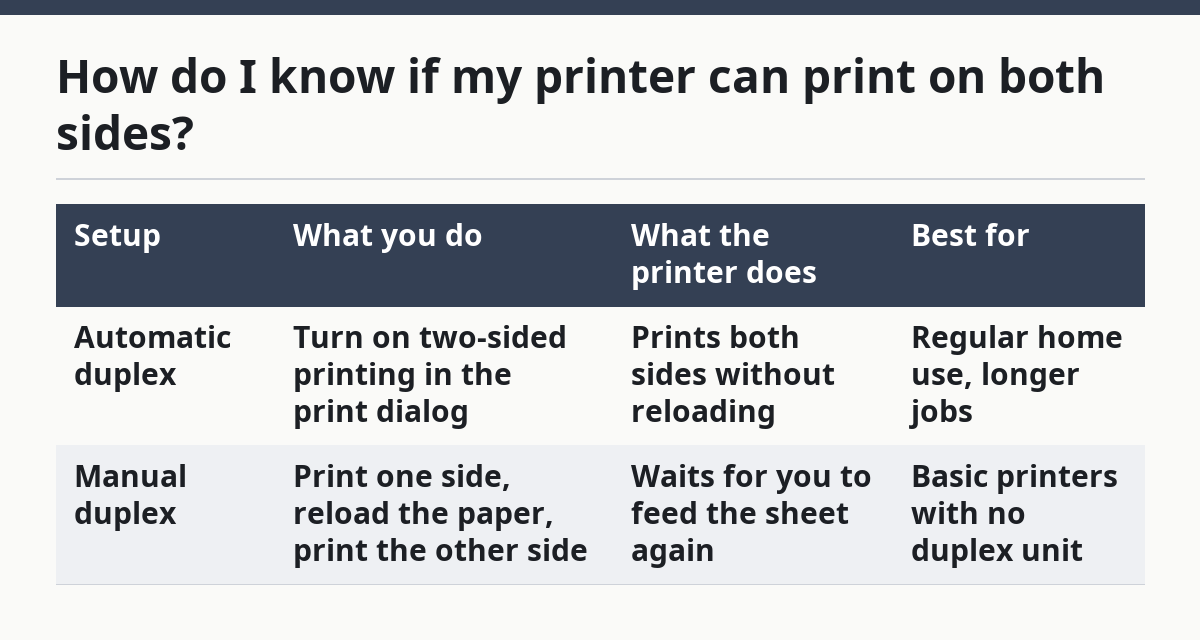
A printer that supports duplex is easier for multi-page jobs, but it is not required. Manual duplex takes more care, yet it still gets the job done on many home printers.
How do I turn on automatic duplex printing?
You turn on automatic duplex printing in the print dialog, then choose the right edge to flip on. The option usually sits under Layout, Finishing, or a similar tab in the printer driver. For printer-specific help, see Microsoft Support and Apple Support.
- Open the print dialog in your app and select your printer.
- Choose the printer driver settings, not just the app’s default print button, so the duplex option appears.
- Turn on two-sided printing or “Print on both sides.”
- Pick flip on long edge for normal book-style pages, or flip on short edge for tablet-style pages.
- Print one test page before a long job so you can check the back side.
The key setting is the flip edge. Long edge keeps the page like a book, while short edge turns it like a notepad. If you print a letter or report, long edge is usually the right choice. If you print a calendar-style layout, short edge may make more sense.
The result should be a stack that reads in order on both sides without any manual reload. If the back side appears upside down, the flip edge is wrong. If the pages come out in a strange order, the driver may be set to a custom sequence that needs changing.
How do I print double-sided by hand?
You print double-sided by hand by printing the first side, turning the stack the right way, and sending it through again. Manual duplex is slower, but it works on a printer with no duplex unit.
- Open the print dialog and choose only the pages for side one if the app asks for a range.
- Print the first side on plain paper.
- Stack the printed pages in the same order they came out.
- Reload the paper in the tray with the printed side facing the correct direction for your printer.
- Print the second side using the remaining pages or the same file if the driver supports manual duplex.
- Check the first two sheets before finishing the job, so a page-order mistake does not waste the whole stack.
The hardest part is the paper path. Some printers flip the sheet face-up; others face-down. A 2-page test is a practical check before a 20-page packet. That small check can save the whole job from coming out backwards.
Manual duplex is not ideal for rush jobs. It is also not a good fit for thick paper that jams easily, because you have to handle the stack twice. Still, it is the correct method when your printer has no duplex unit and the document is worth printing on both sides.
Why does the back side print upside down?
The back side prints upside down when the flip edge does not match the way the pages should read. This is usually a setting problem in the print dialog, not a printer failure.
Use flip on long edge for documents that read like a book. Use flip on short edge for pages that should open like a calendar or flip pad. If you choose the wrong one, the front and back pages can be correct individually but wrong as a pair.
The page order can also matter. A common mistake is printing odd pages first when the driver expects even pages first, or reloading a stack face-up when the printer wants face-down. That mistake costs paper and time, but it is easy to fix once you know your printer’s feed direction.
If the printer keeps reversing pages, check the printer driver again instead of repeating the job. The app you use may keep its own saved print setting, so the next print dialog can still default to one-sided output or the wrong edge.
What should I check before I print a long job?
You should check the driver, the print dialog, and a 2-page test before you start a long job. Those three checks catch most duplex mistakes before they waste a full stack.
Start with the printer driver, because that is where the duplex setting usually lives. Then confirm the print dialog is pointing to the right printer and that two-sided printing is turned on. After that, print a short sample with page 1 on the front and page 2 on the back.
A test also shows whether the paper refeed is correct. If page 2 is upside down, swap long edge and short edge. If the pages come out in the wrong order, change the manual duplex sequence or reset the driver’s layout choice.
This is the part many generic guides skip. They tell you to click a box, but they do not tell you that the same box can be named differently in each app. A PDF viewer, a word processor, and a browser print sheet can all show duplex in a different place.
What if my printer has no duplex unit?
If your printer has no duplex unit, manual duplex is the answer. You print one side, reload the paper, and print the other side using the same print dialog and the right page order.
This is the trade-off: you save paper, but you spend more time. You also have to pay attention to the paper stack because a small feeding mistake can ruin the alignment on page 2. That makes manual duplex a poor fit for large jobs where speed matters more than paper use.
It is still the right choice for a basic home printer. The printer does not need special hardware to put ink on both sides of a sheet, only a clean feed path and the right settings. For a small packet, manual duplex is often enough.
For deeper printing workflow issues, including queue problems and output control, the broader guide on printing workflows and output control covers the steps that sit around duplex printing, not just the duplex setting itself. If you also need layout help, see print settings and page setup.
What mistakes cost the most paper?
The most expensive mistakes are wrong flip direction, wrong page order, and reloading the stack the wrong way. Those errors can show up after several sheets have already printed.
Wrong flip direction gives you readable pages on both sides, but the back side is upside down. Wrong page order breaks the flow of the document, which is painful in reports, class packets, and any set of numbered pages. Reloading the stack wrong can make side two print on the wrong side of the sheet or in the wrong alignment.
The fix is plain: print a short test, note how the paper exits, and keep that note for the next job. If the printer has a duplex unit, trust the driver setting first. If it does not, keep the manual process simple and consistent every time. You can also review printer troubleshooting basics if the output keeps shifting.
A home printer can do duplex well, but it gives no warning when the setup is off. That is why the first sheet matters so much. One correct test page is worth more than a full stack of wrong ones.
FAQ
Why is double-sided printing printing in the wrong order?
Double-sided printing is usually in the wrong order because the printer driver, page range, or manual reload setting does not match the document flow. Check whether the print dialog is set for long edge or short edge, and make sure the pages are being reloaded in the same order the printer expects.
How do I print on both sides if my printer has no duplexer?
You print on both sides without a duplexer by using manual duplex. Print the first side, reload the sheets, then print the second side with the correct paper orientation and page order. A 2-page test helps you confirm the feed direction before you print a larger stack.
Drafted with AI; not yet reviewed by a person.