Last updated: November 19, 2026
Quick Answer: Usually, you can print to a network printer from VPN in one of three ways: enable split tunneling, allow local LAN access, or use a print server queue the VPN can actually reach. The steps below show how to get your laptop talking to the right printer queue without guessing.
Your VPN connection is blocking the path to the office printer. That is why how to print to a network printer from a VPN connection can fail even when the printer itself is fine. The fix is usually split tunneling or local subnet access, not a new printer. Below, you’ll see how to get your laptop talking to the right printer queue without guesswork.
Key Takeaways
- A VPN can hide the local network where the printer lives, so your device never reaches the right subnet.
- The clean fix is to let printer traffic bypass the VPN, or allow the office subnet inside the VPN policy.
- The exact setting lives in the VPN client, the company firewall, or the printer queue path.
- If the office blocks local access on purpose, the help desk has to change policy; your laptop alone can’t force it.
- You usually do not need to turn the VPN off for the whole workday just to print one job.
How do I print to a network printer from a VPN connection?
Let your device reach the printer’s local subnet while the VPN stays on for everything else. The printer queue never gets a direct path if the VPN routes all traffic through the tunnel.
Picture a home Wi‑Fi connection, a live VPN client, and a print job that just sits there. The office printer is on 192.168.x.x or another private range the tunnel does not allow. The fix usually comes down to three things: split tunneling, a route to the office subnet, or a different printer queue address.
-
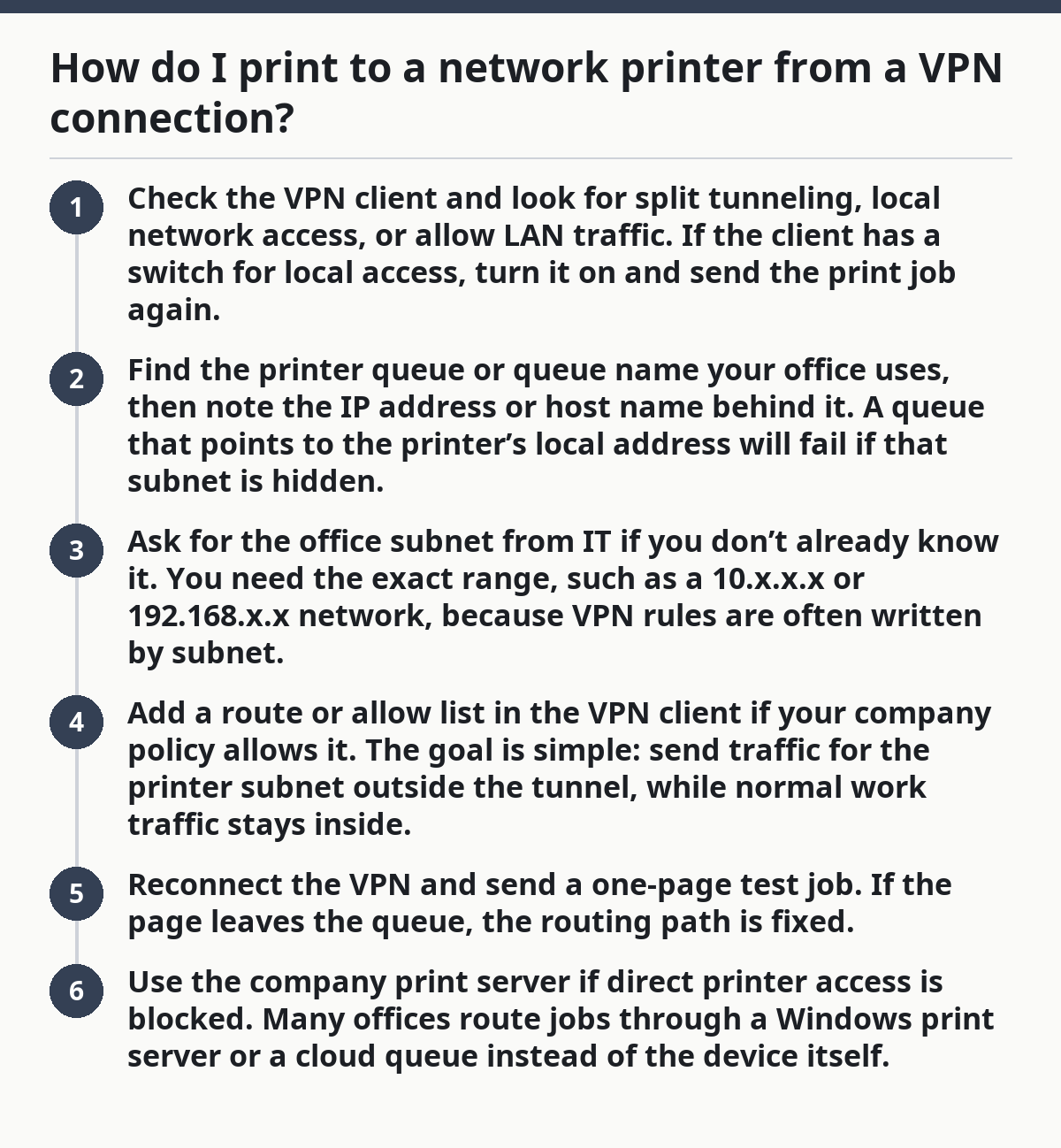
Check the VPN client and look for split tunneling, local network access, or allow LAN traffic.
If the client has a switch for local access, turn it on and send the print job again. -
Find the printer queue or queue name your office uses, then note the IP address or host name behind it.
A queue that points to the printer’s local address will fail if that subnet is hidden. -
Ask for the office subnet from IT if you don’t already know it.
You need the exact range, such as a 10.x.x.x or 192.168.x.x network, because VPN rules are often written by subnet. -
Add a route or allow list in the VPN client if your company policy allows it.
The goal is simple: send traffic for the printer subnet outside the tunnel, while normal work traffic stays inside. -
Reconnect the VPN and send a one-page test job.
If the page leaves the queue, the routing path is fixed. -
Use the company print server if direct printer access is blocked.
Many offices route jobs through a Windows print server or a cloud queue instead of the device itself.
The truth? The printer is rarely the real problem. The network path is.
What split tunneling does for printing
Split tunneling lets some traffic go through the VPN and some traffic go to the local network. That matters because a printer on the office LAN often needs direct access from your device, not a full-tunnel detour through another city.
Picture a work VPN connection, email that opens normally, and an office printer that still looks invisible. Split tunneling keeps remote access alive while letting one local subnet, like a floor-by-floor office network, stay reachable. Without it, the tunnel can swallow the route the printer needs.
A few details matter here:
- Full tunnel sends nearly all traffic through the VPN.
- Split tunnel sends only selected traffic through the VPN.
- Local network access may be a separate checkbox in the client.
- Printer subnets are often private ranges, so they need explicit permission.
On Windows, the fix often lives in the VPN profile or a policy pushed by IT. On macOS, the same idea may appear as a local network permission or a route table change. The labels differ, but the goal is the same: keep the office LAN visible.
Split tunneling is not always allowed. Some companies block it because they want all traffic inspected through the VPN. If that policy is firm, the answer is not a local tweak on your laptop; it’s a request to IT for a print route or a print server exception.
See a setting that says “allow access to local network devices”? Check that one first. In practice, it can solve the problem in under a minute.
Which VPN client settings should I check first?
Start with local network access, split tunneling, and route rules for the office subnet. Those three settings decide whether your laptop can see the printer queue at all.
Picture the VPN app with half a dozen toggles that all sound similar. One says “bypass VPN for local devices,” another says “send only selected traffic,” and another hides under advanced settings. The printer only cares whether its subnet is reachable.
Check these items in order:
-
Local network access
Turn it on if the client offers it. This can be the quickest way to restore access to a nearby LAN device. -
Split tunneling
Look for an option that includes local addresses or excludes the office subnet from the tunnel. -
Route table entries
Some clients show which IP ranges go through the VPN. Make sure the printer subnet is not missing. -
DNS handling
If the printer is reached by host name, make sure the VPN is still resolving the right office DNS records. -
Firewall prompts
macOS, Windows, and some endpoint tools may block discovery or direct connections even when routing is right.
A common mistake is changing the Wi‑Fi network instead of the VPN profile. That burns time and changes nothing, because the VPN is still redirecting the route. Another slip is printing by host name when the DNS record only exists on the office network and not on the VPN path.
If the client has a button for “allow LAN access,” use that before you try anything else. It is the simplest test and often the right fix.
How do I know the printer subnet is the real problem?
The printer subnet is the real problem when the printer works off the VPN, but fails as soon as the VPN connects. That pattern means the device is fine and the route is wrong.
Picture this: you can print while disconnected, then the moment the VPN comes up, the queue stops responding or disappears from the list. That usually points to a routing or policy issue, not a dead device, not a bad cable, and not a broken driver.
Use this quick check:
- Try the same printer queue while the VPN is off.
- Turn the VPN on and try again.
- If the failure appears only with the VPN active, the subnet is likely blocked.
- If the printer is on another floor or in another building, the route may need a static path from IT.
- If the queue uses a host name, test the IP address too.
A subnet is just the address block the printer lives in. A home printer might sit on one private range, while the office LAN uses another. The VPN has to know about that range, or it will route around it.
The office may also use a print server on a separate subnet. In that setup, you might not need direct access to the device at all. You need the server’s queue path, and that is a different route than the printer itself.
Wondering whether a static IP fixes it? Sometimes it helps the queue stay stable, but it does not solve a VPN policy that blocks the whole subnet. Routing comes first.
What should I change in the printer queue or office policy?
Change the printer queue path or the office VPN policy when the client settings are right but the printer still cannot be reached. At that point, the problem is usually on the network side, not your laptop.
Picture this: you’ve enabled local access, the VPN reconnects cleanly, and the job still never reaches the queue. That is the moment to look at the queue itself. The print server may be pointing to a private address that the VPN will not pass, or the company may require a separate queue for remote users.
The most common fixes are:
- Point the queue to a print server instead of the device’s raw IP.
- Use a remote-user queue if your office has one.
- Ask IT to allow the office subnet in the VPN policy.
- Confirm the queue name matches the office domain the VPN can resolve.
- Remove stale queue entries and add the current one again.
This is where office policy matters. Some firms only allow printing through a managed server so they can track jobs and keep the printer subnet off limits. That is normal. It is also why a personal workaround can fail even when your home network is fine.
If you control the print server, the fix is often a routing rule or a queue reassignment. If you do not, the best move is to ask for the exact subnet, the queue name, and whether remote printing is supported. Those three details usually end the back-and-forth.
The truth is, the queue is part of the path. If it points to the wrong place, no client setting will save it.
Common mistakes that make VPN printing fail
The most common mistakes are using the wrong address, skipping split tunneling, and assuming the VPN can see the same local subnet as your desk. Those errors cost time because they look like a printer fault when they are really a routing fault.
Picture this: you change three settings, try four times, and still get nothing. Usually, one of a few predictable slips is still in place.
-
Using the printer’s old IP
Cost: the queue points to a dead route.
Do this instead: confirm the current address or use the office queue name. -
Leaving full tunnel on
Cost: local traffic stays trapped in the VPN.
Do this instead: enable split tunneling or local network access. -
Ignoring DNS inside the VPN
Cost: the name does not resolve, even if the printer exists.
Do this instead: try the IP or ask for the correct office DNS path. -
Guessing the subnet
Cost: a route rule that misses by one range does nothing.
Do this instead: get the exact office subnet from IT. -
Reinstalling the driver first
Cost: time lost on the wrong layer.
Do this instead: fix the route before touching the driver.
A lot of troubleshooting guides start with the printer hardware. That is the wrong order here. If the VPN blocks the network path, the device never gets a fair shot.
When should I ask IT instead of fixing it myself?
Ask IT when the VPN policy blocks local access, when the office subnet is unknown, or when the printer queue depends on a managed print server. Those are policy and routing issues, not simple user settings.
Picture this: you have already checked split tunneling, tested the queue, and confirmed the printer works off VPN. If it still fails on VPN, the company may have set the tunnel to hide the LAN on purpose.
Ask IT for these exact items:
- the office subnet for the printer
- the correct queue name or print server
- whether local network access is allowed
- whether your VPN profile supports split tunneling
- whether remote printing uses a separate path
If the company uses a zero-trust setup or a locked-down VPN client, you may not be able to change the route yourself. That is not a device failure; it is a policy boundary. A policy change may be the fastest fix, but it still depends on IT approval.
For broader setup help on wireless printing access, the hub page on wireless printing setup and access control covers the wider network side. This page stays focused on the VPN path.
Why can’t I print when my VPN is on?
Because the VPN may be hiding the local network the printer uses. The printer queue can’t reach its subnet if the tunnel sends all traffic away from the office LAN. Check split tunneling, local network access, and the office route first. If those are locked down, IT has to adjust the policy.
Should I disable my VPN to print?
Only if your office policy allows it and the work you’re doing does not require the VPN at that moment. Turning the VPN off can restore printing, but it also drops remote access to internal tools. A better fix is usually split tunneling or an allowed route to the printer subnet.
How do I keep printer access while connected to a VPN?
Keep printer access by allowing the office subnet or local LAN through the VPN client. That usually means split tunneling, a local network checkbox, or a managed print server that remote users can reach. If your company blocks those options, ask IT for the approved queue path instead of trying to force it from your laptop.
Drafted with AI; not yet reviewed by a person.