Last updated: November 19, 2026
Your home Wi‑Fi printer can be opened to neighbors, guests, and bots if the defaults stay in place. How to secure a printer on a home Wi‑Fi network starts with the admin password, firmware updates, WPS, and WPA2 or WPA3. If you are unsure about a model or setting, consult the printer maker or a qualified IT professional before changing advanced options. The steps below show exactly which settings matter and which ones are noise. For a broader baseline, the FBI’s guidance on changing default passwords and the CISA router guidance both reinforce the same first move: replace defaults.
Secure home printer settings first
Picture this: you’ve finished setup, and the device sits on the same network as your laptops, phones, and smart speakers. How to secure a printer on a home Wi‑Fi network starts with hardening the printer admin panel, removing default credentials, and keeping the connection on WPA2 or WPA3 instead of older, weaker options. If the model is unfamiliar, consult the maker’s documentation or a qualified professional before changing settings you do not recognize.
- Open the printer admin panel from the printer’s web page or built-in menu.
- Change the default admin password to a long, unique one.
- Check the wireless security mode and keep it on WPA2-AES or WPA3.
- Turn off WPS in the wireless settings.
- Update the firmware to the latest version from the maker.
- Limit who can print from the network and save the changes.
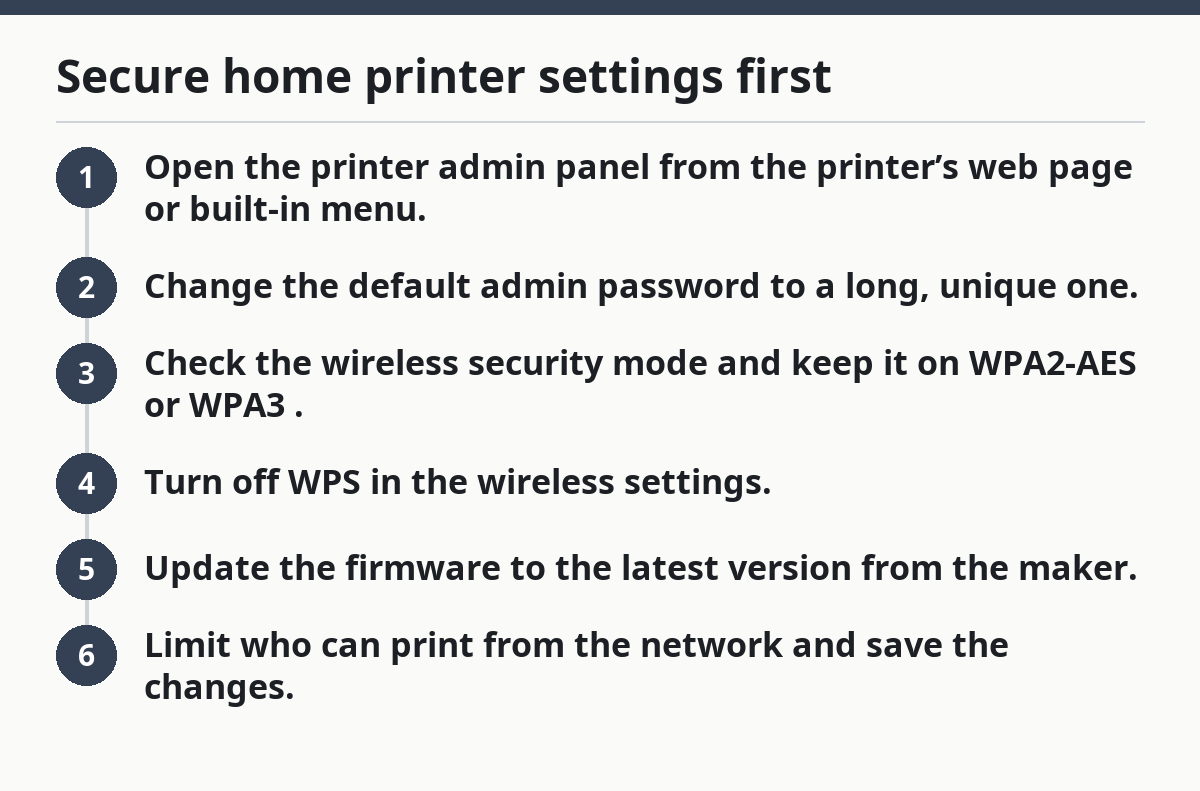
Each step closes a real door. The password blocks casual access. WPA2 and WPA3 protect the traffic on the air. WPS is a convenience feature that can widen the attack surface, so it usually does more harm than good on a home network. For current device guidance, HP and Epson both publish model-specific setup instructions.
How do I change the printer password?
You change the printer password in the admin panel, not in the print dialog. The setting is usually under Security, Administrator, or System, and the new password should be long enough that nobody can guess it from the model name plus a birthday.
Start by signing in to the printer admin panel with the current admin login. If the maker left the default credentials in place, replace them immediately with a strong password that is not reused anywhere else. A common mistake is changing only the Wi‑Fi password while leaving the admin login untouched. That leaves the settings screen open.
Then save the change and sign out of the panel. If the device offers a second control for local access from the front panel or mobile app, secure that too after checking the model guide. Many home devices expose two doors: one for the web interface and one for direct physical access.
Authoritative help from the maker matters here. A good example of the kind of documentation to look for is HP’s support guidance on security settings and Epson’s admin password setup pages. The names vary by model, but the job is the same: replace the factory login before you do anything else. The FBI’s password guidance also recommends changing default credentials on connected devices.
Why WPA2 or WPA3 matters more than a fancy password
A strong password on the printer does not help much if the wireless link is weak. The network should use WPA2 or WPA3, because those standards protect the traffic between the printer and the router.
Here’s the catch: a printer can be secure in its own menu and still sit on an insecure Wi‑Fi setup. That’s why the router settings matter too. If the router still offers an older security mode, switch the home network to WPA2-AES or WPA3 if every device can handle it. Mixed or legacy modes make the whole network easier to abuse.
This is also where people get tripped up by guest access. A guest network is useful for visitors, but it should not be the place where a household printer lives unless you specifically need that setup. Many routers isolate guest clients from the main devices by design, which can block printing entirely. If the printer stays on the main network, keep the router’s own admin password strong as well.
For a broader map of the settings around this topic, the hub on printer security and access control is the right next stop. This page stays on the home printer security settings themselves. The CISA router checklist is also useful when you review Wi‑Fi security modes and admin access.
Should I turn off WPS on my printer?
Yes, you should turn off WPS on most home printers because it offers convenience at the cost of tighter control. WPS was built to make joining Wi‑Fi faster, but it also gives an attacker a smaller, simpler target than a proper WPA2 or WPA3 login.
If the printer has a WPS button or a WPS menu item, disable it in the wireless settings. Some routers also need WPS turned off separately. Do both if the option exists. Otherwise the printer may still advertise WPS even when you think the feature is gone.
The trade-off is simple. WPS can save a minute during setup, but that minute is not worth keeping a shortcut open all the time. If you later move the printer or reset the network, you can turn WPS on briefly for setup and then switch it back off. That gives you convenience without leaving the door cracked.
A solid rule of thumb: if the model supports WPA3 and normal password entry, WPS is dead weight. If the device is old enough to need WPS, that is a sign to pay even closer attention to firmware and admin access.
Update firmware before you trust the setup
Updating firmware closes bugs that old code leaves behind, and a printer with stale firmware is easier to attack than one running the current release. Check the maker’s support page for the exact model number, because firmware files are often model-specific and the wrong one can break the device.
Open the printer’s update page in the admin panel or use the maker’s desktop utility if that is the normal path for your model. Some devices can check for updates on their own; others need you to download a file and upload it manually. After the update finishes, give the printer time to restart fully before you change anything else.
Two drawbacks show up often. First, older models may stop getting updates altogether, which means the device will never be as safe as a newer one. Second, firmware updates sometimes reset settings back to default, including admin passwords or wireless options. That is annoying, but it is better than leaving an unpatched device online.
If the update page offers release notes, read them. You are looking for security fixes, not just new features. A note that mentions authentication, remote access, or wireless stability is worth your attention.
Lock down access so guests and neighbors cannot print
Picture a busy house with kids, visitors, and phones on the couch. If everyone on the network can send jobs to the machine, the result is wasted ink, surprise pages, and a settings screen that nobody owns. The fix is access control, not just a stronger password.
Start in the printer’s security or permissions menu and look for controls such as user approval, print PIN, private job release, or device access restrictions. Some models let you require a code at the panel before a job prints. Others let you restrict the device to approved users on the LAN. Even a simple local restriction is better than open access for every device on the network.
Then review the router side. If the printer is sitting on a guest network, move it back to the main secure network unless you have a very specific reason to isolate it and the model guide supports that setup. If the printer supports a separate administrator account from the daily user account, keep that split. The admin account should be for settings only, not for everyday printing.
This is also where physical security matters. If the printer has a USB port on the front or side, block casual access if possible. Some models let anyone with physical access dump logs, change settings, or add a direct connection path. That is not the main threat in most homes, but it is a real one.
What mistakes make a home printer easy to attack?
The easiest mistakes are leaving defaults in place, using old wireless modes, and skipping updates. A printer with a factory admin login and WPS left on is much easier to reach than one with WPA3, a changed password, and current firmware.
The most common cost is not dramatic hacking. It is boring damage: unwanted print jobs, changed settings, shared documents sent to the wrong place, and a device that stops behaving the way you expect. On a home network, that is enough trouble.
Avoid these habits:
- Keeping the factory admin password because “nobody knows it.”
- Leaving WPS on because setup was faster.
- Using a router mode older than WPA2 when WPA2 or WPA3 is available.
- Ignoring firmware updates for months.
- Letting everyone on the network have full printer access by default.
- Putting the printer on a guest network without checking isolation settings.
The better pattern is simple. Harden the admin panel, secure the wireless layer, update firmware, and then test one normal print job from a trusted device. If that works, the device is open to the right people and closed to the wrong ones.
What should stay on after setup and what should not
Keep WPA2 or WPA3, the changed admin password, and current firmware turned on all the time. Turn WPS off after setup and leave it off unless you have a temporary need and can switch it back.
If the printer supports logging, private release, or approval prompts, keep those enabled too. They are not a replacement for network security, but they help stop casual misuse inside the home. On many models, the strongest setup is a mix of router security and printer-side access control, not a single magic switch.
One last check: make sure the printer is not broadcasting a separate open setup network after installation. Some devices do this during first-run pairing and then keep the extra path alive longer than they should. If you see it, shut it down in the wireless menu.
Key takeaways
- Change the device admin login first, before anything else.
- Keep the Wi‑Fi link on WPA2 or WPA3, not an older mode.
- Turn WPS off on both the printer and the router if possible.
- Install firmware updates from the maker’s support page.
- Use access controls so every person on the network cannot print by default.
- If a model can’t do these basics, treat it as a weak link.
How do I change my printer password?
You change it in the printer admin panel, not in the print app. Sign in with the current admin login, open the security or administrator menu, and replace the factory password with a long unique one. Save the change, sign out, and store the new password somewhere safe.
Should I turn off WPS on my printer?
Yes. WPS makes joining Wi‑Fi easier, but it also leaves a simpler path into the network than normal WPA2 or WPA3 login. Turn it off on the printer and the router if both devices offer the setting. Leave it off after setup unless you have a short-term reason to use it.
How do I stop other people on my Wi‑Fi from using my printer?
Use the printer’s access controls and admin settings to limit who can print. If the model supports user approval, PIN release, or permission controls, enable them. Also keep the printer off a guest network unless you need that isolation, and make sure the admin password is not the factory default.
Drafted with AI; not yet reviewed by a person.