Last updated: November 18, 2026
Key Takeaways
- Match the printer to your page volume, paper size, and maintenance tolerance.
- Set up the hardware, then the software, then run one test print.
- Running cost and quality depend more on consumables, paper, and document type than on brand.
- Standard advice fails for unusual spaces, specialty media, or shared use.
Three things decide the right printer: what you print, how much you print, and where it will sit. In Printer buying and setup — The Complete Guide, the practical answer is usually the same: pick the machine that fits the task, then install it in the right order. Get the order wrong and the thing can be irritating from day one; get it right and setup is usually a one-hour job, not a weekend ordeal.
What actually determines the right printer for you

The right printer is the one that matches your page volume, your paper size, and your tolerance for maintenance. Print a few pages a week? An inkjet can make sense. Print text-heavy documents often? A monochrome laser usually costs less to live with over time. Need photos or borderless color? The answer shifts again.
Most buyers start with brand. That is the mistake. A printer with glossy marketing language may still be wrong for a home office because it has tiny ink cartridges, no automatic duplexing, or a rear feed that cannot handle thick stock. And a cheap machine can turn expensive fast if it uses separate color cartridges you replace at awkward intervals.
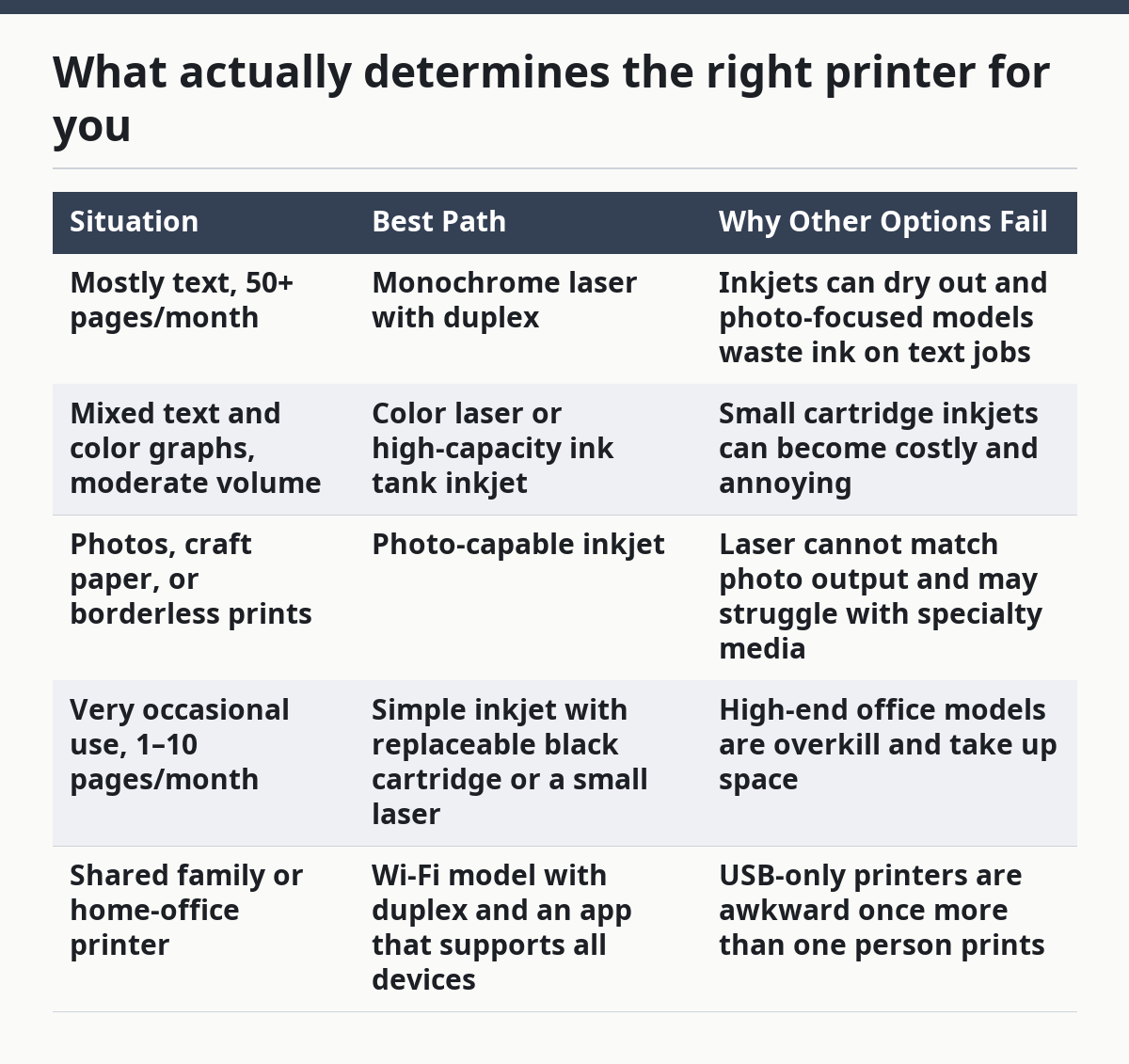
Here is the decision frame that does the most work:
| Situation | Best Path | Why Other Options Fail |
|---|---|---|
| Mostly text, 50+ pages/month | Monochrome laser with duplex | Inkjets can dry out and photo-focused models waste ink on text jobs |
| Mixed text and color graphs, moderate volume | Color laser or high-capacity ink tank inkjet | Small cartridge inkjets can become costly and annoying |
| Photos, craft paper, or borderless prints | Photo-capable inkjet | Laser cannot match photo output and may struggle with specialty media |
| Very occasional use, 1–10 pages/month | Simple inkjet with replaceable black cartridge or a small laser | High-end office models are overkill and take up space |
| Shared family or home-office printer | Wi‑Fi model with duplex and an app that supports all devices | USB-only printers are awkward once more than one person prints |
If you’re buying for a home office, automatic duplexing, Wi‑Fi, and a decent scanner matter more than the number on the speed label. A printer rated at 20 pages per minute sounds fast, but for most people the gap between 18 and 22 ppm matters less than whether the machine jams on ordinary copy paper or supports AirPrint, Mopria, or a proper Windows driver.
A few terms matter here. “ADF” means automatic document feeder, and it helps if you scan or copy multi-page documents. “Duplex” means it prints both sides automatically. “Duty cycle” is the maker’s rough upper limit, but it is not a target to hit. “PCL” and “PostScript” are print languages that matter more in office environments than in a kitchen or dorm room.
Quick check: cannot answer “what will I print most often?” in one sentence? Stop there.
Inkjet or laser: which one fits your real workload?
Inkjet is the better buy when you need color photos, occasional printing, or a lower upfront price; laser is the better buy when you care about text, consistency, and not having ink dry in the nozzles. That is the short version. The real answer depends on how often the printer sits unused.
Print every week, and many inkjets behave fine. Print once a month or less, and an inkjet can become a maintenance project because dried ink and clogged nozzles are common annoyances. Laser printers use toner, not liquid ink, so they generally tolerate long gaps better. That does not make them maintenance-free, but it usually means fewer “why is the black streaking?” moments.
Use this rule of thumb:
- Choose inkjet if you need photo quality, borderless prints, envelopes, labels, or an entry price under the typical office printer tier.
- Choose laser if you print mostly text, want sharper small fonts, or want a machine that feels ready after sitting unused.
- Choose ink tank inkjet if you print a lot of color and want lower cost per page without moving to laser.
Ink tank printers deserve a separate mention because they often change the math. Instead of small cartridges, they use refillable reservoirs. That usually lowers running cost, but the purchase price is higher and the printer may be larger. If you print hundreds of pages a month, an ink tank unit can make a lot of sense. If you print 20 pages a month, the savings may never justify the extra cost and desk space.
Printing school assignments, forms, and receipts? A monochrome laser is often the cleanest answer. Family photos, iron-on transfers, or color charts with good gradient detail? Inkjet is the honest choice. Want both in one box? Accept the trade-off: a do-everything printer is usually bigger, pricier, and fussier than a single-purpose one.
Here are the setup consequences people overlook. Laser printers need space for toner access and paper path clearance. Inkjets need a stable place and, for best results, regular use. In small apartments, the footprint matters as much as the print engine.
If the printer will sit next to a router, a laptop dock, or a filing cabinet, measure the shelf before buying. A box that fits on the store page can still be awkward once the rear tray opens and the paper output extends. A 15-inch-wide printer can demand more than 20 inches of real desk space when it is in use.
Quick check: mostly black text and you hate troubleshooting? Laser is probably your answer.
Which features are worth paying for?
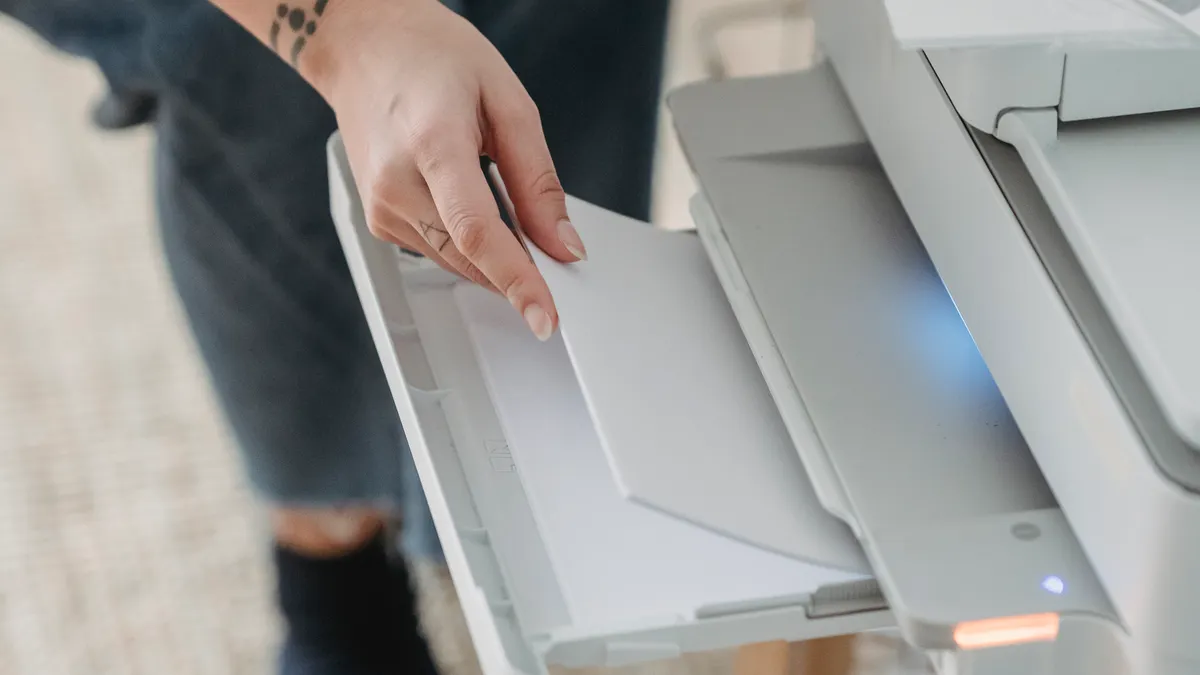
Pay for the features that remove real friction: duplex printing, a usable paper tray, reliable Wi‑Fi, and a scanner with an ADF if you handle multi-page documents. Everything else depends.
Print a few sheets at a time? A manual rear feed can be fine. Regularly print 30-page packets? A front-loading tray is much easier to live with. Scan receipts or signed forms? A flatbed scanner is enough. Scan contracts or class notes in batches? An ADF saves real time and reduces paper handling.
Do not overvalue print speed unless your workload is high. A printer rated for 30 ppm can still feel slow if it takes 15 seconds to wake up from sleep, the driver stalls, or the first page takes ages to start. For home use, first-page time and reliability matter more than headline ppm.
Pay attention to the following:
- Automatic duplex: worth it for nearly everyone who prints more than a few pages a week.
- ADF: worth it if you scan, copy, or fax multi-page documents.
- Separate ink cartridges or tanks: useful because you replace only the color that runs out, but the economics differ by model.
- Ethernet: useful in offices, less necessary at home if Wi‑Fi is stable.
- Wi‑Fi Direct / AirPrint / Mopria: worth it if phones and tablets will print without a computer.
- Large paper tray: useful if you dislike constant refills.
- Rear manual feed: useful for envelopes, labels, card stock, or thicker media.
There is also a feature many people ignore until it breaks their routine: the control panel. A tiny two-line screen is fine if you only print from a computer. It is painful if you want to manage network setup, scan destinations, or paper settings from the printer itself. A 2.7-inch color touchscreen is not mandatory, but it can make setup and everyday use less annoying.
If you work from home and need a printer that behaves like office equipment, look for models that support real network management, not just a phone app. Need the occasional boarding pass or homework sheet only? A simpler model is less likely to go wrong.
Quick check: duplex, Wi‑Fi, and a scanner save you time weekly? Budget for them.
How do I set up a printer without wasting an afternoon?
Set up the printer in this order: physical steps first, software steps second, one test print last. Start with drivers before the printer is powered and connected, and you usually burn time clicking through prompts that cannot finish yet.
Use this setup path for most home printers:
- Unbox the printer completely. Printers often ship with hidden packing material inside the paper path and carriage area, and missing one piece can cause a jam or a startup error.
- Place it with real clearance. Leave room behind the printer for cable bends and paper exit, and leave room above the scanner lid if there is one. A printer that sits flush against a wall is harder to service.
- Install the ink or toner exactly once. Follow the tray labels and click cartridges fully into place. For laser printers, shake a toner cartridge only if the maker says to do so. For ink tanks, fill to the marked line and close the caps properly.
- Load plain paper first. Use standard 20 lb or 75 gsm copy paper for the first test. Fancy paper can wait until the printer is aligned and proven to work.
- Let the startup cycle finish. Many printers perform an initialization routine that takes several minutes. Do not interrupt it unless the screen freezes or the maker says it is stuck.
- Connect by the simplest method available. USB is often easiest for a single computer. Wi‑Fi is better for multiple devices, but only if your router name and password are ready. If the printer has Ethernet and sits near the router, that can be the most stable option.
- Install the correct driver or app. Use the maker’s support page or operating-system print system when possible. On macOS, AirPrint often handles many printers without extra software. On Windows, the vendor package may add scan tools and maintenance utilities.
- Run alignment or calibration. This matters especially for inkjets. It helps fix blurry text, misaligned color blocks, and banding.
- Print a test page and a scanner test, if relevant. Check duplex, color, paper size, and Wi‑Fi status. A printer that works on the first page can still fail on the second side or on legal-size paper.
A few setup mistakes account for most complaints. People leave packing tape in place, put the wrong paper in the tray, skip driver installation, or connect to a guest Wi‑Fi network that cannot see the printer. In offices, a printer often fails because it is on 2.4 GHz while the laptop is on a segmented network that blocks discovery. If that sounds familiar, Ethernet is the cleaner fix.
Setting up a printer for a nontechnical household? Keep the first connection simple and avoid exotic options like network share queues or firmware tweaking. On Windows 11, macOS Sonoma, or a recent Linux distribution, the printer should usually be found through the OS once it is on the same network. If it is not, the issue is often the router rather than the printer.
Also note the paper settings. If the driver says Letter and the tray is loaded with A4, or vice versa, the printer may warn, scale, or stop. That mismatch creates a surprising number of false “printer problem” reports.
Quick check: setup already failed once? Start over at the hardware step and ignore software until the printer can print its own internal test page.
What actually determines print quality and running cost?
Print quality and running cost are controlled less by the logo on the front and more by ink or toner format, paper quality, and the type of document you print. Want text that looks crisp at 8-point size? Laser usually wins. Want smooth skin tones or saturated photos? A good inkjet usually wins.
The biggest trap is assuming a low purchase price means a low total cost. Cheap cartridges, frequent replacements, and proprietary ink can make a bargain printer expensive in real use. Ink tank models often reverse that equation: higher upfront cost, lower cost per page. Laser sits in the middle depending on toner yield and how much you print.
Here is the practical view:
- Text documents: laser usually gives the cleanest letters and fastest drying.
- Color charts and presentations: a color laser or a well-tuned inkjet can work; choose based on budget and paper.
- Photos: inkjet.
- Heavy pages, duplex reports, or training packets: laser handles the workload with less fuss.
Paper matters more than most buyers think. Standard copier paper around 75 gsm works for drafts and office use. Heavier stock improves feel and reduces show-through, but not every printer handles it well. Glossy photo paper is a separate category and usually needs inkjet-friendly support. If a printer advertises 60–200 gsm support, that is useful only if you actually plan to use those media weights.
For running cost, compare the consumable type:
- Cartridges: easy to replace, but small cartridges can run out fast.
- Toner: often better for text-heavy volume and long shelf life.
- Ink tanks: strong for higher page counts, but they still need occasional cleaning and proper refill discipline.
For a student or a household that prints intermittently, the absolute cheapest printer can backfire because the first replacement set of consumables arrives too soon. For a home business that prints invoices every day, a higher upfront cost can be the rational choice because time and reliability matter.
One more nuance: color quality on office documents and photo quality are not the same thing. A printer can make readable color graphs and still be poor at skin tones. That is why many people should not judge a model by how bright the sample brochure looks.
Quick check: care more about what each page costs over a year than the box price today? Focus on consumables first.
When the standard advice is wrong
Standard advice breaks down when your printer lives in a weird environment, prints specialty media, or serves more than one person with different needs. In those cases, the “buy a cheap all-in-one and call it done” advice often fails.
| Situation | Best Path | Why Other Options Fail |
|---|---|---|
| Printer sits unused for long stretches | Laser or ink tank with regular maintenance cycle | Small cartridge inkjets clog more easily |
| You print on labels, envelopes, or cardstock | Model with rear manual feed and media support specs | Basic tray-only printers can jam or misfeed |
| Multiple users print from phones, laptops, and a desktop | Wi‑Fi model with AirPrint/Mopria or Ethernet | USB-only setup becomes a bottleneck |
| You scan piles of documents | ADF plus flatbed scanner | Flatbed-only scanning is too slow |
| You need quiet operation near sleeping or study space | A quieter inkjet or a printer placed away from the desk | Fast office lasers can be noisier during warm-up and printing |
| You work with mixed paper sizes | Model with adjustable tray guides and clear size support | Printers that “accept” a size often still complain about it |
Printing labels? Verify adhesive label compatibility before buying. Many jams come from curling labels or stock that is too thick for the paper path. Printing envelopes? A straight-through or rear feed path is safer than forcing envelopes through a tight tray. Scanning old IDs or book pages? A flatbed scanner matters more than printer speed.
The same goes for shared households. If one person wants cheap black-and-white pages and another wants photos, the answer may be two devices instead of one compromise machine. That sounds less elegant, but it often works better than paying for a hybrid unit that satisfies nobody.
If the printer will be used by a small business, think like an office manager: who will refill paper, who will replace toner, who will handle jams, and who will set permissions? A machine with a good status screen and clear consumable access is worth more than one with flashy wireless features nobody uses.
One common wrong turn is buying a photo printer for office work because it “prints in color.” That usually gives you a slower machine, higher consumable costs, and a worse experience for plain documents.
Quick check: labels, shared use, or long idle periods? Standard one-size-fits-all advice probably does not apply.
How to place, connect, and maintain the printer so it stays reliable
A printer stays reliable when it sits on a stable surface, connects in the simplest workable way, and gets small maintenance before problems stack up. If the machine rocks, heat is trapped, or the network keeps changing, you create issues that look like software trouble but are really placement trouble.
Start with the physical location. Put the printer on a level surface that can hold its weight and vibration. Keep it away from direct sunlight, radiators, and damp windows. If it is an inkjet, do not park it where household dust, cooking grease, or pet hair will get into the paper path. A 6-inch clearance on the sides is not a universal rule, but some breathing room helps with heat and access.
Then choose the connection method. If only one person prints from one computer, USB is often the simplest and most stable. If several devices need access, use Wi‑Fi or Ethernet. Ethernet is boring, and that is a compliment; it avoids many discovery issues and keeps the printer visible even when Wi‑Fi settings change.
Maintenance is mostly small habits:
- Print something at least occasionally if you own an inkjet. A weekly or biweekly page can help keep nozzles from drying out, especially on models that sit idle.
- Keep paper in a dry place. Damp paper curls and feeds poorly.
- Use the printer’s own cleaning and alignment tools when quality drops. Do not guess first; run the built-in routine.
- Replace consumables before they are completely exhausted if the printer is used for urgent work. Waiting until the last page can interrupt a job, so replace them while you still have a cushion.
- Update firmware only when it fixes a real issue or the maker recommends it. Firmware updates can improve stability, but they can also change behavior you were relying on.
For office users, it helps to keep spare paper and at least one replacement consumable on hand. A laser printer with a low-toner warning at 4 p.m. can still print, but a nearly empty cartridge can cause streaks or faded output. For inkjets, check whether the printer can keep black text acceptable even when a color cartridge is low; some models refuse to print unless all colors are healthy.
Putting the printer into a home office? Label the cable, name the device clearly on the network, and make sure every computer sees the same printer queue. That avoids the “is this the upstairs printer or the downstairs printer?” problem. Placing it for a child or roommate? The front tray, ink access, and power button should all be reachable without moving furniture.
Quick check: already unreliable? Fix placement and connection before blaming the brand.
Edge cases: when the normal advice breaks down
These cases need different answers because the usual advice misses the real constraint.
-
Situation: you print once every two or three months.
What changes: Ink clogs become a bigger risk than purchase price.
What to do instead: Choose a laser printer or an ink tank model with a clean maintenance routine, and avoid tiny cartridge inkjets unless you are ready to print test pages regularly. -
Situation: you need one printer for both schoolwork and high-quality photos.
What changes: No single budget model does both equally well.
What to do instead: Decide which task matters most, or split the job into two devices. A photo-capable inkjet handles images better; a monochrome laser handles school packets better. -
Situation: the printer must sit in a bedroom, studio, or shared quiet space.
What changes: Noise and warm-up behavior matter as much as print speed.
What to do instead: Look for a quieter inkjet, place the printer farther from the desk, or use a model with a sleep mode that wakes predictably. A loud office laser can be the wrong answer here even if it is technically better on paper. -
Situation: you print thick cardstock, labels, or envelopes regularly.
What changes: Paper path design matters more than ppm or color quality.
What to do instead: Buy a printer with a manual rear feed or a straight-through path and check the supported media weights in the manual before you buy. -
Situation: more than one person must print from phones, laptops, and a desktop.
What changes: Setup and discovery become the main failure points.
What to do instead: Favor Ethernet if possible, or choose a Wi‑Fi model with AirPrint and Mopria support. Rename the device clearly so everyone knows which queue to use. -
Situation: you scan multi-page paperwork often.
What changes: The scanner is as important as the printer engine.
What to do instead: Get an ADF, not just a flatbed. If the ADF holds only a small stack, that may still be fine, but it will not replace manual prep for big jobs.
These exceptions are where people waste the most money, because they buy for the average case and then live in the exception. The fix is to identify the thing that will happen every week, not the thing that will happen once.
Quick check: unusual use case? Stop asking “what is the best printer?” and ask “what part of the workflow will annoy me most?”
Which printer should you buy if you want the least regret?
The least-regret printer is the simplest model that matches your real print pattern, and that usually means resisting the urge to buy extra features you will not use. Print mostly documents? Choose a duplex monochrome laser or a sensible ink tank. Print photos? Choose a photo-capable inkjet and accept the extra care it needs.
A practical shortlist looks like this:
- For a home office that prints lots of text: monochrome laser with Wi‑Fi or Ethernet, duplex, and a clear toner path.
- For a family that prints schoolwork and occasional color pages: color inkjet or color laser with duplex and reliable mobile printing.
- For infrequent use: a printer that is easy to wake up, easy to reconnect, and not overloaded with advanced features.
- For photo and craft work: inkjet with rear feed, good media support, and strong photo handling.
- For document scanning: MFP with a usable ADF, not just a flatbed.
Remember this: buying a printer is mostly a matching exercise, not a spec race. A printer with more pages per minute, more ink colors, or a fancier screen can still be the wrong machine for your desk.
That is why the cheapest model is not always the cheapest choice. If it needs frequent consumable changes, jams on your paper, or loses connection every week, the time cost can dwarf the savings. And if you buy a feature-heavy model for a simple job, you pay for complexity you never use.
For a final sanity check, ask yourself three questions before you click buy:
- What am I printing most often?
- How many times a month will it sit unused?
- Will more than one person need to print from more than one device?
If the answers are clear, the printer choice usually becomes clear too.
Quick check: shortest path to a good buy? Match the machine to the job, not the spec sheet.
FAQ
Should I buy an inkjet or a laser printer?
Choose an inkjet if you need photo quality, borderless printing, or a lower upfront price. Choose a laser printer if most of your pages are text, you want sharper small fonts, or the printer may sit unused for long stretches. The right answer depends on the documents you print most often, not on which technology sounds better.
Is Wi‑Fi necessary for a printer?
Wi‑Fi is useful, but it is not mandatory. If the printer will only ever serve one computer, USB can be simpler and more stable. If you expect phones, tablets, or multiple laptops to print, Wi‑Fi or Ethernet is worth it because it avoids constant cable swapping.
Do I really need duplex printing?
Yes, if you print more than a few pages a week. Automatic duplex saves paper, reduces manual flipping, and makes reports and school packets less annoying to assemble. If you only print single-page forms now and then, you can live without it.
What is an ADF and do I need one?
An ADF is an automatic document feeder that pulls multiple pages through the scanner. You need one if you scan, copy, or fax multi-page documents with any regularity. If you only scan the occasional receipt or ID card, a flatbed scanner is enough.
Why does my new printer still not work after setup?
The most common causes are leftover packing material, the wrong paper size, a bad network connection, or a missing driver. Start with the printer’s own test page, then check paper settings, then confirm the device is on the same network as your computer. If that does not fix it, the issue is usually configuration rather than hardware failure.
Drafted with AI; not yet reviewed by a person.