Last updated: November 19, 2026
Quick answer: 2-up printing puts 2 pages on 1 sheet, 4-up puts 4 pages on 1 sheet, and the safest first step is to check preview before you print. If you are trying to print multiple pages on one sheet, open the print dialog, choose N-up printing or “pages per sheet,” and set the page order and paper size before you print. A PDF viewer or app usually has the setting under Layout, Page Sizing, or Multiple. The goal is simple: fit 2, 4, or more pages onto one sheet without making the text unreadable. For reference on print settings, see Adobe’s Acrobat print help and Microsoft Support on printing.
Key takeaways
- N-up printing is the name for putting more than one page on a single sheet.
- The print dialog is the place to look first; most apps hide the setting there.
- Print preview matters because page order can change when you shrink pages onto 1 sheet.
- Booklet layout is different from simple pages-per-sheet printing.
- If the text becomes too small, fewer pages per sheet is usually the better choice.
How do I print multiple pages on one sheet?
You print multiple pages on one sheet by opening the print dialog, finding the pages-per-sheet or N-up setting, and choosing how many pages should fit on each sheet. In most PDF viewers and office apps, that setting appears before you hit Print, and the preview shows how the pages will be arranged.
Start with the simplest path in your app. Many programs show a layout section with choices like 2-up, 4-up, 6-up, or 9-up. That is the same idea as N-up printing: several document pages placed on one sheet of paper. The exact label changes by app, but the job is the same.
A good first check is paper size. If your document was made for Letter and you print on A4, or the other way around, the layout may shift. Set the paper size in the print dialog first, then choose the number of pages per sheet. That keeps the preview honest and reduces surprise cropping.
-
Open the print dialog in your PDF viewer or app and choose the printer you want.
This is usually where you see the main controls for copies, paper size, and layout. -
Find the N-up or Multiple Pages option and select it.
In some apps it sits under Layout; in others it is called Pages per Sheet or Multiple. -
Pick the pages-per-sheet count such as 2, 4, or 6.
The preview should shrink each page into smaller boxes on the sheet. -
Set the paper size so it matches the sheet in the tray.
A wrong paper size can shift margins or clip the edge of the page. -
Check print preview for page order and readability before you print.
If the text looks tiny or the order looks wrong, change the layout before sending it to the printer. -
Print a single sheet first if the document is long or the layout matters.
One test page is easier to fix than 20 sheets of the wrong arrangement.
If the app offers “fit,” “shrink,” or “scale to paper,” do not confuse that with pages per sheet. Those tools change page size, not page count. The reader who wants 4 pages on one sheet needs the N-up setting, not a scaling setting.
Where is N-up printing in the print dialog?
N-up printing is usually in the Layout, Page Sizing, or Finishing area of the print dialog. In a PDF viewer, it may appear as Multiple, Pages per Sheet, or Booklet, and the exact label depends on the software.
The reason this setting is hard to find is that print dialogs are built by the app, not by the printer alone. Microsoft’s support pages for printing in Word and Adobe’s help pages for Acrobat both show that layout settings live inside the print window, not on the printer itself: Microsoft Support and Adobe Help Center are the right kinds of sources to check for your app’s exact labels. Adobe’s Acrobat print help also distinguishes between multiple pages per sheet and booklet printing, which are not the same thing.
A quick rule helps. If the setting changes how many pages appear on one sheet, it is the one you want. If it changes binding or turns the pages into reader spreads, it may be booklet layout instead. That distinction matters because a booklet can rearrange pages in a way that simple 2-up printing does not.
Others show it as a set of icons with little page grids. If you see a preview of 2, 4, 6, or 9 tiny page blocks, you are in the right place.
Which page order should you choose?
You should choose the page order that matches how you plan to read the sheet, not the one that looks shortest in the dialog. Page order controls whether pages run across the sheet first or down the sheet first, and that changes how easy the handout is to follow.
This matters most at 4-up or 6-up. A sheet can read left to right, then top to bottom, or top to bottom, then left to right. If the wrong order is chosen, page 3 may sit where page 2 should be, and the document feels jumbled even though every page printed.
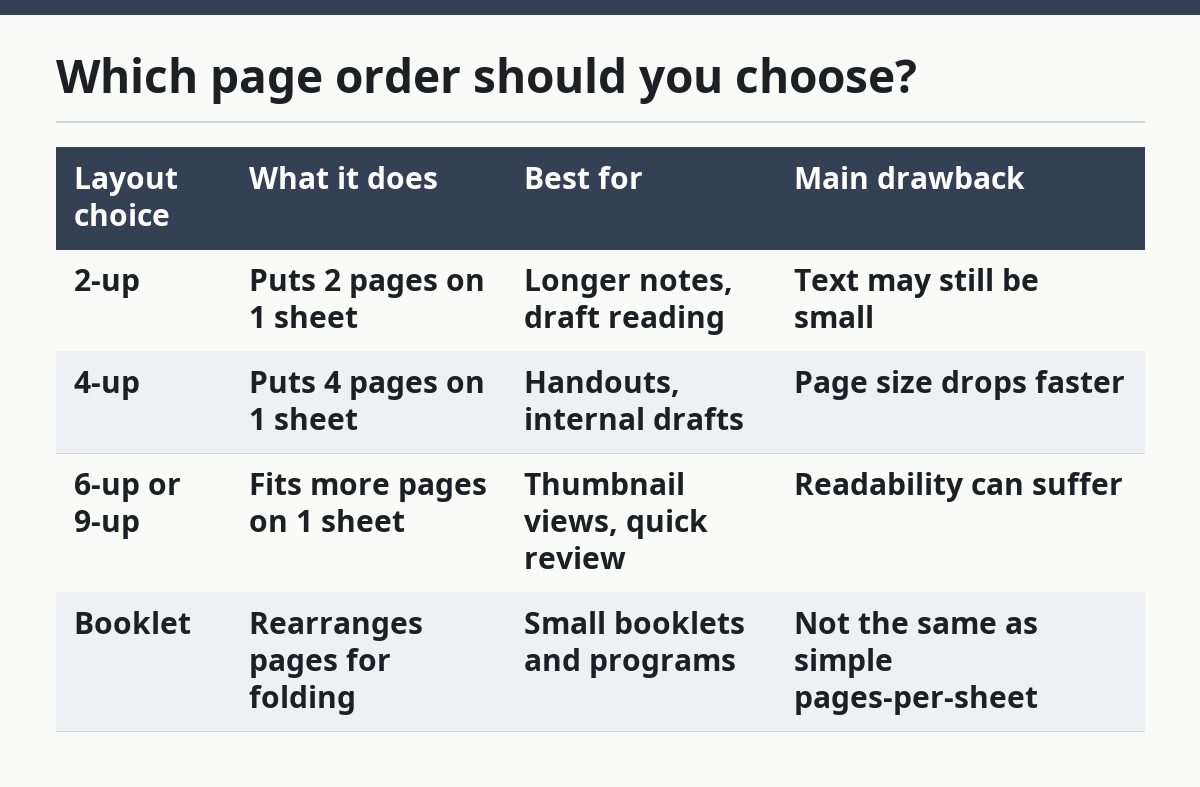
Here is the practical comparison:
| Layout choice | What it does | Best for | Main drawback |
|---|---|---|---|
| 2-up | Puts 2 pages on 1 sheet | Longer notes, draft reading | Text may still be small |
| 4-up | Puts 4 pages on 1 sheet | Handouts, internal drafts | Page size drops faster |
| 6-up or 9-up | Fits more pages on 1 sheet | Thumbnail views, quick review | Readability can suffer |
| Booklet | Rearranges pages for folding | Small booklets and programs | Not the same as simple pages-per-sheet |
Booklet layout is its own choice. It is useful when the pages will be folded and stapled, not when you just want to save paper on a quick review copy. If you only need fewer sheets, stick with pages per sheet and leave booklet mode off.
The page order that fits the way your group expects to read the page is usually the best choice. For a report, left-to-right order is often the easiest to scan. For forms, thumbnails, or image sheets, top-to-bottom can be easier because each tiny page feels like a panel.
How do I keep the text readable?
You keep the text readable by using fewer pages per sheet, checking the font size in preview, and matching the paper size to the document before you print. The more pages you squeeze onto one sheet, the smaller each page becomes.
There is a clear trade-off here. 2-up printing usually stays readable for text-heavy pages better than 4-up or 6-up. A dense report that looks fine at 2-up can become cramped at 4-up, especially if it already uses small type or narrow margins. The right setting depends on what the page contains, not just how much paper you want to save.
Thumbnail printing is the opposite of reading comfort. It is useful when you want a tiny overview of many pages at once, such as a layout draft or a long document index. It is not a good choice if someone needs to read body text, fill in details, or mark edits. For those tasks, 2-up is usually the safer starting point.
Print preview is a practical filter before you use sheets on the wrong layout. Look for three things: whether the page order makes sense, whether the margins are clipped, and whether the text still looks large enough to read at arm’s length. If any of those fail, reduce the number of pages per sheet.
One more limit is paper size. An A4 sheet can hold the same number of pages as Letter, but the usable space is different enough that preview should be checked every time. A layout that looks fine on one size may feel cramped on another. The ISO 216 standard for A-series paper sizes explains why A4 and Letter are not interchangeable in layout terms, and ISO 216 is the basic reference.
When should you use booklet layout instead?
You should use booklet layout when the final output will be folded into a booklet, not when you just want more pages on one sheet. Booklet mode changes the page order so the sheets can be stacked, folded, and read in sequence after binding.
That is why booklet layout is easy to misuse. A user often sees “booklet” and thinks it is just another name for 2-up printing, but it is not. It usually rearranges pages into a printer-friendly fold sequence. If the pages are meant to stay loose, booklet mode can create a confusing stack.
Use booklet layout for programs, zines, short manuals, or small presentations that will be folded. For ordinary review copies, class notes, or draft reports, simple pages per sheet is usually better because the reading order stays closer to the original document.
This is also where print preview pays off again. A booklet preview should show paired pages in a way that makes sense after folding. If the spread looks odd in preview, stop and switch back to N-up printing. The wrong choice can waste time and paper fast, especially on longer documents.
What should you check before you print?
You should check the print preview, paper size, page count, and layout label before you send the job. Those four checks catch most errors without forcing you to print the whole file twice.
Start with preview because it shows the result in one place. If the pages look clipped, the paper size may be wrong. If the order looks off, you may have chosen the wrong reading direction or booklet mode. If the pages look too small, lower the pages-per-sheet count.
Then check the printer queue only if the job is not moving. A stuck queue is a separate problem from layout, but it can make it look like the setting failed when the real issue is the job never started. If you need the broader workflow, the hub on printing workflows and output control is the right place to go next.
The last check is the document type. A PDF viewer usually gives the clearest control over pages per sheet. A browser print window may offer fewer layout choices, which can limit what you can do. If the browser dialog is too bare, open the file in a PDF viewer and print from there instead.
What if the option is missing?
If the option is missing, you may need a different app, a PDF viewer, or a printer driver that exposes layout settings. Some browser windows and simple viewer apps hide the N-up choice entirely, even though the printer can support it.
The fix is usually to open the file in a fuller print dialog. PDF viewers often expose pages per sheet directly, while browser dialogs may only show basic controls. That is why the same file can look easy to print from one app and limited from another.
If no layout control appears, look for a More Settings or Advanced section. Some apps collapse the good stuff under a small arrow or an extra button. The labels change, but the pattern is common: paper size first, then pages per sheet, then preview.
If you still cannot find it, the printer driver may be the limiting factor. In that case, printing from a PDF viewer rather than a browser can help because the viewer often offers clearer layout tools. The job is still the same: get the print dialog to show N-up printing, confirm the paper size, and inspect the preview before you print.
How do I fit two pages on one sheet?
Use the pages-per-sheet or N-up setting in the print dialog and choose 2-up. That keeps the pages readable better than denser layouts in many cases, especially for text-heavy files. If the text still looks cramped in preview, reduce margins or print a test sheet before the full job.
Can I print a booklet from a pdf?
Yes, if your PDF viewer or print dialog has a booklet option. Booklet mode is different from plain multiple-pages-per-sheet printing because it rearranges the pages for folding and binding. If the document is not meant to be folded into a booklet, use regular N-up printing instead.
Drafted with AI; not yet reviewed by a person.