Last updated: November 19, 2026
Key Takeaways
- If the printer is on a guest network, a phone hotspot, or a different router band with client isolation, ChromeOS may not find it.
- Add the printer in ChromeOS print settings under the system settings menu.
- Open Print preview, choose Print, and select the saved wireless printer.
- A blocked printer, Chromebook, or router usually stops discovery.
Your Chromebook won’t print unless ChromeOS can see the wireless printer on the same network. Quick Answer: in most cases, it takes 1 setup in ChromeOS and 1 print from Print preview. This guide covers how to print from Chromebook to a wireless printer and where discovery fails.
What Chromebook printing needs before you start
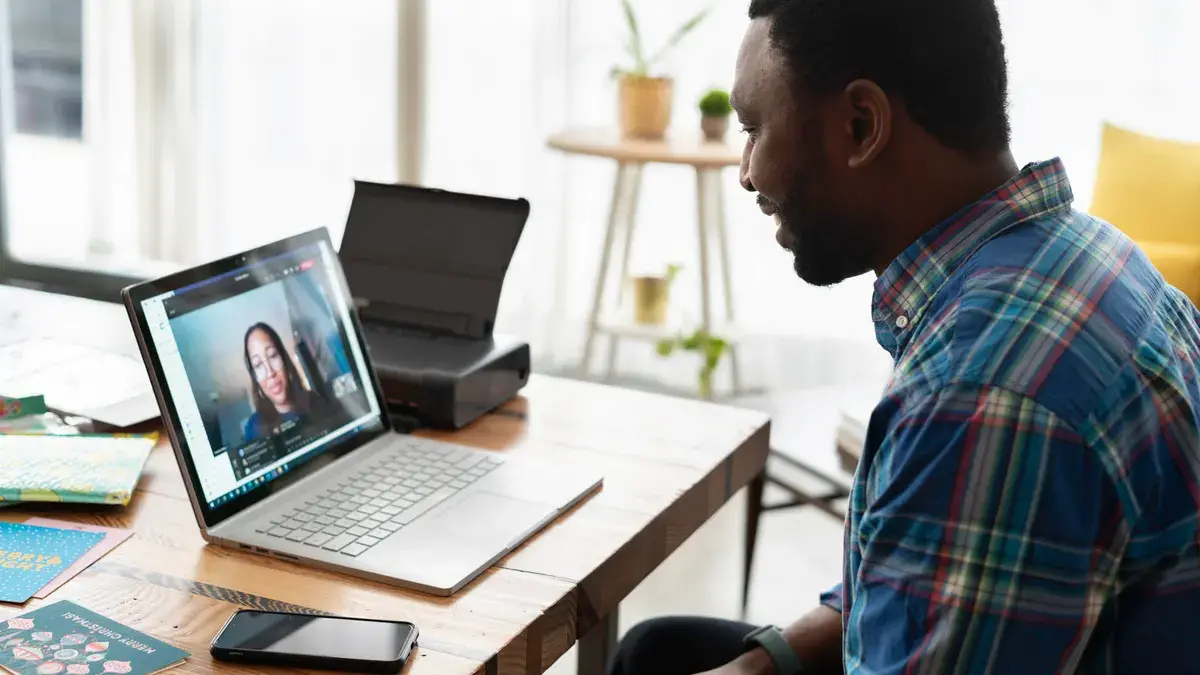
Your Chromebook can print to a Wi‑Fi printer only when both devices are on the same network and the printer supports a Chromebook-friendly path such as Mopria or IPP Everywhere. If the printer is on a guest network, a phone hotspot, or a different router band with client isolation, ChromeOS may never find it.
Picture this: you’re ready to print a file, but the printer does not show up in ChromeOS at all. The issue is usually not the document — it’s the network path, the printer’s discovery support, or a stale saved setup. That is the part worth checking first.
- Look for Mopria support on the box or support page.
- Look for IPP Everywhere support on the box or support page.
- Confirm the Chromebook and printer are on the same Wi‑Fi network.
- Have the printer’s IP address ready if discovery fails.
Check the printer maker’s support page for compatibility details. Many newer models advertise driver-free printing for ChromeOS because they support IPP-based discovery, while older models may need manual entry.
How do I add a printer on Chromebook?
You add a printer on Chromebook from ChromeOS print settings under the system settings menu. That path usually takes less than a minute when discovery works, and longer if you need to add the printer by IP address.
Picture this: you’re in the settings screen with the printer powered on and connected to Wi‑Fi. Now you just need ChromeOS to spot it, save it, and make it the default for the next job.
- Open ChromeOS Settings and go to Advanced or Printing, depending on your Chromebook version.
- Select Printers to open the printer list.
- Click Add printer or Save beside a discovered printer.
- Choose the printer from the discovered list if it appears.
- Enter the IP address manually if discovery fails.
- Save the printer and print a test page from a document or PDF.
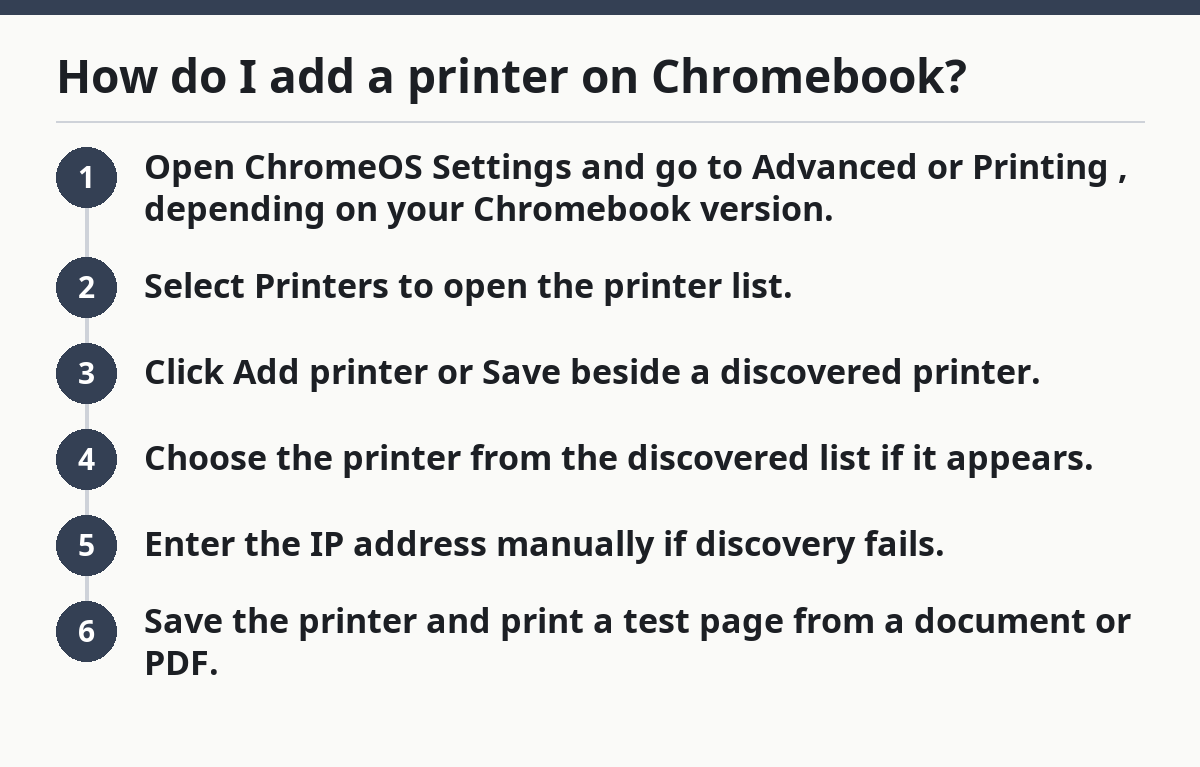
That gets the device into ChromeOS. If the printer shows up with a generic name, that’s normal; the important part is that it prints to the right queue.
If ChromeOS offers a choice between a discovered printer and a manual entry, use the discovered one first. Manual IP setup is the backup when network discovery is flaky, which happens often on busy home routers.
- Use discovery first for modern printers.
- Use manual IP for older models or stubborn networks.
- Save the printer before closing Settings.
- Print one page to confirm the path works.
Print from the ChromeOS print preview
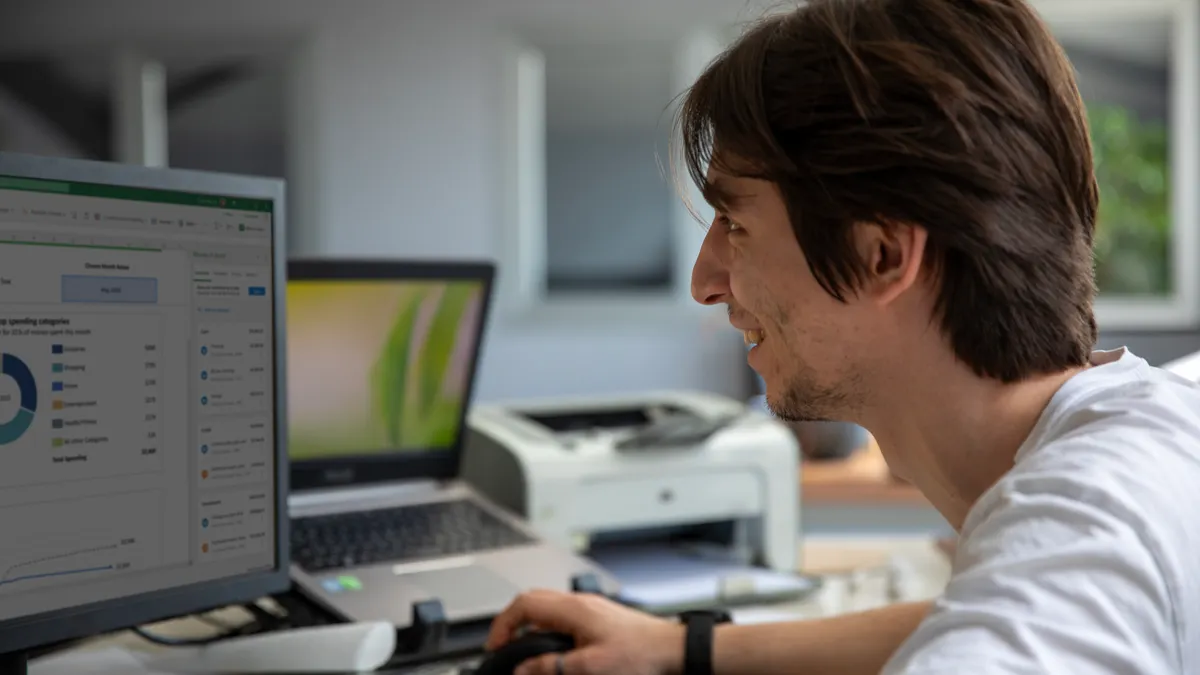
You print from Print preview by opening the file, choosing Print, and selecting the saved wireless printer. The preview screen is where you pick paper size, pages, color, and the destination before anything goes to the device.
Picture this: you’ve added the printer, but the job still disappears into the wrong place or comes out with the wrong tray. The print preview is where you catch that before wasting paper and ink.
- Open the document, image, or PDF you want to print.
- Press Ctrl + P to open Print preview.
- Select your wireless printer from the Destination menu.
- Review paper size, orientation, copies, and color.
- Click Print.
If you do not see the printer in the Destination menu, open the dropdown and pick See more. ChromeOS can hide older or less-used devices there. If the document is in a browser tab, printing still uses the same preview screen.
A good habit is to scan the preview every time. Paper size mismatches and wrong orientation are common and easy to miss, especially on letter-sized documents that default to A4 or the other way around.
- Ctrl + P opens the preview fast.
- The Destination field decides where the file goes.
- See more can hide saved printers.
- One preview check beats a wasted stack of pages.
Why won’t my Chromebook find my printer?
Your Chromebook usually won’t find a printer because the printer, the Chromebook, or the router is blocking discovery. The most common culprits are a different Wi‑Fi network, weak support for IPP Everywhere, or a printer that is asleep and not advertising itself.
Picture this: you expect the printer to appear in the list, but ChromeOS shows nothing useful. The fix is usually not a reset factory marathon; it’s a short check of the network path and the printer’s discovery support.
- Make sure both devices are on the same SSID.
- Wake the printer with its power button or a status page.
- Restart the printer and Chromebook if the list is empty.
- Try manual IP address entry if discovery fails.
- Check whether the printer supports Mopria or IPP Everywhere.
A router can also block local device discovery if it uses guest isolation or a strict office policy. That matters because Chromebook printing depends on the Chromebook seeing the printer on the local network, not just on the internet.
If the printer is brand new and still missing, do not keep adding random drivers. ChromeOS does not work like Windows in that respect. The better move is to confirm support on the manufacturer’s page and use the cleanest available route: discovery, then IP, then a supported cloud path if the printer maker provides one.
Use Google Drive when the file is already there
You use Google Drive printing when the file lives in Drive and you want to print it without downloading first. That path works well for PDFs, Docs exports, and shared files, and it keeps the process inside ChromeOS instead of bouncing through extra apps.
Picture this: the file is already in Drive, and you just want a paper copy without juggling downloads. Drive printing lets you open the file, send it to Print preview, and choose the wireless printer from the same ChromeOS flow.
- Open the file in Google Drive or Google Docs.
- Choose File > Print or use Ctrl + P.
- Select the wireless printer from Destination.
- Check the print preview and settings.
- Click Print.
This path is especially useful when a shared document opens in the browser. You do not need special software on the Chromebook, and you do not need a traditional printer driver for a supported printer.
The catch is that Drive does not fix printer discovery problems. If ChromeOS cannot see the printer, the file source does not matter. The same network and compatibility rules still apply.
- Drive is best for files already online.
- Docs and PDFs use the same print flow.
- The printer still has to be saved in ChromeOS.
- No saved printer means no easy print path.
What if the printer is old or only half-supported?
An older printer can still work on Chromebook, but only if ChromeOS can talk to it through a supported standard or saved IP path. If the device depends on a vendor-only Windows driver, Chromebook printing may stop there.
Picture this: you found an older office printer that works fine on another laptop, but ChromeOS refuses to cooperate. That usually means the printer lacks Mopria or IPP Everywhere, or the vendor built the setup around a driver model ChromeOS does not use.
Use this quick check:
- If the printer supports IPP Everywhere, try adding it in ChromeOS first.
- If it supports Mopria, check the printer maker’s setup notes for ChromeOS.
- If it only lists Windows or Mac drivers, expect limits.
- If it has an admin page, look for an IPP or network print setting.
The honest limit is simple: ChromeOS printing is happiest with standards-based support. That is good news for newer models and a headache for older ones built around proprietary drivers.
A printer can also be “wireless” without being easy to discover. Some models join Wi‑Fi but still need a manual address, a firmware update, or a reset of the print queue. If the setup page shows a static IP address, keep that number; it may save the day later.
Keep Chromebook printing stable after the first setup
You keep Chromebook printing stable by saving the printer once, keeping both devices on the same network, and avoiding router changes that break discovery. That sounds plain, but it is the difference between a printer that stays available and one that vanishes after every reboot.
Picture this: everything works today, then not tomorrow after a router restart. The printer did not “break” so much as it lost the network path ChromeOS was using.
- Keep the printer on the same Wi‑Fi band and network name if possible.
- Leave the printer saved in ChromeOS print settings.
- Update the printer firmware when the maker recommends it.
- Rename the printer clearly if you have more than one.
When a printer disappears after a reboot, clear the saved entry and add it again. That is often faster than hunting through menus for a hidden error. If the printer supports a stable address, using that address can make future discovery less fragile.
This is the part many generic guides skip: the goal is not just one successful print. The real win is a setup that survives a normal week of router restarts, sleep mode, and moving between home and office networks.
For broader wireless access rules and printer access control, see the hub on wireless printing setup and access control.
FAQ
How do I add a printer on Chromebook?
You add a printer in ChromeOS Settings under the printing section, then save the discovered device or enter its IP address. After that, the printer appears in Print preview, where you can choose it for future jobs.
Why won’t my Chromebook find my printer?
Your Chromebook usually cannot find the printer because the two devices are not on the same network, the printer is asleep, or the model does not support Mopria or IPP Everywhere well enough for ChromeOS discovery. Manual IP entry is the next thing to try.
Can I print from a Chromebook without installing drivers?
Yes, if the printer supports driver-free standards such as Mopria or IPP Everywhere. ChromeOS is built for that path, so many wireless printers work without a separate driver download.
What should I do if print preview shows the wrong printer?
Open the Destination menu in Print preview and pick the saved wireless printer again. If the wrong device keeps coming back, remove the bad entry from ChromeOS print settings and add the correct one by discovery or IP address.
Drafted with AI; not yet reviewed by a person.