Last updated: November 18, 2026
Quick Answer: Turn on the printer’s wireless direct mode, join that direct network from your phone or computer, and send the job from the print dialog. No router is needed; Wi‑Fi Direct is a local connection.
Wi‑Fi Direct printing works when your phone or computer connects straight to the printer’s wireless direct mode instead of a home network. You do not need a router. This guide shows how to print over Wi‑Fi Direct without a router, how pairing works, how to pick the device, and how to get the first page out without guessing.
Key Takeaways
- Wi‑Fi Direct creates a direct link between one device and one printer.
- You still need the printer’s wireless direct mode turned on first.
- Pairing may use a PIN, a button prompt, or a temporary network name.
- Android and Windows handle direct printing differently, so the setup path changes.
- If the device and printer can’t see each other, the fix is usually signal range, a stale pairing, or the wrong print service.
Print Over Wi‑Fi Direct Without a Router
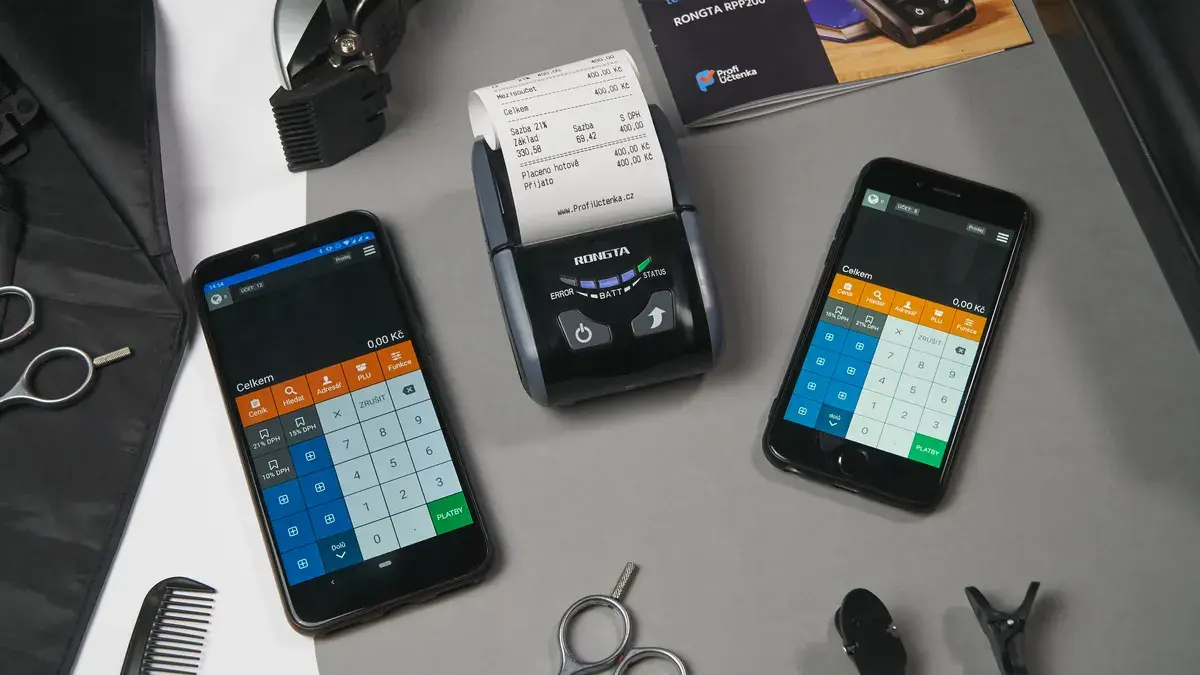
Wi‑Fi Direct printing means your phone or laptop connects straight to the device, so the printer can work with no home router at all. Useful in a guest room, a shop floor, a rental, or anywhere the local network is locked down.
The catch is simple: both sides have to support Wi‑Fi Direct or a similar direct connection mode. Some models call it wireless direct, some call it direct mode, and some bury it in a network menu. No mention of that feature? Stop there.
-
Turn on the printer’s wireless direct mode from the network or wireless menu.
You should see a direct name, often a model-based SSID, or a screen prompt with pairing info. -
Open the device’s Wi‑Fi settings and choose the printer’s direct network.
On many setups, the phone or laptop joins the printer like a temporary hotspot. -
Enter the PIN or approval code if the printer asks for one.
Some models show the code on the panel; others print a network sheet. -
Select the printer in the app or system print dialog.
The device should show as an available destination once the direct link is live. -
Print a single page first, then keep the link if the job appears.
A test page confirms the path before you send a long document or a full photo set. -
Disconnect only after the job completes if the printer drops the link between tasks.
Some direct modes stay active; others shut down after a short idle period.
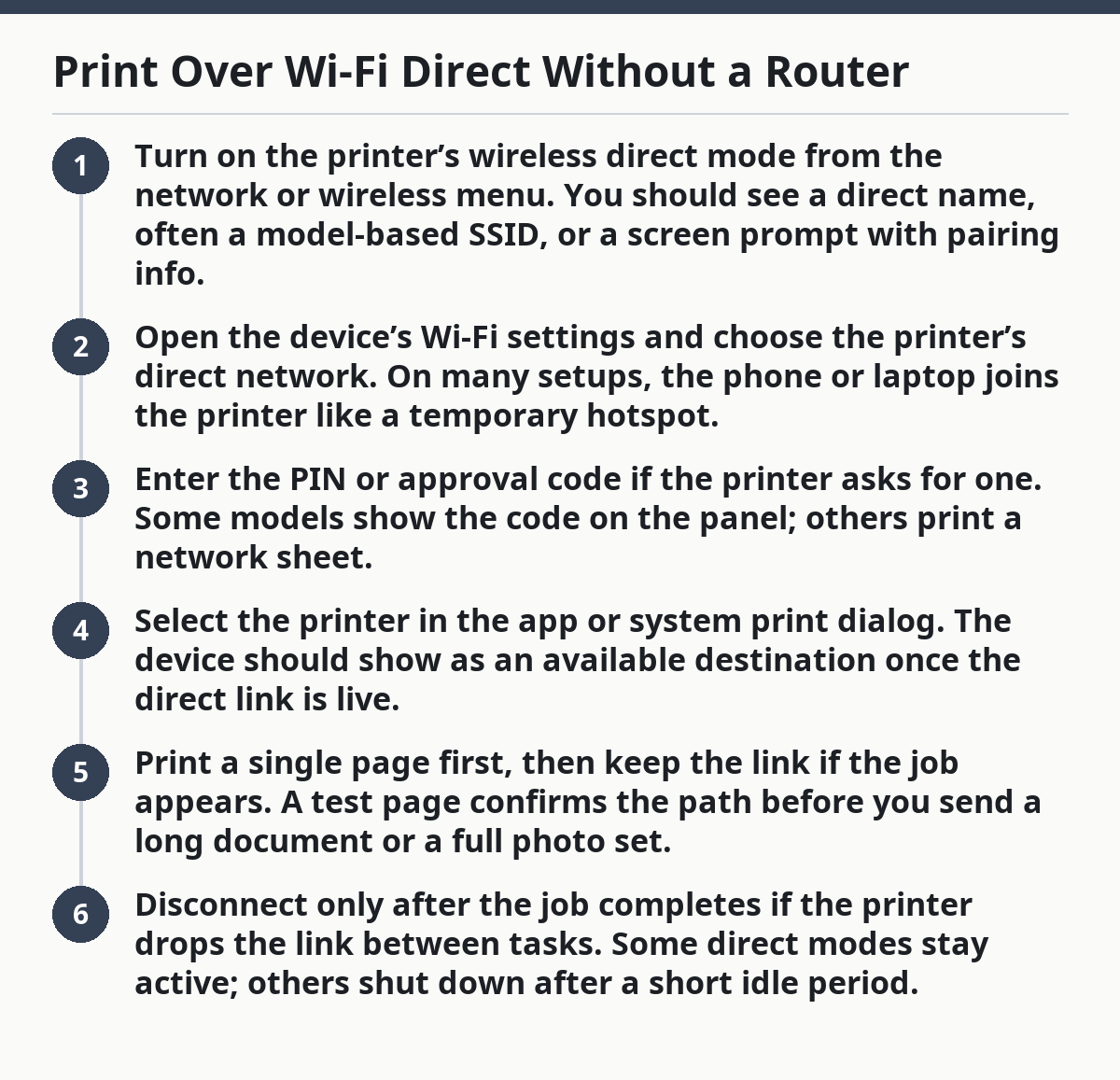
That is the whole move. The rest clears up the parts that usually trip people up.
Which device should you connect first?
Connect the phone or computer to the printer first; then open the print command. That order avoids the most common mistake: sending a file before the direct link exists.
For example, on a laptop, join the printer’s direct network before opening the PDF. On a phone, join the printer first and then open the app. That sequence keeps the print destination visible.
Picture this: you’re at a desk with a laptop, a USB cable you don’t want to use, and a printer that advertises Wi‑Fi Direct on the screen. You do not need the office network name, a password from the router label, or a shared guest network to finish the job.
Start with the device that holds the file. Then make the printer visible on that device. After that, choose the document and print it.
- Phone first: best when the file is already in a mobile app.
- Computer first: best when the file sits in a desktop app or browser download.
- Printer first: best when the model asks you to approve the connection from the panel.
If the printer shows more than one wireless name, choose the one that says direct, wireless direct, or a model-specific private name. Do not pick the office Wi‑Fi name if the task is direct printing without a router. Different setup entirely.
How do I connect my phone directly to a printer?
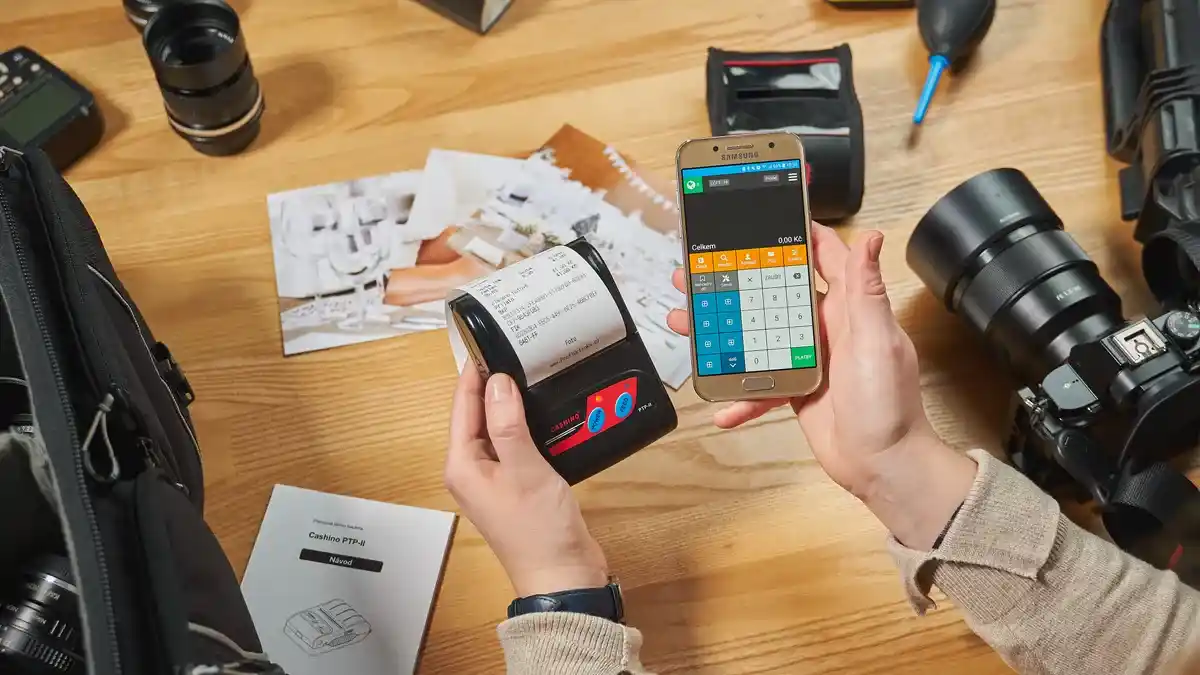
Join the printer’s direct network, then choose the print option inside the app. On Android, the phone usually sees the printer as a nearby destination after the direct link is active.
Picture this: you’re holding an Android phone, the printer is five feet away, and the destination still has not appeared in the print sheet. The link should be short and local. If the phone is still searching for a router-based network, you’re on the wrong path.
Follow the phone-side flow:
-
Open the printer’s direct network in Android Wi‑Fi settings.
Wait for the phone to show a connected status or a saved direct name. -
Launch the document app and tap Print.
The system sheet should list available destinations if the print service is active. -
Choose the printer name, not the router name.
If the model name appears twice, pick the one marked direct or wireless direct. -
Adjust the settings you need before sending the job.
This is where you catch the wrong tray or a file that needs only one page. -
Send the job and keep the phone near the printer.
Direct links can fade fast if the device roams or the screen locks and the app drops focus.
Android can be picky about print services. If the printer never appears, check the print plugin, the Android printing menu, and the direct mode name on the device. Some models need the vendor’s app before they show up at all. Like a stubborn lock, one small mismatch can hold everything up.
How do I do this on Windows?
On Windows, join the printer’s direct network first, then add or select the device inside the Windows print dialog. Windows wireless direct works, but it often takes one extra step because the PC may not auto-detect the printer right away.
Picture this: you’re on a Windows laptop with a PDF open, and the printer is not on any shared network. The laptop can still talk to the machine directly, but only if the network adapter joins the printer’s temporary wireless name first.
Once the printer is connected directly, Windows can usually show it in the print dialog. That is the moment to send the file.
-
Open Windows network settings and connect to the printer’s direct SSID.
The laptop may ask for a network key or a PIN tied to the device. -
Wait for the connection status to settle before opening the file.
A rushed print command can miss the new path. -
Open the document and choose Print from the app.
Most apps send the job through the system print dialog. -
Select the printer from the list, or add it if Windows does not surface it.
Some setups show the device only after the direct network is active. -
Print a test page first if the destination name looks generic.
That saves time when several similar device names appear on one laptop.
If Windows still refuses to see the device, the problem is usually not the document. It is the link. Recheck the direct network name, move closer to the printer, and make sure the printer did not time out and close the session.
What the PIN means and why pairing fails
The PIN proves you are connecting to the right printer, not a nearby stranger. Some models use a displayed code, some print one, and some ask for approval on the panel. That step is common in direct connection mode.
Here’s the snag: a bad PIN is not the only failure. A stale direct session, a hidden second SSID, or a device that already saved the wrong profile can block the link even when the code is right.
Common fixes:
- Re-enter the PIN exactly as shown, with no extra spaces.
- Delete the old direct profile and reconnect from scratch.
- Move closer so the signal stays steady during pairing.
- Check that the printer is still in wireless direct mode, not back on a normal network screen.
- Restart the printer if the code keeps changing or the link never completes.
A lot of people assume Wi‑Fi Direct works like Bluetooth. It does not. The connection can last longer than a quick tap-to-pair link, but it still depends on the printer advertising the right mode at the right time. That tiny difference trips people up.
Common mistakes that waste time
Usually, the mistake is small and boring: the device is on the wrong network, the print service is off, or the printer has already dropped its direct session. Each one burns a few minutes, then a few more, because the app keeps looking in the wrong place.
Picture this: you’ve already tapped Print twice, the destination list is empty, and the printer sits there with a clean status light. That usually means the setup is close, not broken.
Common mistakes to avoid:
- Connecting to the office Wi‑Fi when the task needs direct mode.
- Ignoring the printer screen and guessing at the SSID.
- Leaving the phone too far away during pairing.
- Skipping the PIN prompt because the app looks ready.
- Starting the print job before the direct link finishes.
A direct session is less forgiving than a shared network. If it fails, reset the path instead of tapping the same button five times. Clean reconnection usually fixes it.
When Wi‑Fi Direct is the right tool—and when it isn’t
Wi‑Fi Direct is the right tool when one person needs one printer and there is no router to join. It also helps when the shared network is blocked, unknown, or not worth the setup time.
On the flip side, it is not a strong fit for a busy office with many users and long print queues. In that setting, a normal network setup is easier to manage because devices stay discovered without repeated pairing. Direct mode also is not ideal if you need constant roaming between rooms.
If you are setting up a larger wireless environment, the hub on wireless printing setup and access control covers the broader network side. This page stays focused on the direct link itself.
You can usually tell which path you need in under a minute. If the printer shows a direct network name and your device can join it, this method fits. If not, it does not.
Sources and standards worth knowing
Wi‑Fi Direct is defined by the Wi‑Fi Alliance, and printer makers usually map that standard into their own menus and labels. Windows also documents nearby and wireless device discovery in its print and network help pages.
Two useful references:
- Wi‑Fi Alliance: Wi‑Fi Direct information and device behavior
- Microsoft Support: printer and network setup guidance for Windows
These sources matter because they explain why naming and pairing vary by brand. A printer can support the same standard and still present a different screen path.
What is wi-fi direct on a printer?
Wi‑Fi Direct on a printer is a direct wireless link between your device and the printer without a home router. The printer creates its own temporary connection name, and your phone or computer joins that name to send a job. The feature often appears as wireless direct, direct mode, or a model-specific SSID.
Do I need internet to use Wi‑Fi Direct?
No, you do not need internet to use Wi‑Fi Direct. The connection is local, so the phone or computer talks straight to the printer without going through a router or online service. You may still need internet for cloud files or app sign-in, but not for the direct print link itself.
How do I connect my phone directly to a printer?
Turn on the printer’s wireless direct mode, join that network in the phone’s Wi‑Fi settings, and then open the print command in your app. If the model asks for a PIN, enter it exactly as shown. If the printer does not appear, check the print service and stay close to the device.
Drafted with AI; not yet reviewed by a person.