Last updated: November 19, 2026
Quick answer: in 3 steps, add a printer by IP address on Windows and Mac by creating a TCP/IP or IP printer entry, entering the printer’s address, and selecting the right driver. A printer by IP address setup fixes the case where your computer won’t find the device on its own. This guide to how to add a printer by IP address on Windows and Mac shows the Windows and Mac paths, plus the mistakes that waste 15 minutes for no reason.
Key takeaways
- Use IP setup when the printer is already on the network and automatic discovery misses it.
- Windows usually needs a manual TCP/IP port; Mac usually needs an IP entry in Printers & Scanners.
- A hostname can work when a numeric IP keeps changing, but the wrong protocol can break printing.
- The driver matters as much as the address; the wrong driver can make a printer look “connected” but unusable.
- If the address changes often, a static IP or DHCP reservation is the cleaner fix.
How do I add a printer by IP address on Windows?
You add it by creating a Standard TCP/IP port in Windows and then assigning the printer driver. That is the path most Windows 10 and Windows 11 users need when discovery fails, and it usually takes about 5 to 10 minutes if you already know the address.
Picture this: you’ve got the IP address on a label, a screen, or a network page, and Windows still insists the device is nowhere to be found. The fix is manual, not magical. Use the address, choose the driver, and let Windows stop guessing.
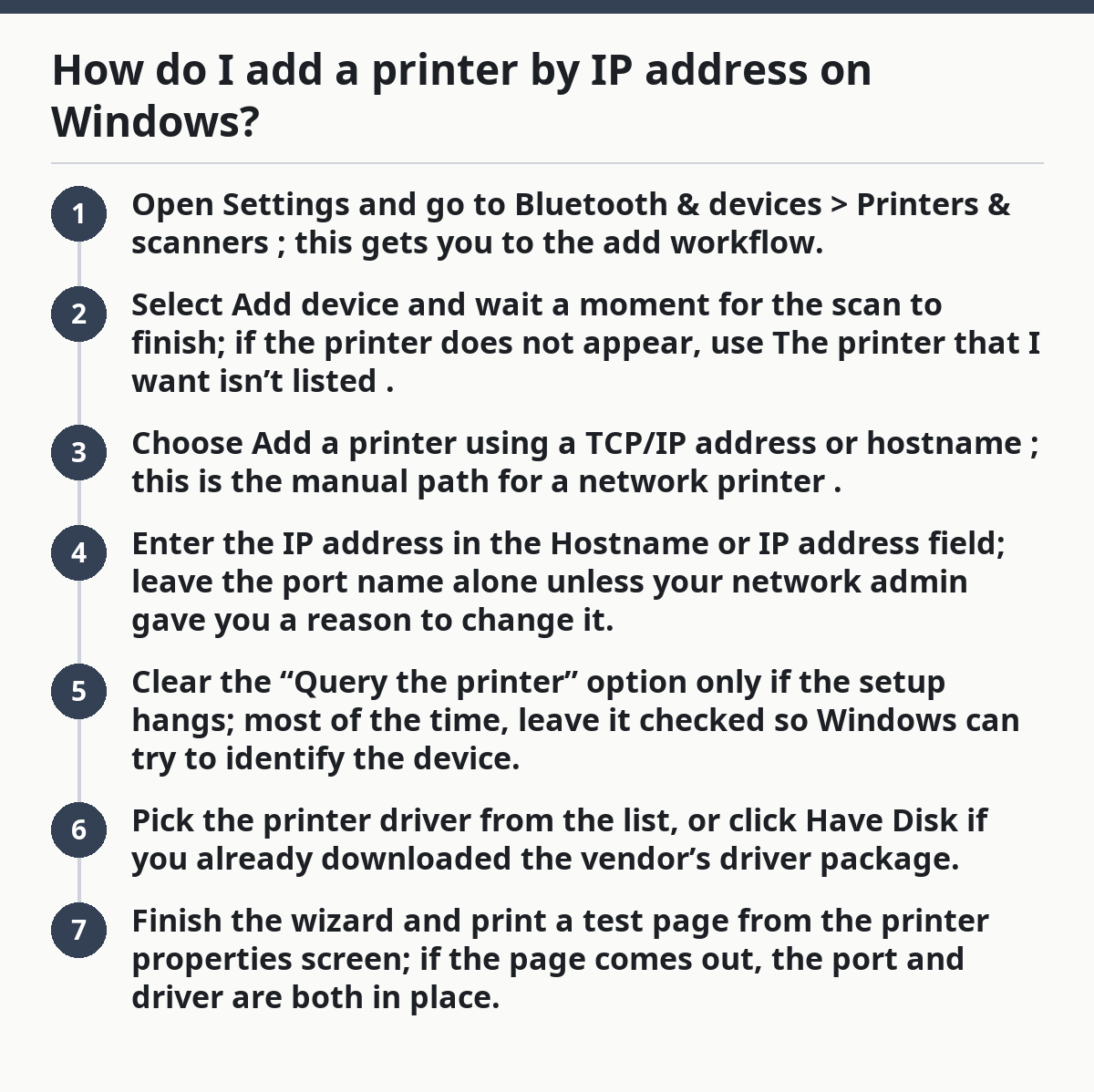
- Open Settings and go to Bluetooth & devices > Printers & scanners; this gets you to the add workflow.
- Select Add device and wait a moment for the scan to finish; if the printer does not appear, use The printer that I want isn’t listed.
- Choose Add a printer using a TCP/IP address or hostname; this is the manual path for a network printer.
- Enter the IP address in the Hostname or IP address field; leave the port name alone unless your network admin gave you a reason to change it.
- Clear the “Query the printer” option only if the setup hangs; most of the time, leave it checked so Windows can try to identify the device.
- Pick the printer driver from the list, or click Have Disk if you already downloaded the vendor’s driver package.
- Finish the wizard and print a test page from the printer properties screen; if the page comes out, the port and driver are both in place.
Here’s the catch: Windows can attach to the right IP address and still fail if the driver is wrong. A generic driver may print plain text, but it can leave out tray settings, duplex, or the finishing options you actually need.
- Use a vendor driver when the model has trays, duplex, or finishing features.
- Use a generic PCL or PostScript driver only when the vendor package is missing and you need basic output.
- Prefer the exact model name if it appears in the list; close cousins often look alike but behave differently.
For a stable setup, give the printer a static IP or a DHCP reservation on the router or server. Without that, the address can change and Windows will keep aiming at the old one. For more on Windows printer setup, see Microsoft’s guidance on installing printers in Windows and TCP/IP port configuration.
How do I add a printer by IP address on Mac?
You add it in Printers & Scanners by clicking the IP tab, entering the address, and choosing the correct protocol and driver. On macOS, that path is usually quicker than Windows, and the whole setup often takes 3 to 5 minutes once the address is known.
Picture this: your Mac sees the network, but AirPrint never shows the device, or it shows the wrong queue name. The fix is simple on the surface and fussy underneath. Get the address right, match the protocol, and choose the driver with care.
- Open System Settings and go to Printers & Scanners; this is where macOS stores network printers.
- Click Add Printer, Scanner, or Fax, then choose the IP tab.
- Enter the IP address in the address box; if your network uses hostnames reliably, you can try the hostname instead.
- Choose the protocol; start with IPP if the printer supports it, then try LPD or HP Jetdirect – Socket only if the first choice fails.
- Select the driver from the Use menu; pick the exact model, AirPrint, or the vendor driver if it is listed.
- Click Add and print a test page from the queue; that confirms the Mac can talk to the device.
The truth is, protocol choice matters more on Mac than many people expect. IPP is common on newer devices, while Jetdirect or LPD can still matter on older office models and some mixed-brand networks.
- Choose AirPrint when the printer supports it and you need the least fussy setup.
- Choose the exact manufacturer driver when you need paper sizes, stapling, or tray mapping.
- Avoid guessing at the protocol if the queue creates but nothing prints; an empty queue is often a protocol mismatch.
A hostname can be friendlier than a raw address, but only if your network keeps name resolution clean. If the Mac cannot resolve the hostname, the setup fails the same way a bad IP does. For Apple’s current setup flow, see Add a printer on Mac.
Which matters more: the IP address, the driver, or the protocol?
The driver and protocol matter as much as the IP address, and sometimes more. A correct address points at the right device, but the wrong printer driver or network protocol can still leave you with a queue that sits idle.
Picture this: the printer shows as installed, yet nothing leaves the tray except excuses. That usually means the computer reached the device but did not know how to speak to it. Address, driver, protocol — all three have to line up.
Use this order when you troubleshoot:
- Confirm the address is still current; a changed IP breaks the shortcut immediately.
- Check the protocol on Mac or the TCP/IP port on Windows; the wrong method blocks communication before the job starts.
- Swap the driver to the exact model or the vendor’s package; many “close enough” drivers miss features or misread the device.
- Print a test page after each change so you know which fix actually worked.
A hostname can help when the address changes, but it is not a magic shield. If your router or print server does not resolve names well, the hostname becomes another failure point.
One better habit: if the printer lives in one office and stays on all day, set a static IP or reserve its address in DHCP. That keeps the queue from breaking every time the lease renews.
What are the mistakes that break IP printer setup?
The most common mistakes are the wrong address, the wrong driver, and the wrong protocol, and each one costs time in a different way. The address points to the wrong machine, the driver hides features or blocks output, and the protocol makes the queue look alive when it is dead.
Picture this: you’ve typed the number three times, but the job still goes nowhere. The problem may not be your typing. It may be that you copied an old lease, picked the wrong model family, or told Mac to use a protocol the device does not answer.
- Using a stale IP address means the setup points at yesterday’s lease. Fix it by checking the current network details before you add the queue.
- Picking the wrong model driver can produce garbled pages, missing trays, or no output at all. Fix it by matching the exact model or using the vendor package.
- Choosing the wrong protocol on Mac can create a queue that installs cleanly and prints nothing. Fix it by trying IPP first, then a fallback only if needed.
- Relying on auto-discovery after a manual setup fails just repeats the same mistake. Fix it by staying with the manual IP path until the queue prints.
A second common miss is using a hostname when the network does not reliably resolve names. The hostname may look cleaner than an address, but if DNS or local name resolution is weak, the setup becomes fragile.
If the queue worked yesterday and fails today, the address likely changed. That is a network issue, not a driver issue, and the right fix is to reserve the IP or assign a static one.
When should I use a hostname instead of the numeric IP?
You should use a hostname when the printer’s address changes often but the network keeps the name stable. That is common on managed networks with DHCP and good name resolution, and it can save you from retyping a new number every few days.
Picture this: the numeric address works today, then fails after a lease renewal or reboot. A hostname can reduce that churn if the network is set up to support it. It is a convenience, not a cure, so consult a professional or your network admin if the printer keeps disappearing. See also Microsoft’s guidance on name resolution and DNS and Apple’s network printer setup.
Use the hostname route when:
- The printer sits on a business network with reliable DNS or local name service.
- The device gets a DHCP lease that may change after reboots.
- The IT team has given you a documented device name to use.
Stick with the numeric IP when:
- The network does not resolve names well.
- You need a quick manual fix on a home router.
- You are setting up a queue for a one-off device and want the shortest path.
The trade-off is simple. A hostname is easier to remember; an IP address is more explicit. If the name service is weak, the easier choice becomes the less reliable one.
Why does my printer keep changing addresses?
Your printer keeps changing addresses because the router or DHCP server is handing out a new lease. That is normal behavior on many networks, and it is exactly why a manual setup can break after working fine for a few days.
Picture this: the queue works after setup, then vanishes after a reboot or power outage. The computer did nothing wrong. The target moved.
A clean fix usually means one of these:
- Set a static IP on the printer itself if the device menu allows it.
- Create a DHCP reservation in the router or network server so the printer gets the same lease more consistently.
- Use a hostname only if the network reliably updates it and the name stays tied to the device.
A static IP is best when one person manages the router and the printer stays in one place. A DHCP reservation is better on shared networks because it avoids collisions with other devices.
If the address changes often, don’t keep rebuilding the queue from scratch. Fix the network assignment first, then keep the same Windows or Mac setup.
FAQ
When should I add a printer by IP instead of automatic discovery?
Add by IP when automatic discovery fails but the printer is already on the network and you know its address. It is also the better choice on mixed networks, older office devices, and setups where the printer keeps disappearing from the list. If discovery works and stays stable, there is no reason to make the job harder.
What if the IP address keeps changing?
Use a static IP or a DHCP reservation so the printer keeps the same address. If you cannot change the network assignment, a hostname may help, but only if your network resolves names reliably. A changing address is the main reason an IP-based queue works once and fails later.
Which protocol should I choose first on Mac?
Start with IPP if the printer supports it. If the queue installs but nothing prints, try LPD or HP Jetdirect – Socket only after that. Matching the protocol to the printer model is often the difference between a working queue and a dead one.
Do I need the printer’s exact model driver?
Yes, when the printer has features like duplexing, stapling, or tray mapping. AirPrint or a generic driver can be enough for basic printing, but the exact manufacturer driver is better when you need full device features.
Is a hostname better than a numeric IP address?
Not always. A hostname is easier to remember, but a numeric IP is more explicit and can be more reliable on networks with weak name resolution. Use the hostname only if your network keeps it updated and resolvable.
Drafted with AI; not yet reviewed by a person.