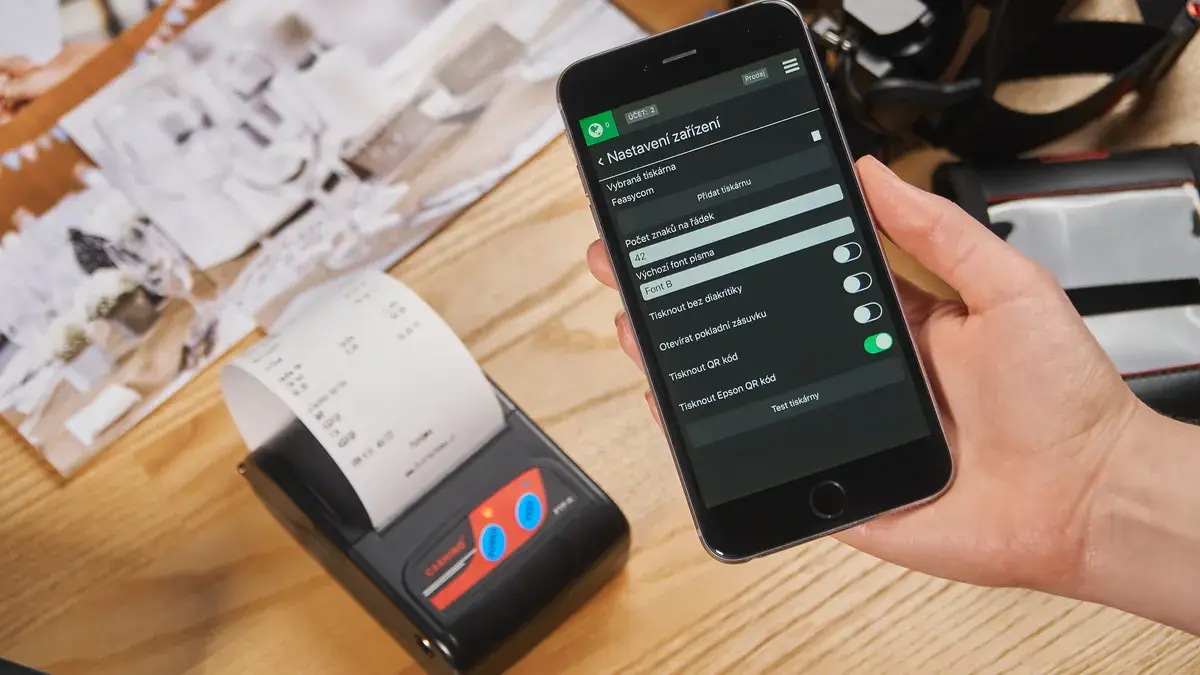
Last updated: November 18, 2026
Quick answer: use a printer app in 6 steps when AirPrint or Mopria is missing, blocked, or too limited for the printer you have. This guide explains how to print from a phone using a printer app instead of AirPrint or Mopria on an iPhone or Android phone, with the app finding the printer, opening the file, and sending the job from inside the app instead of the phone’s built-in print sheet. For the built-in standards this works around, see Apple’s AirPrint guidance and the Mopria Alliance printing resources.
Key takeaways
- A printer app is the fallback when the built-in print option does not see your printer or does not expose the settings you need.
- Manufacturer apps often add extras such as scan from phone, photo printing, and cloud print access.
- The app route usually takes more setup than AirPrint or Mopria, especially the first time.
- If the printer already works well with the phone’s native print menu, the app may be unnecessary.
- Problems usually come from the wrong Wi‑Fi, a stale app permission, or an outdated printer model.
How does a printer app work?
A printer app works by pairing your phone with a specific printer model and sending the job through the app’s own print tools. That is different from AirPrint on iPhone or Mopria on Android, which try to print through a built-in standard without extra setup.
The trade-off is simple: the app can support more printer controls, but it can also be more picky about setup. Many manufacturer apps support document sharing, photo printing, scan from phone, and sometimes cloud print features in one place. That makes the app useful when the native print sheet shows only a plain page count and paper size, or shows nothing at all.
This route is best for people who already know the printer brand, have the model name, and need a reliable way to print one file from a phone. It is not always the best path if you want the fewest taps possible or if your printer already shows up in AirPrint or Mopria with the options you need. Apple’s AirPrint support page and the Mopria Alliance’s printing guidance both describe the built-in standards this article is meant to work around.
What should you check before you start?
You should check the printer model, the app name, and the phone’s connection before you open the file. A 2019 printer can often behave very differently from a newer model, even if both belong to the same brand.
Start with the printer label or control panel and note the exact model number. Then confirm the app is the maker’s official one, such as a manufacturer app from HP, Canon, Epson, Brother, or another printer brand. On iPhone, the app also needs the right permission to find devices on the network; on Android, the app may need local network or nearby device access depending on the phone version.
Use the same Wi‑Fi network for both devices when the printer is meant to print over the router. If the printer is on a guest network, a 2.4 GHz network, or a different access point, the app may not see it. That is a common point of failure, and it wastes time if you skip the check and start with the file instead of the printer.
How do I print with a printer app step by step?
You print with a printer app by installing the right app, adding the printer, opening the file, choosing the print action, and sending the job. The order matters, because many apps only show full settings after the printer is added.
-
Install the printer app from the iPhone App Store or Google Play before you try to print.
Pick the app made by the printer brand, not a random third-party print tool. The result should be an app icon that matches the printer maker’s name or logo. -
Open the printer app and add the printer model from the app’s setup screen.
Many apps will search the local network first, then ask for the model if the printer does not appear. A successful add usually ends with the printer name showing inside the app. -
Connect the phone and printer to the same Wi‑Fi network when the printer uses network printing.
If the app asks for a network name, match the printer to the same one your phone uses. The printer should move from “not found” to ready or online. -
Choose the file in the app or share it into the app from Photos, Files, Mail, or another document app.
Document sharing is one of the main reasons to use a printer app. After the file opens, the app should show a print preview instead of just a file list. -
Select print settings such as paper size, copies, color, or double-sided layout if the app offers them.
Many apps expose more controls than the phone’s built-in print panel. The result should be a preview that matches the page you want, not a generic default. -
Tap Print and wait for the job status to change to sent, processing, or complete.
The printer should start feeding paper or show the job in its queue. If it stays stuck, the file may be too large, the network may be wrong, or the printer may need a restart.
What should a good printer app let you do?
A good printer app should handle more than plain text pages. It should support document sharing, photo printing, scan from phone, and some form of cloud print access if the printer model offers it.
Document sharing means you can send a PDF, image, email attachment, or office file into the app without copying it into a separate folder first. Photo printing matters because mobile photos often need crop, border, or layout options that the native print sheet hides. Scan from phone is useful when the printer has a scanner bed or feeder and you want the scan to land on the phone rather than a desktop computer.
Cloud print access is the most useful when the phone is away from the printer but the app and printer account are linked through the maker’s service. That is convenient for a home printer shared by two or three people. It is less useful if the printer sits next to you on the same table, because local printing is usually simpler and faster to set up.
When should I use a printer app instead of AirPrint or Mopria?
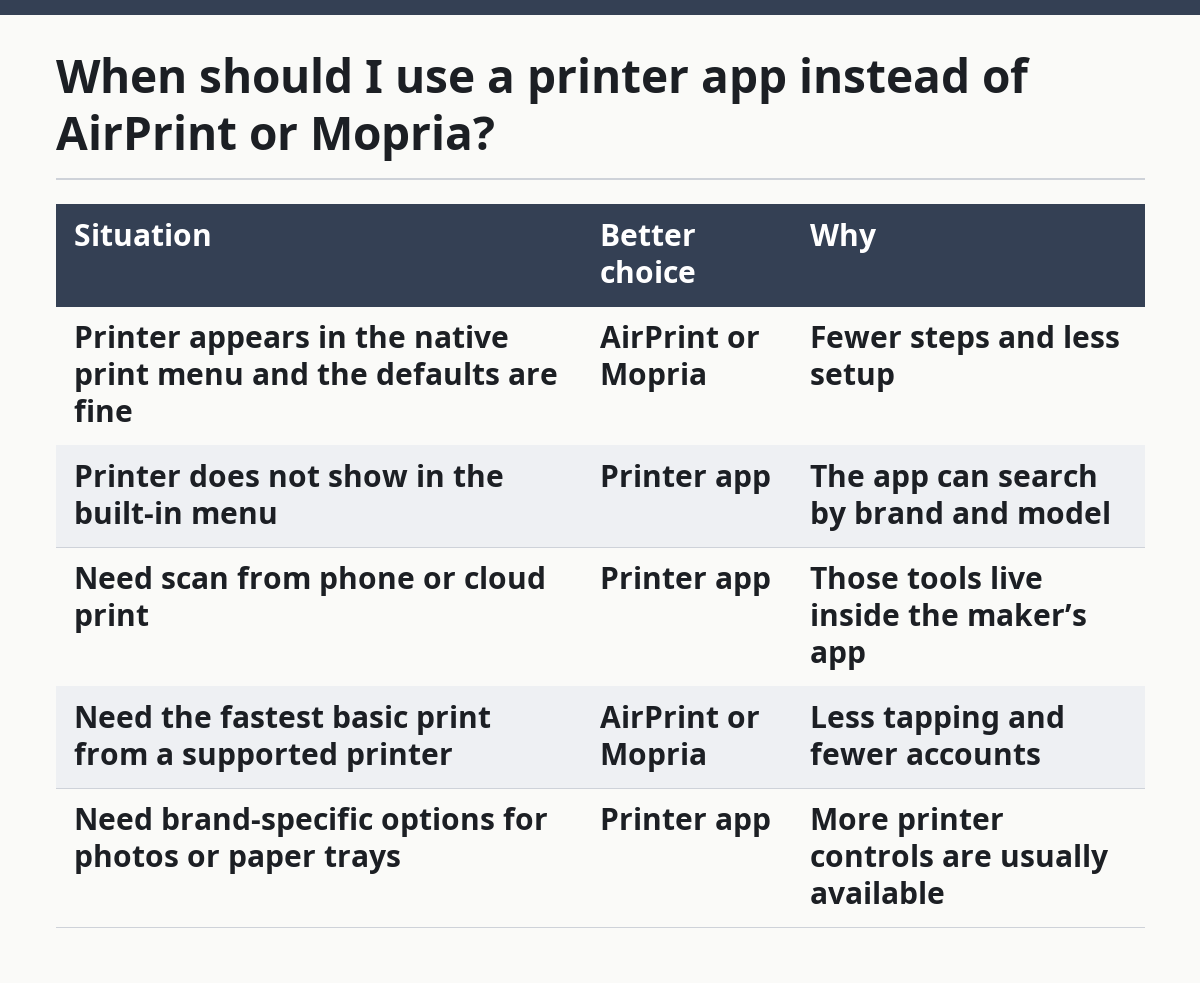
You should use a printer app instead of AirPrint or Mopria when the built-in print option cannot find the printer or cannot expose the controls you need. That is the practical reason to switch.
The app is the better choice on older printers, mixed-brand home setups, and printers that need brand-specific tools such as ink status, scan from phone, or special paper settings. It is also the right move when AirPrint on iPhone or Mopria on Android appears to work but leaves out tray selection, color controls, or account sign-in features.
| Situation | Better choice | Why |
|---|---|---|
| Printer appears in the native print menu and the defaults are fine | AirPrint or Mopria | Fewer steps and less setup |
| Printer does not show in the built-in menu | Printer app | The app can search by brand and model |
| Need scan from phone or cloud print | Printer app | Those tools live inside the maker’s app |
| Need the fastest basic print from a supported printer | AirPrint or Mopria | Less tapping and fewer accounts |
| Need brand-specific options for photos or paper trays | Printer app | More printer controls are usually available |
The drawback is that printer apps add one more account, one more permission screen, and one more place where updates can break the path. That is why the app is not the default answer for every phone. It is the fallback when the standard path is missing, limited, or tied to the wrong printer model.
Why does the app find the printer but still not print?
The app can find the printer and still fail if the file type, network path, or printer state is wrong. That is the most annoying part, because the printer looks available but the job never lands.
First, check whether the file itself is the problem. A corrupt PDF, a very large photo file, or a file shared from another app can stall the job before it reaches the printer. Try a second file, such as a simple one-page PDF or a plain JPEG, to see if the problem follows the file.
Next, look at the printer state. A paused queue, low paper, open cover, or empty tray can stop the job even after the app says the printer is connected. Then check the network name again. If the phone is on one Wi‑Fi network and the printer is on another, the app may discover the printer once and fail on the next step.
Can I use one app for document sharing, photos, and scanning?
Yes, one manufacturer app often covers document sharing, photo printing, and scanning from the same phone screen. That is one of the main reasons people keep the app installed after the first print.
The app usually becomes a small control panel for the printer. A PDF shared from Mail, a picture from Photos, and a scan from the printer can all move through the same app, which reduces app switching on a phone. That is handy on both iPhone and Android, especially when the printer lives in a home office or kitchen and gets used by different people for different tasks.
The limit is that the app only does what the printer model supports. A basic printer may print and scan but not offer advanced photo layouts or cloud print features. A photo-focused printer may do excellent image work but provide fewer scan tools. The app is only as broad as the printer behind it.
What if AirPrint or Mopria would have worked anyway?
If AirPrint or Mopria already works well, the printer app may not be worth the extra steps. The built-in route is usually better for quick, everyday printing because it is already on the phone and does not ask you to manage a separate brand app.
Use the printer app when the built-in route fails, when the printer is older, or when you need brand-specific tools that the phone’s default print menu does not show. That is the honest line. The app is not magic; it is a practical backup with better controls and a little more setup.
For a broader view of printer behavior, print queues, and output control, the hub article on printing workflows and output control sits at the center of this topic cluster.
When should I use a printer app instead of the built-in print option?
Use a printer app when the phone’s print sheet cannot find the printer or when you need extra controls that the built-in option does not show. That includes scan from phone, cloud print features, and some paper or photo settings. If the native menu already prints the file correctly, the app is usually unnecessary.
Why can’t my phone find the printer in the app?
The printer app usually cannot find the printer because the phone and printer are not on the same network, the printer model is not supported, or app permissions are blocked. Recheck the Wi‑Fi name, confirm the exact model number, and reopen the app after allowing network access. On iPhone and Android, a permission denial can stop discovery before it starts.
Drafted with AI; not yet reviewed by a person.