
Last updated: November 18, 2026
Quick Answer: In most offices, printing workflows and output control work best when 1 shared queue, 1 approved driver set, and 1 release policy are used to keep jobs moving predictably. Printing workflows and output control — The Complete Guide is about the systems that move a file from an app to a printer, then decide who can print, when it prints, and what happens to the job at each step. For office queues, the fix is usually better spooling and release control; for production, the fix is tighter file prep, color rules, and device settings.
Printing terms get messy fast, so this guide uses them the way operations teams do: spooler, queue, driver, RIP, release, and finishing. The goal is simple — fewer stuck jobs, fewer wrong outputs, and less time spent clearing the print queue.
Key takeaways
- Printing workflow is the path a job follows from the app to paper, not just the act of hitting Print.
- Output control is the part that decides job order, access, color handling, duplexing, and whether a job prints now or waits.
- A print queue problem is often a control problem, not a paper problem.
- Centralized control works best when many users share the same devices and rules.
- Local control works best when one user needs direct, fast access to a single device.
What is a printing workflow?

A printing workflow is the full route a document takes from creation to final output, and it usually has five parts: job creation, spooling, processing, release, and finishing. A basic office setup may stop at the queue and the paper tray; a production setup may also include imposition, proofing, color checks, and post-press steps.
The first place most problems start is the file itself. A PDF, Word file, or image is not the same thing as a finished print job, because the driver or RIP has to translate it into a format the device can use, such as PCL, PostScript, or PDF-based print data. If that translation is wrong, the queue fills with jobs that never land on paper the way the user expected.
The second place problems start is the handoff. A job can sit in a local spooler, on a print server, in a cloud queue, or inside a device’s own memory before it prints. Each hop creates a point where access rules, driver settings, paper size, or color profiles can change the result.
For a reader trying to clear a print queue, this matters because a jammed queue is rarely “just stuck.” It may be blocked by one bad job, a driver mismatch, a full spool directory, or a device waiting for the wrong tray or paper type. The fix depends on which stage failed.
How does output control work?
Output control works by setting rules before the job reaches the printer and by checking the job again while it waits in the queue. That control can cover who is allowed to print, which printer can take the job, whether the job is held or released, and how the device handles duplexing, finishing, and color.
At the simplest level, output control is a queue policy. A user sends a job, the spooler holds it, and the job prints in the order the system allows. At a more controlled level, output rules can require authentication, force a default paper size, route color jobs to a different device, or hold sensitive documents until the user stands at the printer and releases them.
This is the part generic guides often miss: output control is not only about security. It is also about device load, support calls, and job quality. A queue without rules can let a large, full-color job block smaller black-and-white jobs behind it. A queue with rules can stop that, but it can also create friction if the rules are too strict or the device list is too complicated.
A useful way to think about it is this: workflow moves the job, and output control decides the shape of the job at the end. If the workflow is weak, jobs disappear into the void of the spooler. If output control is weak, jobs print in the wrong order, on the wrong device, or with the wrong settings.
Centralized or local control?

Centralized control wins for shared environments, and local control wins when one user needs simple, direct printing. That is the main choice. If many people use the same fleet of printers, a central queue or print management layer reduces duplicate drivers, makes policies consistent, and gives one place to watch job status.
Local control is lighter. The job goes from the user’s device to the printer with less infrastructure in the middle. That can be useful in a small office, a home setup, or a single-operator studio where the same person owns the file, the queue, and the device. The drawback is that every device needs its own care, and every driver change can break output in a slightly different way.
Centralized control is better when support time matters. A single queue server can enforce paper size, duplex rules, release policies, and logging across many users. It also makes it easier to find the cause of a stuck job because the queue history sits in one place rather than on five desktops.
The downside is overhead. Centralized systems can fail in larger ways: one bad driver package, one server issue, or one authentication problem can affect many users at once. Local control fails in smaller ways, but often more often, because every workstation becomes its own print island.
Centralized vs local control at a glance
| Criteria | Centralized control | Local control | Winner for [condition] |
|---|---|---|---|
| Queue visibility | One admin view across shared devices | Each device has its own queue | Centralized for shared offices |
| Driver consistency | One approved driver set | Drivers vary by workstation | Centralized for fewer support calls |
| Setup effort | Higher at the start | Lower at the start | Local for small teams |
| Policy control | Stronger rules for duplex, color, and release | Rules depend on the device and user | Centralized for compliance |
| Failure impact | One server problem can affect many users | One device problem stays local | Local for low-risk simplicity |
| Troubleshooting | Easier to trace job history in one place | Easier if only one workstation prints | Centralized for shared fleets |
| User convenience | One sign-in can cover many devices | Direct printing feels faster | Local for single-user setups |
| Security | Better for held jobs and access control | More exposed if devices are shared | Centralized for sensitive output |
| Scaling | Better when the printer count grows | Can become messy as the fleet grows | Centralized for growth |
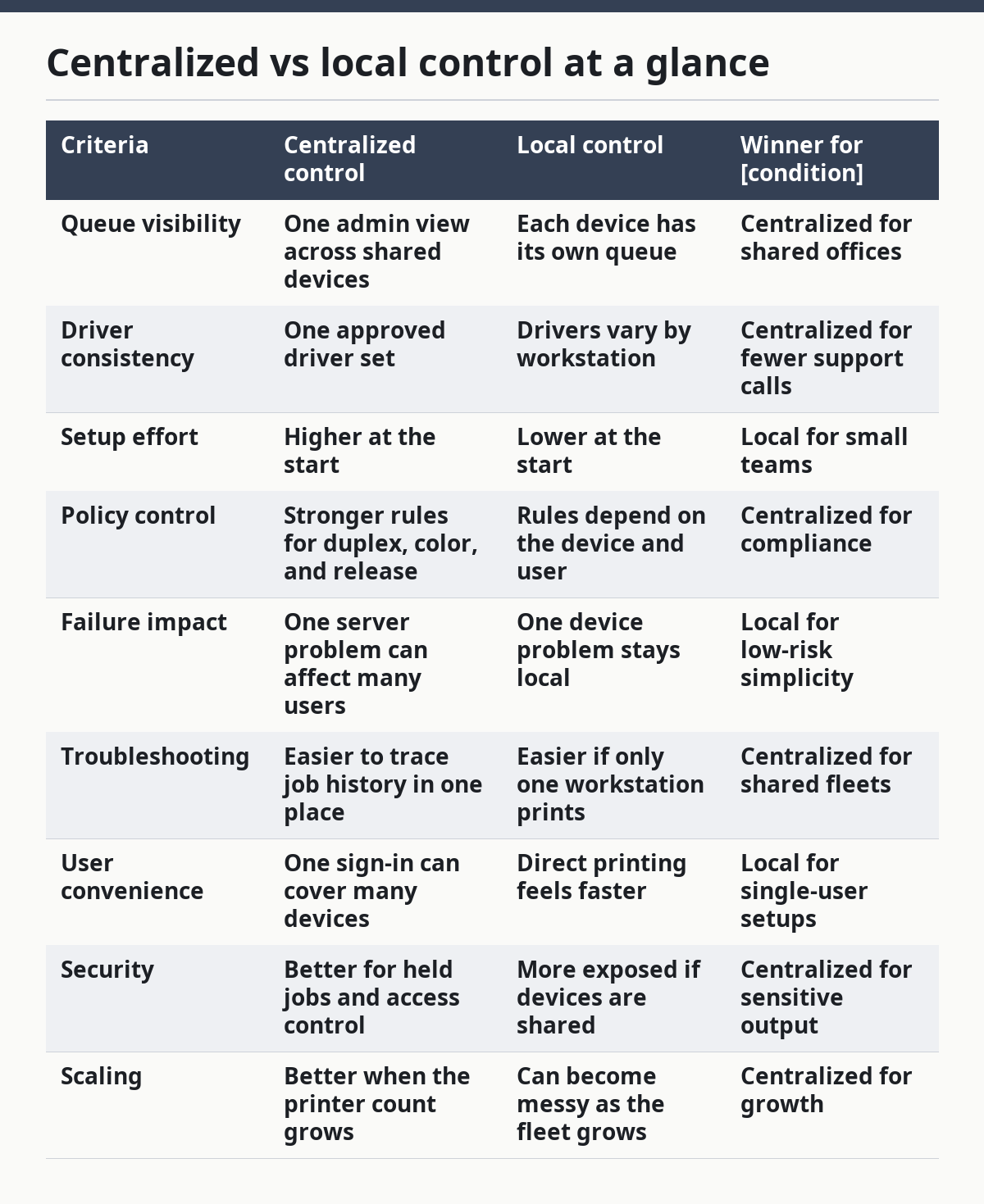
The right call depends on scale. A shop with one device and one operator does not need a heavy queue server. A department with multiple multifunction devices, color rules, and held jobs usually does.
What belongs in a good print workflow?
A good print workflow keeps file prep, queue handling, and device settings in the same chain, and it removes guesswork from each handoff. The basics are file format, driver, queue, routing, and finishing. If any of those is vague, the print output becomes vague too.
File prep matters first. PDF is the most common delivery format in many office and production settings because it holds layout, fonts, and page order better than a loose native file. For prepress work, PDF/X variants are used when the goal is tighter exchange rules and fewer surprises at output. That is not a guarantee, but it can narrow the gap between what the creator sees and what the printer receives.
Driver choice matters next. PCL is common in office environments because it is efficient and often predictable for text-heavy jobs. PostScript is common where page description and device independence matter more. PDF print paths are common in modern systems because they reduce some driver-side translation, but they still depend on the device and the queue setup.
Queue design comes after that. A good queue separates simple black-and-white jobs from larger color jobs, routes special stock to the right device, and keeps high-priority work from sitting behind an oversized file. Without that structure, a queue becomes a holding pen, and a holding pen becomes a help desk ticket.
For more on this layer, see print queue management and printer driver basics.
Which output controls matter most?
The most important output controls are release control, access control, paper routing, color control, and finishing control, because those are the settings that change what users actually get. The rest is housekeeping. If these five are wrong, the output is wrong even when the file is fine.
Release control matters most in shared environments. A held job stays in the queue until the right user releases it, which helps with confidential documents and with jobs that should not print until someone is present. It also cuts down on abandoned pages sitting in output trays.
Access control matters because not every user should print everywhere. In a mixed fleet, one user may need only one monochrome device while another can send larger color jobs to a production printer. If the queue ignores that, expensive devices get used for simple jobs and simple devices get overloaded.
Paper routing is a common failure point. A job that asks for A4 on a tray loaded with letter stock may pause or reroute, depending on the printer and driver behavior. Duplex settings, staple options, and tray mapping are often what separate a clean job from a support call.
Color control matters most for teams that care about consistency. CMYK workflow, calibrated devices, and clear rules about when a job is allowed to print in color keep output closer to expectation. Without that, the same file can look different on different devices.
Where do queues break?
Queues break when the job is waiting on the wrong thing, and that “wrong thing” is usually a driver, a tray, a permission, or a dead spool file. The queue is only the symptom. The cause sits one layer below.
A common failure is a single job blocking the line. One corrupt PDF or one odd driver request can hold the rest of the queue behind it. That is why clearing the queue is not always about deleting everything; sometimes the better move is to remove the one job that will not release.
Another common failure is a mismatch between what the driver says and what the printer has. If the job expects stapling, legal paper, or a specific tray and the device cannot match that request, the job may pause or error out. On a busy network, that can look like a jam, but the device is really waiting for a setting to match.
Permissions can also stop a queue without obvious signs. A user may send jobs but not be allowed to release them. A server may accept jobs but not pass them through. A queue can look alive while doing nothing useful.
The fix path usually follows the chain: check the job, then the queue, then the device, then the driver, then the routing rules. Skipping straight to restart buttons usually just hides the cause for a while.
For deeper steps, see troubleshooting print queues and driver mismatch fixes.
What should a small office do?
A small office should keep the workflow simple and the controls visible, because too much structure will slow down printing more than it helps. One good shared printer, one known driver, and one clear queue policy beat a dozen half-configured settings.
The cleanest setup for a small office is usually a direct path with a basic queue, plain paper defaults, and only a few rules: duplex on by default if the team wants it, color restricted if cost matters, and a clear path for held jobs if confidential pages are common. That keeps the support load low and gives everyone the same result from the same printer.
The weak point is drift. Small offices often add one extra printer, one extra driver, or one extra user with admin access, then wonder why the queue became hard to read. A setup with few controls can still become messy if nobody owns it.
This choice is not for a print-heavy department, a legal office with release requirements, or a design team that needs color-managed output. Those environments need more control than a small, single-printer setup can comfortably provide.
What should a production team do?
A production team should use structured workflow and strict output control, because the cost of a wrong page is higher than the cost of an extra rule. That means better file intake, clearer job tickets, stronger queue routing, and device-specific settings that are kept stable.
Production environments care about repeatability. A page that prints correctly once and differently the next day is a workflow failure, not a user mistake. For that reason, teams often separate job types by device, hold proofs for approval, and use formats and standards that reduce layout changes near output time.
This is where terms like RIP, imposition, and proofing matter. A RIP converts the file into something the press or printer can render reliably. Imposition arranges pages for the final sheet layout. Proofing gives a checkpoint before the costly final run. If any one of those steps is missing, the process becomes harder to trust.
The trade-off is complexity. More control means more steps, more setup, and more things to document. A production team that adds rules without naming ownership can end up with a queue nobody wants to touch.
For related standards, see prepress workflow basics and color management guide.
When should the whole setup change?
The whole setup should change when the current queue is doing too many jobs it was never meant to do. That includes cases where office printing, confidential release, color work, and production output all share one loose path.
Three exception scenarios can flip the recommendation. First, if the site or team only prints from one workstation to one device, a light local setup is usually enough and a full management layer is too much. Second, if secure release is a requirement and jobs often contain private content, centralized control is usually the safer choice, and a print professional should help confirm the right setup; Microsoft documents secure print release as a managed feature in shared environments, and PaperCut also recommends release workflows for private documents. Third, if color accuracy and finishing rules shape the result, output control has to move closer to the file prep stage and the device, not just the queue.
A fourth exception appears when support time is already the bottleneck. If print tickets keep coming from the same few queue errors, central control is not a luxury. It becomes the simplest way to stop repeated mistakes.
Which one should you choose?
Choose centralized control if multiple users share the same printers, if held release matters, or if queue history must be easy to audit. Choose local control if one user, one device, and one simple path is the whole job and setup time matters more than policy. Neither if the current system mixes office jobs, confidential jobs, and production jobs in one queue, because that setup is too blunt for all three.
That is the practical verdict. Centralized control wins for shared environments because it standardizes the driver path and gives one place to manage release, routing, and policy. Local control wins for small, simple setups because it avoids extra layers and gets a job to paper with less overhead.
The wrong choice is the one that ignores the actual workload. A quiet office does not need a production-style workflow. A production team does not need a casual desktop print path.
FAQ
Why does a print queue get stuck on one job?
A print queue gets stuck on one job when that job cannot finish its path through the spooler, driver, or device. The most common causes are a bad file, a tray mismatch, or a driver request the printer cannot satisfy. Clearing the queue works best when the bad job is removed first, not when every job is wiped blindly.
Is a print server always better than direct printing?
A print server is not always better than direct printing. It is better when many users share printers, when policy matters, or when queue history needs to be visible in one place. Direct printing is simpler for a single user or a very small team, but it gives up central control.
What is the difference between a spooler and a queue?
A spooler is the software that holds and prepares the job before printing, while the queue is the visible list of jobs waiting to print. The spooler does the behind-the-scenes work; the queue is what users and admins usually see. If the spooler fails, the queue often looks frozen or empty even when a job is still trapped.
How do I know if the problem is workflow or the printer itself?
The problem is likely workflow if jobs fail in one predictable step, such as release, paper routing, or driver translation. The printer itself is more likely at fault if the same device shows repeated hardware errors, tray faults, or repeated output failures across different jobs. Checking the job path first saves time, because many “printer problems” are actually queue problems.
Drafted with AI; not yet reviewed by a person.