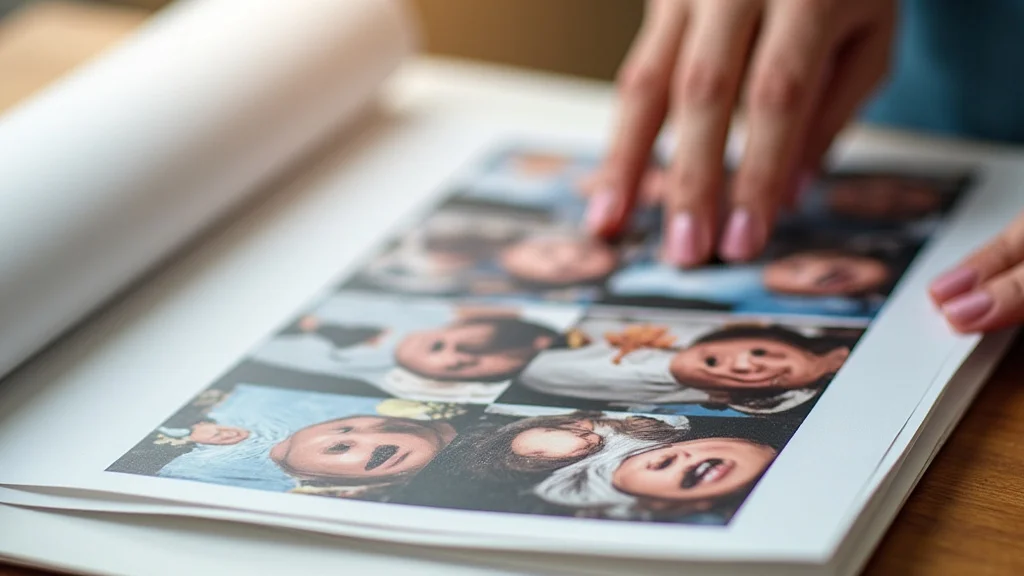
Remember that time you tried to print a bunch of vacation pictures, and each one ended up taking an entire sheet of paper? Frustrating, right? Or maybe you wanted to create a small photo album but were worried about wasting resources. Learning how to print multiple photos on one page can solve these problems and many more! This guide explores different ways to achieve this, saving you paper and time. You’ll also discover how to arrange your photos for the best results and learn about different software options. This detailed information will help you streamline your printing process, and your photos will come out looking great. You’ll gain practical skills to optimize your printing multiple photos on one page experience, improving your efficiency and saving paper.
Key Takeaways
- Learn various methods for printing multiple photos on a single sheet of paper.
- Understand how to adjust photo sizes and layouts for optimal results.
- Discover different software tools and their features for photo printing.
- Explore the benefits of printing multiple photos on one page, such as saving paper and time.
- Get tips for organizing your photos before printing for a better final product.
- Improve your photo-printing skills and optimize your workflow.
Ways to Print Multiple Photos on One Page
There are several methods you can use to print multiple photos on one page. The approach you choose may depend on the device you’re using and your specific needs. From simple online tools to advanced photo editing software, there’s a solution for everyone. Each approach offers different levels of control over the layout, size, and quality of your prints. Experimenting with different methods is a good way to find the one that best suits your needs and desired results. Whether you’re using a computer or a smartphone, these methods are designed to make it easy to share or archive photos efficiently.
Using Photo Editing Software
Photo editing software provides the most flexibility for printing multiple photos. Software like Adobe Photoshop, GIMP, or even simpler programs offer extensive options for layout, sizing, and arrangement. You can select multiple images and position them precisely on a single page, adjusting the margins, and adding text or other design elements. These programs give you detailed control over every aspect of your print, allowing for a professional finish. It also offers advanced editing features that can fix imperfections, adjust colors, and optimize photos for printing. Software options also typically allow for templates and custom layouts, allowing for both flexibility and streamlining.
- Choosing the Right Software: Select software that fits your experience level and needs. Options range from free, simple tools like GIMP to more advanced and paid programs like Adobe Photoshop.
- Importing and Arranging Photos: Import your photos into the software and arrange them on the page. Most programs allow you to drag and drop images and resize them easily.
- Adjusting Layout and Size: Customize the layout by adjusting margins, spacing, and the size of each photo. Ensure your photos are not cropped unintentionally.
- Adding Text and Elements: Some software allows you to add text, captions, or other design elements to your page. This is great for creating photo albums or sharing memories.
- Saving and Printing: Save your final design and then print. Remember to select the correct paper size and print settings to match your layout.
Using Built-In Printing Options
Operating systems like Windows and macOS have built-in printing options that allow you to print multiple images on a page. These tools are much easier to use, offering a quick solution without needing separate software installations. While providing less control over layout options, these are great for quick prints. Most systems allow you to choose a layout (e.g., 2×2, 3×3) or automatically arrange the photos. Though less flexible than dedicated editing software, built-in options are convenient for simple tasks.
- Accessing the Print Menu: Right-click on your selected photos and select “Print” to access the print settings.
- Selecting the Layout: Choose a layout option (e.g., wallet size, 4×6, contact sheet) from the printer settings. Many printers suggest specific layouts.
- Adjusting Picture Size: Experiment with photo size settings to fit images within the page without distortion.
- Previewing Your Print: Always preview the print before committing to ensure the layout is correct and the photos are positioned as desired.
- Adjusting Printer Settings: Modify the printer settings (e.g., paper size, print quality) to suit your project.
Utilizing Online Photo Printing Services
Online photo printing services often offer options for printing multiple photos on a single page. Upload your images to the service, and then use their online tools to design your layout. These services usually provide templates and automated arrangements, making the process straightforward. These services handle printing and often offer a variety of paper types and finishes. Although there may be a cost associated with printing, these online services are an easy option, especially for users who require convenience and quality.
- Choosing a Service: Select a printing service that provides layout options for multiple photos. Compare pricing, paper options, and overall user experience.
- Uploading Your Photos: Upload your photos to the service. Most services provide guidelines on photo size and resolution.
- Selecting the Layout: Use the service’s tools to choose your desired layout. Typically you can select from pre-defined grids or customize your design.
- Adding Details: Many services allow you to add captions, text, or other design elements to your printed photos.
- Review and Order: Review your design and confirm the order. The service will print and ship your photos.
Planning Your Layout: Tips and Tricks
Effective layout planning is vital for producing attractive prints when printing multiple photos on one page. The layout should be easy to see and attractive. Proper planning ensures that the final result is clear, engaging, and uses space effectively. Consider the purpose of the print, the size of your photos, and the overall design. Taking the time to plan your layout will enhance your final product. You will also get a better sense of how everything will appear and make adjustments.
Selecting the Right Photos
Choosing the right photos to include is a great first step. Focus on selecting photos that complement each other in terms of theme, color, or content. Avoid images that may appear redundant or unclear when scaled down. Consider the story you want to tell. A good selection of photos will make your layout more meaningful and attractive. Using a variety of shots and angles will also help make your layout more attractive, especially for albums.
- Consider the Theme: Select photos that have a common theme or story. This will help create a cohesive layout.
- Check Resolution: Make sure the photos have a high enough resolution to prevent blurriness when printed.
- Variety of Shots: Choose a variety of shots to add interest and balance. Use different sizes, compositions, and angles.
- Avoid Duplicates: Avoid selecting photos that are very similar or repeat the same content.
- Edit and Enhance: Briefly edit photos to improve quality, and make any color corrections to match your aesthetic.
Organizing and Sizing Your Images
Correctly sizing and arranging your images will improve the quality of your print and improve your viewing experience. Before you begin your layout, resize the images as needed. This helps to make sure that each photo is clear. Use a consistent arrangement that allows the eye to move through the images and maintain interest. Pay attention to the space between images. Make sure that you give each image enough space and that the final product looks clean and professional.
- Resizing for Print: Resize your photos to the correct size for printing. Consider aspect ratios to avoid any unwanted cropping.
- Arrangement and Alignment: Arrange your photos in an organized grid or a creative layout. Use a grid to ensure consistency.
- Spacing and Margins: Add enough space between photos to avoid crowding, and create margins around the edge of the page.
- Photo Orientation: Think about photo orientation. Combine portrait and landscape photos thoughtfully, ensuring they fit well.
- Preview and Review: Always preview the design before printing to check the arrangement and spacing. Make any adjustments.
Using Templates and Grids
Templates and grids can streamline the process and help you create professional-looking layouts when printing multiple photos on one page. Many software programs and online tools offer templates. Grids are also useful. These features help with alignment. Both are designed to make it easy to manage your photos. These tools can save time and energy, allowing you to focus on the overall look of your print. Templates and grids are especially useful for beginners, because they make it easy to produce high-quality results.
- Finding Templates: Search for templates or find software that provides layout templates. Check the templates for the size and arrangement.
- Using Grids: Enable gridlines in your editing software to align your photos consistently and evenly.
- Customizing Templates: Adjust templates to match your needs and preferences. Add your own creativity to them.
- Consistency: The use of templates improves the consistency of your layout. This leads to a more professional look.
- Saving Time: Templates speed up the layout process, allowing you to quickly arrange and design your photos.
Optimizing Print Settings
Understanding and optimizing your print settings can improve the outcome of printing multiple photos on one page. Correct print settings ensure that your photos appear at the best quality. Various printer settings will influence the final result, from color management to paper type. Taking some time to learn how to optimize your printing settings will improve the quality of your prints.
Selecting the Right Paper Type
The type of paper you select has a big effect on the quality of your prints. Different paper types are designed to handle ink in unique ways. Glossy paper is suitable for photos with vibrant colors and strong contrasts, while matte paper can give your photos a softer, more professional look. Choosing the correct paper type will improve the overall quality of your prints. Select paper based on your specific needs to make sure the final product matches your expectations.
- Glossy Paper: Use glossy paper for vibrant photos with rich colors. Glossy paper will also add a shine to the images.
- Matte Paper: Choose matte paper for a softer, more subtle finish, which works well for portraits and black and white photos.
- Premium Papers: Consider premium paper options like archival paper for long-lasting prints, which are more resistant to fading.
- Weight and Thickness: Consider the weight and thickness of the paper. Heavier paper will enhance the feel and durability.
- Paper Samples: Request paper samples to test which paper types work best with your printer and photos.
Adjusting Print Quality and Resolution
Print quality and resolution settings have a big effect on the clarity and detail of your prints. Higher resolution settings give your photos more detail. Experimenting with different settings will improve the quality of your prints. Always check the final result and make adjustments if necessary. The ideal settings will ensure your photos look sharp and well-defined, and that the final product will match your expectations.
- DPI Settings: DPI (dots per inch) settings control the detail of your prints. Higher DPI settings will give you more detailed prints.
- Print Quality: Choose the print quality setting that matches your paper and your requirements (e.g., standard, high, best).
- Color Profiles: Make sure you have the correct color profile for your paper type. This ensures that colors will be accurate.
- Test Prints: Always print a test sample to evaluate your settings and quality.
- Printer Calibration: Keep your printer calibrated for optimal color accuracy.
Managing Color and Ink Settings
Color and ink settings help with accurate color reproduction. Proper management of these settings will prevent problems like faded or off-color prints. The settings you select will make sure your photos appear as intended. Taking some time to learn these settings will improve the quality of your prints. You can also experiment with color management tools to fine-tune your prints.
- Color Profiles: Use the correct color profile for your printer and paper. This will make your colors accurate.
- Ink Levels: Always check your ink levels. Low ink levels can produce poor-quality prints and affect color accuracy.
- Color Correction: If necessary, use color correction tools to fine-tune your photos before printing.
- Grayscale Printing: Select the grayscale option in your printer settings if you are printing in black and white.
- Printer Calibration: Regularly calibrate your printer to maintain color accuracy.
Cost and Resource Saving Advantages
Printing multiple photos can provide considerable cost and resource savings. When you can print multiple images on a single page, you can cut down on the amount of paper, ink, and printer maintenance required. This helps with managing the budget and provides some environmental benefits. If you understand these advantages and optimize your printing habits, you can save money while minimizing your impact on the planet.
Reducing Paper Waste
Cutting down on paper waste is a key benefit of printing multiple photos on one page. By arranging several photos on a single sheet of paper, you reduce the overall number of sheets used. This approach cuts down on waste and helps manage resources. It’s a simple change that can lead to environmental benefits and also reduce your printing costs.
- Less Paper Usage: Using one sheet for multiple photos reduces paper consumption.
- Reduced Environmental Impact: Reduced paper usage can help with lowering your carbon footprint.
- Organize and Plan: Take time to organize and plan your print jobs. This will help you to optimize the number of images per page.
- Double-Sided Printing: If applicable, use the double-sided printing option to save even more paper.
- Print Only What You Need: Avoid unnecessary prints by previewing your layout and print only what you actually need.
Conserving Ink and Toner
Reducing ink and toner use is another important advantage. Using a single page for multiple images reduces the number of print cycles. This can help to cut down on ink or toner consumption, extending the life of your printer’s supplies. Reducing ink and toner use can also provide significant cost savings. Over time, these savings add up, making the printing process more sustainable and affordable.
- Fewer Print Cycles: With fewer prints, you reduce the amount of ink or toner used.
- Longer Cartridge Life: Your ink or toner cartridges will last longer.
- Cost Savings: You’ll need to replace cartridges less often.
- Ink Saver Modes: Use the “ink saver” or “draft mode” options in your printer settings when appropriate.
- Optimize Photo Quality: Edit photos before printing to ensure they are at the optimal quality and don’t require reprinting.
Time Efficiency
Printing multiple photos on a single page can save time. Arranging your photos on one page decreases the number of print jobs you need to perform. You can easily print multiple copies of the same layout or make changes without repeating the process. Streamlining your process can make you more effective. It also minimizes the time you spend on repetitive tasks.
- Fewer Print Jobs: Reduce the number of individual print jobs.
- Faster Production: Creating layouts with multiple photos means you’ll finish your printing tasks more quickly.
- Easier to Share: You can quickly create multiple copies for sharing with family and friends.
- Templates and Automation: Use templates and automation tools to speed up the process even further.
- Organized Workflow: An organized workflow and effective layout planning can help reduce printing time.
Common Myths Debunked
Myth 1: Printing Multiple Photos Will Always Reduce Photo Quality
The perception that printing multiple photos on one page always degrades photo quality is a common misunderstanding. While it is true that you might need to scale down images, this does not have to result in quality loss. It depends on the resolution of the original image, your printer settings, and the paper quality. Using high-resolution photos and adjusting the printer settings will allow for attractive, high-quality results. Printing multiple photos can produce very good prints. You just need to take some care with the settings and the image files you use.
Myth 2: Complex Software Is Required for Printing Multiple Photos
There’s a myth that you need expensive, difficult software to print multiple photos on one page. While photo editing programs like Photoshop offer many features, they are not necessary for the basic task of arranging and printing multiple photos. Built-in printing options and free tools provide all the functionality needed for most users. These simple tools are perfect for anyone. You do not need to invest a lot of time and money to produce amazing prints.
Myth 3: Printing Multiple Photos Wastes a Lot of Ink
This is not completely true. Using a single sheet for multiple images often decreases ink consumption because you reduce the number of print cycles. While printing more content on a single page might require a slight increase in ink per page, the overall ink consumption is generally less compared to printing each photo separately. In reality, you may use slightly more ink on the page. But this is more efficient. In the long run, this will save ink and reduce printing costs.
Myth 4: Professional Paper is Essential for Good Results
Many believe that only expensive, professional-grade paper can produce good prints. While professional paper provides excellent results, it’s not essential for all prints. For casual use, many types of paper can provide very good results. The best paper depends on your needs. For everyday prints, a good quality paper works very well, especially with high-resolution photos and careful printer settings. You can still create amazing prints even without the most expensive materials.
Myth 5: All Printers Are the Same for This Task
Some people think that all printers are the same when it comes to printing multiple photos on a page. The reality is that printer quality can make a big difference in the final product. Printers vary in resolution, color accuracy, and paper handling. A printer with better resolution and color management will give you better-quality results. If you want high-quality prints, look for a printer with good resolution and color capabilities. These features will also affect your printing quality.
Frequently Asked Questions
Question: Can I print multiple photos from my phone?
Answer: Yes, many smartphones have built-in printing options or can connect directly to wireless printers. There are also many apps you can use to arrange and print your photos.
Question: What’s the best software for printing multiple photos?
Answer: It depends on your needs. Software like Adobe Photoshop and GIMP give you lots of options. Built-in printing options are simpler for quick prints. Online services are very convenient.
Question: What’s the recommended DPI setting for photos?
Answer: A DPI of 300 is recommended for quality photo prints. However, for most images, 200 DPI is usually sufficient.
Question: How can I choose the best paper for printing?
Answer: Choose paper according to your needs. Glossy paper is good for vibrant photos, while matte paper is better for a softer look. Use premium paper if you need your prints to last.
Question: Can I print different sizes of photos on the same page?
Answer: Yes, you can. Photo editing software and some online services allow you to adjust the size and layout of each photo on your page.
Final Thoughts
Mastering the art of printing multiple photos on one page unlocks an efficient and creative way to share and preserve memories. Using built-in printing options, professional photo-editing software, or convenient online services allows you to arrange your photos. Preparing your photos, selecting the proper paper, and carefully adjusting the printer settings are vital. By following the tips and tricks detailed in this guide, you can improve the quality, and lower the costs of your printing endeavors. From saving on paper and ink to saving time, the advantages of printing multiple photos are many. Now, you’re prepared to create beautiful photo layouts that capture and share your moments.