Last updated: November 19, 2026
Quick answer: you can set a default printer on Windows and Mac in under 2 minutes, and both systems let you change it in their printer settings. This guide explains how to set a default printer on Windows and Mac, where the setting lives, and what to check if an app keeps picking another printer. On Windows, that usually lives in printer settings. On Mac, it sits in System Preferences or System Settings under Printers & Scanners.
Key takeaways
- The default printer is the one your computer picks first for most print jobs.
- Windows and Mac use different menus, but both let you change the default in under 2 minutes.
- Auto-select printer can switch your default based on where you are, which helps in shared spaces and hurts at fixed desks.
- Some apps keep their own printer choice, so a browser or PDF app may ignore the system default.
- If the wrong printer keeps showing up, the fix is often in the app, not the operating system.
How do I set a default printer on Windows?
Set it in Windows printer settings by turning off auto management and choosing the printer you want. In Windows 10 and Windows 11, that takes a few clicks and usually sticks right away.
-
Open Settings and go to Bluetooth & devices or Devices, then choose Printers & scanners.
This is where Windows keeps the printer list and default printer controls. -
Turn off the setting that lets Windows manage the default printer automatically.
With that option on, Windows may keep changing the default to the last printer you used. -
Select your printer from the list of installed printers.
Click the printer name you want as the main one, such as an office laser printer or a home all-in-one. -
Choose Set as default if the button appears, or open the printer’s page and set it there.
After that, the printer should show as the default in the list. -
Open a print dialog in any app and check the printer name.
The selected printer should match the one you chose in Windows.
The main trap on Windows is leaving auto management on. That setting can be useful on shared laptops, but on a desk computer it often causes confusion because the default changes after the next print job. Microsoft documents this behavior in its Windows printer help, and it matches what many users see on Windows 10 and Windows 11. Microsoft Support explains the default printer controls in Windows settings.
For reference, Microsoft’s printer support pages and Apple’s Mac printing guide both describe the system-level default printer settings in their own menus: Microsoft Support and Apple Support.
How do I set a default printer on Mac?
Set it in System Preferences or System Settings under Printers & Scanners, then pick the printer you want from the Default printer menu. On newer versions of macOS, the layout may use System Settings instead of the older System Preferences panel, but the printer choice is in the same general place.
-
Open System Settings or System Preferences and click Printers & Scanners.
This is the Mac control panel for installed printers. -
Look for the Default printer menu near the bottom of the printer list.
macOS uses this menu to decide which printer appears first in apps. -
Choose the printer you want from the list.
If you use one printer most of the time, pick that one here. -
Close the window and open any app’s print dialog.
The selected printer should show as the default in the print sheet. -
Check the last-used printer rule if the Mac keeps switching.
Some print dialogs can remember the last printer you used, which makes the setting look ignored when it is not.
Apple’s setup is cleaner than Windows in one way: the default lives in one place for most users. App-level choices can still override it, so a wrong printer in Preview or Word does not always mean the Mac setting failed. Apple’s support guide for Mac printing explains the default printer menu and where to find it. Apple Support covers the Mac printing controls.
What does auto-select printer change?
Auto-select printer changes the default based on where the computer thinks you are, not on the printer you picked once. That makes sense in a school, office, or home with 2 or more printers, but it can be annoying on a single-user PC.
| Setting | What it does | Best for | Main drawback |
|---|---|---|---|
| Manual default printer | Keeps one printer selected until you change it | Home desks and fixed workstations | You must change it yourself if you move |
| Auto-select printer | Switches the default by location, network, or last use | Shared computers and mobile laptops | The printer may change when you do not expect it |
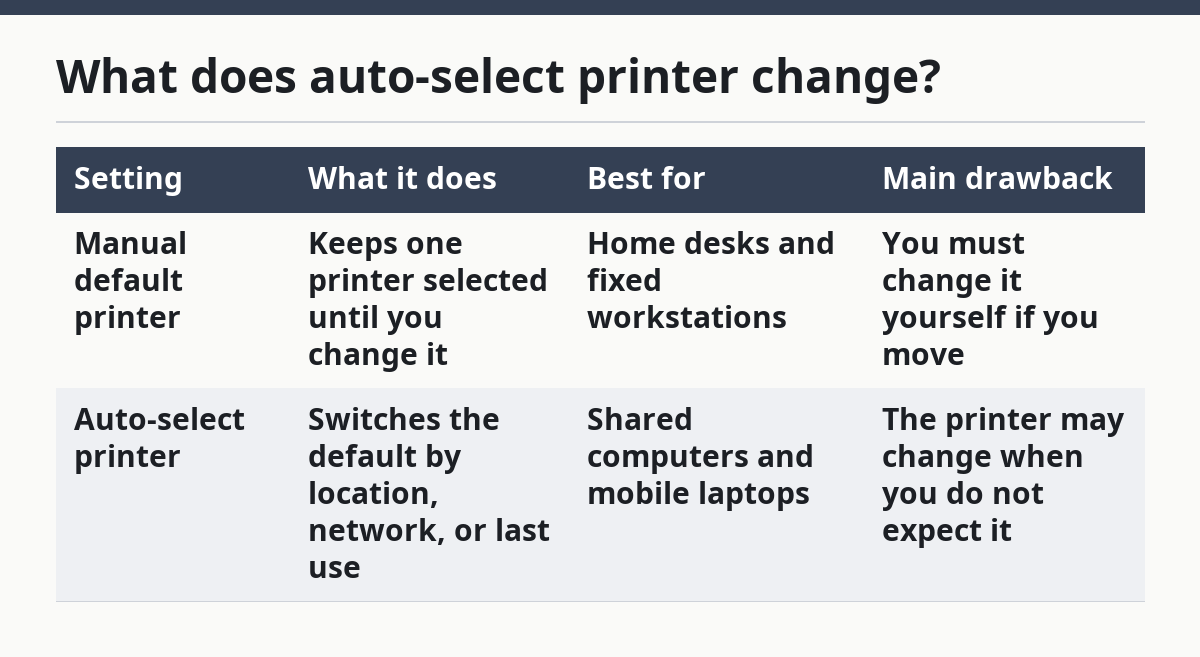
On Windows, auto management is the setting most likely to cause the “why did it switch again?” complaint. If you print to two printers in one afternoon, Windows may decide the last one is the new default. On a laptop that moves between floors or networks, that can be useful.
On Mac, the effect is often less dramatic, but a similar problem can still happen through app memory or printer history. That is why a user may think the default printer is broken when the real issue is a printer choice stored in the app.
Use manual default printer control if one printer handles most jobs, and keep auto-select behavior only if you regularly move between printers. That trade-off matters more than the brand of computer.
Why does my app keep choosing another printer?
Your app may be storing its own printer choice, which can override the system default for a single print job or for every future job. This is common in browsers, PDF readers, and office apps that save the last printer used.
A system default tells Windows or Mac what to pick first. An app-specific printer choice tells that app what to reuse next time. Those are not the same thing, and that is the part many people miss when the wrong printer keeps showing up.
Here is the simple comparison:
| Level | Who controls it | Scope | Example |
|---|---|---|---|
| System default printer | Windows or Mac | Most apps and most jobs | The printer chosen in Printers & scanners or Printers & Scanners |
| App-specific printer choice | One app | Only that app | A PDF app that keeps opening on a color printer |
If the printer is wrong only inside one app, check that app’s print dialog before changing the system setting again. If the printer is wrong everywhere, the system default is the better place to fix it. That saves time and keeps you from changing the same setting three times.
The common mistake is assuming one setting controls everything. It does not. A browser can remember the last printer used, and a document app can do the same. When that happens, the system default still matters, but it is only part of the picture.
Which setting should I change first?
Change the system default first, then check the app if the wrong printer still appears. That order solves the most common problem with the least effort and works on both Windows and Mac.
If you use one printer at home or at a single desk, make that printer the default and leave auto-select off. That usually means fewer clicks. If you move between a home printer and an office printer every day, auto-select can be worth keeping on a laptop, but it is rarely a good fit for a fixed desktop.
Use this rule of thumb:
- One printer most of the time: set a manual default.
- Several printers, same computer, shared space: consider auto-select.
- Only one app is wrong: fix the app’s printer choice first.
- Every app is wrong: fix the system default in Windows or Mac.
That approach also avoids one of the most common dead ends: changing the printer inside a document and then wondering why the next file goes to the wrong device again. The system setting is the anchor. The app setting is the exception.
If you are sorting out a larger printer issue, this page fits into the wider printer setup and connectivity process. A default printer is one small piece of the setup, but it is often the one that keeps the queue from filling with jobs sent to the wrong device.
What if the wrong printer still shows up?
The wrong printer usually means the app, not the operating system, is remembering the last choice. Start with the system default, then open the print dialog in the problem app and look for a saved printer, a recent printer, or a per-document setting.
A second cause is auto-select behavior on Windows. If that option is on, Windows can replace your manual choice after another print job. A third cause is a second printer with a similar name, such as two network printers that look almost the same in the list.
The fix does not usually require reinstalling anything. It usually means checking three places in order: the system printer list, the app’s print dialog, and the auto-select setting. That order is faster than guessing.
Why does my computer keep choosing the wrong printer?
Your computer keeps choosing the wrong printer because either the system default changed or the app is saving its own printer choice. On Windows, auto management can also swap the default after you print to another device. Check the system setting first, then the specific app if only one program is misbehaving.
Can I set different default printers for different apps?
Yes, some apps keep their own printer choice, even though Windows and Mac still have one system default. That means one app can open on a color printer while another uses a black-and-white printer. The behavior depends on the app, so results can vary across programs.
Drafted with AI; not yet reviewed by a person.