Last updated: November 18, 2026
Key Takeaways
- Match the printer to the pages you print most often.
- Low sticker price can hide higher long-term running costs.
- Wireless printing is useful when several devices need the same printer.
A printer buying guide for home users should help you choose the right machine for schoolwork, bills, photos, and occasional scanning. Quick answer: for most homes, choose an inkjet for color, a laser for text, and an all-in-one only if scanning or copying will be used regularly. This printer buying guide for home users focuses on the trade-off between print type, cost, and convenience.
Our Top 3 Picks at a Glance
- #1 Best Overall: A home all-in-one printer with strong document output and easy wireless setup
- #2 Best Budget Pick: A basic inkjet printer for light, mixed use
- #3 Best Heavy-Duty / Upgrade Pick: A laser printer or all-in-one for frequent text pages
| Product / Option | Best For | Core Spec | Standout Feature | Action |
|---|---|---|---|---|
| Best Overall | Homes that print, scan, and copy from phones and laptops | All-in-one printer | One box handles several jobs | Choose if you want one device for school, forms, and scanning |
| Best Budget Pick | Light use, occasional color pages, and simple setup | Inkjet printer | Lower entry cost and color output | Choose if you print a few pages at a time and don’t mind slower output |
| Best Heavy-Duty / Upgrade Pick | Frequent text printing and less fuss with smudging | Laser printer | Sharp text and long-running toner supply | Choose if most pages are black-and-white documents |
Start with the pages you actually print
You need to match the machine to the page, not the other way around. If your home prints 20-page homework packets, return labels, and tax forms, a different printer makes sense than if you mostly print family photos or a few recipes each month.
To keep a printer buying guide for home users practical, start with your real jobs, not the box copy. What will it print most days? That answer decides whether you need an inkjet printer, a laser printer, or an all-in-one printer.
- Mostly text: choose laser.
- Mixed color and text: choose inkjet.
- Print, scan, and copy: choose all-in-one.
- Photos at home: favor inkjet with photo-friendly ink.
Here’s the catch: the wrong choice often looks fine on day one. The cost shows up later in slow output, dried-out cartridges, or toner that doesn’t fit how you use the machine.
A good filter is to write down your top three jobs before you shop. If one of those jobs is scanning, the machine needs a scanner. If none of them is scanning, a plain printer can save space and trouble. For a home user, that simple split matters more than a long feature list.
Printer buying guide for home users: inkjet, laser, or all-in-one?
The best choice for many homes is inkjet for color, laser for text, and all-in-one for scan-and-copy chores. That is the buying shortcut that keeps people from paying for features they won’t use.
Because this printer buying guide for home users is about fit, the next step is deciding how much attention the machine will get. A laser printer usually suits people who print documents in bursts. An inkjet printer suits people who need color, graphics, or photos. An all-in-one adds a scanner and copy function, which helps when school forms or signed pages keep appearing.
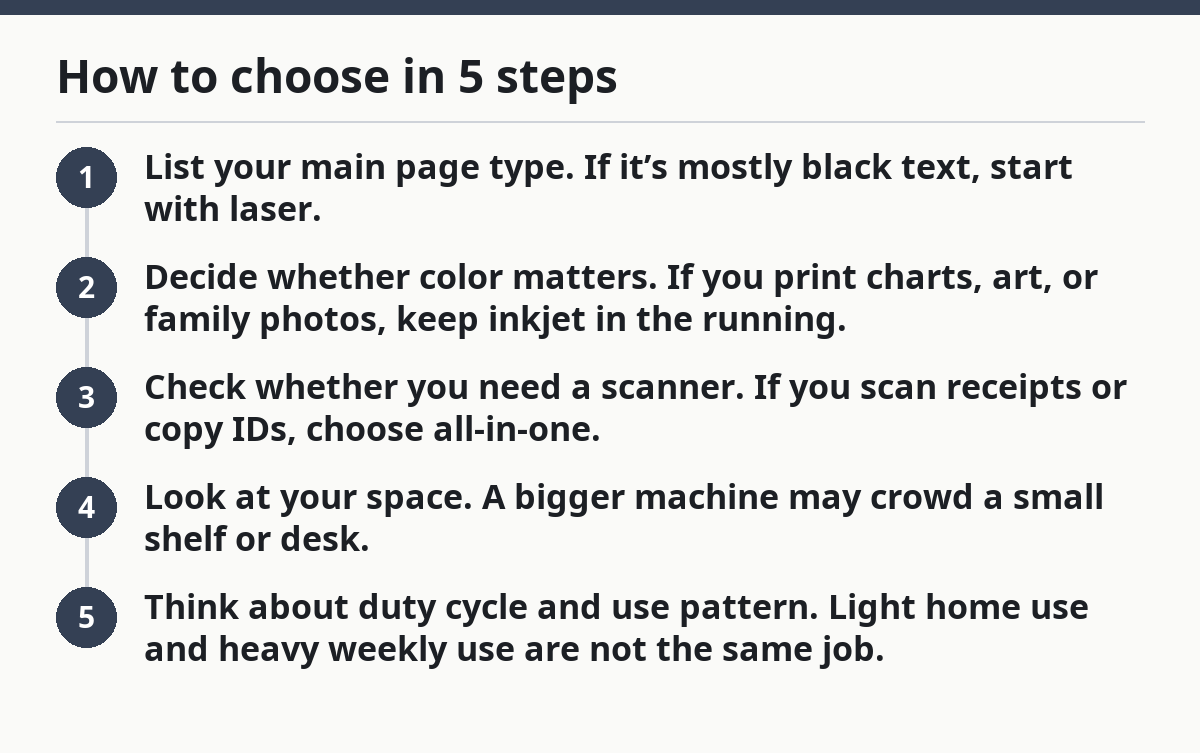
How to choose in 5 steps
- List your main page type. If it’s mostly black text, start with laser.
- Decide whether color matters. If you print charts, art, or family photos, keep inkjet in the running.
- Check whether you need a scanner. If you scan receipts or copy IDs, choose all-in-one.
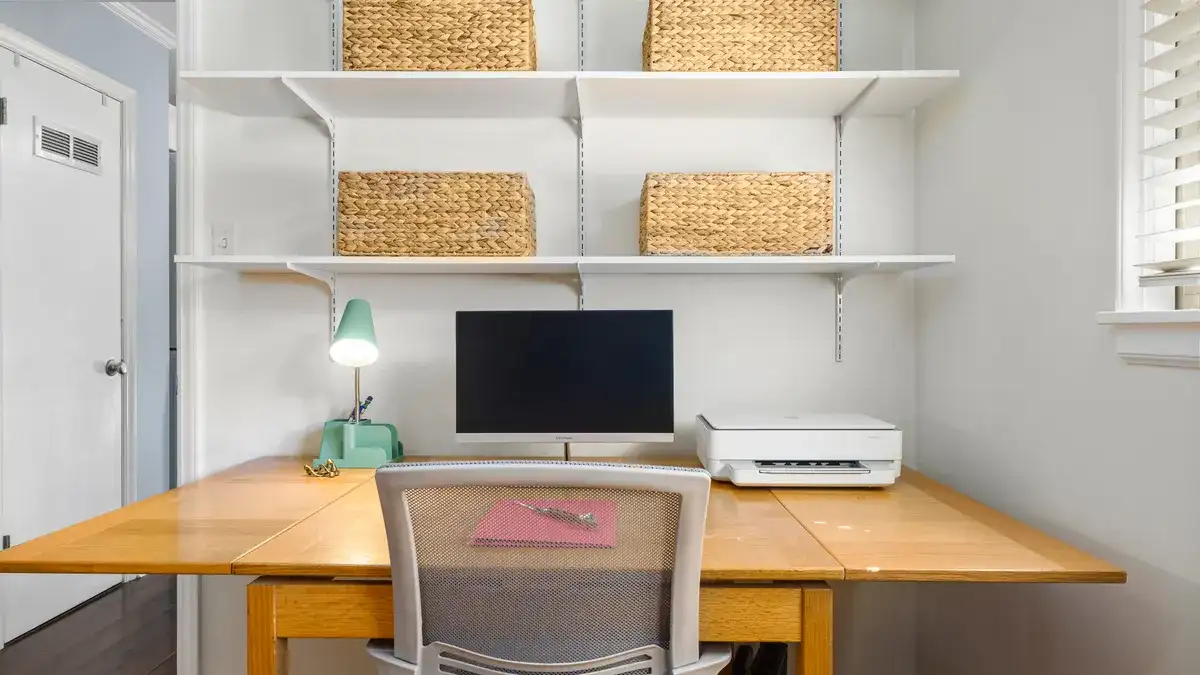
- Look at your space. A bigger machine may crowd a small shelf or desk.
- Think about duty cycle and use pattern. Light home use and heavy weekly use are not the same job.
The truth is, many buyers pay for an all-in-one because it feels safer. That can be smart, but it also means more parts, more menus, and one more thing that can fail. If you never scan, the scanner is dead weight.
- Inkjet strengths: better for color, often friendlier for photos, common in home setups.
- Inkjet drawbacks: ink can dry out if the machine sits idle, and cartridges may need replacing sooner than you expect.
- Laser strengths: fast text, cleaner pages, and less worry about dried ink.
- Laser drawbacks: color laser models can be bulky, and photo work is usually not their strong point.
- All-in-one strengths: one device handles printing, scanning, and copying.
- All-in-one drawbacks: if one part fails, the whole unit is affected.
If you want the shortest answer, use this rule: text-heavy home = laser, mixed color home = inkjet, document-heavy home with scans = all-in-one laser or inkjet. That rule is not perfect, but it is good enough to buy well.
What cost of ownership really means

The cheapest printer can be the most expensive one to own over time. Purchase price matters, but ink or toner, replacement frequency, and the way you print matter more over time.
Picture this: the box looked like a bargain, but the first cartridge swap stung. That happens because the machine price and the running cost are separate bills. A printer that uses tiny ink cartridges may seem affordable up front, then ask for more frequent replacements. A laser printer can cost more at the start, but toner often lasts longer for text jobs.
For a printer buying guide for home users, the full-year cost matters more than the sticker price. According to Consumer Reports, printers can vary widely in running costs, and a lower purchase price does not always mean lower ownership cost. (Source: Consumer Reports)
Look at these pieces before you buy:
- Ink or toner type: cartridge-based inkjets, refillable tanks, or toner-based lasers.
- Page yield claims: a rough guide to how long a supply may last, though real use varies.
- Maintenance needs: cleaning cycles, printhead issues, and paper pickup parts.
- Waste from infrequent use: dried ink can waste money and pages.
One common mistake is buying a cheap inkjet for a family that prints only a few pages every month. It sounds sensible, then the first sign of trouble is clogged nozzles or wasted cleaning cycles. A laser printer often handles that kind of light, irregular use better. That is one reason ownership cost can matter more than purchase price.
On the flip side, a laser printer is not the right answer if you want great-looking color photos. It can print color, but that is not its strongest job. If photos matter, the running cost of ink makes more sense than forcing a laser to do something it wasn’t built for.
For a home buyer, the smart move is to compare the full year, not the sticker price. If your pages are mostly school forms and statements, toner may win. If your pages are craft sheets and family pictures, ink may be the better fit.
Will wireless printing matter in your house?
Wireless printing matters if you want to print from a laptop, tablet, or phone without parking the device next to a cable. It is a convenience feature, and for many homes it changes how often the printer gets used.
Picture this: the printer sits in a hallway or office nook, and the people who need it are in different rooms. Wireless support makes that setup practical. It also helps when the family uses mixed devices — a Chromebook, a Windows laptop, and a phone in the same home.
Wireless printing is not the same as “easy.” Setup can still be awkward if your Wi-Fi name is confusing, the signal is weak, or the printer is tucked far from the router. Some models support direct printing from apps better than others. That part is about the software as much as the hardware.
Use this quick check:
- One person, one desk: a USB connection may be enough.
- Multiple people and multiple devices: wireless is worth it.
- Printer far from the router: check signal strength before you buy.
- Phone-heavy household: make sure the brand’s app is usable.
Here’s the catch: wireless support is not a substitute for good placement. A printer in a dead zone becomes a paperweight with a logo. If the home layout is awkward, a model with both wireless and USB gives you a fallback.
The best part is that wireless is now common enough that you should not treat it as a premium add-on, but it is still worth checking your setup first. If you are unsure about Wi-Fi coverage or device compatibility, consult the printer manufacturer or a qualified tech professional before you buy. Treat wireless as a basic convenience feature, then judge the machine on print quality, running cost, and whether the app feels sane to use.
Photo printing and document printing are not the same job
Document printing asks for sharp text and speed; photo printing asks for color depth and smoother tones. A printer that shines at one can be average at the other.
Picture this: one day you print a stack of tax papers, and the next day you want birthday photos that look decent on glossy paper. That mixed use is where many home buyers get stuck. A standard office-style machine can be great on black text and mediocre on photos. A photo-friendly inkjet can do lovely color and still feel slower on long document runs.
If your home leans toward documents, focus on:
- crisp black text
- decent paper handling
- low cost per page
- a scanner if forms matter
If your home leans toward photos, focus on:
- color accuracy
- support for photo paper
- better ink handling for images
- image quality over raw speed
A frequent mistake is buying a machine that “does both” and expecting equal results. It rarely works that way. A good compromise is enough for most families, but compromise still has edges.
The truth is, you can often save money by deciding which job matters more. If 90% of what you print is school worksheets, don’t shop like a photo studio. If you print a few photos a month, don’t overspend on a model built for office reports.
For a home user, this split is one of the cleanest ways to avoid regret. It keeps you from paying extra for color you do not need or settling for dull prints when photos matter.
What features are worth paying for?
The features worth paying for are the ones that solve a real annoyance: paper handling, scanner use, and reliable wireless support. Extra buttons are not the same thing as extra value.
Picture this: you’ve got a printer that technically does everything, but the paper tray feels flimsy, the screen is awkward, or the app takes too many taps. Those annoyances matter because home printers sit in the middle of family life, not in a quiet office with one user.
Look for these features first:
- Scanner bed size: important if you scan school forms or small documents regularly.
- Automatic document feeder: useful if you scan more than one page at a time.
- Two-sided printing: saves paper and cuts manual flipping.
- Separate paper tray: helps if you switch between plain paper and photo paper.
- Simple display or app: makes the machine easier to live with.
Do not buy a machine for a feature you will use twice a year. That’s how people end up with complicated setups they avoid. A family that prints shipping labels and homework should care more about ease of use than fancy photo modes.
This is also where all-in-one printers can mislead you. A scanner sounds useful, and it is, but only if you actually need to copy and digitize pages. If the scanner will sit untouched, a simpler printer may be the better buy.
For home use, the most practical features are often the dull ones: a good tray, a clear app, and a scanner that works without fuss. Exciting hardware is nice. Useful hardware gets used.
What should I skip if I only print a little?
If you print only a little, skip expensive extras, high-end photo claims, and huge office-style models. Light users need a machine that wakes up fast and does not punish long gaps between jobs.
Because a printer buying guide for home users should prevent overspending, think about actual monthly volume. If you print a return label, a permission slip, and a recipe every few weeks, a big, complex machine can be overkill. In that case, a simple inkjet or compact laser makes more sense than a feature-heavy all-in-one with a long setup path.
Skip these if you are a light user:
- massive paper capacity you won’t fill
- specialty photo features you won’t use
- a bulky color laser if you mostly print black text
- a scanner you rarely need
- complicated controls that slow down one-page jobs
The cost mistake here is obvious: buying for a fantasy workload. Most homes do not need a machine built for stacks of reports. They need something that turns on, connects, and finishes the page without drama.
A smaller feature set can be a benefit. Fewer parts, fewer menus, and fewer reasons to keep the box around “just in case.” That keeps the decision simple.
A home printer should fit the way you live. If your printing is light and irregular, do not shop like a small office. That mismatch is where buyers waste money.
The Verdict
A good home printer choice starts with use, not brand. Inkjet for photos and mixed color, laser for text-heavy pages, and all-in-one only when scanning or copying will pay its way.
Picture this: you want the least regret after the box arrives. That comes from matching the machine to the pages, then checking cost of ownership and wireless needs before you swipe a card. The product that looks “best” on paper is often the wrong one for your home.
Two solid rules help most buyers:
- pick the printer type by what you print most
- pay attention to running cost, not just the sale price
One more rule matters: if you don’t need a scanner, don’t buy one. That single choice can save space, time, and money.
Drafted with AI; not yet reviewed by a person.