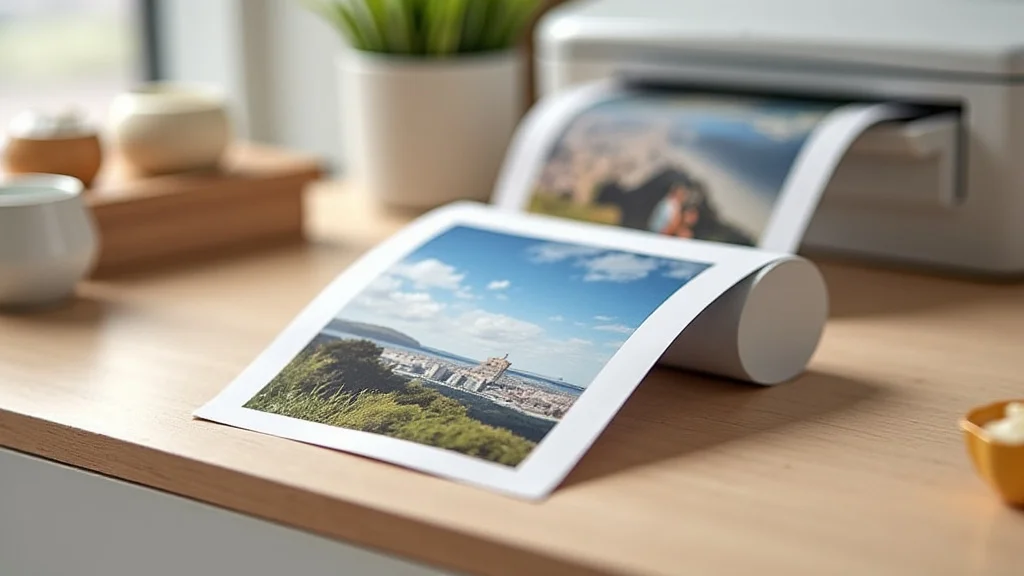
Remember that stack of photos tucked away in a drawer, fading and gathering dust? Wouldn’t it be great to relive those memories in vibrant color, proudly displayed? Well, printing 8×10 photos at home can bring those memories to life in a way that’s both personal and cost-effective. This guide helps you choose the right tools and techniques, turning your home into a photo studio. You’ll learn the essential steps for achieving professional-quality prints, giving you the confidence to create beautiful 8×10 photo prints. You’ll also learn the important details for maximizing your investment. Prepare to transform your digital snapshots into tangible treasures, increasing your photo enjoyment and reducing the amount of time you spend looking for the perfect prints.
Key Takeaways
- Learn the equipment needed for printing 8×10 photos at home.
- Understand the various types of photo paper and their uses.
- Discover how to correctly calibrate your printer and monitor.
- Master the art of photo editing for optimal print quality.
- Get tips for handling and preserving your finished prints.
- Find solutions to common printing problems.
Choosing the Right Equipment for Printing 8×10 Photos at Home
Getting started with printing 8×10 photos at home requires a few essential pieces of equipment. The most important is, of course, a printer. Not just any printer will do; you will want one designed specifically for photo printing. You’ll also need high-quality photo paper and a way to view and edit your photos. The correct selection of these tools is a key step towards achieving professional results in the comfort of your house.
Selecting a Photo Printer
The printer is the heart of your home photo studio. Look for an inkjet printer, as these are the best for producing high-quality photo prints. Consider the resolution of the printer, measured in dots per inch (DPI). A higher DPI generally results in sharper, more detailed prints. Printers with six or more ink cartridges often produce a wider range of colors and smoother tonal transitions, which is important for quality photo reproduction. Also, keep the print speed in mind if you plan on printing a lot of photos.
- Inkjet vs. Laser: Inkjet printers are the preferred choice for photo printing because they can produce better color accuracy and detail. Laser printers, which use toner, are better for text documents and faster print speeds but often don’t provide the same quality for photos.
- Resolution and DPI: Resolution is measured in DPI. A printer with 4800 x 1200 DPI or higher is generally recommended for 8×10 prints. It is important to know the finer details, particularly when working with larger format prints.
- Ink Cartridge System: Printers with more ink cartridges (six or more) tend to produce more vibrant and accurate colors. Some printers use pigment-based inks, which are more fade-resistant than dye-based inks, but both have their uses.
- Connectivity Options: Make sure your printer has the connectivity options you need, such as USB, Wi-Fi, and Ethernet. Wi-Fi can be particularly helpful for wireless printing from computers and mobile devices.
Photo Paper Selection
The type of photo paper you use dramatically impacts the final print. Paper comes in various finishes and weights, each with its own characteristics. The surface of the paper, whether glossy, matte, or luster, affects the way light reflects and the overall look of the print. The quality of the paper is also important for longevity. Selecting the correct photo paper type is critical for ensuring that you get the right results.
- Glossy Photo Paper: Glossy paper has a shiny surface that enhances colors and makes images appear vibrant. It’s excellent for photos with vivid colors and sharp details, but it can be prone to fingerprints and glare.
- Matte Photo Paper: Matte paper has a non-reflective surface, which is ideal for photos that will be viewed under bright lights. It offers a softer look and is less susceptible to fingerprints.
- Luster Photo Paper: Luster paper has a semi-gloss finish, offering a middle ground between glossy and matte. It reduces glare and fingerprints while maintaining color vibrancy.
- Paper Weight and Thickness: The weight of the paper affects its feel and durability. Heavier papers (200 gsm or more) are less prone to bending and are often preferred for high-quality prints.
Calibrating Your Display and Printer
To ensure that the colors you see on your screen match those in your prints, you must calibrate your display and printer. This involves adjusting the color settings to accurately display colors and print them correctly. Color calibration tools, such as colorimeters or spectrophotometers, can help you accurately calibrate your display. A calibrated system is a must-have for a proper workflow.
- Display Calibration: Using a colorimeter or spectrophotometer, you can measure the colors on your display and create a profile that corrects any inaccuracies. This ensures that the colors you see on the screen are accurate.
- Printer Calibration: Most printers come with software that guides you through the calibration process. This involves printing test patterns and analyzing them to adjust the printer’s color output.
- Color Profiles: Download and use the correct ICC (International Color Consortium) profiles for your paper. These profiles tell the printer how to print colors accurately on your specific paper type.
- Regular Calibration: It is important to recalibrate your display and printer periodically, as their color accuracy can change over time. Many professionals calibrate at least once a month.
Image Editing and Preparation for Printing 8×10 Photos
Before printing 8×10 photos at home, take the time to edit and prepare your images. Photo editing can significantly improve the final print quality, correcting flaws and enhancing colors. Use photo editing software to adjust brightness, contrast, and color balance. These adjustments can transform your photos, but it is important to know what you are doing before you proceed.
Basic Editing Techniques
The basics of image editing will ensure your prints look their best. Begin by adjusting the overall brightness and contrast to create a balanced image. You can also adjust the colors, using the color balance or hue/saturation tools to correct any color casts or enhance color vibrancy. These steps help with the final output.
- Brightness and Contrast: Adjust these settings to ensure proper exposure and create visual impact.
- Color Correction: Correct any color casts or imbalances. Use the color balance or white balance tools.
- Sharpening: Sharpening enhances details. This makes the images appear more crisp and defined. Be cautious not to over-sharpen.
- Cropping: Ensure the composition is pleasing and that important elements are in the frame. Pay special attention to the overall look.
Advanced Editing and Retouching
For more detailed work, move on to advanced editing techniques. Retouching involves removing blemishes, and dust spots, and enhancing specific areas of your photos. Working with layers can give you more control over your edits, allowing you to make non-destructive adjustments. Mastering advanced editing is important for optimizing your prints.
- Retouching: Use tools like the healing brush or clone stamp to remove imperfections, blemishes, and unwanted objects.
- Layering: Work with layers to make non-destructive adjustments, allowing for more control and flexibility.
- Selective Adjustments: Use adjustment brushes or masks to edit specific areas of your photo without affecting the entire image.
- Noise Reduction: If your photo has noise (grain), use noise reduction tools to smooth it out.
Preparing Your Image for Printing
Before sending your image to the printer, make some final adjustments to prepare it for 8×10 printing. First, check the image resolution to ensure that it has enough pixels to produce a sharp print at the desired size. Increase the resolution if necessary. Convert your image to the correct color space. Consider the aspect ratio and crop accordingly. These steps are critical to success.
- Resolution Check: Ensure your image has enough pixels for a sharp print at 8×10 inches. A resolution of 300 DPI is generally recommended.
- Color Space: Use the correct color space. Most printers work with sRGB, but some may support Adobe RGB for a wider color gamut.
- Aspect Ratio and Cropping: Crop your image to fit the 8×10 aspect ratio, which is a 4:5 ratio.
- File Format: Save your final image in a high-quality format, such as TIFF or JPEG with maximum quality settings.
The Printing Process: Step-by-Step for 8×10 Photo Printing
The process of printing 8×10 photos at home, when done correctly, can be simple and rewarding. The basic process involves preparing your photo, setting up your printer, and printing. The key to success is to follow the steps carefully and make necessary adjustments to ensure that the final result meets your expectations. This ensures you can create beautiful prints, and the process is easy to master.
Printer Settings and Paper Loading
Setting up your printer correctly is key to a good print. Select the correct paper type and size in the printer settings. Then, load the photo paper into the printer’s paper tray, usually with the glossy or printable side facing up. Selecting the correct settings and loading the paper correctly ensures that the printer works correctly. Doing so helps get the best results.
- Paper Type and Size: Select the correct paper type and size in your printer settings. Make sure you match the paper loaded in the tray.
- Print Quality: Choose the highest print quality setting available. This will ensure the best possible detail and color accuracy.
- Paper Loading: Load the photo paper into the printer’s paper tray. The printable side should face up (check your paper packaging for the correct orientation).
- Inkjet vs. Dye: Know whether your printer uses dye-based or pigment-based inks. This affects the look, color, and lifespan of your photo prints.
Printing Your Photos
Once you’ve selected the right settings, you are ready to send your photo to print. From your photo editing software, select the “Print” option. Choose your printer and set the correct paper size (8×10 inches). Check the print preview to make sure everything looks right. Press print, and watch as your photo comes to life. Your patience here will result in beautiful prints.
- Print Preview: Always check the print preview to ensure that your image is correctly positioned and scaled. This lets you identify and fix any issues before printing.
- Color Management: Make sure your printer’s color management settings are set to “Printer Manages Colors” or “No Color Adjustment”.
- Printing: Click the print button and allow the printer to do its work. Keep an eye on the print to make sure everything is going smoothly.
- Testing and Adjusting: If your first print isn’t perfect, make small adjustments to your settings (brightness, color balance), and print a test photo before printing the entire set.
Handling and Finishing Your Prints
Once your photos are printed, it is important to handle them with care. Allow the prints to dry completely before handling them. To avoid fingerprints, handle the prints by their edges. Store the prints properly to protect them from damage and fading. Proper storage ensures your prints last and retain their quality.
- Drying Time: Allow your prints to dry completely before handling them. This prevents smudging and ensures that the ink is fully set.
- Handling: Handle your prints by their edges. Try not to touch the printed surface.
- Finishing Touches: Consider adding a protective coating to your prints, such as a spray sealant.
- Storage: Store your prints in a cool, dry place away from direct sunlight and moisture. Use acid-free sleeves or albums for preservation.
Addressing Common Challenges When Printing 8×10 Photos at Home
While printing 8×10 photos at home is rewarding, there are common challenges that you might face. Learning how to troubleshoot these issues can save you time and prevent wasted paper and ink. Issues may include color shifts, banding, and paper jams. Proper troubleshooting knowledge is essential for a smooth printing experience. This will get you back on track quickly.
Troubleshooting Color Issues
Color problems are among the most common issues in home photo printing. They can manifest as inaccurate colors, color casts, or prints that don’t match what you see on your screen. The solutions for these color problems vary. Proper color management is the most important element for overcoming this problem.
- Inaccurate Colors: If your colors are off, check your color settings in your photo editing software and printer settings. Make sure your printer is calibrated and using the correct ICC profile for your paper.
- Color Casts: Color casts can be caused by improper white balance or lighting conditions. Correct them in your editing software.
- Color Management: Ensure your printer is set to use the correct color profile and that your display is properly calibrated.
- Ink Issues: If your printer is running low on ink or has clogged print heads, it can cause color problems. Run a print head cleaning cycle or replace ink cartridges.
Addressing Print Quality Issues
Poor print quality can arise from several factors, from the printer to your original images. Blurriness, banding, or uneven ink distribution can all affect your final print. Troubleshooting these is essential for maintaining a high quality workflow. Understanding the causes will help you diagnose and fix any problems.
- Blurriness: Blurry prints can be caused by low-resolution images, incorrect focus, or printer misalignments. Make sure your image has enough pixels for the 8×10 size and that your printer is properly aligned.
- Banding: Banding is caused by uneven ink distribution. This is often caused by clogged print heads or the wrong print settings. Run a print head cleaning cycle and ensure the printer is set to high-quality mode.
- Ink Smudging: Ink smudging can occur if the prints are handled before they are completely dry. Allow ample time for drying.
- Paper Jams: Paper jams can cause frustration and waste paper. Make sure you load the paper correctly and that the paper is the correct type and weight for your printer.
Ink and Paper Management
Proper ink and paper management is essential to avoid waste and ensure that you always have supplies on hand. Knowing when to refill ink cartridges or to buy more paper is important. Good management helps in the long run.
- Ink Levels: Keep an eye on your ink levels. Replace cartridges when they are low to avoid running out of ink mid-print.
- Paper Storage: Store your photo paper properly. Keep it in a cool, dry place and protect it from dust and moisture.
- Ink Type: Know the type of ink your printer uses, and make sure you buy the correct replacements.
- Cost Considerations: Calculate the cost per print. This is influenced by the cost of ink and paper. Consider this when deciding on the size of your prints.
Common Myths Debunked
Myth 1: Any Printer Is Good Enough for Photo Printing.
In reality, not all printers are designed for photo printing. While you can print photos on a standard inkjet printer, you will get significantly better results using a photo-specific printer. These printers are designed with features like higher resolutions, more ink cartridges, and better color management systems, optimized for producing high-quality photo prints. They offer better color accuracy, smoother gradations, and more vibrant prints, making them worth the investment for serious photo enthusiasts.
Myth 2: Glossy Paper Always Produces the Best Results.
While glossy paper often enhances colors and detail, it isn’t always the best choice for every photo. Glossy paper is prone to glare and can show fingerprints. For portraits, prints that will be viewed under bright lights, or photos intended for display where glare is an issue, matte or luster paper might be more suitable. These finishes reduce reflections and provide a softer look, making them excellent choices for many types of photos.
Myth 3: More Megapixels Always Equals Better Prints.
While the megapixel count of your camera is important, it doesn’t guarantee great prints. The quality of your lens, the sensor’s performance, and the image editing process are equally important. Even a photo taken with a lower-megapixel camera can produce stunning 8×10 prints if the image is well-composed, properly exposed, and edited effectively. It’s the overall image quality that matters, not just the number of pixels.
Myth 4: Printer Calibration Is Optional.
Printer calibration is not optional if you want accurate color reproduction. Without calibration, the colors you see on your screen will likely not match the colors in your prints. Calibration ensures that your printer and display are accurately aligned, allowing your images to be printed correctly. This often involves using a colorimeter or spectrophotometer to measure and adjust color profiles, ensuring that your prints match your expectations.
Myth 5: All Photo Paper Brands Are the Same.
Photo paper varies significantly in terms of quality, finish, and archival properties. Different brands use various coatings and materials that affect color reproduction, sharpness, and longevity. Some papers are designed to resist fading for decades, while others may fade more quickly. It’s important to experiment with different brands and types of photo paper to find the best match for your printer and printing style, because the type of paper greatly influences the final look of your photo.
Frequently Asked Questions
Question: What is the best resolution for 8×10 prints?
Answer: A resolution of 300 DPI (dots per inch) is generally recommended for 8×10 prints to ensure sharpness and detail.
Question: Should I use glossy or matte photo paper?
Answer: It depends on the image and the desired look. Glossy paper enhances colors and detail, while matte paper is non-reflective and better for portraits or images viewed under bright lights.
Question: How do I calibrate my printer?
Answer: Most printers come with software that guides you through the calibration process. You typically print test patterns and analyze them to adjust the printer’s color output.
Question: What is the best file format for printing photos?
Answer: TIFF or JPEG with maximum quality settings are good choices. These formats maintain image quality without significant compression.
Question: How can I prevent fingerprints on my prints?
Answer: Handle prints by their edges and allow them to dry completely before handling. Consider using archival gloves.
Final Thoughts
Printing 8×10 photos at home can be a creative and rewarding experience. From selecting the right equipment and understanding paper types to mastering image editing and troubleshooting common issues, you now have the tools needed to produce professional-quality prints. Remembering to calibrate your display and printer is an important step. By carefully following the guidelines and taking the time to learn the ins and outs of the process, you can transform your digital images into tangible, lasting memories. Don’t be afraid to experiment with different papers and settings to discover what works best for your photos and your personal preferences. So, grab your favorite photos, set up your space, and begin your journey towards creating beautiful 8×10 prints from the comfort of your house, ensuring that your precious memories are kept and displayed for years to come. Print, admire, and cherish!