Last updated: October 29, 2026
Quick Answer: 4 checks usually solve the most common printer troubleshooting and error recovery problems: paper path, queue, supplies, and connection. A printer error usually means one of four things: the device cannot feed paper, cannot talk to the computer or network, is missing ink or toner, or has a hardware fault. A practical start is to use the error code or light pattern, then work from the paper path outward.
I write and edit technical support guides with an eye for the difference between a real mechanical fault and a software message that only looks serious in printer troubleshooting and error recovery.
What the error is really telling you
The error is usually pointing to a blocked paper path, a supply problem, a connection failure, or a part that needs service.
That sounds broad, but the code or blinking pattern matters. A “paper jam” message can mean a torn slip of paper under a roller, not a visible jam in the tray. A “replace toner” alert can appear when the cartridge is installed correctly but the chip is not being read. A “printer offline” status often means the job never reached the printer, not that the printer is broken. The goal is to separate the message from the machine state.
If the printer has a numeric code, write it down exactly. If it uses lights, note which ones blink, in what color, and whether the pattern repeats after 3 to 5 seconds. That detail often maps to a specific fault in the service manual. For HP, Canon, Epson, Brother, and Xerox devices, the support page for the exact model is usually more useful than a generic forum post because the same light pattern can mean different things across product lines.
The first thing I would try is the least glamorous one: power down, disconnect the cable or Wi-Fi job source, wait 30 seconds, and restart both the printer and the sending device. That clears a surprising number of stuck print queues and transient USB handshakes. If the error returns immediately after restart, the issue is probably physical or configuration-based rather than a one-off software glitch.
Why is my printer saying paper jam when there is no paper stuck?

Because the sensor is being triggered by a tiny obstruction, a misfeed, or a worn pickup path, not necessarily a full jam.
This is the most common false alarm category. The paper path has multiple sensors, and one sheet that stopped half an inch short can block the same logic as a wad of paper. The fix starts at the tray and ends at the exit rollers.
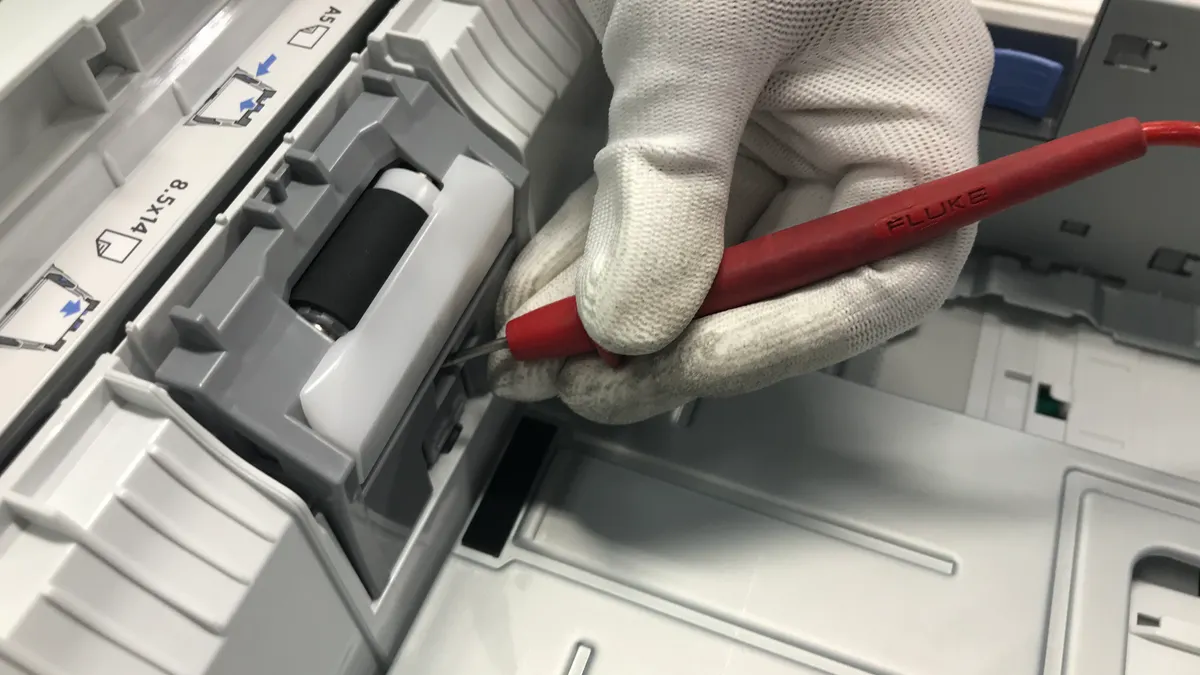
Open every access door the model provides, including the rear door and duplexer if it has one. Remove the tray and look for torn scraps, labels, staples, or curled corners. Even a 1 cm strip can cause recurring jam messages. Use a flashlight and move the rollers by hand only if the manual allows it; many printers expose a roller-cleaning path but do not want force applied in reverse.
If the printer has a rear access door, check that first. Rear-access jams are easy to miss and often cause repeated failures on the next page. Then check the pickup roller and separation pad. If the rollers look glossy rather than matte, they may be worn. A worn roller slips on the first sheet, pulls unevenly, and triggers the sensor downstream.
How to tell it worked: the printer should feed 3 to 5 test sheets in a row without skew, strange noise, or a repeated jam code. If it only clears once and jams again on the second page, the pickup path is still the problem.
Who this is not for: a machine that jams only on thick cardstock or labels may be working as designed. Many consumer printers are rated for plain paper around 75 to 90 gsm, not rigid media. For label stock or envelopes, check the media spec in the model manual rather than forcing settings.
Why is my printer offline or not responding?
Because the computer cannot reach the printer, or the printer is asleep, misaddressed, or trapped in a bad queue.
This message is usually a communication issue, not a hardware failure. On Windows, the printer may be set to “Use Printer Offline” or paused in the queue. On macOS, the print system may have cached an old IP address after a router restart. On a network printer, the address often changes if the router uses DHCP and the printer is not reserved a fixed IP.
Start with the queue. Cancel every stuck job, then power-cycle the printer and the router if the printer is on Wi-Fi or Ethernet. If the printer has a display panel, print a network status page or check the IPv4 address on the screen. Match that address to the one in the computer’s printer settings. If they differ, the computer is talking to an old address.
USB printers can fail for a simpler reason: the cable or port. A 2 m USB cable that worked yesterday can fail today if it was pulled loose or plugged into a hub that went to sleep. Move the cable directly to the computer, not through a dock, and try a known good cable if the port is not detecting the device.
How to tell it worked: the printer status changes from offline or unavailable to ready, and a small one-page test job prints without manual intervention. If the queue clears but the printer still does not answer, the issue is likely driver-related or the wrong printer instance is selected.
One useful source for network basics is the IEEE 802.11 family overview and vendor support pages for IP address assignment; for system-level queue behavior, the Microsoft support pages for print spooler errors are the most relevant references. The exact steps differ by operating system, but the logic does not.
How do I fix driver, spooler, and print queue problems?

By resetting the queue first, then reinstalling the printer driver only if the queue reset does not work.
Software causes are the quiet ones. They produce messages like “error printing,” “spooling,” or “driver unavailable,” and they can persist after a restart because the print spooler keeps the bad job in memory. The print spooler is the service that manages queued print jobs before they reach the device.
The first move is to clear the queue. Cancel all jobs from the printer window. If a job will not cancel, restart the print spooler service on Windows or remove and re-add the printer on macOS. If the queue contains a corrupted document, one bad page can block everything behind it. Large PDFs and files with embedded fonts are common troublemakers.
If the queue reset fails, reinstall the printer using the maker’s current driver package, not just the default operating system driver. Windows Update often installs a generic class driver that prints basic pages but may ignore advanced features such as duplexing, finishing, or secure print; if that happens, consult the printer maker or a technician. Microsoft documents the print spooler and driver behavior in its support pages, including printer installation and spooler troubleshooting guidance. That generic driver can be enough for one job and wrong for another.
One specific clue matters here: if the printer works from one app but fails from another, the problem is probably application-specific, not hardware. A browser print dialog, for example, can use a different page size or color profile than a PDF viewer. If every app fails, focus on the driver and spooler.
How to tell it worked: the queue empties and stays empty, the printer status returns to ready, and the next document appears in the queue for a few seconds before disappearing with a printed page. If the same job fails in the same place every time, delete it and try a plain-text test page. That isolates whether the document itself is corrupt.
Is the ink, toner, or drum actually the problem?
Yes, if the print is faint, streaked, blank on one side, or the device reports a supply it cannot authenticate.
Supply errors deserve a direct check because they are often more literal than users expect. Inkjet printers can refuse to print when an empty cartridge is installed, when the chip contacts are dirty, or when the wrong regional cartridge is fitted. Laser printers can report toner issues when the cartridge, drum, or waste-toner path is near end of life.
Start with the physical installation. Reseat the cartridge or toner unit and make sure all orange tabs, seals, and packing strips are removed. A cartridge that looks installed can still be blocked by a shipping strip or a door that is not fully latched. Clean the electrical contacts gently with a lint-free cloth if the maker allows that step.
Then print a supplies status or nozzle check page. For inkjets, a nozzle check can show whether one color is missing entirely or whether only one channel is clogged. For lasers, a test page can reveal toner scatter, vertical bands, or repeated marks at regular intervals, which often point to a drum or fuser issue rather than the toner cartridge itself.
A few trade-offs matter here. Third-party cartridges may work, but they can trigger supply warnings, limit status reporting, or print with inconsistent density. That is not always a defect, but it does make diagnosis harder. If the machine is under warranty or the error persists after reseating, using a genuine cartridge for the test removes one variable.
How to tell it worked: the status alert clears, the test page prints at full density, and the missing color or banding disappears. If the page is still blank after a fresh cartridge and a confirmed clean install, the fault may be in the printhead, drum, or fuser assembly rather than the supply.
The exact checks that save the most time
The quickest path is to check paper, queue, and supply in that order before opening a support ticket.
A short, disciplined sequence beats random button pressing. I would use this order because it narrows the failure type quickly and avoids replacing parts too early:
- Power cycle the printer, the computer, and the router if the printer is networked.
- Cancel all jobs in the queue.
- Check for a visible jam and any torn scraps.
- Reseat the paper tray and make sure the guides touch the paper without bending it.
- Reseat the cartridge or toner.
- Print a built-in test page from the printer panel.
- Compare the printer IP address with the one in the computer’s settings if the printer is on a network.
- Reinstall the driver only if the above steps do not change the behavior.
That sequence is useful because it separates three layers of failure: mechanical, transport, and software. If the built-in test page fails, the computer is probably not the main problem. If the built-in test page prints but the PC job fails, the issue is outside the printer. If both fail the same way, the error is likely inside the machine.
The one thing I would not do first is replace parts blindly. A new cartridge will not fix an offline printer, and a new USB cable will not fix a jam sensor. The upside of this order is speed. The downside is that a genuinely failing component, such as a worn pickup roller or a dying formatter board, still needs service once the easy checks are exhausted.
When the printer needs service instead of another reset
The printer needs service when the same fault returns after a clean restart, a clean queue, and a confirmed test page failure.
Some errors are not meant to be solved at the user level. A persistent fuser error, a repeated carriage stall, grinding noise from the same point in the cycle, or a code that returns immediately after power-up usually points to hardware. If the printer cannot complete its own internal self-test, no amount of driver reinstalling will help.
The clearest sign is repetition with no change. If the same jam code appears with the tray empty, the same supply error appears with a known good cartridge, or the same scanner or carriage error appears before any job starts, the device is past simple recovery. At that point, service makes more sense than more resets.
There is also a cost judgment to make. On low-end inkjets, a replacement fuser or formatter is often not worth it compared with the cost of a new printer, especially if the machine is several years old and uses expensive cartridges. On office lasers, the calculus is different because the chassis is built for long duty cycles and service parts are more likely to be available.
A good rule is this: if the printer cannot print its own internal status page, the problem is inside the printer; if it can print that page but not a computer job, the problem is outside it. This single distinction saves a lot of unnecessary part swapping.
What should you do if the same error keeps coming back?
If the same error returns after all basic recovery steps, record the exact code, the model number, and the conditions that trigger it, then move to model-specific support or service.
That documentation matters. Support staff can usually work faster with a code such as “E03,” “0x…” or a repeated LED pattern than with “it keeps failing.” Note whether the error appears on startup, after 2 pages, only on duplex jobs, or only from one computer. A fault that happens after exactly one page is often mechanical. A fault that appears only on Wi-Fi may be network-related. A fault that appears only with one document may be file-related.
The best next source is the manufacturer’s support page for the exact model, followed by the service manual if it is publicly available. Standards bodies such as the IEEE define network behavior, but the printer maker defines the error logic and recovery sequence. Those two sources solve different parts of the problem.
How do I keep this from happening again?
You reduce repeats by keeping paper dry, updating firmware carefully, and matching the printer to the job it is asked to do.
Humidity warps paper and feeds badly. Cheap paper sheds dust and loads rollers with debris. Old firmware can leave known bugs unresolved, but firmware updates should be applied from the maker’s support page for the exact model, not from a random driver package. On network printers, a DHCP reservation or static IP can prevent the “offline” problem from returning after router reboots.
For inkjets, print something small every week or two so nozzles do not dry out. For lasers, keep the tray within the supported paper weight and avoid overloading it past the guide marks. For both types, keep the vents clear and do not stack the machine under a shelf that traps heat. A printer that overheats or pulls in dusty air will report more false errors over time.
The practical lesson is simple: the printer is usually not “mysteriously broken.” It is reacting to paper quality, queue state, network address changes, or a supply it cannot verify. Once the failure type is identified, the fix is usually plain and repeatable.
Key takeaways
- The same error message can point to paper, software, network, or hardware, so start by identifying the failure type, not by guessing a part.
- A built-in test page is one of the faster ways to separate printer faults from computer or driver problems.
- Jam errors often come from tiny scraps, rear doors, or worn rollers, not a big visible blockage.
- “Offline” usually means communication trouble, especially on Wi-Fi or after a router change.
- If the fault survives a restart, queue reset, and test page, it is time to think about service rather than another reset.
What should I check first when a printer error appears?
Check the exact code, then paper path, then queue, then supplies. That order resolves the most common faults fastest because it starts with the most likely mechanical issue and ends with software.
Why does my printer print blank pages after a new cartridge?
A new cartridge can still fail if the seal was not removed, the contacts are dirty, the cartridge is incompatible, or the printhead is clogged. A nozzle check or test page usually shows which one it is.
Why does the printer work from one device but not another?
One device probably has the wrong driver, stale IP address, or a stuck queue. If the built-in test page prints, the printer itself is fine and the problem is on the sending device or network path.
Drafted with AI; not yet reviewed by a person.