Last updated: October 26, 2026
Quick answer: In most cases, you can fix a printer paper jam without damaging it in 3 steps: stop the job, open the correct access point, and pull the paper in the feed direction. A torn sheet does not automatically mean disaster; the printer is often still salvageable as long as every fragment comes out. This guide covers how to fix a printer paper jam without damaging it.
A printer paper jam is usually fixed by stopping the print job, opening the right access point, and pulling the paper out in the feed direction, not yanking it backward. Yes, the job slows down if the paper tears. The printer is still usually salvageable if you remove every fragment. For broader printer fault checks, see the printer troubleshooting hub.
Key takeaways
- Start by canceling the job and opening the access point the printer design expects, often the front cover or rear door.
- Pull paper slowly with both hands, in the direction the rollers move it.
- Check the rear door and duplex path first on many home inkjet and laser printers.
- If paper tears, find every scrap before printing again, or the next sheet can jam in the same spot.
- Do not force a stuck sheet through a roller assembly; that is how exit sensors, feed rollers, and guides can get damaged.
What to do first when the printer says paper jam

Stop the print job. Then turn the printer off before you touch the paper. That keeps the rollers from moving while your fingers are inside the path, and it lowers the chance of ripping the sheet harder.
Open the access point that matches the jam location. On many printers, that is the rear door for the paper path or the duplex path, not the main front cover. If the display gives a tray number, start there. Otherwise, open the rear door first, then the front cover. A jam in the rear path is often visible there in less than 30 seconds.
Lift out the paper tray and look for obviously loose sheets, curled corners, or half-fed paper. A crooked stack can mean the printer grabbed two sheets or caught a bent edge. Straightening the pile now often matters more than the removal itself.
If the printer still has power, wait for the carriage or rollers to stop completely before reaching in. On inkjet models with a moving carriage, the print head can slide into the jam area while you are working. Give it a full 10 to 15 seconds after power-off if the mechanism was still moving.
How to pull jammed paper out without tearing it
Pull the sheet with both hands, slowly and in the same direction the paper normally travels. That is usually the safest way to free a jammed page without shredding it.
Start with the visible edge of the paper and grip it near the center, not just one corner. A corner pull bends the page into a crease, which makes a tear line. If the sheet is hanging from the rear door, pull straight back along the tray path. If it is visible near the front exit, follow the exit direction instead.
Use short, steady pulls of a few centimeters at a time. If the paper slips, stop and reposition your fingers rather than grabbing harder. A jammed sheet can sit against a roller with enough friction that a hard yank leaves the leading edge behind.
If the sheet resists, look for a second access point before pulling harder. Many printers have a rear door, a duplex unit, or a front flap that lets you reach the paper from another angle. Releasing the pressure at the correct point is better than forcing the sheet through a narrow guide. That’s the trapdoor moment.
Do not pull from the side unless the paper is visibly skewed and the printer path is open on that side. Side pulling twists the sheet and can catch it on a roller shaft or a plastic guide. If the jam is on a laser printer, avoid touching the fuser area if it feels hot; let it cool for several minutes first.
If the paper tears while you are removing it, stop immediately. Tugging a torn strip usually leaves a smaller piece hidden near the rollers, and that is what causes the repeat jam.
Which access points to check first on a printer paper jam
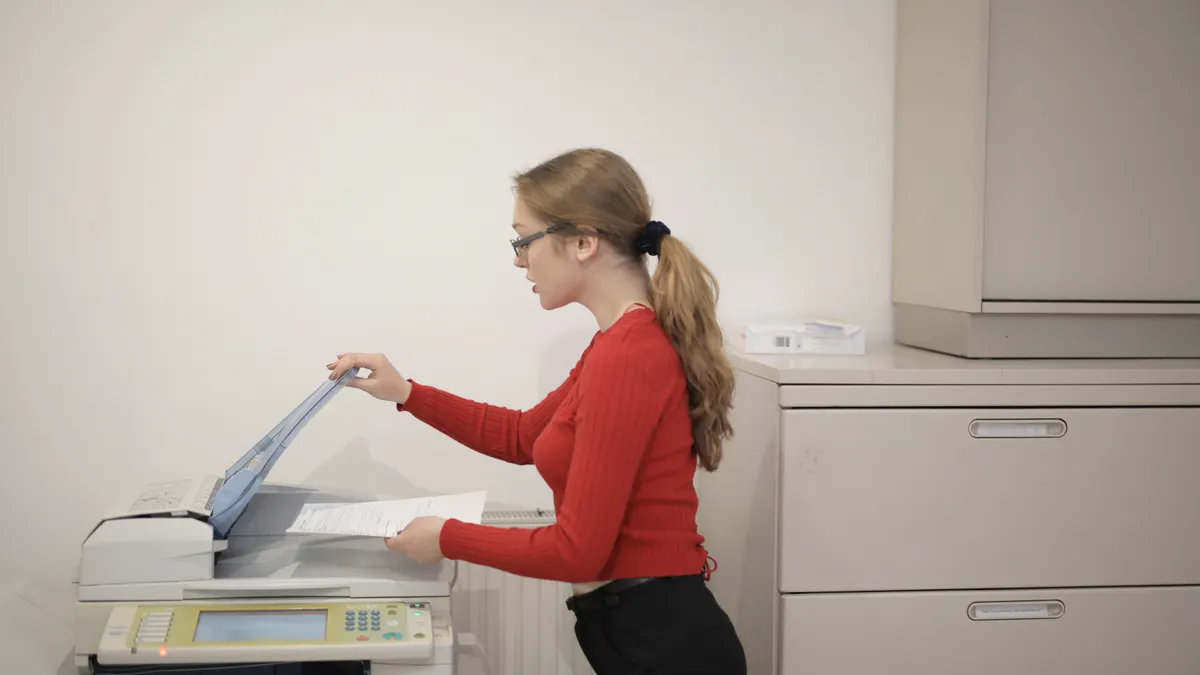
The rear door is the first place I would check on many printers because it gives direct access to the paper path and often the duplex path. If the jam message does not name a tray or door, the rear door is often the best starting point and usually the least disruptive.
Open the rear door and look for paper folded around the rollers, especially near the exit rollers or the duplex path rollers. On a duplex-capable printer, paper can stop halfway through the turn-around path and look clear from the front while still being trapped in back. A front-only check misses a lot of jams.
Next, check the main paper tray. Remove it fully, then inspect the feed lips, tray guides, and the first sheet in the stack. A sheet jammed at the pickup point often leaves a curled leading edge in the tray or a crease across the top sheet. If the stack is fanned unevenly, square it up and reload it.
Then check the front cover or top scanner unit if your printer has one. Some laser printers route the page upward through a front-access path after the toner area, and a jam there can look like a simple feed problem from the outside. A common mistake is opening only the tray area and ignoring the path after the image drum.
If the printer has a manual feed slot, inspect that too. A single sheet fed through a bypass slot can wedge before it reaches the rollers, especially if it was inserted crooked. The fix is usually to open the path nearest the slot and remove the sheet in the same direction it entered. For more detail on feed paths, see the manual feed printer guide and duplex printing tips.
What to do if the paper tears inside the printer
Remove every fragment you can see, then check the full paper path for scraps about 1 to 3 inches long. A torn piece left behind will often trigger the same jam message on the next print. Bits of paper can hide like confetti in a vent.
Open the rear door first, because torn strips often end up there or in the duplex path. Use a flashlight and look along the roller edges and under the plastic guides. Small scraps like to cling to a roller because of static and pressure, and a half-hidden strip can be harder to see than the original jam.
If the torn piece is loose, pull it out gently in the paper path direction. If it is wrapped around a roller, do not spin the roller by force to unwrap it. That can pull the scrap deeper into the mechanism or damage the roller surface. Instead, free the edge that is exposed and work it out a little at a time.
Check the tray again after removing the tear. A single missing corner can leave a rough edge on the stack, and that edge can catch on the next pickup. If the paper was damp, curled, or too thick for the printer’s specified media range, replace the whole stack rather than trying to reuse the damaged sheet. Office printer paper usually performs best in the 20 lb / 75 gsm range, though the printer manual may specify a different weight.
After you think the path is clear, close all covers and power the printer back on before printing a new document. If the jam message remains, reopen the same access points and inspect again. With torn paper, the first pass often misses a fragment behind a guide or at the edge of a roller.
Common mistakes that make paper jams worse
Yanking the sheet backward is one of the fastest ways to tear it. The paper path, rollers, and guides are built for one direction of travel, and reversing that direction loads the page against the mechanism. Pull the same way the sheet was meant to go instead.
Leaving the tray full of warped or damp paper is another common mistake. Curled edges catch the pickup rollers, and damp paper sticks together. If the stack looks wavy or feels soft, replace it with fresh sheets rather than forcing another print run.
Ignoring the duplex path can turn one jam into two. A duplex-capable printer uses a return path to print on both sides, and that path can trap a sheet even when the front looks clear. If your printer has duplex printing, check the rear door every time before assuming the jam is gone.
Forgetting to remove loose scraps costs time because the printer detects the piece on the next cycle. Small fragments can sit under a guide, inside the exit rollers, or near the rear door and cause a second jam immediately. Inspect with a light before you close the covers.
Forcing the rollers by hand is risky on some models. If a roller is locked against a jam, excessive force can damage the feed mechanism or leave the roller glazed and less grippy. The better move is to reopen the correct access point and free the paper from the side where it is trapped.
How to prevent the next jam in ordinary home printing
Load the tray neatly, with the paper stack squared and the guides snug but not tight. A tray that is too loose lets the paper skew, and a tray that is too tight can pinch the edges. The paper should sit flat, not bowed upward.
Keep to the paper type the printer is designed for, especially if the model has a manual feed slot or duplex function. Thick cardstock, wrinkled office paper, and mixed media sizes can all create feed problems. If the printer manual lists a specific weight range, stay inside it.
Fan the stack lightly before loading it if the sheets cling together. That reduces the chance of the pickup rollers grabbing more than one page. It is a small step, but it often helps on printers that sit unused for days.
Store paper in a dry place and keep the ream wrapped when possible. Humidity changes the sheet shape, and a slight curl is enough to make a repeat jam at the pickup rollers or rear exit path. If the printer sits near a window, heater, or vent, that matters even more.
If a printer jams in the same spot more than once after a proper cleanup, the issue may be worn rollers, a damaged guide, or a feed sensor problem. At that point, the paper path may not be the only thing under suspicion. For a broader walkthrough of printer faults, the printer troubleshooting hub is the right place to continue. If repeated jams continue after cleaning, replacement rollers or service may be the next step.
What if paper tears inside the printer?
Remove the tear in pieces if needed, but do not keep pulling once resistance increases. A torn strip can hide under a roller, behind the rear door, or in the duplex path. Open every access point that touches the paper route and inspect with a flashlight before printing again.
Can I use tweezers to remove jammed paper?
Yes, if the tweezers are small enough to reach the paper without touching gears, rollers, or sensor flags. Metal tips can slip, scratch a roller, or break a guide if you dig too hard. If the paper is visible and loose, fingers are usually safer; use tweezers only for a tiny fragment.
How do I stop repeated paper jams?
Reload clean, dry paper, square the stack, and check the rear door and duplex path for scraps or worn rollers. Repeated jams often come from skewed paper, damaged sheets, or a leftover fragment in the path. If the same spot jams every time after cleaning, the printer may need service rather than another reset. For manufacturer-specific steps, consult the HP support paper jam guide, the Brother support jam troubleshooting page, or the Canon paper jam support page.
Drafted with AI; not yet reviewed by a person.