Remember the last time you received a beautifully addressed invitation, a crisp, professional-looking business letter, or a holiday card? The care taken with the printing on envelopes often adds a touch of elegance and professionalism. You may have thought about doing it yourself, but the process can seem overwhelming. This guide makes the process simple, whether you’re sending out wedding invitations, invoices, or personal thank-you notes. By the end of this article, you’ll know how to successfully print on envelopes, saving you time and money. Plus, you will be able to produce stunning envelopes that impress! This guide will improve your skills and decrease any confusion, boosting your confidence.
Key Takeaways
- Learn the best practices for setting up your printer for envelope printing.
- Understand the different types of envelopes and how they affect printing.
- Discover how to correctly format your document for envelope printing on envelopes.
- Explore various design options for making your envelopes look professional.
- Avoid common mistakes to ensure your envelopes look great.
- Find out which printing methods are best suited for different needs.
Planning for Success: Choosing the Right Envelopes
The first step toward successful printing on envelopes involves selecting the appropriate envelope type. Different envelopes come in different shapes and sizes, each with unique characteristics that affect how well they work with your printer. Selecting the right envelope will save time, prevent waste, and lead to better results. Consider the type of paper and the envelope dimensions before starting the print process.
Types of Envelopes: What You Need to Know
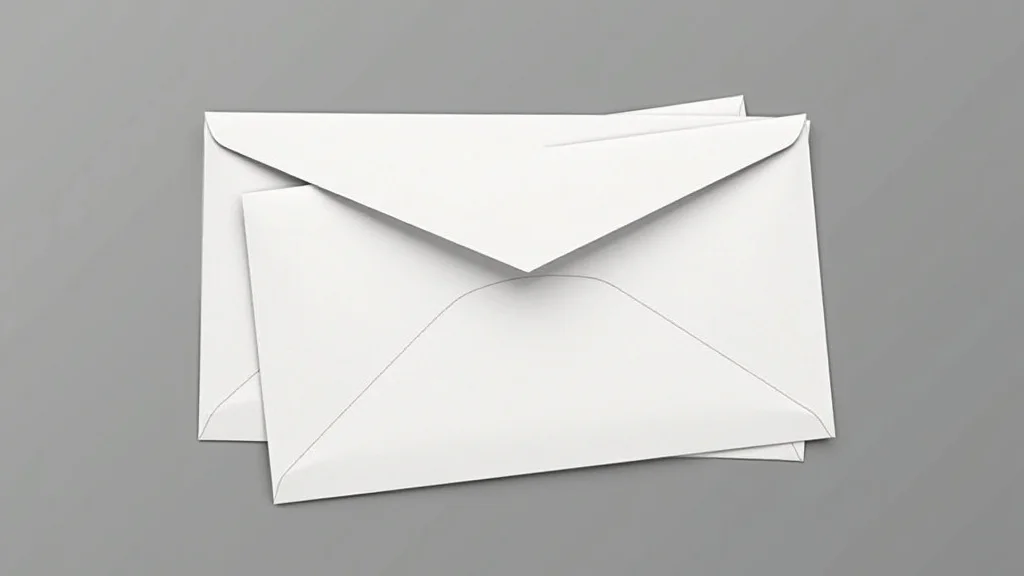
Envelopes come in many shapes and sizes, from the standard business envelope to specialty sizes for invitations and announcements. Understanding the variations is important for achieving high-quality results when printing. The dimensions and the paper type affect the final look. If the envelope type does not match your printer settings, there could be issues like paper jams. Make sure the envelope is compatible with your printer and can handle the ink or toner. If your printer has a manual feed, use this for better control.
- Standard Business Envelopes (No. 10): The most commonly used envelope size, perfect for business letters, invoices, and general correspondence. They are readily available and widely compatible with most printers. These envelopes typically measure 4.125 x 9.5 inches. They are a great, everyday option.
- Square Envelopes: Often used for invitations, announcements, and greeting cards. These envelopes can add a touch of elegance, but their shape can pose challenges for some printers. Make sure your printer has a paper feed mechanism that handles the square shape.
- A-Size Envelopes: A-size envelopes (e.g., A7, A9) are popular for invitations and announcements. They come in various sizes, offering flexibility in design and layout. These often provide a more unique and eye-catching presentation.
- Specialty Envelopes: This category includes envelopes like booklet envelopes, catalog envelopes, and custom-sized envelopes. They are often used for bulk mailings and marketing materials, but may require special attention to print settings. These are often used for bulk mailings.
Standard business envelopes are suitable for most inkjet and laser printers. They offer ample space for addressing and return addresses. Many word processing programs have pre-set templates that make formatting these envelopes quick and easy. This helps to reduce errors and create a professional appearance. For large mailings, these envelopes provide a cost-effective solution.
Square envelopes can add a sophisticated touch to any invitation or announcement. However, their unique shape can cause issues like paper jams. Before printing, double-check the specifications. Not all printers support these envelope sizes. Manual feeding often produces the best outcomes with square envelopes. This allows better control over alignment and positioning. Testing with a single envelope is always recommended before printing a large quantity.
A-size envelopes are commonly used for cards and announcements. They offer versatility, allowing for different paper sizes. The “A” designation indicates a specific series of envelope sizes. Common A-sizes include A7 (5.25 x 7.25 inches) and A9 (5.75 x 8.75 inches). These are used for formal invitations. Be sure to check your printer’s capabilities before starting. Many printers handle these sizes without difficulty. This makes them a great option for various types of communications.
Specialty envelopes are used for a variety of purposes. They range from large catalog envelopes to custom sizes. They often require specific printer settings. Manual feeding is often the best approach to guarantee alignment. If you are using specialty envelopes, it is important to check the printer’s specifications. Some printers may require special trays or adjustments to accommodate them. Always perform a test print to ensure the print job aligns and the print quality is acceptable.
Paper Type and Weight Considerations
The type and weight of the paper you use for your envelopes directly impact the print quality and the printer’s performance. The choice of paper impacts the final appearance and how the ink or toner adheres to the surface. Selecting the right paper can prevent smudging, paper jams, and other printing errors. Consider both the aesthetic and functional properties of the paper. It is essential to ensure compatibility between the paper, printer, and ink or toner.
- Paper Weight: Envelopes typically come in various weights, measured in pounds (lb) or grams per square meter (gsm). Heavier paper (e.g., 24 lb or higher) provides a more premium feel and can handle ink and toner better. Lightweight paper (e.g., 20 lb) is suitable for basic needs but may be more prone to wrinkling or show-through.
- Paper Finish: The finish of the paper, whether it is matte, glossy, or textured, impacts the final look of your prints. Matte paper is generally more receptive to ink. Glossy paper offers a vibrant look but may cause smudging. Textured paper provides a unique feel but may not be compatible with all printers.
- Paper Compatibility: Ensure that the paper type is compatible with your printer. Inkjet printers work best with paper designed for inkjet printing. Laser printers require paper suitable for heat-based printing. Check the printer’s manual for recommended paper types.
Paper weight impacts both the feel and the print quality of envelopes. Heavier paper is sturdier. It is more resistant to wrinkling or tearing. Heavier paper reduces the chances of bleed-through, which can occur when ink or toner soaks through the paper. It also gives the envelope a professional look. The specific weight recommended for your printer can be found in the printer’s manual. Using the correct paper weight assures quality and performance.
Paper finish affects how well ink or toner adheres and how the final printed design appears. Matte paper is often best for standard envelopes. Ink absorbs more readily, which is ideal for text and detailed graphics. Glossy paper can provide vibrant colors and a professional appearance. However, it can make it more prone to smudging. Textured paper adds a tactile element. This can make the printed materials stand out, but it can be more challenging to print on. It might require a specialized printer or ink.
Printer compatibility ensures the best possible print quality. Inkjet printers are designed to spray ink. They work with paper that absorbs it. Laser printers use heat to fuse toner onto the paper, so they require different paper. If you use the wrong paper type, it could lead to poor print quality, smudging, or paper jams. Always refer to your printer’s manual. It specifies the compatible paper types and recommended settings. Testing a small print run ensures good results. It’s a quick and simple measure that can prevent expensive mistakes.
Setting Up Your Printer for Envelope Printing on Envelopes
Properly configuring your printer is essential for successful envelope printing. This involves adjusting printer settings and the physical setup of the machine to accommodate envelopes. Incorrect settings can cause problems like smudging, paper jams, and misaligned prints. The best approach is to follow the guidelines provided in your printer manual. Taking these steps will make the process easier and guarantee a professional finish.
Printer Settings: Adjusting for Envelopes
The printer settings are essential for achieving high-quality envelope prints. These settings ensure that the printer recognizes the envelope size, paper type, and orientation. Access the printer settings through your computer’s print dialog box or your printer’s control panel. Take the time to adjust the settings before beginning the print job. This prevents problems and ensures the best possible outcome.
- Paper Size: Select the correct envelope size from the paper size options. This may be labeled as “No. 10 Envelope,” “A7,” or other options, depending on the envelope. Failing to choose the correct paper size can result in misaligned printing or cropping. The exact envelope size must be set in the print driver.
- Paper Type: Choose the appropriate paper type from the options provided. Selecting “Envelope,” “Cardstock,” or a similar option tells the printer how to handle the material. The right setting is crucial for the ink or toner to adhere correctly to the envelope. If your printer does not have a paper type option for envelopes, choose the closest type.
- Paper Source: Determine where the envelopes will be fed. Printers have options like the main paper tray, manual feed, or a specialty tray. Some printers have a specific tray for envelopes. Selecting the appropriate paper source is essential for avoiding paper jams. Most printers offer the “manual feed” option for envelopes.
Setting the correct paper size assures the printer understands the size of the envelope. It also guides the printer’s rollers and print heads. When the wrong size is selected, the printer may interpret the envelope as a standard sheet of paper. This can cause the text and images to be cut off. To prevent these problems, always choose the appropriate envelope size from the print settings menu. The paper size is usually found in the print settings.
The paper type settings instruct the printer to use the proper settings for the material. When you choose “Envelope” or “Cardstock,” the printer adjusts its ink or toner output. It also adjusts its drying settings to avoid smudging. Incorrect settings could result in ink smearing, or toner not adhering correctly. Consult your printer’s manual for specific recommendations. These settings will help to maximize quality.
The paper source option is another important consideration. If your printer has a manual feed, use this for greater control. A manual feed typically requires you to insert each envelope individually. This can prevent multiple envelopes from being pulled in at the same time, preventing paper jams. Using a specific tray for envelopes improves the chances of a smooth operation. If you are doing larger print runs, be sure to keep the tray full.
Physical Setup: Loading the Envelopes
Correctly loading the envelopes into your printer is as important as the settings. This ensures that the printer feeds the envelopes properly and prevents paper jams. Different printers have various loading methods. Refer to your printer’s manual for the exact instructions. This step is a key aspect of the process of printing on envelopes.
- Orientation: Envelopes must be loaded in the correct orientation. This means you must insert the envelope face up or face down, depending on your printer model. The flap direction will also change based on the printer model. Check your printer’s manual for proper guidance.
- Manual Feed: If your printer uses a manual feed, insert envelopes one at a time. The manual feed method helps reduce paper jams. This is especially helpful when working with thicker envelopes or when using specialty sizes. Carefully guide the envelope into the slot. Make sure that it is positioned correctly.
- Tray Feed: Some printers have a dedicated envelope tray or the main paper tray can be adjusted. Make sure the envelopes are neatly stacked and aligned. Do not overload the tray, as this can cause paper jams. The tray should be fully loaded.
The orientation ensures that the printer prints the address and return address in the proper locations. Loading the envelopes incorrectly can cause the information to be printed on the wrong side or upside down. Most printers show how the envelope should be loaded on the paper tray. If you are unsure, do a test print. This helps you to adjust the orientation without wasting any envelopes.
Manual feeding guarantees that each envelope is fed individually. This gives you greater control over the process. Because you are inserting the envelopes by hand, it can help prevent paper jams and misprints. Be sure that the envelope is straight. If the envelope is crooked, it might cause the printer to stop. Before starting the job, do a test print. This makes sure that the setup works.
If you have an envelope tray, make sure the envelopes are properly stacked. It is essential to prevent multiple envelopes from being pulled in at the same time. Also, be sure that the envelopes are aligned. Misalignment can cause printing issues and errors. Refer to your printer’s user manual to ensure correct loading. Keeping the tray loaded will prevent having to stop and reload during the job.
Formatting and Design for Effective Envelope Printing
The layout and the design of the envelope make a professional impression. Well-formatted envelopes look more professional. They also help improve readability. When you create your design, be sure to consider the layout and design elements. This improves the overall look and the readability of your printed material.
Document Setup: Preparing Your Address List
A well-prepared document can help improve the printing process. This involves organizing your addresses and setting up the format for your envelopes. The goal is to make the process as easy as possible. You should also ensure that the design matches the brand or style of the mailing. Proper planning assures a smooth and efficient printing process.
- Address List Organization: Use a spreadsheet or database to store your addresses. Include fields for the recipient’s name, address, city, state, and zip code. This ensures consistency and simplifies the printing process. A well-organized address list helps prevent errors.
- Address Formatting: Use a standard address format. Place the recipient’s name on the first line, followed by the street address, city, state, and zip code on subsequent lines. Use a consistent font and size for readability. The correct format also makes it easier for the postal service to sort and deliver the mail.
- Merge Fields: If you use a word processor, learn to use merge fields. This allows you to automatically insert information from your address list into the envelope layout. This saves time and minimizes the risk of manual errors. Mail merge is one of the more time-saving techniques.
A well-organized address list is essential for accurate and efficient envelope printing. A spreadsheet or database allows you to manage and organize contacts. Using separate fields for each part of the address reduces mistakes. It is also a good idea to sort the addresses alphabetically or by zip code for easy reference. Keeping your list up to date improves the efficiency of your mailings.
Standardized formatting ensures that your addresses are clear and easy to read. This is necessary for both the recipient and the postal service. Correctly formatted addresses reduce the chance of errors. Select a font that is easy to read. Choose a size that balances readability with space constraints. Maintaining a consistent format helps you avoid mistakes. Use capital letters for the address and avoid any special characters. This format assures the best results.
Mail merge makes printing a large number of envelopes easy. It links the address data from your list to the envelope template. You can use this to insert the recipient’s name, address, and other details. This automates the process of filling out each envelope individually. Mail merge reduces human error. It also allows you to generate personalized envelopes. Many word processors offer easy-to-use mail merge functions.
Layout and Design: Creating Professional Envelopes
Designing your envelopes is a chance to make a good impression. From the selection of fonts and graphics to the layout of the address and return address, every detail matters. Effective design enhances readability and shows professionalism. Consider the purpose of the mailing and your brand style when designing your envelopes. Proper design boosts your impact and creates a memorable experience.
- Font Selection: Choose a readable font for the address and return address. Use fonts like Arial, Helvetica, or Times New Roman. These fonts are clear and easy to read. You should also choose fonts that are professional-looking.
- Address Placement: Place the recipient’s address in the center or slightly to the right of the envelope. The return address should be in the top left corner. This is standard and ensures the mail is delivered properly. Make sure the address is aligned and clear.
- Design Elements: Add design elements like a logo, a tagline, or a simple graphic. Keep the design simple and avoid clutter. The design elements should enhance your brand. Be sure the design aligns with your brand’s visual identity.
Select fonts that are easy on the eyes. Also, consider the overall style of your message. Arial and Helvetica are clean, modern fonts. Times New Roman provides a more traditional look. Avoid ornate or overly stylized fonts. They can distract from the address. Keep your font size consistent across all the envelopes. This is both readable and professional. Before you send a large batch, make sure to test your selection.
The standard placement of address and return address ensures efficient processing by the postal service. The recipient’s address typically goes in the center or right of the envelope. The return address should be in the top left corner. The space is for the postal service’s bar codes and stamps. Always test the layout before a big printing run. This can save money and time. If your address is misaligned, this can be corrected quickly.
Adding design elements creates a memorable and professional look. This can include your company’s logo, a tagline, or a simple graphic. Place the elements in a way that does not interfere with the address. Make sure the design elements complement each other. Avoid using too many colors or images. Keep the design simple, but effective. Test your design before you print in bulk. This way you can see how it looks and make adjustments before you start.
Avoiding Common Mistakes in Envelope Printing on Envelopes
Preventing errors during printing helps you save time, money, and materials. Learning to identify and avoid common problems can guarantee professional-looking results. Check the printer settings before you start and then double-check the envelope setup. Attention to detail improves the outcome. This can prevent wasted time and resources.
Common Errors to Watch Out For
Common mistakes in envelope printing can cause issues. These can range from print quality problems to mechanical failures like paper jams. Being aware of these pitfalls can help you troubleshoot and prevent them from occurring in the first place. You can maintain a consistent printing process by paying close attention to these common errors.
- Incorrect Printer Settings: Check that the paper size, paper type, and print orientation are correct before starting. Incorrect settings can cause misprints, smudging, or paper jams. Always refer to your printer’s manual for recommended settings.
- Paper Jams: Paper jams are a frustrating problem. They often happen when you load the envelopes improperly. Check the envelope alignment, and do not overload the paper tray. If a jam occurs, carefully remove the jammed paper following your printer’s instructions. Do not pull on the paper, as this could damage your printer.
- Smudged Prints: Smudging can happen if the ink or toner does not dry properly. This is caused by using the wrong paper, incorrect print settings, or the printer’s issue. Use the correct type of envelope for your printer. Also, try reducing the print density. Let the prints dry completely.
Incorrect settings are the most common cause of printing problems. Double-check all of your settings. This includes the paper size, paper type, and print orientation. Incorrect settings can lead to misprints and paper jams. Always use the proper envelope size. If you make a mistake, you can lose precious envelopes. So, double check the settings. This is a simple measure that reduces the waste and ensures a professional outcome.
Paper jams can disrupt your printing. Loading your envelopes properly is essential. Check for any obstructions within the printer. If a paper jam occurs, carefully follow your printer’s instructions to remove the jammed paper. Avoid pulling on the paper. Doing so could damage the print mechanism. Also, do not use damaged envelopes. Inspect the envelopes before you print. Take steps to prevent paper jams. This can save time and reduce frustration.
Smudged prints make the envelope look unprofessional. You can resolve this issue by selecting the appropriate type of paper. Avoid using paper not designed for your printer. Check the print settings and adjust the print density if needed. Make sure the print head is clean. Let your printed envelopes dry. These steps can prevent smudging, ensuring your printed envelopes look clean and professional.
Troubleshooting Printing Issues
When you troubleshoot printing issues, the goal is to identify and resolve problems quickly. Whether the issue is related to alignment, print quality, or paper jams, these steps can help. Troubleshooting involves understanding the settings and mechanical aspects of the printer. By following a structured approach, you can diagnose and fix issues, keeping the process of printing on envelopes smooth and efficient.
- Test Print: Before printing a large batch of envelopes, do a test print. Use a single envelope to confirm the settings, alignment, and print quality. Make any necessary adjustments before proceeding. A test print is helpful, since it allows you to correct any mistakes.
- Printer Alignment: If the text or graphics are misaligned, adjust the printer settings. Check your printer’s alignment settings. Then, make sure the envelopes are loaded correctly. Misalignment can happen, but is easy to fix.
- Print Quality Issues: If the print quality is poor, check the ink or toner levels. Clean the print heads. Use the correct type of paper. Print quality issues can stem from a variety of causes. Clean the print heads to guarantee that the ink flows properly. The correct paper type is essential for optimal results. Correct these issues to ensure a professional finish.
A test print is a simple, but effective strategy. It gives you an opportunity to check for any print issues. This process lets you confirm the alignment. You can make adjustments to prevent wasting large numbers of envelopes. By printing a test envelope, you can verify that the text is clear. Also, you can check that the image is placed correctly. This will prevent having to reprint and use unnecessary materials. Be sure to do a test print before you start the job.
Alignment issues can lead to text being printed in the wrong locations. You can fix the problem by adjusting printer settings. Also, make sure that the envelopes are loaded in the correct orientation. Printers often have alignment options that allow you to adjust the print position. If you are using a manual feed, make sure the envelope is straight. Make these adjustments before you print a lot of envelopes.
Poor print quality degrades the overall look of your mailings. When you are printing on envelopes, there are a number of factors that can cause this. Low ink or toner levels can result in faded or incomplete text. Dirty print heads can cause streaking. If you select the wrong type of paper, this can lead to smudging. You can quickly fix many of these issues. You can start by checking the ink or toner levels. It’s a good idea to run a cleaning cycle. Then, you can make sure that you are using the correct paper type. It is important to troubleshoot the print quality issues before you print.
Alternative Printing Methods
Besides standard printing, there are other methods you can use to produce high-quality envelopes. These can be helpful for different purposes, depending on your needs. Each method has pros and cons. Understanding these different options can improve your envelope printing efficiency. It also lets you select the one that works best for your situation.
Laser Printing vs. Inkjet Printing
Two main printing methods are available: laser and inkjet. Each method has its own benefits and drawbacks. These factors influence your decision on which printer to use. It is a good idea to consider the type of printing, the volume, and your budget. This helps determine which option best suits your specific needs. Selecting the appropriate printer can greatly enhance the efficiency of printing.
| Feature | Inkjet Printing | Laser Printing |
|---|---|---|
| Print Quality | High resolution, suitable for detailed graphics | High-speed printing, durable prints |
| Cost | Lower initial cost, higher ink costs | Higher initial cost, lower cost per page |
| Paper Compatibility | Best with inkjet-specific paper | Best with laser-specific paper, handles various types |
| Speed | Slower, ink dries over time | Faster, suitable for high-volume printing |
- Inkjet Printing: Inkjet printers use liquid ink sprayed onto the paper. They are excellent for color printing and offer high-resolution images. Inkjet printers are perfect for small-scale projects. They work best with ink-specific paper.
- Laser Printing: Laser printers use toner and heat to fuse the image onto the paper. They are known for speed and durability. Laser printers are a good option for larger jobs. They are better suited for high-volume printing.
- Which to Choose: Consider the print volume, print quality needs, and budget. If you are doing smaller runs with high-quality needs, then inkjet is ideal. If you have to print a lot of envelopes, a laser printer is often the better solution. Also, consider the paper compatibility and printing speed.
Inkjet printing is a popular option. They produce detailed, high-resolution prints, suitable for graphics and color images. They’re typically less expensive than laser printers. However, the cost of ink cartridges is often higher. Inkjet printers can produce stunning color prints. Also, inkjet is a good option for small-scale projects. For envelope printing, it’s best to use paper designed for inkjet printers. This ensures the best results. Inkjet printing is a good choice for smaller envelope jobs.
Laser printers are designed for speed and efficiency, making them ideal for high-volume printing. Laser printers use toner, which is a powdered substance fused onto the paper. They are known for their speed and durability. Also, the cost per page is often lower than inkjet printing. For envelope printing, laser printers are more forgiving regarding paper types. However, they may not handle the same level of detail as inkjet. Laser printing is a good option for high-volume envelope jobs.
The best method depends on the nature of your printing needs. The size of the print job, the quality required, and your budget are all key considerations. For smaller print runs that need high-quality output, inkjet is a strong choice. Its detail and color capabilities produce striking prints. If you are focused on high-volume envelope runs, a laser printer is more efficient. Laser printers offer speed and cost-effectiveness. The choice depends on a good balance. It is also good to consider the type of paper compatibility, costs, and the speed you need for the printing job.
Professional Printing Services
If you have high-volume needs, you may want to outsource your printing needs to a professional service. They can offer specialized equipment. Professional services will also help with the quality and efficiency of your printing on envelopes. Outsourcing your printing can save time, money, and resources. You can select the best service based on your specific requirements and budget.
- Benefits of Professional Services: High-volume printing and specialized equipment may be used. Professional services often offer expert design, high-quality printing, and fast turnaround times. They can handle complex designs and ensure that your envelopes meet professional standards.
- Finding a Service: Look for services with expertise in envelope printing. Compare prices, check reviews, and ask for samples of their work. Also, compare the prices and turnaround times. Choose a service that matches your quality and budget.
- Preparing Your Files: Make sure you prepare your files in the right formats and sizes. Most professional services will have their own file preparation guidelines. Always follow these guidelines to get the best outcome. Work with the printing service to confirm all the specifications before the job begins.
Professional services provide several benefits, including specialized expertise and equipment. They are designed for high-volume projects. Also, they offer advanced printing capabilities. Professional services may have experience with a range of design requirements and complex details. This ensures high-quality results. Outsourcing can save time, money, and resources. This is particularly useful for complex or large-scale projects. Consider professional services for your large-scale envelope requirements.
When selecting a professional printing service, focus on expertise. Ask for samples of their work. Read reviews. Be sure the service matches your budget and quality needs. Confirm their printing capabilities. Confirm their printing capabilities match your requirements. Check for special requirements to confirm the best match. This helps you select a service that delivers the best results. You will find that these services offer exceptional value.
Preparing files correctly is an important step when working with professional services. Ensure your files are in a compatible format. Also, double-check that the files are the proper size and resolution. Review the specifications. Following their instructions helps prevent printing issues. If you do this, you can be sure of a smooth process and high-quality results.
Common Myths Debunked
Myth 1: You need a special printer to print on envelopes.
While some printers are designed for envelope printing, you do not need one to print on envelopes. Most inkjet and laser printers can handle envelopes, especially standard sizes like No. 10. The key is to adjust the printer settings and load the envelopes correctly.
Myth 2: Envelope printing is always slow.
The speed of envelope printing depends on the type of printer. Laser printers are generally faster than inkjet printers. Also, professional printing services offer high-speed printing capabilities. While printing a single envelope may take a moment, you can print hundreds of envelopes per hour.
Myth 3: You can only print black and white on envelopes.
Most inkjet and laser printers can print in color on envelopes. The color quality and vibrancy will depend on the printer, the ink or toner, and the paper quality. Some printers have different settings to handle color printing.
Myth 4: Printing on envelopes is always expensive.
Printing on envelopes can be cost-effective. You can reduce costs by purchasing envelopes in bulk. Also, you can optimize your print settings to minimize ink or toner usage. In certain cases, printing at home is more economical than outsourcing, especially for smaller runs.
Myth 5: It’s impossible to get a perfect alignment when printing on envelopes.
Modern printers offer precise alignment capabilities. By following the printer’s instructions and adjusting the settings carefully, you can achieve perfect alignment. Test prints are a good idea to ensure the correct placement before printing a large batch.
Frequently Asked Questions
Question: Can I print on any type of envelope?
Answer: Not all envelopes are suitable for all printers. It is important to check your printer’s manual for recommended envelope types.
Question: What do I do if my printer jams while printing envelopes?
Answer: Turn off the printer, carefully remove the jammed envelopes, and check for any obstructions. Refer to your printer’s manual for specific instructions.
Question: How can I prevent smudging when printing envelopes?
Answer: Use the correct paper type, select the right print settings, and allow the ink or toner to dry completely.
Question: Can I print addresses on pre-printed envelopes?
Answer: Yes, but you must ensure that your printer settings align with the pre-printed elements. Perform a test print first.
Question: What is the best font to use for addressing envelopes?
Answer: Use a clear, readable font like Arial, Helvetica, or Times New Roman. A font size of 10 to 12 points is generally best for envelopes.
Final Thoughts
Mastering the art of printing on envelopes is a valuable skill for both personal and professional communications. You’ve learned how to choose the right envelopes, set up your printer, and format your addresses. You’ve also discovered design tips and troubleshooting techniques that will take your envelope printing to the next level. By following these suggestions, you are able to produce envelopes that look great. You can also save time and money. With each print job, you’ll improve your skills and confidence. Take the time to experiment with the various techniques described. With the knowledge you have, your printed communications will look more professional and make an excellent impression.