Last updated: November 05, 2026
Key Takeaways
- Missing seals, empty cartridges, or blocked nozzles are the usual causes of blank sheets.
- A built-in test page or nozzle check can separate printer hardware issues from document problems.
- Driver settings can send a blank page even when the printer and cartridge work.
- Layout changes can move content off the printable area or onto a page that looks empty.
Your printer is usually printing blank pages because the ink or toner is not reaching the paper, the driver is sending the wrong layout, or the print job is effectively empty. The fix is usually simple: check the cartridge first, then run a nozzle check or test print, and only then dig into driver settings and page layout. If you need a fast answer, the most common fix is a cartridge or nozzle issue, not a broken printer.
The blank page problem usually starts with ink, toner, or a seal
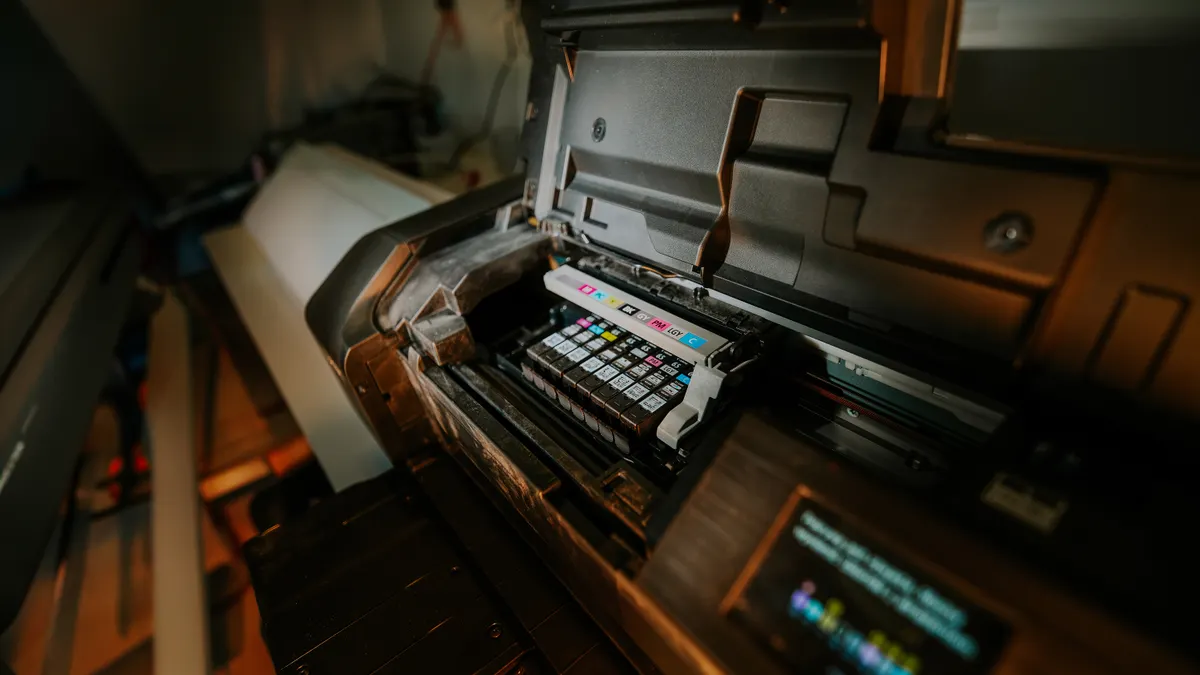
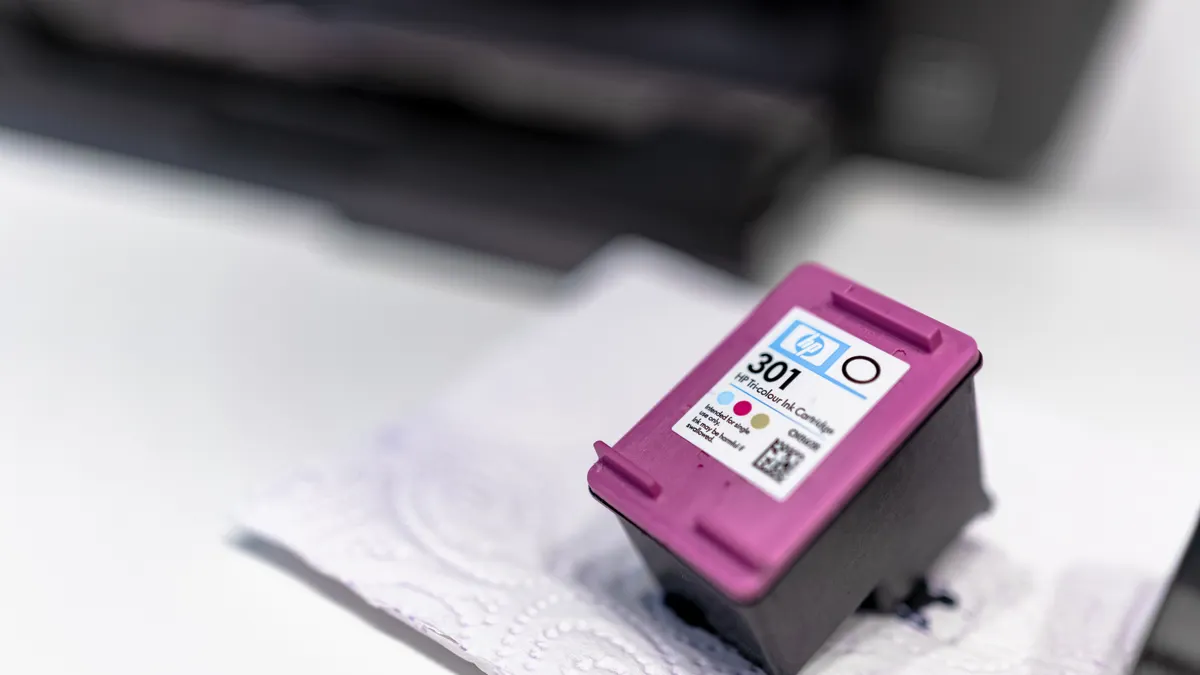
A missing ink seal, an empty cartridge, or a blocked nozzle is the most common reason a printer spits out a blank sheet. That is the first place to look on any inkjet, and it is also where a laser printer can fail if the toner cartridge is not seated correctly.
Start with the cartridge itself. On a new ink cartridge, a factory seal or tape strip may still be in place. If the cartridge was installed recently and the page came out blank immediately after, pull the cartridge and look for bright orange tabs, pull strips, or protective film that should have been removed before installation. A cartridge with the seal still attached cannot deliver ink.
If the cartridge is already installed correctly, check the ink level or toner level. “Empty” does not always mean a printer will stop the job; it can mean the printer thinks there is enough supply to print, even when the page comes out faint or blank. On some printers, a black cartridge that is low can produce a completely blank page if the printer is trying to print black text only.
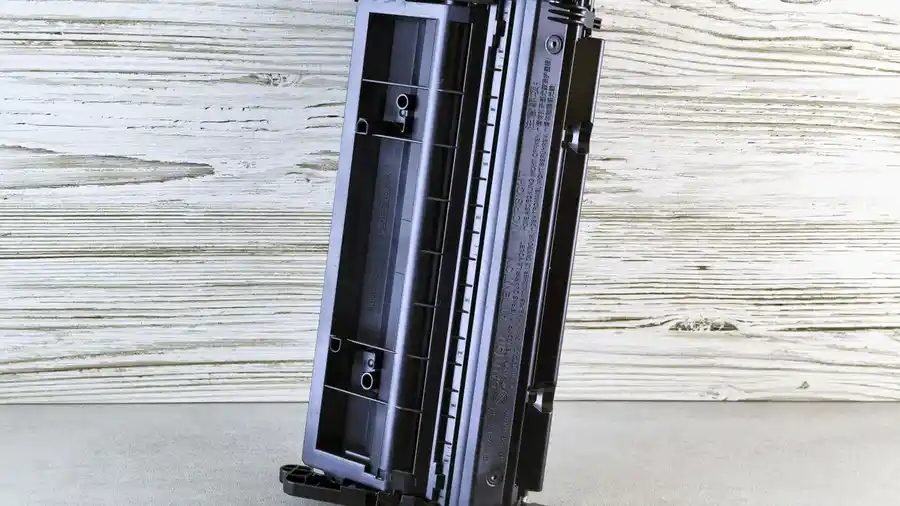
Also check whether the cartridge is physically locked in place. A loose ink cartridge can make electrical contact but still fail to feed ink properly. On laser models, a toner cartridge that is not fully seated can leave the page blank or nearly blank because toner never transfers to the drum the way it should.
How do I tell whether the printer is the problem or the file is?
The fastest way is to print the built-in test page or a nozzle check, because that separates printer hardware from the document you sent. A test page that prints normally means the printer can print; a blank test page points to ink delivery, toner delivery, or a deeper hardware issue.
Use the printer’s control panel, not your computer, if possible. Most inkjet printers have a maintenance menu with a nozzle check or test print option. The exact path varies by brand, but the result should be easy to read: bars, grid lines, or sample text should appear. If those elements are missing, the printer itself is not laying down ink or toner.
Here is the core check sequence:
- Print the printer’s built-in test page or nozzle check from the control panel, not from Word or your browser. A clean pattern means the printer engine is working.
- Open the printer and remove the ink cartridge or toner cartridge only if the printer is powered on and ready. Reseat it firmly so it clicks into place.
- Inspect any protective tape, vent plug, or shipping strip on a new cartridge. Remove only the material meant to come off. A cartridge with tape left on it will often print nothing.
- Run one cleaning cycle or print-head cleaning from the maintenance menu. After that, print the nozzle check again. If the pattern improves, the issue was clogged nozzles rather than the file.
- Try a second test page from a different source, such as the printer’s own status page or a plain-text document. If that prints, the original file or driver settings are the next suspects.
A nozzle check matters most on inkjet printers because dried ink in the nozzles can stop ink from reaching the page even when the cartridge still has ink left. Laser printers do not have nozzles, so if you have a laser model, focus on toner cartridge seating, drum condition, and the document settings instead. Epson explains nozzle checks in its support documentation, and HP’s print quality troubleshooting also points users to built-in test pages.
Driver settings can make a page print blank without a printer fault
A wrong driver setting can send a blank page even when the printer and cartridge are fine. This usually happens when the document is set to print an empty page, the wrong paper source is selected, or the print driver is using a layout that hides the content.
Start with the driver, not the app. Open the printer properties from the operating system and look for the active driver name. If the printer is using a generic driver, an outdated package, or a driver meant for a similar model, the output can be odd enough to appear blank. Installing the correct model-specific driver often fixes the issue without touching the hardware. Brother, Canon, and HP all recommend model-matched drivers in their setup and support pages.
Then check common print settings:
- Paper size should match the document, such as Letter 8.5 × 11 in or A4.
- Orientation should match the file: portrait for most letters, landscape for wide tables.
- Scale should usually stay at 100% unless the document was designed for shrink-to-fit.
- Page range should not be set to a blank page or a selection that excludes the content.
One subtle cause is printing a page with invisible content. A file can contain white text on a white background, hidden layers, or text placed outside the printable margin. In that case, the printer is working correctly, but the page looks blank because the document design is the problem. This can happen with PDFs, forms, and templates that use layers or fields, so Adobe’s PDF help and Microsoft’s Office support pages are worth checking.
Another check is the print preview. If the preview is blank, the printer is not the issue yet; the file or layout is. If the preview shows content but the paper comes out blank, the driver or printer hardware is the likely fault. That distinction saves time because it keeps you from cleaning heads for a document problem.
Why is my printer printing blank pages after I changed page layout?
Page layout changes can push your content off the printable area or onto a page that looks empty. That happens most often after switching paper size, margins, headers and footers, or scaling in a word processor or PDF viewer.
A document can print a blank first page if there is an accidental page break, extra paragraph marks, or a header/footer with no visible body text. In a word processor, turn on formatting marks and look for a stray page break before the main content. In a PDF, check whether the first page is actually a separator page or a cover page with very light text that is hard to see.
Margins matter more than many people expect. If the document uses margins larger than the paper can support, the text may shift outside the print area. Most consumer printers cannot print all the way to the edge, so content placed too close to the border can vanish. On forms, a logo or line may be clipped while the rest of the page looks empty. The U.S. Government Publishing Office and Adobe both note that printable area limits matter for output accuracy.
If the printer prints blank pages only from one app, the layout inside that app is suspect. If it prints blank pages from every app, the problem is more likely in the driver or the printer itself. That split is useful: app-only problems usually need a page setup fix, while system-wide blanks usually need cartridge, nozzle, or driver work.
A good rule is to test with a simple one-page text document. If that prints, the original file’s layout is the problem. If even a plain 1-page note prints blank, stop chasing page design and go back to the cartridge and driver.
When a test print works but your document does not
If a test print works and your document still comes out blank, the file format or application is causing the problem. This is the point where a generic “printer fix” article usually misleads people, because the printer is no longer the main suspect.
Try these specific moves:
- Save the file as a fresh copy and print that copy.
- Export the document to PDF and print the PDF.
- Print from a different app, such as Adobe Reader instead of a browser PDF preview.
- Turn off “Print as image” or turn it on if the current setting is failing, since some documents behave better one way than the other.
- Print only page 1 as a test.
A blank print from one app and a normal print from another usually means the content was not rendered correctly by the first app. Web pages are especially prone to this when browser print styles hide text or media. A browser may also suppress background graphics, which can make a page appear blank if the page depends on a light image or watermark for visible content.
This is also where fonts can trip you up. If a document uses a font that does not embed properly in the PDF or is not available on the system, the preview can look fine while the output fails. Saving to PDF with fonts embedded usually helps, but if it does not, consult a print or document professional and try the file on another machine or in another PDF viewer to isolate the app. Adobe’s PDF guidance covers embedded fonts, and Microsoft’s support pages explain font substitution issues.
The practical line is simple: if the printer’s own test page prints and the document does not, stop cleaning the printer. Fix the file, the app, or the driver.
What not to waste time on first
Do not assume the printer is dead just because one page came out blank. A single blank sheet does not prove a hardware failure, and replacing a cartridge too early can waste money when the real issue is a driver setting or a page layout mistake.
Do not run repeated cleaning cycles back to back on an inkjet. One cleaning cycle is usually enough to see whether the nozzle check improves. Repeating it many times can drain ink fast, especially on small cartridges. If the first cleaning changes nothing, look at the seal, seating, or a clogged head that may need a deeper maintenance cycle.
Do not ignore the difference between inkjet and laser behavior. An inkjet can produce a blank page from dried nozzles even with ink remaining. A laser printer is more likely to fail because of toner seating, drum issues, or a bad driver send. Treating these two cases the same can waste time, so it is better to match the fix to the printer type. HP and Brother both separate inkjet and laser troubleshooting in their support articles.
Do not chase every possible setting at once. Change one thing, then print one test page. That makes the result meaningful. If you change paper size, scale, and driver version in the same pass, you will not know which fix worked.
If you need a broader starting point after this check, the printer troubleshooting hub can help you sort the symptom before you dig deeper.
The shortest path to a real fix
The shortest path is to print a built-in test page, check the cartridge seal and seating, then inspect driver and layout settings if the test page works. That order matters because it separates printer hardware from document problems in about 5 minutes.
If you want the practical judgment call: an inkjet with a blank nozzle check is usually an ink delivery problem; a printer that prints its own test page but not your document is usually a driver or layout problem. That distinction is the whole battle.
The one case I would not ignore is a brand-new cartridge that prints blank pages immediately after installation. That points first to a missed seal, a bad seat, or a defective cartridge, not to the computer. If that happens, the cartridge is the right place to focus before anything else.
Can empty ink still print blank pages?
Yes, an empty or nearly empty ink cartridge can still let the printer feed paper and produce a blank page. The printer may think it has enough ink to start, but the nozzles cannot lay down visible ink. This is common on inkjet models, especially when black text prints blank but the machine still reports supply remaining.
Why does the printer print a blank first page?
A blank first page usually means there is a page break, a cover page setting, or content placed outside the printable area. It can also happen if the first page uses a header, footer, or hidden layer that does not render. Print preview usually reveals this before you waste paper.
How do I clean clogged print heads?
Run the printer’s built-in head cleaning or nozzle cleaning from the maintenance menu, then print a nozzle check right away. One cleaning cycle is the right first move for most inkjet printers, because it confirms whether ink flow improves. If it does not, the clog may be deeper than the normal cleaning cycle can reach.
Drafted with AI; not yet reviewed by a person.