Last updated: October 29, 2026
Quick answer: a printer setup checklist usually takes about 15 minutes to use well, and it can prevent the first-install delays that waste paper, ink, and time. If you want the job to go smoothly, check the parts, the space, and the login details first.
A printer setup checklist saves time because the usual failures happen before the printer ever prints: the box is missing a cable, the ink cartridge or toner cartridge is still sealed, the paper tray is empty, or the network password is nowhere to be found. If you want the job to go smoothly, check the parts, the space, and the login details first.
Printer setup checklist: what to have ready
The printer setup checklist starts with the printer, the power cable, at least one ink cartridge or toner cartridge if the model uses one, plain paper, and the Wi‑Fi name and password before you open anything. That is the shortest path to a clean first setup and a test page that actually prints.
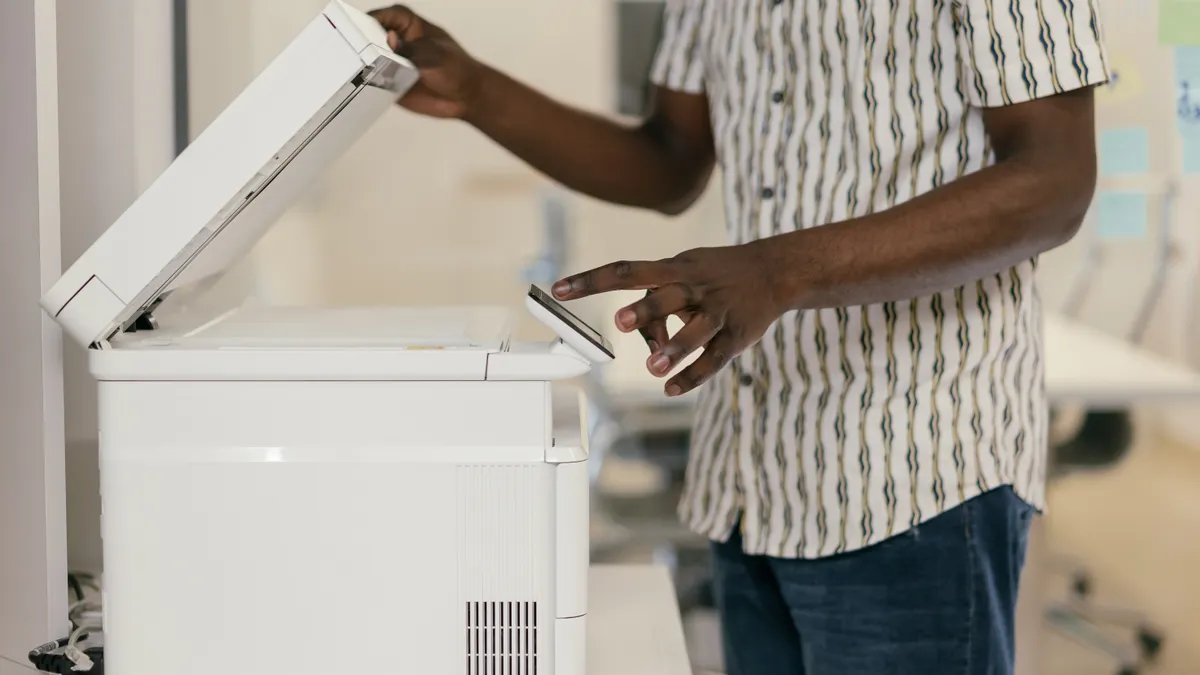
The common mistake is starting the setup with only the box on the floor and no plan for the next 20 minutes. That leads to the printer sitting half-unpacked while somebody hunts for paper, a USB cable, or the router password. A better setup starts with a flat surface, a power outlet within reach, and enough room to open the scanner lid, pull out the paper tray, and lift the printer without tipping it.
Use this checklist before turning anything on:
- Unbox the printer and remove all tape, foam blocks, shipping locks, and orange tabs.
- Confirm the power cable is present and reaches the outlet without strain.
- Check that the ink cartridge or toner cartridge is in the box and matches the model.
- Have 10 to 20 sheets of plain paper ready for the first load.
- Write down the Wi‑Fi name and password if the printer will join a network.
- Keep the quick-start sheet or model label nearby in case you need the exact model number.
- Leave room for a test page at the end.
This checklist is for a new printer or a printer that has been moved and reset. It is not the page for driver installation on Windows 11 or for adding a printer on a Mac; those belong elsewhere. The goal here is simple: avoid the avoidable delays before setup begins. For model-specific setup instructions, consult the manufacturer’s quick-start guide or support page.
What should I do before turning on a new printer?
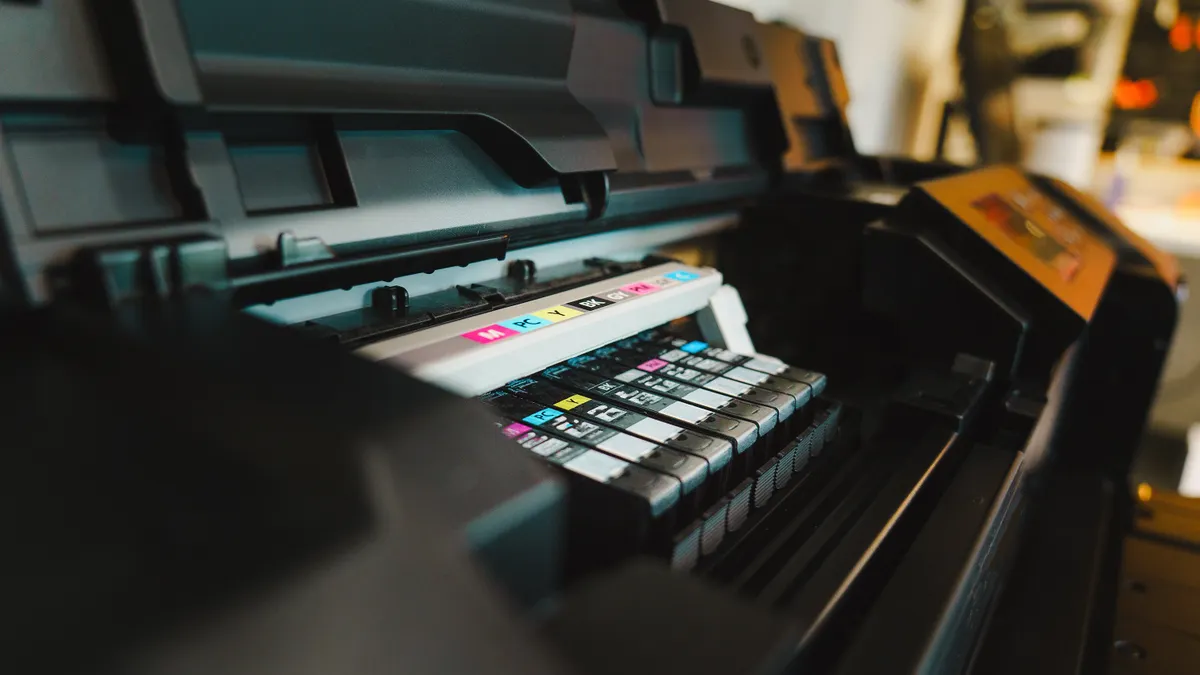
Before turning on a new printer, remove the packing materials, install the consumables, load paper, and have the network password ready if the model uses Wi‑Fi. Turning it on too early does not usually break anything, but it wastes time because the printer may stop for missing parts or ask for information you do not have.
Start with the box. Lift the printer straight out, set it on a stable table, and remove every strip of tape you can see around doors, trays, and covers. Many printers ship with internal transport tape or foam hidden in the paper path or ink area. If the device feels unusually stiff, check again before forcing any panel open.
Then inspect the consumables. An inkjet printer usually needs one or more ink cartridges; a laser printer needs a toner cartridge. Keep the packaging until the printer accepts the cartridge. Some models use starter cartridges with lower fill levels than replacement units, so the first few prints may not tell you anything about long-term running cost.
Next, prepare the paper. Load plain letter or A4 sheets, depending on the printer and your local paper size. Do not start with specialty media. A first setup is not the time to use photo paper, labels, or thick card stock, because you need a clean test page and a simple paper path. If the paper tray has width guides, set them snugly against the stack without bending it.
If the printer will connect to a network, have the SSID and password ready before you begin. Many setup failures come from someone reaching the network screen and then having to search a phone, email, or router label for the details. If the router uses 2.4 GHz and 5 GHz bands with similar names, note the exact one you intend to use.
Unboxing without creating a setup problem later
Unboxing cleanly helps prevent the kind of hidden blockage that can cause paper jams, error lights, and noisy first starts, though a model-specific setup guide or manufacturer support page is still the safest reference. The job is mostly about removing packaging in the right order, not about rushing to the power button.
Open the box from the top and check the contents against the packing list. The printer body should be obvious, but small items are easy to miss: power cable, setup sheet, ink cartridge or toner cartridge, and any tray inserts or alignment guides. If the manual or quick-start sheet lists a specific setup order, follow it. Model-specific steps matter here because some printers lock the carriage until a cartridge is installed, while others want shipping locks removed first.
Handle the printer with two hands and keep it level. A small desktop model is awkward enough to twist if you grab it by the scanner lid or paper output tray. After it is out, look for:
- tape on the outside corners and around access doors
- foam inserts inside the output path
- plastic clips or orange retainers on the carriage
- paper tray blocks or transport stops
- protective film on the display
Skipping this step is usually small at first and annoying later: a stuck carriage, a tray that will not feed correctly, or a false paper jam because a strip of tape was left in the path. That kind of error can make a simple first install feel broken.
Keep the box and packing materials until the printer makes its first clean test page. If you need to return the unit or move it again, original packaging matters. It also helps if a part is missing and you need to compare what was shipped with what was expected.
How to install the ink cartridge or toner cartridge
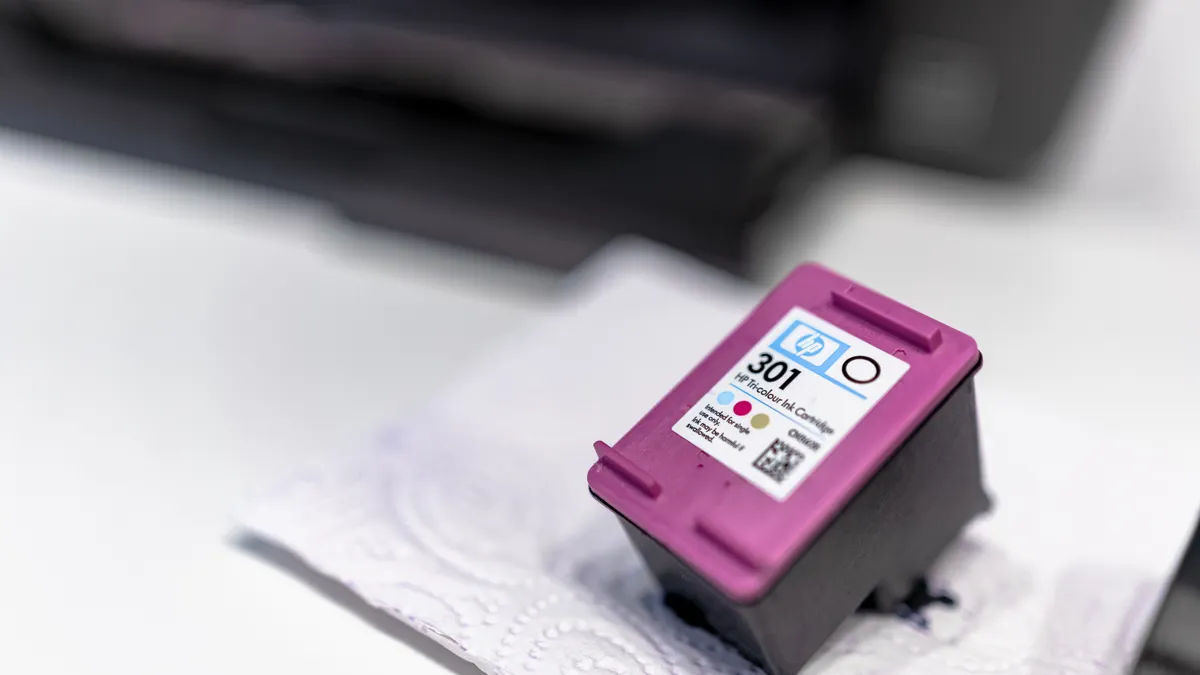
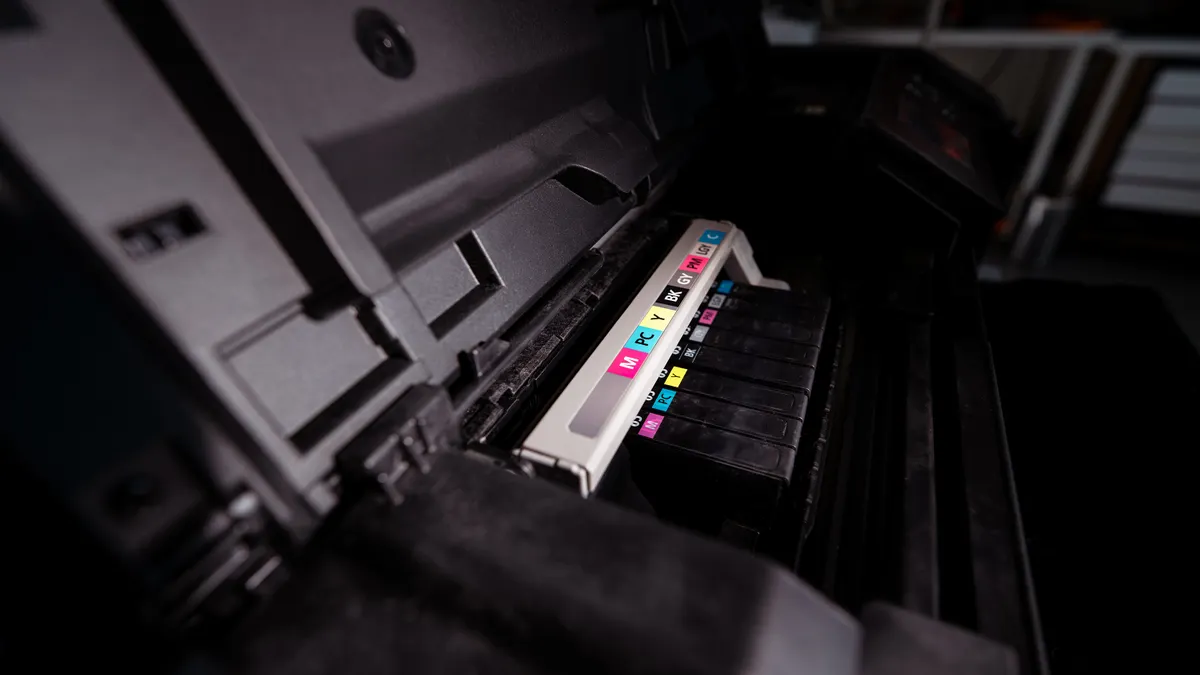
Install the ink cartridge or toner cartridge exactly as the printer’s latch and arrows show, then close the access door firmly until it clicks. The most common setup failure here is a cartridge that is present but not fully seated, which keeps the printer in an error state.
Open the cartridge access area only after the printer is unpacked and unplugged if the setup sheet asks for that order. Remove the cartridge from its packaging carefully, but do not touch the copper contacts or nozzle area on an ink cartridge. For toner, avoid shaking it harder than the instructions allow; loose toner dust is messy and can contaminate the inside of the printer.
Follow the sequence your model uses:
- Open the cartridge door or scanner section.
- Remove any orange tape, clip, or transport seal from the cartridge.
- Slide the cartridge into the correct slot until it locks.
- Match color labels or shape guides if the printer has multiple slots.
- Close the cover and wait for the printer to initialize.
A cartridge that is not fully seated often causes blinking lights, an error on the display, or a message that the consumable is missing. A second failure comes from leaving the shipping seal on the cartridge. The printer may try to initialize, but it cannot draw ink or toner correctly.
Do not force the cartridge into a slot that resists. If it does not fit with light pressure, check the model number and the orientation. Replacement cartridges are not universal across every printer line, and a nearly matching cartridge is still the wrong part. If the printer is using a refillable tank system rather than a cartridge, follow the tank markings instead of these steps.
Load the paper tray the right way the first time
Load plain paper into the paper tray with the guides snug, the stack square, and the print side oriented the way the tray diagram shows. A crooked stack or loose guide setting can be one of the quickest ways to get a misfeed or an uneven first print.
Pull the paper tray out fully if it slides from the front, or open the rear feed if the printer uses an upright path. Fan the paper once to separate the sheets, then tap the stack on a flat surface to align the edges. Place the stack in the tray without overfilling it. If the tray has a fill line, stay below it.
Set the side guides so they touch the paper without pinching it. That small adjustment matters. If the guides are too loose, the paper can skew as the rollers grab it. If they are too tight, the paper can bind before it feeds. Either problem can produce a jam on the first sheet.
Use standard paper for setup, usually letter or A4. Specialty media belongs later, after the printer has printed a clean test page. Glossy photo stock, labels, and envelopes can change the feed behavior and hide a basic setup issue.
If the printer has more than one tray, use the main tray first unless the setup sheet says otherwise. A surprising number of first-install problems come from loading paper into a bypass slot that is not active by default. Once the tray is closed, the printer should sense paper without asking for extra input.
Is the network password ready?
The network password should be written down before setup starts, because a printer that asks for Wi‑Fi details will not wait while you search for them. This matters on home and small office setups, where the router label or saved phone password is often the only reliable source.
Have the exact network name and password in hand if the printer will join a wireless network during setup. If the setup relies on a shared office network, confirm the correct SSID with the person who manages it. A printer can be perfectly assembled and still sit unusable if the login details are wrong or if the printer is being pointed at the wrong network name.
This is also the moment to notice a common mismatch. Some routers broadcast similar names for 2.4 GHz and 5 GHz bands. If the printer model is known to prefer 2.4 GHz during setup, make sure you know which name matches that band. Do not guess. A wrong band choice can look like a printer fault when it is really a network naming issue.
A good setup list includes:
- exact Wi‑Fi name
- password with correct capitalization
- router location if signal strength is weak
- any office guest-network rules
- the model number, in case the printer needs a network-specific prompt
If the printer supports wired setup and you plan to use Ethernet, keep the cable ready instead. That avoids trying to troubleshoot wireless before the printer has even printed its first page. The broader printer setup hub can handle the next steps once the hardware is ready.
Run the first test page before you call it finished
Run a test page after the printer initializes, because the first print tells you whether the cartridge, paper tray, and basic connection are all working together. A setup is not finished until the page comes out legible, aligned, and free of streaks or jams.
Use the printer’s built-in test or demo page if available. If the model does not offer that option on the control panel, use the simplest print command the setup guide gives you. The point is not to print something fancy; it is to confirm that the printer can pull paper, place ink or toner, and complete a full cycle without stopping.
Inspect the page for three things:
- text or bars that are fully printed
- no blank streaks or missing sections
- paper that exits without curling, skewing, or jamming
A bad test page usually points to one of four things: a cartridge that is not seated, shipping tape still in the path, paper loaded incorrectly, or a setup step that has not finished yet. Fixing those now is easier than waiting until someone tries to print an invoice or label later in the day.
If the printer asks for alignment, calibration, or a head-cleaning step, follow the on-screen instruction once before repeating it. Repeating calibration endlessly is a mistake; it can waste ink and paper without solving the real issue if the consumables or tray setup are wrong. One clean test page is the target. If that page is right, the printer is ready for the next setup stage.
What a bad printer setup looks like
A bad printer setup usually shows itself in the first 5 minutes, not hours later. The signs are obvious: the printer says a cartridge is missing when it is in place, the paper tray does not feed, the test page jams halfway through, or the device keeps asking for network details you do not have.
The cost of a sloppy setup is not abstract. It can mean wasted paper, wasted ink or toner, and enough rework that the printer feels defective when it is not. In many cases, the fix is only to remove the cartridge, reseat it, reload the tray, or clear the last piece of packing tape. The pain comes from having to guess which step was skipped.
A good setup does not need heroics. It needs the right items in reach, the packing material gone, the consumables installed in the correct orientation, the paper loaded squarely, and the login details ready. If a setup slips at any of those points, stop and reset the step rather than pushing through. That is the difference between a 15-minute install and a frustrating afternoon.
Key takeaways
- Start with the hardware and the login details, not the power button.
- Remove all shipping tape, foam, and locks before loading anything.
- Install the correct ink cartridge or toner cartridge fully and cleanly.
- Load plain paper first and keep the tray guides snug.
- Have the network name and password ready if the printer will join Wi‑Fi.
- Finish with a test page so you know the printer is actually ready.
What should i do before turning on a new printer?
Remove packing material, install the ink cartridge or toner cartridge, load plain paper, and have the network password ready if the printer will connect wirelessly. That order can prevent the most common startup delays, especially missing consumables and setup prompts you cannot answer yet. For model-specific steps, consult the manufacturer’s setup guide.
How do i know if my printer is ready to install?
The printer is ready when every shipping lock, foam block, and tape strip is removed, the correct consumables are installed, the paper tray has plain paper, and the power cable is within reach. If the setup sheet mentions a specific order, follow that model’s instructions before turning it on.
What cables do i need for printer setup?
Most setups need only the power cable, which should be in the box with the printer. A USB cable is only needed if your model or setup method uses a direct connection. If the printer will join Wi‑Fi, you still need the power cable first, plus the network name and password.
Drafted with AI; not yet reviewed by a person.