Remember that time you spent ages hand-writing labels for your product launch? Your hand cramped, the labels looked uneven, and honestly, it was a total waste of your valuable time. This blog post is dedicated to making that memory a thing of the past. We’ll explore the best ways to get perfect results when printing Avery labels, so you can focus on the things that matter – like growing your business! By the end of this, you’ll be an expert on the process, saving time and creating a professional look. You’ll learn the best settings for various types of labels, how to design them, and troubleshoot common issues. Get ready to streamline your labeling process and create a polished look with every label you print.
Key Takeaways
- Learn the basics of Avery label types and their intended uses.
- Discover how to choose the right software and templates.
- Master the art of designing labels that look professional and effective.
- Understand the important printer settings for achieving top-notch prints.
- Find solutions to common problems that you might face.
- Get some tips for maximizing the lifespan of your labels.
Choosing the Right Avery Label for Your Needs
The first step in any successful labeling project is picking the right Avery label. Avery offers a vast array of label types, each designed for specific applications. Selecting the correct label is crucial for ensuring the labels stick properly, look professional, and withstand the conditions they’ll face. Think about what you’re labeling, where the labels will be used, and how long they need to last. Getting the details right upfront saves you time, frustration, and money in the long run. Let’s explore some of the most common types and their ideal uses to make sure you get this part right from the get-go.
Label Material Types and Their Uses
Avery’s label materials vary from standard paper to durable options, each optimized for different situations. Understanding these materials is vital for effective labeling. The material impacts everything from print quality and durability to water resistance and adhesive properties. When selecting a material, think about the environment the label will be exposed to. Will it be indoors or outdoors? Subjected to moisture, temperature changes, or frequent handling? This is where the right material selection makes all the difference.
- Standard Paper Labels: These are the most common and cost-effective choice, ideal for general-purpose applications like shipping labels, address labels, and product labels that won’t be exposed to moisture or harsh conditions. They offer good print quality and work with most laser and inkjet printers.
- Glossy Paper Labels: These labels offer a shiny finish, enhancing the appearance of your labels. They’re perfect for product packaging, promotional materials, or any application where a premium look is desired. Be sure that your printer supports glossy paper to get the best results.
- Weatherproof Labels: Weatherproof labels are built to withstand exposure to water, sunlight, and extreme temperatures. They are perfect for outdoor use, such as labeling equipment, outdoor products, or anything that might be exposed to the elements. These are more robust than standard labels.
- Clear Labels: Clear labels offer a sleek, modern look. They’re designed to blend with the surface you apply them to, making the text or design appear printed directly on the object. They are great for jars, bottles, and any application where you want the label to be less visible.
- Removable Labels: These labels are designed to be easily removed without leaving adhesive residue. They are ideal for situations where the label needs to be temporary, such as price tags, promotional stickers, or labeling items that will be reused.
Standard paper labels are a great choice when cost is a primary factor. They’re easy to print on and widely compatible. They work well for items that don’t need to endure rough conditions or extreme temperatures. These are ideal for everyday tasks.
Glossy labels bring a professional, attractive finish to your projects. The shiny surface enhances the colors and details of your design, making it a good choice for products that want to stand out on shelves or packaging where looks are crucial. These are not as resistant to wear and tear as other options.
Weatherproof labels are a robust solution for environments where labels need to endure exposure to water, sunlight, and temperature changes. These are ideal for outdoor equipment or any product used outside. They can handle wet conditions without peeling or fading.
Clear labels are a stylish choice for a clean appearance. The transparent material creates the illusion of printed-on text, allowing the product to shine through. These are ideal for labeling glass jars, bottles, or other clear containers where you want the contents to be visible.
Removable labels offer flexibility for items that need to change often, like sale prices or temporary tags. They come off without leaving sticky residue, which is helpful if you plan on changing the labeling later. This makes them ideal for temporary labeling needs.
Avery Label Sizes and Formats
Avery offers various sizes and formats to meet different needs. This includes everything from small address labels to large shipping labels, as well as a range of shapes and sizes. These various options ensure you can find a label that perfectly fits your requirements. Consider the amount of information you need to include, the available space on the item you’re labeling, and your design preferences. Picking the right size and format will improve the clarity and look of your labels.
- Address Labels: Designed for standard mailing and return addresses, Avery address labels come in multiple sizes, with common options like 5160, 5161, and 8160.
- Shipping Labels: For larger packages, shipping labels are available in various sizes like 5163 and 8163. These are typically larger and provide more room for address and shipping information.
- Product Labels: These are designed for product packaging, with different shapes and sizes to fit various containers and packaging. Options like round, oval, or rectangular labels offer flexibility for branding.
- Specialty Labels: Avery has labels for specific needs such as CD/DVD labels, file folder labels, and more. These are designed for particular uses and come in formats that fit those purposes.
Address labels are the workhorses of any mailing operation. Choosing the right size ensures your address is clear and your mail gets delivered. Various sizes allow you to pick what works best for your needs, be it a small envelope or a large package.
Shipping labels are designed for larger packages and require sufficient space for shipping and handling details. Selecting the right size makes sure everything is easy to read for postal workers and recipients, helping your packages reach their destination promptly.
Product labels are designed to fit your products. Avery offers different shapes and sizes. These labels are important for branding, giving your products a cohesive and appealing look. Choose labels that complement your product.
Specialty labels are designed for particular uses. They’re pre-formatted to fit specific items. This includes labels for CDs, DVDs, or file folders. These options help you organize and label your materials quickly and effectively.
Designing Your Labels for Optimal Results
Designing labels might seem simple, but a well-designed label is key to making sure your products stand out. A great design helps your label communicate clearly and leaves a strong impression. The design must be visually appealing and easy to understand. We’ll explore the key aspects of label design, from choosing the right software to fine-tuning the layout and ensuring your label is both attractive and effective.
Selecting the Right Software for Your Needs
The choice of software can vastly affect your design. Avery provides online design tools and templates, which are great for beginners. Advanced users might opt for graphic design programs like Adobe Illustrator or Canva. The best software will depend on your skill level and design needs. Think about the features you need, the complexity of your designs, and your budget when choosing.
- Avery Design & Print Online: This is a user-friendly, web-based tool from Avery. It provides a wide range of pre-designed templates, making it easy for anyone to create professional-looking labels quickly. The templates are ready-made and match Avery label formats.
- Microsoft Word: Word is a widely available option for label design. With a bit of practice, you can create and customize labels. Word allows you to use its editing and formatting features to design your labels, but creating unique layouts takes a bit more effort.
- Graphic Design Software (Adobe Illustrator, Canva): For advanced designs and more control, graphic design software is an excellent choice. Adobe Illustrator provides powerful tools for creating high-quality designs. Canva offers a user-friendly interface with templates, perfect for more visually-oriented projects.
Avery Design & Print Online is perfect for quick projects. It’s easy to use and provides various pre-designed templates and layouts to make the design process simple and fast. Ideal for users who want a quick, professional solution.
Microsoft Word is a solid choice if you have it. You can create basic designs and import text. It requires some manual setup to align the labels correctly, but it is available to many.
For more experienced designers, software like Adobe Illustrator or Canva is a good choice. These tools offer enhanced control over every aspect of your design. They give you the flexibility needed for intricate layouts and professional results.
Key Design Elements for Effective Labels
Creating an eye-catching label is more than just adding text. Colors, fonts, and the layout all play a part in conveying your message and making an impact. A great design balances aesthetics with functionality, making sure your label is easy to read. Let’s delve into the important elements and how to use them to create successful designs.
- Color Choice: Choose colors that align with your brand identity and complement the product. High contrast ensures readability, while the right color scheme can make your product appealing. Consider the psychology of colors to evoke the appropriate emotions.
- Font Selection: Choose fonts that are easy to read and reflect your brand’s style. Use a mix of fonts, but don’t overdo it. Fonts affect readability and brand identity. They influence how customers perceive your brand.
- Layout and Design: Create a design that is visually balanced and easy to scan. Use white space effectively to avoid clutter. A clear layout guides the eye and makes your label user-friendly.
The right colors communicate your brand message and make your label stand out. Colors create an emotional connection. The right combination will draw attention and influence your customer’s perception of your product. Carefully choose colors that represent your brand.
Fonts enhance your brand identity. Make sure the fonts are clear and fit your brand. Consider the font’s readability, particularly for small text. The right font choice ensures that your label looks professional.
A good layout improves readability. Ensure important information stands out. A balanced layout makes your label visually appealing and user-friendly. Clear organization will help customers understand your products quickly.
Practical Tips for Designing Effective Labels
With the basics in place, you can refine your design. There are several techniques that can boost your label’s effectiveness. Consider the specific type of label, the available space, and your brand’s requirements. Remember, the goal is to create a design that is informative, attractive, and fits your brand. Let’s dig deeper into the best practices that improve your labels.
- Plan Your Content: Before you begin, list the information you need, such as product names, ingredients, or instructions.
- Create a Mock-up: Test your design by printing a sample on regular paper before you commit to printing on Avery labels.
- Use High-Resolution Graphics: If using images or logos, make sure they are high-resolution to ensure the final label looks sharp and professional.
Plan ahead to streamline your design process. Make a list of all the information you must include. Knowing what you need to include avoids delays. It also helps you plan the layout efficiently.
Always print a sample of your design. This gives you a chance to check how everything fits and appears. It helps you identify errors before you print a large batch on Avery labels. It reduces waste and ensures a professional finish.
Use high-resolution images to enhance your labels. High-quality images look crisp. Low-resolution images can appear blurry. High-resolution images ensure your labels look sharp.
Printer Settings and Techniques for Avery Labels
The settings and techniques you use when printing Avery labels have a huge impact on the final outcome. Using the wrong settings can lead to misaligned prints, smudged ink, or labels that don’t stick well. Choosing the right print settings and following the right techniques will ensure your labels come out perfect. We’ll cover all the important printer settings, the best ways to print, and what to do if you encounter common problems.
Configuring Printer Settings for Best Results
Correct printer settings are crucial for achieving the best results with your labels. These settings affect the quality, alignment, and appearance of your labels. Understanding your printer’s settings and how to adjust them to Avery labels is vital for good results. Let’s delve into the important settings.
- Paper Type: Select the correct paper type setting in your printer settings. This is usually “Label,” “Cardstock,” or a similar option. This ensures the printer knows the material being used and adjusts accordingly.
- Print Quality: Choose the highest print quality or resolution setting available. This produces sharp text and images. High-resolution settings ensure your labels look professional.
- Margins and Alignment: Make sure your printer settings match the Avery template. Incorrect margins and alignment can cause your labels to be printed off-center. Check and adjust the margins as needed.
Selecting the right paper type is essential for print quality. This adjustment tells the printer how to handle the material. Choosing the correct paper type will lead to clearer, better-looking prints.
Higher print quality settings improve your label’s appearance. High-resolution settings produce clearer images and text. This adds to the overall professionalism of your labels.
Correct alignment ensures that your labels are printed accurately. Check your printer’s alignment settings. This keeps your labels looking professional.
Printing Techniques and Best Practices
In addition to the right settings, there are important techniques that can boost the quality of your printed labels. These techniques help with alignment, ink use, and label durability. They contribute to a more efficient and less stressful labeling process. Following these suggestions ensures the best possible results.
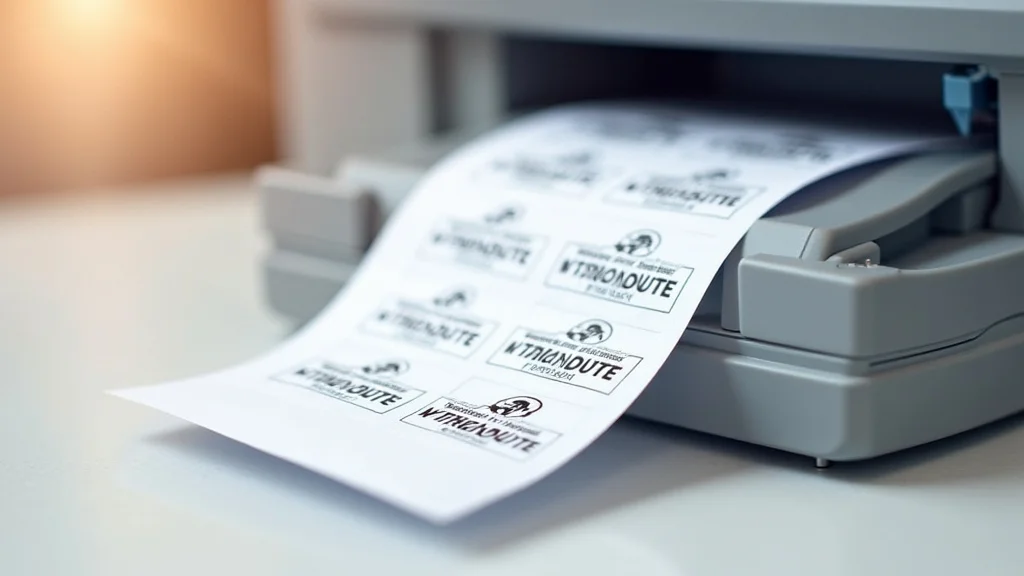
- Test Print: Before printing a large batch, always do a test print on a single sheet of Avery labels. This allows you to verify alignment and quality. This helps avoid wasting labels.
- Printer Maintenance: Keep your printer clean and in good working order. Clean print heads and replace ink cartridges as needed. This helps to maintain print quality.
- Label Feeding: Feed the label sheet into the printer correctly, following your printer’s instructions. Incorrect feeding can cause jams or misaligned prints. Proper feeding is key for smooth printing.
Always do a test print to avoid wasting labels. This check allows you to ensure the print quality and alignment are correct. This reduces wasted materials.
Keep your printer clean and maintained. Clean print heads regularly. Replace ink cartridges when needed. Proper printer maintenance leads to better print quality.
Make sure you feed the label sheets into the printer correctly. Incorrect feeding can lead to jams. Check the printer’s instructions. Correct feeding will result in smooth printing.
Troubleshooting Common Printing Problems
Even with careful planning, things don’t always go smoothly. This is especially true when it comes to printing Avery labels. There are some issues that often come up, such as misaligned prints, ink smudging, or labels not sticking properly. Understanding these common problems and the steps you can take to fix them will help you. We will help you address these problems quickly. Let’s explore common issues and provide solutions to help make your printing tasks hassle-free.
- Misalignment: If your labels are misaligned, double-check your printer settings to ensure that the margins match the Avery template. If the problem persists, try calibrating your printer or using a different template.
- Ink Smudging: If your prints are smudging, make sure you’re using the correct paper type setting for your printer. Also, allow the ink to dry completely before handling the labels. This helps prevent smearing.
- Labels Not Sticking: If your labels are not sticking, ensure the surface is clean and dry before applying the label. Also, check the expiration date on your labels, as the adhesive may degrade over time.
Misalignment is a common issue. Check your printer’s settings. Align the margins with the Avery template. If the problem continues, calibrate your printer or try a different template to fix the issue.
Ink smudging can ruin your print jobs. Make sure you use the right paper type setting. Let the ink dry completely before you touch the labels. This helps avoid smearing.
Labels not sticking is a common problem. Make sure the surface is clean. Ensure that the labels are not expired. This improves adhesion and durability.
Common Myths Debunked
Myth 1: Any Printer Can Print Avery Labels
Many people assume that any printer can handle Avery labels without issue. The reality is that this isn’t always true. While most modern inkjet and laser printers are compatible with Avery labels, there are important considerations. Some older or less advanced models may struggle with alignment or paper feed, leading to misprints or jams. It’s important to verify your printer’s specifications and settings to ensure compatibility and prevent problems when printing Avery labels.
Myth 2: Glossy Labels Work Best for All Applications
A common misconception is that glossy labels are universally the best choice for all applications. While glossy labels do offer a premium, eye-catching appearance, they’re not always the most practical choice. In situations where labels are exposed to moisture, handling, or abrasion, glossy labels can be more prone to smudging or damage. For these applications, weatherproof or matte labels may be a more appropriate and durable option. Always consider the environmental conditions.
Myth 3: You Have to Use Avery’s Software to Print Avery Labels
Many people believe that you must use Avery’s Design & Print software to print Avery labels. That’s simply not true. While Avery’s software is a convenient and user-friendly option, you’re not restricted to it. You can print Avery labels using various software programs. Microsoft Word, Adobe Illustrator, or even Canva can all be used to create and print labels. You can usually download Avery templates for these other software options, offering flexibility.
Myth 4: Alignment Issues Are Always the Printer’s Fault
A frequent myth is that any alignment issues are always the printer’s fault. This isn’t always the case. While a printer can be a cause, alignment problems can also stem from other factors. Incorrectly configured printer settings, such as margins or paper type, can throw off the alignment. Using the wrong template size or not feeding the label sheets correctly are other issues. Checking all possible causes, not just the printer, is essential for identifying and solving alignment problems.
Myth 5: All Avery Labels Are Waterproof
A common myth is that all Avery labels are waterproof. This is not accurate. Avery offers a variety of label materials, with only some being waterproof or weatherproof. Standard paper labels, for example, are not designed to resist water. They can smear or peel off when wet. If you need labels that can withstand exposure to water, sunlight, or harsh conditions, you must select the specific Avery weatherproof labels.
Frequently Asked Questions
Question: What is the best way to align Avery labels?
Answer: Make sure your printer settings, especially the margins, match the Avery template. Test-print on plain paper first to verify alignment before printing on the labels.
Question: Can I use any printer to print Avery labels?
Answer: Most inkjet and laser printers are compatible, but check your printer’s specifications for paper size and type compatibility. Older printers may have alignment issues.
Question: How do I remove Avery labels without leaving residue?
Answer: For labels meant to be removable, Avery offers products that peel off cleanly. For other labels, you can use heat (from a hairdryer) or a label removal solvent to loosen the adhesive.
Question: How can I prevent smudging when printing on Avery labels?
Answer: Make sure you have selected the correct paper type in your printer settings and allow the ink to dry completely before handling the labels. Use a printer that is in good working order.
Question: Where can I find Avery templates?
Answer: Avery provides templates on its website, within its Design & Print Online tool, and often offers them for download compatible with Microsoft Word and other design software.
Final Thoughts
Getting it right with printing Avery labels doesn’t have to be hard. By understanding the different label types and choosing the right one for your job, you’re setting yourself up for success. Mastering the design principles is essential to make your labels effective. Then, it’s about making sure your printer settings are spot-on to achieve precise results, avoiding common pitfalls. With the knowledge you’ve gained, you can take control of your label production. Start by gathering your materials, select your software, and begin creating. Armed with the information in this guide, you can start creating professional-looking labels.