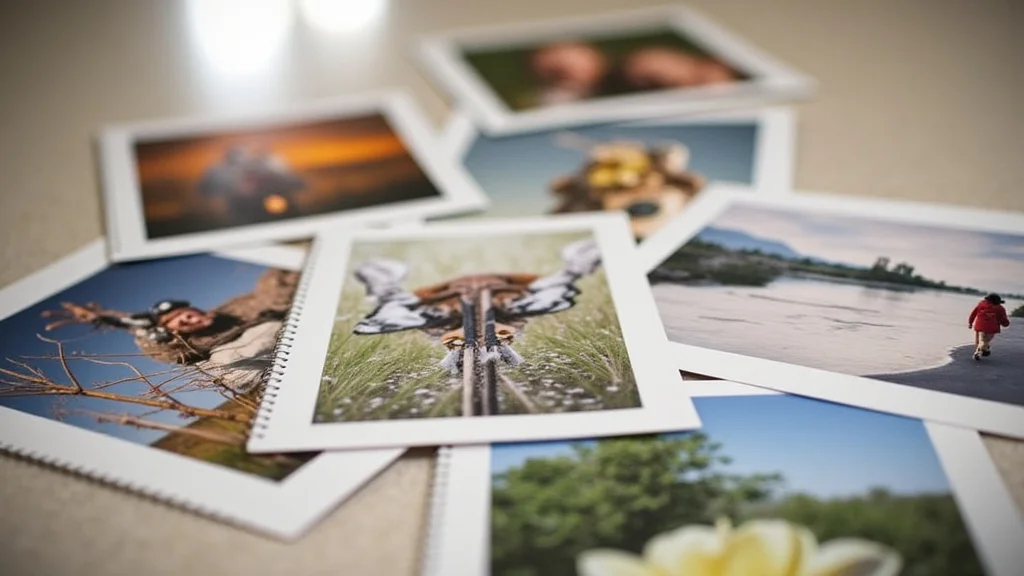
Remember that amazing vacation photo you took? The one with the perfect sunset and everyone smiling? You probably snapped it with your phone, but have you considered printing 8 x 12 photos to cherish that memory? Maybe you’ve tried before and the prints didn’t quite match what you saw on your screen. This guide will take you step-by-step to get gorgeous prints every time. We’ll explore everything from choosing the right paper to understanding the different print settings. You’ll learn how to transform your digital images into stunning keepsakes, improving your ability to make physical copies and lessening the confusion surrounding the process.
Key Takeaways
- Learn the best paper types for printing 8 x 12 photos.
- Understand the importance of image resolution and size.
- Discover the key printer settings to achieve professional-quality prints.
- Explore the various editing tools to enhance your photographs.
- Find out where to get your photos printed if you don’t have a printer.
- Gain confidence in producing beautiful, tangible prints of your favorite memories.
Choosing the Right Paper for Printing 8 x 12 Photos
Selecting the correct paper is the first significant step toward achieving remarkable prints. The paper you choose drastically impacts the final look and feel of your photograph. Different types of paper provide distinct visual results, ranging from glossy and vibrant to matte and subdued. Each type has its benefits, influencing how colors appear, how resistant the print is to fingerprints and smudges, and how well it reflects light. Take the time to consider these factors when selecting paper for your printing 8 x 12 photos to ensure the outcome meets your expectations.
Glossy Paper: Vibrant Colors and Sharp Details
Glossy paper is favored for its ability to bring out vivid colors and sharp details in photos. The shiny surface reflects light, making colors appear more saturated and images pop. This type of paper is especially well-suited for images with vibrant colors and high contrast, such as landscapes, portraits, and travel photos. However, glossy paper is prone to fingerprints and glare, so handle with care. If you are aiming for impact and brightness, glossy paper is a great choice for your printing 8 x 12 photos.
- High Color Saturation: Glossy paper enhances the vibrancy of colors, making images more visually appealing.
- Sharp Detail: The reflective surface allows for impressive sharpness and clarity in printed photos.
- Ideal for Bright Images: Best suited for photos with a lot of color and contrast, such as landscapes and portraits.
- Prone to Glare: The reflective surface can cause glare under bright light.
- Susceptible to Fingerprints: Handle prints carefully to avoid leaving fingerprints.
Matte Paper: Elegant Finish and Reduced Glare
Matte paper offers a more subtle and sophisticated look. It has a non-reflective surface that reduces glare and fingerprints, making it ideal for displaying prints in various lighting conditions. Matte paper excels at providing a smooth, even texture that works well for black and white photographs and images with a softer aesthetic. This paper type is a solid choice when you prefer a more understated presentation of your printing 8 x 12 photos, prioritizing a refined look.
- Reduced Glare: The non-reflective surface minimizes glare, making the prints viewable in different lighting.
- Fingerprint Resistant: The surface is less prone to showing fingerprints and smudges.
- Suitable for Black and White: Creates a classic and timeless look, ideal for monochromatic images.
- Softer Colors: Colors may appear less vibrant compared to glossy paper.
- Versatile: Works well for a wide range of photographic styles and subjects.
Other Paper Types
There are also specialty papers available for more unique results. Metallic paper has a pearlescent finish, creating a shiny effect. Fine art paper, such as cotton rag, provides a luxurious, textured surface perfect for artistic prints. These options can elevate your printing 8 x 12 photos by adding an extra touch of sophistication and uniqueness.
- Metallic Paper: Offers a pearlescent, shiny finish, adding a metallic shimmer to photos.
- Fine Art Paper: Includes cotton rag and other textured papers, perfect for art prints.
- Luster Paper: Combines the benefits of both glossy and matte, with a semi-gloss finish.
- Textured Paper: Adds a tactile element to the print, enhancing the overall feel.
- Specialty Papers: Each designed to provide a unique look and feel to your printed photos.
Image Resolution and Size for Printing 8 x 12 Photos
One of the most essential aspects of producing high-quality prints is image resolution. Resolution refers to the level of detail contained within your digital image, measured in pixels. For printing 8 x 12 photos, the higher the resolution, the better the final print quality. A low-resolution image will appear pixelated or blurry when printed at a larger size, while a high-resolution image will maintain sharpness and detail, resulting in a professional-looking result. Ensure that your image has the right pixel dimensions before printing is key.
Understanding Resolution: Pixels and DPI
The resolution of a digital image is usually described by its pixel dimensions, such as 3600 x 2400 pixels. A standard recommendation for printing 8 x 12 photos is 300 DPI (dots per inch). This DPI setting means that for every inch of the print, the image has 300 dots of color. To calculate the necessary pixel dimensions, multiply the print size by the DPI: 8 inches x 300 DPI = 2400 pixels and 12 inches x 300 DPI = 3600 pixels. The higher your pixel count, the better your photo will look when you print it.
- Pixel Dimensions: The width and height of an image in pixels (e.g., 3600 x 2400).
- Dots Per Inch (DPI): The measure of image resolution when printing (300 DPI is generally recommended).
- Resolution vs. Print Size: Higher resolution is needed for larger prints to maintain quality.
- Calculating Required Pixels: Multiply print dimensions by DPI to determine minimum pixel count.
- Impact of Resolution: Low-resolution images appear blurry; high-resolution images show sharp details.
Resizing Your Image
If your image is not large enough, you may be able to increase the size without significant quality loss by using image editing software. Most programs use sophisticated algorithms to estimate the pixels that should be added to enlarge your image. It is important to remember that increasing the size will not increase the detail, but good software may improve the appearance of an image. Ensure your photo has the required pixel count and DPI before sending your image for printing 8 x 12 photos.
- Using Editing Software: Resize your images using programs like Adobe Photoshop or GIMP.
- Image Enlargement Algorithms: Programs use algorithms to add pixels when resizing.
- Avoiding Loss of Quality: Be cautious when enlarging, as too much can reduce clarity.
- Checking Print Preview: Always preview before printing to confirm the image quality.
- Alternatives: Consider printing at a smaller size if the image can not be enlarged.
File Formats
The file format you choose can also impact the quality of your prints. The most popular formats are JPEG, PNG, and TIFF. JPEG is used for online images as the file size is small. PNG is a good choice for images with transparent backgrounds. TIFF is a larger file format, that keeps the most data, making it the best choice for high-quality prints, particularly when printing 8 x 12 photos. Using TIFF will keep all the data from your original photo, reducing quality loss.
- JPEG: A common format for photos, compresses the data, reducing file size.
- PNG: Supports transparency and is generally used for graphics and images with few colors.
- TIFF: A lossless format, best for high-quality prints as it preserves all image data.
- Choosing the Right Format: Select the format that will retain the most detail from the original file.
- Impact on Print Quality: Consider the file format used when setting up your printing 8 x 12 photos.
Printer Settings for Printing 8 x 12 Photos
Correct printer settings are crucial for achieving the best results when printing 8 x 12 photos. These settings control the way your printer processes and outputs the image, influencing factors such as color accuracy, print quality, and overall appearance. You will be able to make professional-quality prints by correctly configuring your printer settings, resulting in prints that match what you see on your screen.
Color Management: Matching Colors Accurately
Color management ensures that the colors in your prints accurately match those in your digital image. Most printers use a color profile to interpret the color data, but you can improve results by using the correct profile for your specific paper and printer. Many editing software programs offer color management tools that can calibrate your display and printer to ensure that the colors are consistent throughout your process of printing 8 x 12 photos.
- Color Profiles: Use the correct color profiles for your printer and paper combination.
- Soft Proofing: See what your print will look like using editing software with soft proofing.
- Printer Calibration: Use printer calibration tools for color consistency.
- Color Gamut: Understand and use your printer’s color gamut, the range of colors it can reproduce.
- Importance of Color Accuracy: Make sure your prints are true-to-life by managing colors effectively.
Print Quality: Selecting the Right Resolution
Your printer’s resolution settings significantly impact print quality. Most printers offer several quality settings, such as draft, normal, and high. Choose the highest quality setting for the best results when printing 8 x 12 photos. High-quality settings generally use more ink, but the detail and sharpness of your prints will greatly improve. Consider using the photo paper setting if available for your printer, because it is specifically designed for high-resolution images.
- Resolution Settings: Choose settings like “High” or “Photo Quality” for optimal clarity.
- Ink Usage: Higher settings use more ink for better results.
- DPI Considerations: Consider the DPI setting, choosing at least 300 DPI for high-quality prints.
- Previewing Prints: Check your prints before printing the whole job.
- Trade-offs: Balancing ink usage with print quality is critical in this step of printing 8 x 12 photos.
Paper Settings: Matching Paper Type to Settings
Matching your paper type to the correct print settings is essential for achieving optimal results. Almost all printers allow you to select the paper type in the printer settings. When printing 8 x 12 photos, select the paper type you are using (e.g., glossy, matte, or premium photo paper). This selection tells the printer how to apply the ink to the paper, affecting color accuracy and the final look. If the paper setting is incorrect, you may end up with poor color, smeared images, or ink that does not set properly.
- Paper Type Selection: Always select the correct paper type in your printer settings.
- Ink Application: The printer adjusts ink levels based on the paper type selection.
- Color Accuracy: Correct paper settings affect how colors are rendered on the print.
- Print Quality: Matching paper type influences the print quality and overall look.
- Trial and Error: Experiment to find the perfect combination of paper type and print settings.
Image Editing for Printing 8 x 12 Photos
Enhancing your photos through editing will significantly improve the quality of your final prints. Before printing 8 x 12 photos, make adjustments to the image’s brightness, contrast, color balance, and sharpness to ensure it looks its best. Software like Adobe Photoshop or free alternatives such as GIMP offer a variety of tools to fine-tune your images. A few simple steps in editing can go a long way in making your photos look amazing.
Brightness and Contrast: Making Images Pop
Adjusting brightness and contrast is a standard, yet vital, step in image editing. Brightness controls the overall lightness or darkness of your photo, while contrast determines the difference between the light and dark areas. Carefully adjust these settings to achieve a balanced image that is visually appealing. Boosting contrast can make your images more vibrant, whereas lowering it may give it a softer, more subtle appearance. Getting the brightness and contrast right will significantly enhance the final appearance of your printing 8 x 12 photos.
- Brightness Adjustments: Control the overall lightness of an image.
- Contrast Adjustments: Define the difference between light and dark areas.
- Histograms: Use histograms to visually analyze brightness and contrast levels.
- Avoiding Overexposure: Be careful not to make the photo too bright to avoid losing detail in highlights.
- Balancing: Adjust both brightness and contrast to create a balanced, visually appealing image.
Color Correction: Achieving Natural Colors
Color correction is essential for ensuring your photos display realistic and accurate colors. Many factors, such as lighting conditions and the camera’s settings, can affect the color balance of an image. Editing tools allow you to adjust the color temperature, tint, and saturation to get the desired look. It might be necessary to fine-tune the color balance to ensure that the image appears natural and aesthetically pleasing. Good color correction is key when printing 8 x 12 photos to maintain true-to-life colors.
- Color Temperature: Adjust the warmth or coolness of an image.
- Tint: Correct the overall color cast of the image (e.g., a green or magenta tint).
- Saturation: Increase or decrease the intensity of the colors in the image.
- White Balance: Use white balance tools to set a neutral white point in your image.
- Achieving Accurate Colors: Color correction ensures colors are true to life.
Sharpening: Enhancing Details and Clarity
Sharpening is a technique to improve the definition of details and bring out clarity in your photographs. By sharpening your image, you can reduce blurriness and make fine details, such as textures and edges, more defined. Use editing software to carefully apply sharpening to improve the overall look. Be careful not to over-sharpen, which can result in unnatural-looking artifacts. Sharpening can greatly improve the visual impact when printing 8 x 12 photos.
- Sharpening Tools: Use tools to increase edge definition and clarity.
- Unsharp Mask: A common tool to enhance details without harsh effects.
- Avoiding Over-Sharpening: Prevent unwanted artifacts by using sharpening carefully.
- Adjusting Intensity: Vary the sharpening intensity to match the image’s needs.
- Improving Image Impact: Sharpening enhances details and improves print appearance.
Alternative to Printing 8 x 12 Photos: Using Print Services
If you don’t own a printer or prefer not to manage the process, consider using online print services to get your printing 8 x 12 photos. Several services offer a wide range of printing options, paper types, and professional-quality prints. This can be a great option if you need many prints or want specialized papers that your home printer does not support. It can also save you time, effort, and money, and give you professional results.
Finding a Print Service
Choose print services based on their reputation, price, and the quality of their prints. Services such as Shutterfly, Mpix, and Snapfish are popular choices known for their quality and ease of use. These services allow you to upload your photos, select your preferred size, paper type, and finish, and then have the prints delivered to your home. Make sure the service offers 8 x 12 photo printing. Compare prices and read reviews to get the best deal. Finding a reliable print service is a great option for printing 8 x 12 photos.
- Research: Research different print services like Shutterfly, Mpix, and Snapfish.
- Reviews: Read customer reviews to assess print quality and service.
- Pricing: Compare prices, including shipping, to find the best value.
- Options: Consider services offering 8 x 12 prints, paper types, and finish choices.
- Convenience: Print services offer a convenient solution for those without printers.
Uploading and Ordering Your Photos
When you have chosen a print service, the upload and ordering process is usually simple. Upload your images to the website, making sure you have the required resolution for 8 x 12 prints. Most services also let you edit your photos, make color corrections, and crop your images. Be sure to review your images to confirm everything is perfect before placing the order. The user-friendly interface makes printing 8 x 12 photos simple.
- Create an Account: Create an account or log in to the print service’s website.
- Upload Photos: Upload your 8 x 12 photos to the site.
- Edit and Crop: Make any adjustments to the image.
- Select Options: Pick the print size, paper type, and finish.
- Place Order: Review your order and complete the transaction.
Checking Your Prints
When you get your printing 8 x 12 photos, make sure everything is in order. Check for any imperfections, such as color errors or scratches. If anything is wrong, contact the print service. Most services will offer a satisfaction guarantee. By checking your prints as soon as they arrive, you ensure you get the high quality that you expect.
- Inspect Prints: Check for any color, resolution, or quality issues.
- Check for Errors: Confirm there are no scratches, smudges, or other blemishes.
- Review Details: Ensure the prints meet your quality expectations.
- Contact Support: Report any issues to the print service to get it resolved.
- Assess Satisfaction: Evaluate the overall quality of your prints.
Common Myths Debunked
Myth 1: Any Printer Can Print High-Quality Photos
Many people believe that any home printer can produce professional-looking photos. However, this is not correct. The quality of photo prints depends on several factors, including the printer’s resolution, ink technology, and color management capabilities. Professional photo printers use higher-quality inks and paper and offer better color accuracy, resulting in superior prints. Getting excellent prints relies on all these factors. The best results for printing 8 x 12 photos are more likely to come from printers specifically designed for it.
Myth 2: More Megapixels Always Means Better Prints
Although a camera’s megapixel count is significant, it is not the only factor that determines the quality of your prints. Megapixels refer to the resolution of an image. While a higher megapixel count allows for larger prints, other things, such as lens quality and image processing, also play a huge part. Many other elements affect the final quality of the image, including the photographer’s skill. Having the right photo will give you a better result when printing 8 x 12 photos.
Myth 3: All Photo Paper is the Same
There is a wide variety of photo paper available, and they are not all created equal. Various paper types can impact the final look and feel of your photo. The type of paper, such as glossy, matte, or metallic, affects the color, contrast, and texture of the image. The correct selection of paper for printing 8 x 12 photos is key.
Myth 4: Professional Prints Are Always Expensive
You might think that professional-quality prints are always costly, but there are now many affordable options. The price can vary depending on where you order your prints and the options you choose. Several online print services offer high-quality prints at competitive prices. You can find excellent quality prints without emptying your wallet. Look at a variety of options to find the best value for your printing 8 x 12 photos.
Myth 5: You Need Expensive Software to Edit Photos
Some people think you need expensive software, such as Adobe Photoshop, to edit your photos effectively. However, several free and low-cost editing tools can achieve professional results. Programs like GIMP and others offer many of the same features as expensive software, giving you the ability to adjust your pictures and get them ready for printing 8 x 12 photos. You can often edit your photos at no cost, which makes it easy to get them ready to print.
Frequently Asked Questions
Question: What is the best resolution for 8 x 12 prints?
Answer: A resolution of at least 2400 x 3600 pixels at 300 DPI is best to guarantee a sharp, detailed 8 x 12 photo.
Question: Which file format is best for printing?
Answer: The TIFF file format is usually recommended because it’s lossless, saving all the image data for a higher-quality print.
Question: Can I print 8 x 12 photos at home with any printer?
Answer: While many printers can handle this size, you’ll get the best results with a photo printer and high-quality photo paper.
Question: What is the ideal paper type for photo printing?
Answer: Glossy and semi-gloss paper are great for vibrant colors and detail. Matte paper is great for a more subtle look.
Question: What’s the main difference between at-home printing and using a print service?
Answer: Home printing gives you control but may require more time and money. Print services offer convenience, professional equipment, and a wide array of options.
Final Thoughts
Mastering the art of printing 8 x 12 photos can transform how you experience your memories. It doesn’t need to be complex. By understanding the essentials—choosing the right paper, knowing image resolution, optimizing your printer settings, and knowing some editing tricks—you can create beautiful, lasting prints that you can share and enjoy. Remember that your choice of paper, like glossy or matte, sets the stage for the appearance of your final print. Taking the time to adjust colors, brightness, and contrast will ensure that your prints look amazing. Whether you print at home or use a print service, take advantage of the ability to make your favorite photos tangible.