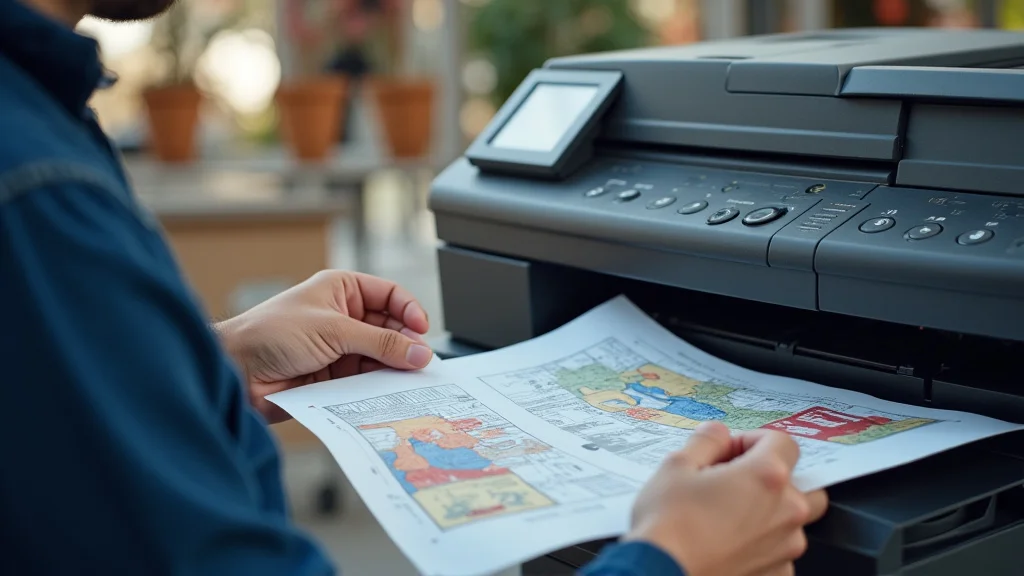
Ever tried to print a picture only to find a plain white background ruining the aesthetic? Frustrating, right? Or maybe you’ve needed to create a professional-looking document but struggled with the visuals. This post explores the ins and outs of printing background techniques, empowering you to create visually appealing documents and images. You’ll learn how to add compelling backgrounds, ensuring your creations stand out. By the end, you’ll know exactly how to control the visuals of your printing background, significantly improving the look and feel of your work and boosting your creative skills. You’ll also learn valuable tips and tricks to solve common printing issues, saving time and frustration.
Key Takeaways
- Learn various methods for adding backgrounds to your printed materials.
- Discover how to choose the right background for different projects.
- Understand the technical aspects of background printing.
- Explore different software and tools for creating print-ready backgrounds.
- Gain insight into troubleshooting common printing problems related to backgrounds.
- Improve the visual impact of your projects by mastering background techniques.
Understanding Background Printing
The concept of adding a background to your printed work is more than just making things look pretty; it’s about conveying a message, setting a mood, and adding depth to your visual communication. Whether you are creating a simple flyer, a complex brochure, or a stunning photograph, the background plays a vital role in determining how your audience perceives it. A well-chosen background can draw attention to the main content, create a sense of harmony, and even subtly influence the viewer’s emotions. A poorly chosen background, on the other hand, can distract from your message, clutter the visual space, and give your work an amateurish appearance. Selecting the right background for your specific needs will significantly improve the final outcome of your printing project.
Types of Backgrounds
When you start to explore printing background choices, it quickly becomes clear that there’s a huge variety available. These backgrounds can range from simple solid colors and gradients to complex patterns, textures, and even photographs. Your choice depends on the project’s purpose and the overall style you want to achieve. Each background type has specific uses and creates unique effects. Understanding these types will help you select the ideal background that compliments your subject matter.
- Solid Color: This is the simplest option, involving a single color that covers the entire background. It’s often used for its clean and professional look, offering a great visual foundation for text and images. Solid backgrounds are suitable for documents where the focus is on clarity and readability, such as reports, resumes, and official correspondence.
- Gradient: A gradient background features a smooth transition from one color to another. It adds a sense of depth and visual interest without overwhelming the content. Gradients are suitable for creating a modern and eye-catching design, often used in flyers, posters, and website backgrounds.
- Pattern: Patterned backgrounds include repeating designs, such as geometric shapes, textures, or custom graphics. They add a level of complexity and visual texture to the design. Patterns are often used to create a more engaging and artistic effect, suitable for brochures, invitations, and promotional materials.
- Texture: These simulate the appearance of physical textures, such as wood, paper, or fabric. They add a tactile element to the design, enhancing the visual appeal. Texture backgrounds create a sense of realism and depth, frequently employed in designs where a touch of warmth or a sense of luxury is desired.
- Image/Photograph: Using images or photographs as backgrounds can create visually compelling and informative designs. They can be full-bleed or cropped to fit. This approach is highly effective for visual storytelling, allowing you to create emotional connections with the viewer.
Solid color backgrounds are easy to implement in most software, requiring just a few clicks to select and apply the desired color. The choice of color is important; consider using colors that complement the main content and maintain brand consistency. For instance, using a company’s brand color as a background can reinforce brand identity.
Gradients can be radial, linear, or even more complex. Using them can add a modern feel to your visuals. When selecting a gradient, consider the contrast between the colors and ensure they are visually pleasing. It’s also important that the transition doesn’t interfere with the readability of any text or other elements placed on top. Experiment with various gradient types and color combinations to achieve the desired effect.
Patterns can range from subtle to bold, depending on the chosen design. Always consider the scale and complexity of the pattern. Too many details can distract the viewer, while a simple pattern provides a more subtle enhancement. Ensure that the pattern does not detract from the main content. This type of background can quickly turn a dull page into something special and personalized.
Texture backgrounds can be very effective in conveying a specific mood. For instance, a paper texture can give a vintage feel, while a wooden texture might suggest a rustic aesthetic. Textures are useful when creating a specific thematic design. Select textures that match the overall style and theme of your project. Adjust the opacity to ensure text remains readable.
Selecting the right image is very important for this technique. The chosen image needs to be of high quality and relevant to the content, complementing and enhancing the message. Consider factors such as resolution, contrast, and color balance to create a suitable background. Properly place the image to ensure the subject is clear and not overshadowed by the background. This technique works best when used sparingly and with a keen eye for design.
Technical Aspects of Background Printing
Adding a printing background is not just about aesthetics; technical aspects ensure the result looks professional and functions as intended. Resolution, color mode, and file format significantly influence the final printed output. Understanding these technical components will help you avoid common issues such as pixelation, color mismatches, and compatibility problems. Proper preparation is essential to achieve high-quality results.
- Resolution: Resolution refers to the level of detail in an image, typically measured in dots per inch (DPI) or pixels per inch (PPI). A higher resolution means more detail, resulting in a clearer and sharper print. For print materials, a resolution of at least 300 DPI is generally recommended to ensure the quality of the background.
- Color Mode: Color mode defines how colors are represented. The two most common color modes for printing are RGB (Red, Green, Blue) and CMYK (Cyan, Magenta, Yellow, Black). RGB is typically used for digital displays, while CMYK is standard for print. Converting an RGB image to CMYK may alter the colors slightly, as CMYK has a more limited color range.
- File Format: The file format determines how the image data is stored. Common file formats for printing include PDF, TIFF, and JPEG. PDF (Portable Document Format) is the most versatile because it preserves the layout, fonts, and images. TIFF (Tagged Image File Format) is suitable for high-quality images with complex detail. JPEG (Joint Photographic Experts Group) is more compact and used for photographs.
When preparing a background, always work with images that meet or exceed the required resolution. Resizing a low-resolution image to a higher DPI typically won’t improve its quality; it will simply stretch the existing pixels, making the image appear blurry or pixelated. To achieve the best results, use high-resolution images or vector graphics that can scale without losing quality.
Before printing, it is essential to convert images to the CMYK color mode to accurately match the colors in the final print. This can be done in graphic design software like Adobe Photoshop or GIMP. If you are unsure, consult your printing provider to check the preferred color mode for the specific printing equipment they use. Always make a test print to ensure the colors are accurate and as expected.
Choose the file format that best suits your project’s needs. For complex documents, PDF is generally the best choice to ensure the layout remains consistent. For high-quality images, TIFF is often preferred for its lossless compression capabilities. JPEG is a good choice for photographs when file size is a concern, but be mindful of compression artifacts that may appear. Always save your files with the proper settings to optimize them for printing.
Software and Tools for Background Design
Creating and managing your printing background involves using the right software and tools. A wide array of programs are available, ranging from free and basic options to professional-grade software. These tools provide the means to design, manipulate, and prepare your backgrounds for printing, giving you control over every detail. Selecting the right tools can make the design process much more efficient and produce better results. Familiarize yourself with these tools to make the most of your printing projects.
Design Software
Design software provides the core functionality for creating and editing backgrounds. These programs offer various features, including image editing, vector graphics, and layout capabilities, allowing users to design custom backgrounds or modify existing ones. The choice of software depends on your needs, experience level, and budget. Knowing the key features and capabilities of each program helps you make informed decisions.
- Adobe Photoshop: This is an industry-standard image editing software, popular for its robust features and extensive capabilities. Photoshop is well-suited for editing photographs and creating complex image-based backgrounds. It offers comprehensive tools for color correction, retouching, and special effects.
- Adobe Illustrator: Adobe Illustrator is a vector graphics editor, ideal for creating scalable graphics and illustrations. It’s perfect for designing vector-based backgrounds, which can be resized without losing quality. Illustrator is especially useful for creating logos, patterns, and illustrations.
- GIMP: GIMP (GNU Image Manipulation Program) is a free and open-source image editor. It provides many features similar to Photoshop, making it a good alternative for those who don’t want to purchase commercial software. GIMP is suitable for both image editing and basic design tasks.
- Canva: Canva is a user-friendly, web-based design tool. It is suited for users of all skill levels, offering a drag-and-drop interface and a wide range of templates. Canva makes it easy to create backgrounds using pre-made designs or by designing your own from scratch.
Photoshop is excellent for raster image editing, offering a wide range of tools for manipulating pixels. While more expensive than some alternatives, Photoshop provides advanced features. This includes support for layers, masks, and filters. Photoshop is best suited for image-heavy designs. Its sophisticated editing capabilities make it a perfect choice for detailed backgrounds.
Vector graphics are resolution-independent, which means the images remain sharp and clear, regardless of the size. Illustrator’s tools allow precise control over shapes, paths, and colors, allowing for complex designs. This is perfect when you need to create backgrounds with patterns or when scalability is important. It is used often for creating complex, clean graphics.
GIMP is a powerful and versatile tool, offering many of the features found in paid software. The program is capable of handling complex projects. GIMP is actively developed, and new features and improvements are added regularly. The software works well for creating and modifying backgrounds, making it a great choice for various projects.
Canva is a perfect choice for those who are new to graphic design or need to quickly create professional-looking designs. Canva’s templates and pre-designed elements make it easy to generate backgrounds. The web-based interface makes the design accessible from any device. It’s a great choice for quick projects and social media graphics.
Background Preparation Tools
Once your background is designed, certain tools help prepare it for printing. These tools optimize images, convert files, and manage the final output settings. The preparation process helps ensure your background prints correctly and meets the specifications of the printer or printing service you use. Proper use of these tools is critical to the final print quality.
- PDF Editors: PDF editors, like Adobe Acrobat, enable you to modify PDF files, which are commonly used for printing. These tools can combine PDFs, add elements, and make adjustments to the background and layout.
- Color Profile Converters: Software like Adobe Photoshop and GIMP allows you to manage and convert color profiles, enabling accurate color reproduction. This ensures that the colors in your background are as close as possible to the colors that appear on your screen.
- File Converters: File converters are handy when you have images in various formats. These tools change image formats, such as converting JPG or PNG files to PDF or TIFF. Many online tools offer easy, free file conversion.
PDF editors are essential for preparing and finalizing your files before printing. These tools can ensure the background correctly fits the page size, adjust transparency settings, and fix any layout issues. They offer features like adding bleed, setting margins, and more. This is extremely useful for complex designs, and you can edit them directly before sending them to the printer.
Correct color management is critical. Convert your files to the CMYK color mode to accurately reproduce colors when printed. Many of these tools offer features for managing and converting color profiles. Correctly setting up these profiles ensures accurate results when printing your background.
These tools can convert different file formats to make sure your background is in a compatible format for printing. A good file conversion tool is an essential tool. These tools support a wide variety of formats and can be used to convert multiple files at once. Choosing the correct tool will simplify the process of preparing your background for print.
Troubleshooting Printing Background Issues
Even with careful preparation, issues can come up when you print your background. Common problems include incorrect color reproduction, poor image quality, and alignment errors. Understanding these issues and how to troubleshoot them will help you get the best results. Always test your background before printing a large quantity.
Common Problems
When creating print backgrounds, various issues can occur, impacting print quality. From color mismatches to alignment problems, knowing how to identify and resolve these issues is essential. Being aware of the problems can save you time and money and prevent frustration.
- Color Mismatches: One of the most common issues is when the colors in your print do not match what you see on your screen. This is frequently due to differences between RGB and CMYK color modes or improper color profiles.
- Low Image Quality: Low image quality can make your background appear blurry, pixelated, or lacking detail. This can result from using low-resolution images or improper file format settings.
- Alignment Problems: Alignment errors occur when the background is not positioned correctly on the page, resulting in incorrect margins or misaligned images. This is frequently the result of incorrect settings in your software or the printing equipment.
- Bleed Issues: Bleed problems include white edges or a cut-off background. These issues come from not adding bleed to the design or an incorrect print setup.
Always convert images to the CMYK color mode before printing and ensure that your color profiles are set up correctly. Use color management tools in your software to simulate how colors will appear when printed. If you use a printing service, ask for a color proof to confirm the accuracy of your colors.
Make sure you use high-resolution images, with a resolution of at least 300 DPI. Also, be certain the images are the appropriate file format, like TIFF, when preserving fine detail. Preview the design at 100% to identify any potential quality issues before printing the final product.
Check the settings for margins, bleed, and page size to ensure they align with the design’s requirements. Use alignment tools within your design software to accurately position the elements. Print a test page to check the alignment before printing the final product. Adjust as needed to ensure perfect alignment.
Always include bleed, an extra area of image or color that extends beyond the trim edge, for designs that extend to the edge of the paper. Set up the bleed settings in your design software. When sending the file for printing, make sure the printing settings include the bleed area. This makes sure that there is no white edge or incomplete background on the printed pieces.
Troubleshooting Tips
To overcome printing background issues, several strategies are used. These solutions allow you to diagnose and correct common issues effectively. These tips can help you avoid problems and guarantee high-quality results for your printing project.
- Check File Settings: Review the file format, resolution, and color mode to ensure they are correct for printing.
- Test Print: Before running a large batch, always create a test print.
- Consult Printing Service: Communicate with your printing service provider for advice and assistance.
Double-check the file’s resolution. Verify it meets the required standards (300 DPI) for print. Make sure the color mode is CMYK, and confirm your file is in a compatible format, such as PDF or TIFF. Verify these settings to prevent issues related to quality and color accuracy.
Test prints will help you assess color accuracy, alignment, and overall image quality. It’s useful to make a test print. Look over the test print and make the necessary corrections before printing a final run. Testing ensures you resolve any problems before printing your whole project.
Ask about their preferred file formats, color profiles, and any other specific requirements they may have. They have the knowledge and experience to help you resolve any issues and ensure the best printing outcome. Clear communication can prevent many of the common problems.
Common Myths Debunked
Myth 1: Higher DPI Always Equals Better Quality
While a high DPI is critical, it isn’t always the only factor to consider. Although a higher DPI provides more detail, the quality also depends on the image’s original resolution, the image content, and the quality of the printing equipment. Sometimes, increasing the DPI doesn’t actually improve the quality. For printing, a resolution of 300 DPI is usually sufficient.
Myth 2: Any Software Can Do Professional Printing
Not all design software is suitable for professional printing. Programs that lack color management or bleed options may not produce high-quality results. Professional printing requires specific software with features designed for print output, ensuring accurate colors and proper layouts. Using software that fits the needs of the job is key.
Myth 3: Color on the Screen Will Match the Print
The colors you see on your screen won’t necessarily match the final print. The way the screen displays colors is different than a printer. RGB color mode is used on screens, while printers use CMYK. Color discrepancies can occur unless you use a color profile and are in the correct color mode. Use color management to minimize this issue.
Myth 4: Bleed Is Only Needed for Images
Bleed is essential for any background element that extends to the edge of the print, not just images. Bleed is an extra area of color or image extending beyond the trim edge. This ensures that no unwanted white edges appear during the trimming process. Using bleed is important for background consistency.
Myth 5: All Printers Produce the Same Results
Each printer is different, with variations in quality and color reproduction. The type of printer, ink quality, and other factors affect the final output. Always test prints on the intended printer. Consider the printer’s specifications when preparing the design. By understanding these differences, you can better select the best printer for your needs.
Frequently Asked Questions
Question: What is bleed, and why is it important?
Answer: Bleed is an extra area beyond the trim edge of a print. It is essential to ensure that colors or images extend to the edge without white edges appearing after cutting.
Question: What’s the best file format for printing?
Answer: PDF is generally the best for printing because it preserves the layout and formatting. Ensure the PDF is created with high-resolution images and correct color profiles.
Question: How do I ensure my colors look correct when printed?
Answer: Convert your images to CMYK color mode and use color profiles that match your printer’s specifications. Also, consider a color proof to confirm the accuracy.
Question: What resolution should I use for printing backgrounds?
Answer: Aim for a minimum of 300 DPI for high-quality printing. Always check the printer’s requirements, as specific needs may differ.
Question: How can I fix blurry backgrounds in my prints?
Answer: Use high-resolution images, and ensure your file is saved with the correct settings and file format. If using a vector, ensure it is scalable and not rasterized.
Final Thoughts
Mastering the art of printing backgrounds can elevate your creative projects from ordinary to extraordinary. Throughout this exploration, you’ve learned about the various background types, the technical components of printing, the best software and tools to use, and how to troubleshoot common issues. From solid colors and gradients to intricate patterns and textures, you’re now equipped to create visually stunning backgrounds that capture attention and communicate your message effectively. Remember that selecting the right background, taking the time to prepare the artwork correctly, and understanding how to deal with problems are all essential. Embrace this knowledge and incorporate these techniques in all of your print-based work.