Remember that time you printed a long document and ended up with a massive stack of paper? It’s a common frustration! Thankfully, there’s a neat trick to save paper and make your documents more compact: printing 2 pages on one sheet. This simple technique can declutter your workspace, reduce paper usage, and make your documents easier to manage. This guide will help you learn the ins and outs of this useful function. By the end, you’ll be able to optimize your printing. You’ll also learn the benefits of this feature.
Key Takeaways
- Learn how to print multiple pages on a single sheet of paper using various software.
- Understand the benefits of reducing paper waste and saving resources.
- Discover how to adjust the layout and orientation for optimal readability.
- Explore different printing options for various document types.
- Find solutions for common issues when printing 2 pages on one sheet.
- Become a printing pro by mastering these efficient techniques.
Efficient Printing and Paper Conservation
Paper waste is a significant problem, contributing to deforestation and environmental damage. Traditional printing methods often lead to excessive paper use, as documents are printed one page per sheet, resulting in large stacks of paper and wasted resources. Fortunately, there are ways to address this issue. Printing 2 pages on one sheet of paper is one solution that can dramatically reduce paper consumption.
This method not only minimizes environmental impact but also streamlines document management. By printing multiple pages on a single sheet, you can cut down on the physical size of your documents, making them easier to store, handle, and transport. This is especially helpful when dealing with lengthy reports, presentations, or study materials. In addition to reducing paper consumption, this method can also lower printing costs, as you use fewer sheets of paper and less ink.
Saving Paper and Resources
One of the most immediate benefits of printing multiple pages on one sheet is the reduction in paper consumption. Consider a lengthy document, such as a 50-page report. If printed traditionally, it requires 50 sheets of paper. However, by printing two pages per sheet, this document can be printed on only 25 sheets, effectively halving the amount of paper used. This translates to fewer trees being cut down, less energy being consumed in paper production, and reduced waste in landfills.
Saving resources also extends beyond paper. Less paper usage means less ink and toner are used, lowering printing costs. Additionally, by reducing the physical size of documents, you decrease the space needed for storage, whether in physical filing cabinets or digital storage spaces. The environmental implications are significant, as they can contribute to overall sustainability efforts.
- Reducing paper consumption directly conserves forests.
- Less ink and toner use results in reduced costs.
- Smaller documents take up less storage space.
- Less paper use also translates to less waste in landfills.
Improving Document Organization
Beyond the environmental benefits, printing multiple pages on one sheet improves document organization. Imagine a collection of notes or a lengthy manuscript. By condensing the material, you create a more compact and manageable format. This is beneficial for quick reference, as the essential information is readily accessible without flipping through numerous pages.
This method also makes documents easier to bind or staple. A smaller page count simplifies the process of creating bound reports, booklets, or study guides. Documents printed in this format are also better for presentations and meetings. They are less cumbersome to carry, and you can quickly find the required information.
- Compact documents are easier to store and manage.
- Smaller printouts can be bound or stapled with ease.
- Quick access to information improves reference efficiency.
- Better presentation and meeting management.
How to Print Two Pages on One Sheet
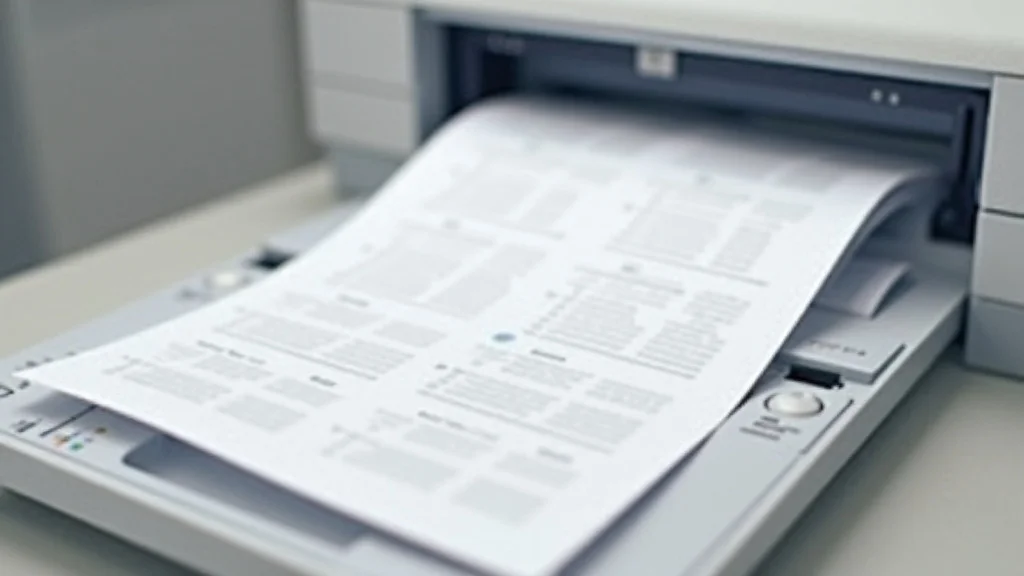
The process of printing 2 pages on one sheet is straightforward, and the steps can be followed in most software applications and operating systems. These steps can be followed in any modern software. The approach involves adjusting the printing settings to specify how many pages should be printed on each physical sheet. This is usually done through the print dialog box, accessible from the ‘File’ menu.
The print dialog box is a central hub. It offers a range of options. Users can choose the printer, the number of copies, and the layout of the document. The key setting to focus on is often labeled as “Pages per sheet” or “Multiple pages per sheet.” This function allows you to select the desired number of pages. You can print two, four, or even more pages on a single sheet.
Step-by-Step Instructions
The instructions vary slightly depending on the operating system and the application being used, but the core steps remain the same. The process typically begins by opening the document you wish to print. Then, you select the ‘Print’ option, which is usually found in the ‘File’ menu.
Next, in the print dialog box, find the ‘Pages per sheet’ or ‘Multiple pages per sheet’ setting. This option is sometimes located under a ‘Layout’ or ‘Page Handling’ section. Select the option that corresponds to your desired layout (e.g., “2 pages per sheet”). Adjust the other settings as needed, such as paper size, orientation, and margins. Finally, click the ‘Print’ button to start the process. The printer will then print your document, consolidating the pages onto fewer sheets.
- Open the document you wish to print.
- Go to ‘File’ and select ‘Print’.
- In the print dialog, look for “Pages per sheet” or a similar option.
- Select “2 pages per sheet” from the options.
- Adjust other settings (paper size, orientation, margins) as needed.
- Click “Print” to start the process.
Software-Specific Instructions
Different software programs, such as Microsoft Word, Google Docs, and Adobe Acrobat, may have slight variations in how you access and configure the ‘print multiple pages on one sheet’ setting. These variations can impact your document’s appearance. For example, in Microsoft Word, you usually find the ‘Pages per sheet’ option in the ‘Layout’ section of the print settings. You can select ‘2 pages per sheet’ from a drop-down menu.
In Google Docs, you can often find the option in the ‘More settings’ section of the print dialog. Here, you can specify the number of pages per sheet, along with other adjustments. Adobe Acrobat, on the other hand, allows you to change the options when viewing the PDF file. You can adjust the print settings to print multiple pages on one sheet.
- Microsoft Word: Find “Pages per sheet” in the Layout section.
- Google Docs: Locate the setting in “More settings” in the print dialog.
- Adobe Acrobat: Configure the print settings when viewing the PDF file.
Optimizing Layout and Readability
When printing multiple pages on one sheet, it’s essential to consider the layout and readability of your document. The goal is to make the condensed version as easy to read as the original. This means that the formatting, font size, and layout adjustments are important considerations. Properly configured elements improve the reading experience and the overall usability of the printed material.
Adjusting the font size is an essential step. Since each page is reduced in size, the text will appear smaller. Increasing the font size can help to maintain readability. Ensure the text remains clear and easy to read. Another factor to consider is the document’s margins and the overall layout. Adjusting these settings can improve visual flow. This ensures that the text does not appear cramped or difficult to read. You can also experiment with different print orientations (portrait or landscape) to see which best suits your document.
Adjusting Font Size and Style
Font size plays a crucial role in maintaining readability when printing 2 pages on one sheet. When you reduce the page size, the text shrinks, potentially making it hard to read. A slight increase in font size can combat this. Generally, a font size between 10 and 12 points provides a good balance. It maintains readability without taking up too much space.
Also, selecting a readable font style improves clarity. Fonts such as Arial or Times New Roman are generally readable. Avoid ornate or excessively stylized fonts. These may be hard to read at smaller sizes. The visual weight and the x-height of the font can affect legibility. Make sure the font style you choose is suitable for the reduced size. Consider bolding headings or other key information to make it stand out. Using bold text emphasizes important points. This improves readability.
- Increase the font size to compensate for page reduction.
- Choose readable fonts like Arial or Times New Roman.
- Use bold text for headings or emphasis.
- Consider the visual weight and x-height of the font.
Orientation and Margins
Selecting the right orientation and adjusting margins can also enhance the layout and readability of your documents. The right orientation depends on the document and the content. Portrait orientation, where the page is taller than it is wide, typically works well for documents with vertical content, such as reports or letters. Landscape orientation, where the page is wider than it is tall, is ideal for content with a wider layout, such as tables or charts.
Adjusting the margins is vital to ensure that text doesn’t get cut off. If the margins are too narrow, the text will appear cramped, while overly wide margins waste space. The standard margins of 1 inch on all sides typically provide a balanced layout. Experiment with slightly narrower margins. You can adjust the margins in the print settings or directly in the document settings. Ensure there’s enough space around the text for ease of reading.
- Choose the correct orientation (portrait or landscape) for the content.
- Adjust margins to ensure text doesn’t get cut off or appear cramped.
- Test different margin widths to find the optimal layout.
- Consider the document’s content when setting the margins.
Addressing Common Printing Issues
While the process is generally straightforward, users can encounter issues when printing multiple pages on one sheet. Some common problems include poor print quality, alignment errors, and formatting inconsistencies. These challenges can be frustrating, but solutions are usually available. Knowing these solutions will help you troubleshoot issues.
Print quality issues can occur if the printer settings are incorrect. Ensure the printer resolution is set appropriately for your document type. You may also encounter problems related to paper handling. Always use appropriate paper quality and make sure that the paper is loaded correctly. Alignment issues can arise if the printer is not calibrated or if the print settings are not properly configured. Check the printer’s alignment settings and adjust your print settings.
Print Quality and Resolution
Print quality and resolution are directly related to the clarity of the output. When printing 2 pages on one sheet, the printed text and images are reduced in size. This can make poor print quality more noticeable. To ensure the best results, start by selecting the appropriate print resolution in your printer settings.
Higher resolutions (measured in dots per inch or DPI) provide sharper, more detailed prints. If your document contains images or detailed text, setting the resolution to at least 300 DPI will improve clarity. Ensure your printer’s ink or toner levels are adequate. Low ink levels can lead to faded prints. Choose the correct paper type. Different paper types can affect print quality. Using high-quality paper will improve clarity and longevity.
- Select a suitable print resolution (e.g., 300 DPI or higher).
- Ensure adequate ink or toner levels.
- Choose the right paper type for your document.
- Check and maintain printer settings regularly.
Alignment and Formatting Errors
Alignment and formatting errors can occur when the print settings are not properly configured. These errors can make the document appear disorganized. Such problems include misaligned text, incorrect spacing, and unexpected page breaks. Check the printer’s alignment settings. Some printers need periodic calibration to ensure accurate alignment. Adjusting the margins and page sizes can also fix issues.
If you encounter spacing problems, review the paragraph settings in your document. These settings affect the text’s alignment. Sometimes the document’s formatting settings are not compatible with the printing specifications. You may also encounter page break issues. Ensure that the page breaks are placed correctly within the document. Incorrect page breaks can result in pages being cut off or text being split awkwardly. Review your document. Make sure the formatting is suitable for printing 2 pages on one sheet.
- Check and calibrate the printer’s alignment settings.
- Adjust margins and page sizes to ensure correct layout.
- Review paragraph settings for proper spacing and alignment.
- Verify that page breaks are placed appropriately.
When to Use Two Pages on One Sheet
While printing 2 pages on one sheet is a valuable tool, it’s not ideal for every document. The best use cases involve situations where conserving paper and space is paramount. There are instances where the benefits of reducing paper waste outweigh the potential challenges related to readability.
This method is well-suited for reports, presentations, and study materials, especially when the content is text-heavy and less reliant on detailed visuals. Documents that benefit from being compact, such as handouts, meeting agendas, and reference guides, are also good candidates. Keep in mind that documents with numerous graphics or complex layouts may not be suitable. This is because the visual elements might appear too small or distorted.
Suitable Document Types
Certain document types are especially well-suited for printing two pages on one sheet. Reports and presentations often contain large amounts of text. Condensing these documents can reduce paper usage without sacrificing clarity. Study materials, such as notes, summaries, and lecture handouts, also benefit. They reduce the amount of paper needed.
Another area where this technique excels is for documents where portability is essential. Smaller documents are easy to carry and manage. This makes them ideal for travel or use in the classroom. Handouts and reference guides are also perfect candidates. If you’re creating handouts for a meeting or providing a quick reference guide, condensing the content saves paper and improves usability.
- Reports and presentations for efficient paper usage.
- Study materials for reduced paper consumption.
- Documents where portability is important.
- Handouts and reference guides for easy access.
Documents to Avoid
Not all documents are good candidates for this printing method. Documents with extensive visual elements might not translate well to this format. If a document includes many detailed images, charts, or graphs, reducing the page size might make the visuals too small to see. This makes this method unsuitable for documents where the visuals are essential.
Another group of documents that should be handled with care are those with critical formatting requirements. If the precise layout and formatting are vital, compressing the pages can introduce problems. The text might become cramped, and the overall appearance might be compromised. Documents with a low text-to-image ratio might not be appropriate. If the content is mostly images or graphics, this approach won’t offer much benefit.
- Documents with numerous detailed visuals or images.
- Documents requiring precise formatting and layout.
- Documents with a low text-to-image ratio.
- Documents where readability is critical.
Real-Life Examples and Scenarios
The practical application of printing two pages on one sheet can be seen in various real-life scenarios. These examples demonstrate the value of using this technique in different contexts, from personal use to professional settings. Seeing how others have used it can help you get started.
In a classroom setting, a teacher might print lecture notes or handouts using this method, saving on paper and simplifying distribution. In a business environment, it can be used for internal reports. Condensing reports can reduce printing and storage costs. Even at home, you might use it for printing recipes. It can condense them into a format that is easier to manage. These examples showcase the versatility of this printing method.
- A student printing study notes to consolidate their materials and reduce the amount of paper they need to carry to class. The student, instead of printing single pages, uses their printer settings to print two pages of notes on each sheet, organizing their notes more efficiently and using less paper.
- A small business owner prints financial reports for a meeting. Using the ‘2 pages on one sheet’ option helps them save on paper and organize the reports more efficiently. This cuts down the cost of materials and makes the documents easier to handle and store.
- A home cook compiles a collection of recipes to print. Using the settings to print two recipes on each sheet, they can quickly print out and organize their recipes in a much more compact, easy-to-use format, reducing clutter in the kitchen.
Common Myths Debunked
There are some misconceptions related to printing 2 pages on one sheet. People often have questions or concerns about the practicality or effectiveness of this printing method. Debunking these common myths clarifies the benefits. It also helps to eliminate any reservations users may have about using this printing technique.
Myth 1: It’s Difficult to Read Documents Printed This Way
There is a concern that documents are hard to read. However, with the right formatting and adjustments, this is not true. In reality, the readability of a document depends on several factors, including font size, style, and layout. When setting up a document for printing two pages on one sheet, the user can adjust the font size, typically to a larger size. You can also review the margins and other settings. These adjustments make the text clear and easy to read.
You can also use larger print sizes for headings. Make sure you don’t use excessively ornate fonts that may be harder to see. Consider the page layout, orientation, and white space to help improve visual flow. When you put in place the correct adjustments, readability does not have to be an issue. You can easily read such documents.
Myth 2: It Only Works for Simple Text Documents
It is often thought that printing multiple pages on one sheet only works for simple text-based documents. While it’s true that the technique is most effective for text-heavy documents, it can also be used for documents with images or graphics. You may need to take some steps for documents that contain visual elements. For example, you should consider increasing the resolution of images to ensure the quality remains high.
You may also consider the visual elements’ location within the document. It might be necessary to adjust the layout and scaling of the images to accommodate them. Depending on the size of the images, it can be a good idea to experiment with the page orientation. For example, if you include charts or tables, a landscape layout will be a better option than a portrait layout. With some layout adjustments, this method can also work for documents with pictures or graphics.
Myth 3: It’s Only Good for Saving Paper
The common idea is that printing multiple pages on one sheet is only about saving paper. However, there are also other practical benefits. Printing in this way can simplify document management and improve organization. By condensing a document, you reduce the physical size of it. This makes it easier to handle, store, and transport. This is especially useful for voluminous reports, presentations, and study materials.
It can also lower costs. Printing fewer sheets translates to savings on paper and ink. These are ongoing costs. This also means you need less storage space. This can be important if you are trying to cut down on physical storage space. The method can also be used to improve document preparation. You can use it to create quick reference guides.
Myth 4: It’s Complicated and Time-Consuming to Set Up
A frequent myth is that printing multiple pages on one sheet is a complex process. In reality, the steps are easy to follow. In most software applications, you can usually find the print settings within the ‘File’ menu. There will also be a dialog box that appears. Look for options labeled “Pages per sheet” or “Multiple pages per sheet.” The setting enables the user to select the desired number of pages to print on each sheet. Then, you can make adjustments to the font size and margins.
The instructions vary slightly depending on the operating system and software. However, the core steps remain the same. The process typically begins by opening the document you wish to print. Then, you select the ‘Print’ option. In the print dialog box, find the ‘Pages per sheet’ or ‘Multiple pages per sheet’ setting. This option is sometimes located under a ‘Layout’ or ‘Page Handling’ section. Adjust the other settings as needed, such as paper size, orientation, and margins. Click the ‘Print’ button to start the process. Most modern software makes it a simple process.
Frequently Asked Questions
Question: How do I access the “Pages per sheet” setting?
Answer: The “Pages per sheet” setting is typically found in the print dialog box, accessible through the “File” menu and then “Print”. Look for it in the “Layout” or “Page Handling” section of the print settings.
Question: Can I adjust the font size when printing multiple pages on one sheet?
Answer: Yes, you can adjust the font size to maintain readability. Increasing the font size in your document before printing helps compensate for the reduction in page size.
Question: What if my document has images; will they be clear when printing 2 pages on one sheet?
Answer: While images might appear smaller, you can improve clarity by ensuring that the original images have a high resolution. You can also experiment with the layout and scaling options in your printing software.
Question: Does this method work with all printers?
Answer: Yes, this method is widely compatible with most printers. However, the specific settings might vary depending on your printer and operating system.
Question: Is this method only for saving paper?
Answer: While saving paper is a primary benefit, this method also simplifies document management, improves organization, and reduces storage space.
Final Thoughts
Mastering the ability to print two pages on one sheet is a straightforward yet impactful way to improve your printing habits. This technique helps you save paper, reduce waste, and streamline your document management. By following the simple steps outlined in this guide, you can easily configure this function in your printing software, making your documents more compact and efficient.
Remember to consider the layout and readability of your documents. Be ready to adjust the font size, margins, and orientation to optimize the output. When you employ this practice, you take a step towards a more sustainable and organized approach. You can take control of your printing practices, save resources, and create more manageable documents. Give it a try, and you’ll find it’s a simple yet powerful change that makes a big difference.