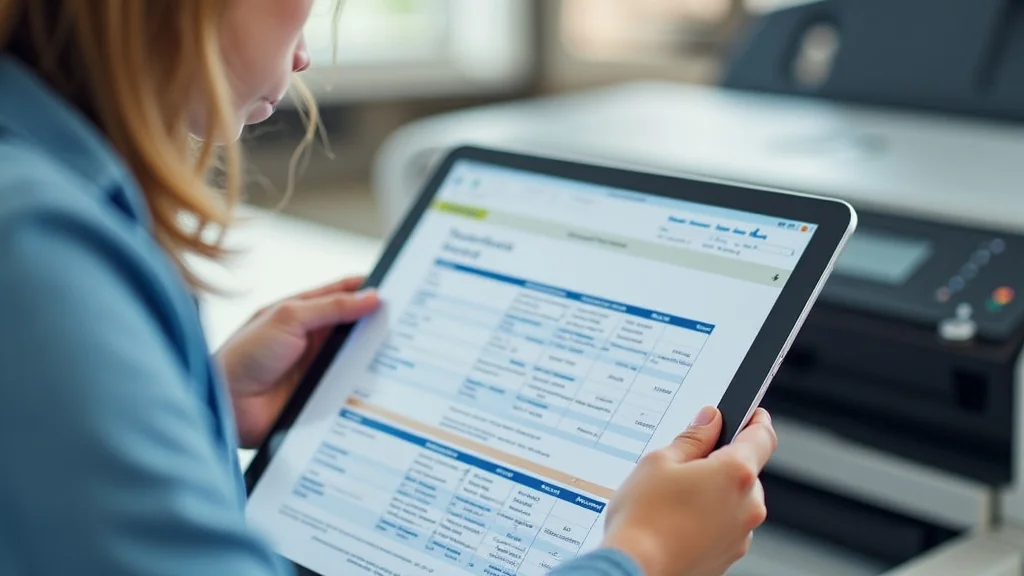
Ever get frustrated when your computer seems to freeze while you’re trying to print? You click ‘print,’ and. nothing. Then, slowly, the document magically appears at the printer. That’s the printing spooler at work! This often-overlooked software component is a workhorse, managing print jobs so you don’t have to wait around. In this article, you’ll gain a thorough grasp of how the printing spooler operates, its role, and how to troubleshoot common issues, improving your digital interactions. This post will give you the details, helping to reduce printing headaches and improve your printing experience.
Key Takeaways
- The printing spooler acts as a buffer between your computer and the printer, preventing delays.
- It manages the queue of print jobs, ensuring they are processed in order.
- Understanding the spooler helps troubleshoot print errors and improve printer performance.
- You can clear the print queue to resolve stuck print jobs.
- The spooler handles various printer types, including network printers and local printers.
- Managing the printing spooler can often resolve printing difficulties.
The Printing Spooler: A Digital Print Manager
The core function of the printing spooler is to serve as an intermediary, enabling computers to communicate with printers efficiently. It handles print jobs, which are requests from your computer to print a document or image. Instead of sending these instructions directly to the printer, which would make you wait while the printer works, the spooler receives them. Think of it as a helpful assistant that takes your print requests and puts them in a line.
This queuing system prevents your computer from being bogged down by the printing process. You can continue working on other tasks while the spooler manages the print jobs. The spooler organizes and prepares the data for the printer. It ensures the printer receives the correct instructions and formatting to produce the desired output. Without a printing spooler, every print job would halt your computer’s operations, leading to significant delays and frustration. Consider it the unsung hero of your printing setup, quietly ensuring your documents appear as needed.
How the Spooler Receives Print Jobs
When you click ‘print’ in an application, the program doesn’t directly connect to the printer. Instead, it sends the print data, which includes the document’s content, formatting, and printer settings, to the printing spooler. The spooler then stores this data on your computer’s hard drive or in its memory. This storage is often referred to as the print queue. The print queue acts like a holding area where print jobs wait to be processed.
Once the print data is safely in the spooler, your application is free to continue functioning. The spooler is responsible for sending the job to the printer. The printer, in turn, interprets the data and produces the physical printout. This process is seamless and mostly happens without your awareness. The spooler’s ability to handle multiple print jobs concurrently is important for productivity.
- Step 1: The Print Command: You initiate a print job from an application (e.g., Word, web browser).
- Step 2: Data Transfer: The application sends the print job data to the printing spooler. This data includes everything needed to print, such as the document content, layout, and any settings selected (like paper size or color).
- Step 3: Queuing: The spooler stores the print job data in a print queue, a special area on the computer’s hard drive or in memory.
- Step 4: Job Preparation: The spooler prepares the job for the printer. This can include converting the data into a format the printer understands and adding any necessary control codes.
- Step 5: Printing: When the printer is ready, the spooler sends the prepared data to the printer, which then executes the print instructions.
The Role of Print Drivers
Print drivers are another key part of the printing process. A print driver is software that translates generic print commands from your computer into specific instructions that your printer understands. Different printers use different languages and formats. The print driver acts as the translator, ensuring that your computer can communicate with your printer regardless of its make or model. Without a proper print driver, the spooler wouldn’t be able to communicate effectively with the printer.
When the printing spooler receives print data, it works with the print driver to format the data appropriately for the particular printer. This formatting is important. It ensures that the document appears as intended, with the correct layout, fonts, and images. The print driver manages all the intricacies of the printer, from how it interprets color to how it handles paper size. This allows the spooler to manage the print jobs without being worried about the specifics of each printer.
- Driver Translation: Print drivers translate the universal print commands from your applications into specific commands that your printer can understand. This enables communication between your computer and the printer.
- Device-Specific Formatting: Print drivers handle the unique features and characteristics of each printer model. They make sure the print data is formatted so it looks perfect.
- Configuration Management: Print drivers often allow you to customize printer settings, like resolution, paper type, and color settings, directly from your computer.
- Compatibility: Drivers ensure compatibility between your operating system (Windows, macOS, etc.) and your printer, allowing you to use your printer with the right features.
Print Queue Management
The print queue is where print jobs are held before being sent to the printer. It’s essentially a list of all pending print requests. This queue is managed by the printing spooler. You can view, manage, and troubleshoot your print queue in the settings on your computer. Users can often see the status of each print job, like whether it’s waiting, printing, or has encountered an error. This visibility is helpful for resolving any printing difficulties.
Print queue management includes controlling the order of print jobs. You can reorder the jobs, cancel individual jobs, or clear the entire queue. Managing the print queue is helpful when problems arise. For example, if a job gets stuck, you can cancel it to prevent further delays. Clearing the queue is a common way to resolve printing issues. It can also help if the printer is experiencing errors or if you need to quickly remove a job you no longer need.
- Viewing the Queue: You can see the print queue to check on the status of your print jobs. This lets you monitor what is being printed and any potential problems.
- Job Prioritization: You can change the order of print jobs if you need to print something urgently. This lets you put important documents ahead of others.
- Canceling Jobs: If a print job is stalled or no longer needed, you can cancel it to prevent it from printing. This is helpful for freeing up the printer.
- Clearing the Queue: You can clear the entire queue to remove all pending print jobs. This is useful for clearing errors or starting fresh.
Common Printing Spooler Problems
The printing spooler, though dependable, sometimes encounters issues. These problems can range from minor hiccups to more serious errors that stop printing altogether. Recognizing common issues and understanding their potential causes is helpful for resolving printing difficulties promptly and efficiently. Knowing how to diagnose and address printing spooler problems can save time and reduce frustration.
Spooler issues frequently manifest as print jobs that get stuck in the queue, slow printing speeds, or error messages that appear during the printing process. These problems can stem from various sources. These include corrupt print drivers, insufficient disk space, or conflicts between different printer configurations. When these problems occur, troubleshooting steps are needed to identify and fix the underlying cause.
Print Jobs Stuck in the Queue
One of the most common issues is when print jobs become stuck in the queue. This is often the most visible symptom of a problem with the printing spooler. When print jobs are stuck, the printer doesn’t print, and the documents remain in a ‘waiting’ or ‘error’ state in the print queue. Several things can cause this, and identifying the root cause is crucial for fixing the problem.
A corrupted print job can block the queue, meaning an error in a single document can prevent the printing of everything else. Another common cause is a faulty printer driver, which may not communicate correctly with the printer. Also, network printing issues can cause jobs to get stuck, especially if the printer is offline or there are network interruptions. The solution often involves deleting the stalled jobs, updating the printer driver, or restarting the print spooler service.
- Corrupted Print Jobs: A damaged file in the queue can stop other jobs from printing.
- Faulty Printer Driver: An outdated or corrupted printer driver can prevent proper communication with the printer.
- Printer Offline or Unresponsive: The printer may be turned off, not connected to the network, or experiencing other hardware issues.
- Network Issues: Problems with the network connection to a shared printer may prevent print jobs from completing.
Slow Printing Speeds
Slow printing speeds are another common issue. Even when the printing spooler is working, printing can be sluggish. This slowness can be due to various factors, including the type of printer, the complexity of the document, and the printer’s settings. Slow printing can be frustrating. Identifying the factors that contribute to slow printing can allow you to take steps to speed up the process.
Documents with complex graphics, large images, or intricate formatting require more processing. This can lengthen the time it takes the spooler to send the print data to the printer. Additionally, the printer’s resolution settings can have a major effect on speed. Printing at a higher resolution results in better print quality but also slows down printing. The speed of your computer and the printer’s connection type (e.g., USB, Wi-Fi, Ethernet) can also affect printing speed. To improve printing speed, consider simplifying the document, adjusting the print settings, or upgrading your printer’s connection.
- Complex Documents: Large documents with many graphics or complex formatting can require more processing time.
- Printer Resolution: Printing at higher resolutions (e.g., higher DPI) increases print quality but also slows the process.
- Computer and Printer Processing: Both your computer’s and your printer’s processing power affects printing speeds.
- Connection Type: Wi-Fi connections can be slower than wired connections (e.g., Ethernet).
Error Messages and Troubleshooting
Error messages are usually generated by the operating system, the printer driver, or the printing spooler itself. These messages provide clues to what’s happening and guide the user to troubleshoot the issue. These can be related to problems with the printer, print drivers, or the connection to the printer. Reading and understanding these error messages is the first step in diagnosing and fixing the problem.
Error messages provide valuable information about what went wrong. For example, an error might indicate the printer is offline, the paper tray is empty, or there’s a problem with the print driver. Troubleshooting often involves basic steps like checking the printer’s power and connections, checking the paper supply, or updating the printer driver. More complicated situations might need more advanced troubleshooting, such as restarting the spooler service or consulting online support resources. Knowing what the error means makes it easier to find a solution.
- Printer Offline Errors: Indicate the printer is not connected or powered on.
- Driver Errors: Related to outdated or faulty printer drivers.
- Queue Errors: Problems in the print queue, such as corrupted print jobs or spooler service failures.
- Connectivity Errors: Issues with the printer’s network connection, such as problems with Wi-Fi or Ethernet.
Resolving Printing Spooler Problems
Printing problems can happen. It is helpful to know how to resolve them to keep your printing operations running smoothly. Knowing how to resolve these issues allows you to maintain productivity and prevent printing-related delays. These techniques encompass a range of steps, from simple restarts to more involved driver updates.
The first step is often to identify the problem and determine its cause. Once the cause is found, you can apply the relevant fix. Solutions vary. They may involve clearing the print queue, updating the printer driver, or restarting the spooler service. Troubleshooting these issues saves time and maintains your printing functionality. Addressing printing spooler issues can be straightforward with the right information and guidance.
Restarting the Printing Spooler Service
Restarting the printing spooler service is a common solution. It is often the first thing to try when experiencing print issues. This step resets the service and clears any temporary issues. This process stops and restarts the service. It can clear out glitches that may be causing problems. Restarting the spooler can often resolve issues without any more troubleshooting.
Restarting the spooler service clears the existing print queue and can resolve temporary errors or conflicts. To restart the service, you can access the Services application on your computer, find the ‘Print Spooler’ service, and then stop and restart it. This ensures that the spooler is running a fresh instance of the service. Restarting the service is quick and easy. It can often resolve print job issues quickly, making it a valuable troubleshooting step.
- Open Services: Search for “services” in your computer’s search bar and open the Services application.
- Locate the Print Spooler: Scroll down the list until you find the “Print Spooler” service.
- Stop the Service: Right-click on “Print Spooler” and select “Stop.” Wait for the service to stop.
- Start the Service: Right-click on “Print Spooler” again and select “Start.”
Updating or Reinstalling Printer Drivers
An outdated or corrupt printer driver is a usual cause of printing problems. Updating or reinstalling the printer driver can often resolve these issues. Driver updates ensure that the printer functions correctly with your operating system. They can also fix bugs and improve performance. Updated drivers can resolve issues, from print errors to connectivity issues.
To update the printer driver, you can visit the printer manufacturer’s website and download the latest driver version. You may also update the driver through your operating system’s device manager. Reinstalling the driver involves removing the current driver from your system and then installing the latest version. Reinstalling is helpful when the driver is damaged or corrupted. Updated or reinstalled drivers ensure that the printer can communicate correctly with your computer, allowing for a smooth and efficient printing experience.
- Download the Latest Driver: Visit the printer manufacturer’s website and download the most up-to-date driver.
- Uninstall the Current Driver: Go to the Device Manager, find your printer, right-click, and select “Uninstall device.”
- Install the New Driver: Run the downloaded driver installation file and follow the prompts to install the new driver.
- Restart Your Computer: After the installation is complete, restart your computer to ensure the new driver is activated.
Clearing the Print Queue
Clearing the print queue can resolve print job issues. Print jobs can get stuck in the queue because of problems with the document itself or an error in the printing process. Clearing the print queue removes these stalled jobs and allows you to start fresh. This process helps free up the printer and allows new print jobs to proceed without interruption. Clearing the queue is a simple yet useful troubleshooting step.
To clear the print queue, you can open the Printers & Scanners settings on your computer and open the printer’s queue. From there, you can cancel any stuck print jobs or clear the entire queue. Sometimes, the printing spooler needs to be restarted before the queue can be cleared effectively. This action ensures that the spooler resets and can process new print requests. By clearing the print queue, you can often fix temporary printing issues and allow your print jobs to function.
- Open Printers & Scanners Settings: In your operating system’s settings, find and open the section for printers and scanners.
- Select Your Printer: Choose the printer that is experiencing problems.
- Open the Print Queue: Click on “Open queue” or a similar option to view the print queue.
- Cancel Print Jobs: Right-click on the print jobs that are stuck and choose “Cancel” or “Remove.”
- Clear All Jobs: If necessary, you can clear the entire queue by selecting all jobs and canceling them.
The Printing Spooler in Different Environments
The printing spooler works differently depending on the kind of printing environment. It manages print jobs in a range of settings. It adjusts to the requirements of the setup. Understanding how the spooler adapts to diverse printing environments, such as home networks, business networks, and cloud printing services, provides useful insights into its flexibility and use.
Home networks usually involve a simple setup, with one or more computers connected to a single printer. The spooler’s role is straightforward. It manages print jobs from the computers and sends them to the printer. Business networks are more complex. They have multiple users, printers, and print servers. The spooler is usually located on a print server, handling jobs from the whole network. Cloud printing environments let users print from anywhere. The spooler manages print jobs sent to the cloud, allowing the printer to print the document.
Home Network Printing
In a home network setting, the printing spooler manages print jobs from multiple computers that are connected to a single printer. This straightforward environment requires less setup. It allows users to print documents and images easily. The spooler ensures that the jobs from each computer are sent to the printer in an orderly fashion. The spooler manages the print queue. It prevents print jobs from different computers from interfering with each other.
Setting up the printing spooler in a home network usually involves installing the printer drivers on each computer. Then the computers are configured to connect to the printer. When a user sends a print job, it goes to the spooler on their computer, which then sends the data to the printer. For wireless printers, the spooler communicates with the printer using Wi-Fi. This simple setup allows for easy printing. It provides a shared printing capability for all devices on the network.
- Easy Setup: The spooler is usually configured automatically, providing a simple printing solution.
- Shared Printing: Several users can send print jobs to the same printer, increasing convenience.
- Simplified Management: Printing is managed locally, with minimal configuration needed.
- Driver Installation: You will need to install printer drivers on each device that will print to the printer.
Business Network Printing
Printing in a business network environment is more complex. A business network typically has many users, printers, and a central server to manage printing resources. The printing spooler usually resides on a print server, handling print jobs for the entire network. This central management enables efficient print control and resource distribution. This approach helps to regulate print jobs, manage print drivers, and improve printer performance across the organization.
Print servers provide a central location for managing printer settings, user permissions, and print queues. This also minimizes the load on individual computers. Administrators can easily update printer drivers, track printing activity, and set print quotas to control usage. Business networks often use more advanced features, such as print job accounting and secure printing. These features provide a structured printing environment. This environment supports high-volume printing and provides better control over printing costs and security.
- Centralized Management: A print server manages all printers, drivers, and print queues.
- Scalability: Suitable for large networks with many users and printers.
- Security Features: Supports features like secure printing and user authentication.
- Print Job Accounting: This lets businesses track print usage and manage costs.
Cloud Printing
Cloud printing services enable users to print documents from anywhere using a cloud-based service. The printing spooler in cloud printing scenarios is integrated within the cloud service. This lets users print remotely, even from mobile devices or locations away from their home or office. Cloud printing removes the need for local printer drivers and enables printing from a variety of devices, regardless of their location.
When a user sends a print job to the cloud service, the cloud’s spooler manages the job and sends it to the intended printer. The cloud service usually converts the document into a compatible format for the target printer. Cloud printing services offer several benefits. They are accessible from almost any device with an internet connection. Also, they reduce the need for local print server management. Some examples of cloud printing services are Google Cloud Print and services offered by printer manufacturers. Cloud printing delivers a versatile and easily managed printing solution.
- Remote Printing: Users can print from anywhere with an internet connection.
- Device Agnostic: Supports printing from various devices, including mobile devices and computers.
- Simplified Management: The cloud service handles most of the print management tasks.
- Integration: Works with many cloud storage services.
Common Myths Debunked
Myth 1: The Printing Spooler Always Slows Down Printing
Many users think the printing spooler always causes printing delays. In fact, the spooler is designed to do the opposite. It actually helps prevent your computer from freezing while printing by acting as a buffer. It holds the print jobs until the printer is ready. This means you can continue working on other tasks while your document is printing. While problems with the spooler can cause printing issues, the spooler’s primary role is to improve efficiency.
Myth 2: Restarting the Spooler Always Fixes Printing Problems
While restarting the printing spooler is a helpful troubleshooting step, it’s not a guaranteed solution for every printing problem. Restarting the spooler often clears temporary glitches. It can resolve issues like stuck print jobs. However, it will not fix problems caused by corrupt print drivers or printer hardware failures. Other troubleshooting steps, such as updating drivers or checking the printer’s physical connections, may be needed.
Myth 3: The Printing Spooler Is the Same as the Printer Driver
The printing spooler and the printer driver are two different parts of the printing process, but they work together. The spooler is a system service that manages print jobs. The printer driver is a software that translates commands from your computer into instructions that the printer can understand. The driver is how the computer talks to the printer, while the spooler organizes those instructions and sends them when the printer is ready. Without both, printing wouldn’t work at all.
Myth 4: Print Jobs Are Stored Forever in the Spooler
Some users think print jobs are kept in the printing spooler indefinitely. The spooler stores print jobs temporarily, until they can be sent to the printer. Once the printer has completed a print job, the data is removed from the spooler. In the case of errors, the job might stay until you cancel or fix it, but by design, the spooler does not store completed print jobs forever. The storage space is cleared once the print job is finished.
Myth 5: All Printers Use the Same Printing Spooler Setup
While the basic function of the printing spooler is the same across all printer setups, the configuration and management can differ. The printing spooler’s setup and available settings can change depending on the operating system. Also, the printing spooler’s features will vary based on the printer’s specific manufacturer and model. Networked printers in business environments use different settings from home printers. This is due to the requirements and design of the environment.
Frequently Asked Questions
Question: What is a printing spooler?
Answer: A printing spooler is a software component that acts as an intermediary between your computer and a printer, managing print jobs and preventing delays.
Question: How do I access the print queue?
Answer: You can access the print queue by going to your operating system’s settings, finding “Printers & Scanners,” and selecting your printer to view the queue.
Question: How can I stop a print job?
Answer: You can cancel a print job by opening the print queue, right-clicking the print job, and selecting “Cancel” or “Remove.”
Question: What should I do if my printer is not working?
Answer: If your printer isn’t working, first, check the power and the connection. Then, make sure the printer is online and the print queue is clear. If problems persist, consider updating the printer driver.
Question: Why is my printing slow?
Answer: Slow printing can result from complex documents, high print resolution settings, or network issues. You can try simplifying the document or adjusting the settings.
Final Thoughts
The printing spooler might seem like a behind-the-scenes player, but its role in your daily computing experience is vital. It’s the silent assistant that keeps your printer running smoothly, ensuring you can focus on your work without frustrating delays. Knowing how the spooler works, from accepting print jobs to organizing them and sending them to the printer, gives you the knowledge to handle print issues. Being able to understand the function of the spooler makes troubleshooting print problems easier. It also makes your overall printing experience more productive.
Next time you experience printing issues, remember the printing spooler. Try the suggested troubleshooting steps, like restarting the spooler service or updating your printer drivers. Doing this will often resolve the printing problems you have. Knowing the basics of print management will simplify your printing process and reduce printing problems. By keeping these tips in mind, you can have a better, more efficient printing experience.