Last updated: November 06, 2026
Quick Answer: in most homes and small offices, the best setup is Ethernet plus a DHCP reservation; if that is not possible, Wi‑Fi with discovery is the next best option.
Key Takeaways
- A printer usually fails in one of four places: the cable, the network path, discovery, or the driver.
- Ethernet is the most reliable, Wi‑Fi is best for flexible placement, and USB works best for one nearby computer.
- A Mac may find a Bonjour printer that a Windows PC misses; a Windows PC may find a TCP/IP queue an iPhone will not auto-discover.
- IPP is the print protocol to focus on; Bonjour and WS-Discovery are the discovery layers that help devices find it.
Printer connectivity and device discovery in Printer Connectivity and Device Discovery: Complete Guide is the part people blame when the real problem is discovery: the printer exists on the network, but the phone, laptop, or print server cannot find it. I write about office hardware and networked devices, so I know the failure modes that matter: USB vs. Ethernet vs. Wi‑Fi, Bonjour vs. IPP, driver mismatch, and the odd case where a printer works from one device and disappears from another. For background on the standards behind this topic, see Apple’s AirPrint documentation, the IETF IPP specifications, and the Microsoft documentation on printer discovery.
What actually breaks when a printer “won’t connect”?

A printer usually fails in one of four places: the cable, the network path, the discovery method, or the driver. That is the fastest way to diagnose it, and it saves time because “printer offline” can mean a dead USB port, a bad DHCP lease, an mDNS broadcast blocked by the router, or a Windows queue pointing to the wrong IP address.
Start with the physical path. USB printers depend on the host computer recognizing the device over USB class support or a vendor driver. Ethernet printers depend on a switch port, a live link light, and a valid IP address from DHCP or a static address. Wi‑Fi printers add another layer: the printer must join the correct SSID, support the security mode in use, and remain visible to discovery traffic. A printer on 2.4 GHz only, for example, will not join a 5 GHz-only guest setup.
Then look at discovery. Most consumer and office devices use one or more of these:
- mDNS/Bonjour for Apple devices and many IPP-capable printers
- WS-Discovery for Windows environments
- DHCP reservation plus manual IP entry
- Vendor discovery apps or cloud pairing
- USB plug-and-play on a directly attached machine
Discovery can fail even when printing by IP still works. That is the detail generic guides miss. If a printer responds to its IP address in a browser or admin console, the network link is probably fine; the problem is usually name resolution, broadcast filtering, or a stale printer entry on the client.
A useful rule: if only one device cannot print, suspect that device’s queue or driver. If every device loses the printer at once, suspect the printer’s network path, not the computer.
USB, Ethernet, or Wi‑Fi: which connection should you choose?
Ethernet wins for reliability, Wi‑Fi wins for placement, and USB wins only when the printer serves one nearby computer. That is the decision in plain English, and it is the one most people should make before touching drivers.
USB is simplest on paper: plug in a cable, install a driver if needed, and print. The drawback is obvious and structural. The printer is tied to one host, which means sharing depends on that host staying on, awake, and correctly configured. A USB printer also gives you the most fragile discovery story, because the printer is not really “on the network” at all. For a single laptop in a home office, that is fine. For a shared printer in a small team, USB is the wrong default.
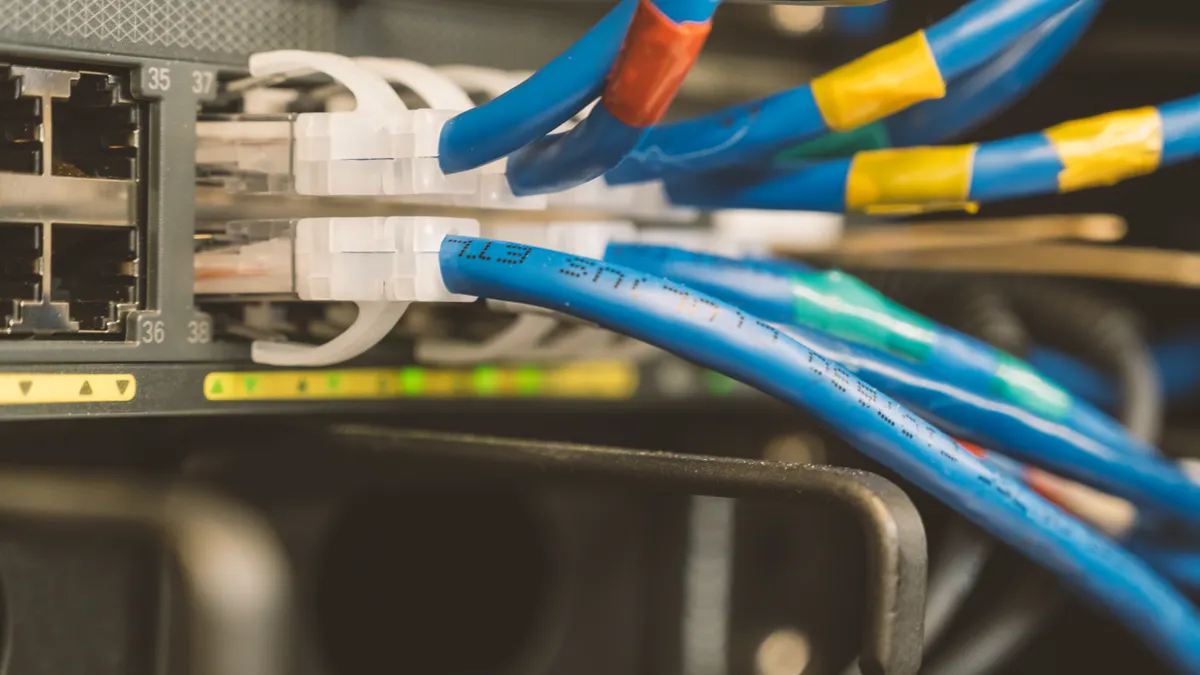
Ethernet is the cleanest choice for most desk printers and multifunction devices. A wired printer gets a stable network path, lower latency for discovery, and fewer variables when you configure it with a static address or DHCP reservation. It is also easier to troubleshoot because the device has a clear IP identity. The weakness is placement: the printer needs a cable run to the switch or router, which can be a deal breaker in a room with no jack nearby.
Wi‑Fi is the practical compromise when you need flexibility. It avoids cable runs and can serve laptops, phones, and tablets without a host machine acting as a middleman. The trade-off is the number of things that can go wrong: wrong SSID, weak signal, band steering issues, guest network isolation, printer firmware quirks, and router settings that suppress multicast discovery. If the printer is hidden in a cabinet or far from the access point, Wi‑Fi often becomes a support problem disguised as convenience.
| Criteria | USB | Ethernet | Winner for this condition |
|---|---|---|---|
| Reliability | Good when directly attached | Best for constant availability | Ethernet for shared printers |
| Setup complexity | Lowest on one machine | Moderate, usually straightforward | USB for a single user |
| Device discovery | Local only | Strong on LAN via IP | Ethernet for multi-device homes/offices |
| Mobility | None | Limited by cable location | Wi‑Fi for flexible placement |
| Troubleshooting | Easy if only one host is involved | Easier because of fixed IP identity | Ethernet for admins |
| Sharing | Awkward without host sharing | Native on the network | Ethernet for teams |
| Dependency on another computer | Yes | No | Ethernet |
| Susceptibility to broadcast quirks | Low | Low | USB for one device; Ethernet otherwise |
The honest verdict here is that Wi‑Fi is not “better” than Ethernet for printer connectivity; it is only better when cable placement is the real constraint. If the printer supports Ethernet and the room can handle a cable, that is the stronger long-term choice. USB is the right answer only when there is no sharing requirement and no need for discovery across multiple devices.
Why does a printer show up on one device but not another?
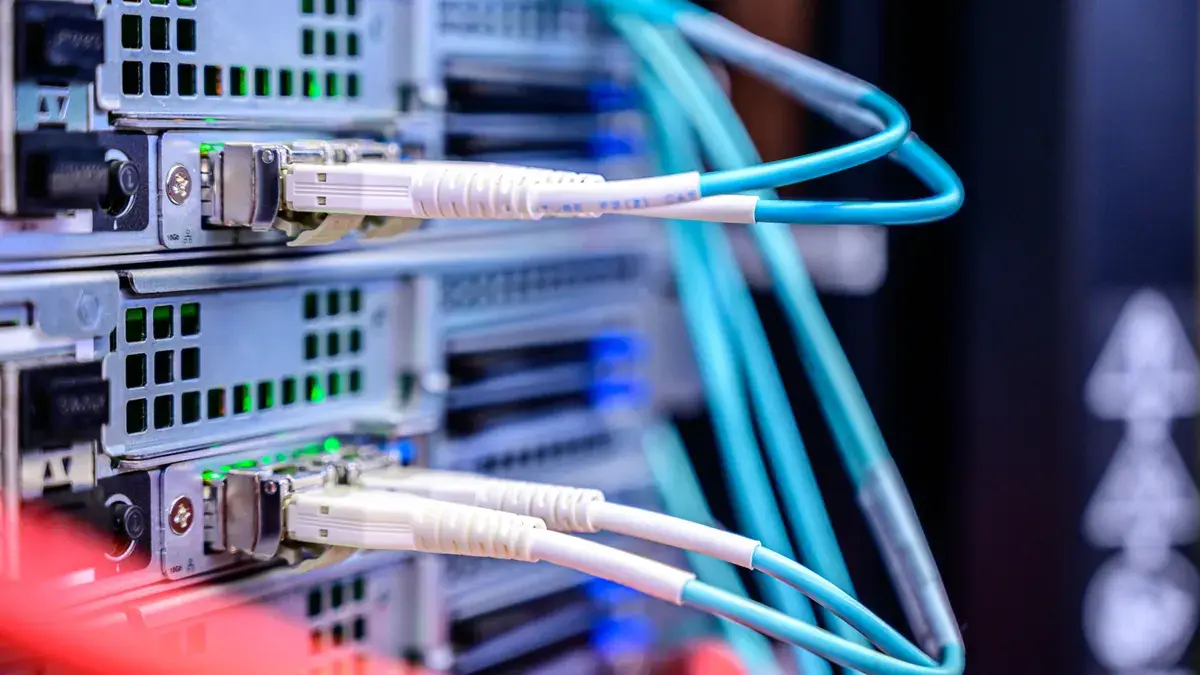
That happens because each operating system discovers printers differently, and the printer may be advertising in only one language. A Mac can see a Bonjour printer that a Windows PC ignores; a Windows PC can find a manually added TCP/IP queue that an iPhone never discovers automatically.
Apple devices rely heavily on Bonjour, which uses multicast DNS on the local network. If the printer advertises an AirPrint service, a Mac or iPhone can often find it without a vendor app. Windows environments often depend on different discovery behavior, especially if the printer is added through a vendor package or through standard TCP/IP with a specific driver. Linux can print beautifully with IPP, but the path is usually more manual.
This mismatch is why the same printer can appear “broken” in one room and “fine” in another. The printer itself may be healthy. The client device may simply not speak the discovery method the printer is using. A router with client isolation, VLAN segmentation, or multicast filtering can deepen the problem by preventing mDNS traffic from crossing between segments.
One practical test cuts through a lot of noise: if you know the printer’s IP address, try opening it in a browser. Many printers expose a web admin page over HTTP or HTTPS. If that page loads, the printer is reachable on the network even if discovery fails. If it does not load, look at the address, the network link, or the printer’s Wi‑Fi status before you touch drivers.
The part many guides skip is that “visible” and “usable” are not the same thing. A printer can be discoverable but blocked by authentication, paperless status, or a stale queue. It can also be undiscoverable while still printing perfectly from a direct IP queue.
What are IPP, AirPrint, Bonjour, and WS-Discovery?
IPP is the modern print protocol to care about; Bonjour and WS-Discovery are the discovery layers that help devices find it. That hierarchy matters because people often mix up the discovery broadcast with the printing protocol itself.
IPP, or Internet Printing Protocol, is the standard many modern printers use for job submission and device capability reporting. Apple’s AirPrint is built around IPP and printer capabilities that the device advertises on the local network. Bonjour is Apple’s name for zero-configuration discovery using mDNS. A printer can support IPP without being easy to discover automatically, and it can support Bonjour without solving a bad driver on the client.
WS-Discovery plays a similar role in some Windows networks. It helps devices advertise services to Windows clients, but support is inconsistent across printer models and mixed environments. Some printers also expose raw protocols such as JetDirect/RAW on port 9100 or LPR/LPD, which can be handy for direct queue setup but do nothing to improve friendly discovery.
The trade-off is simple: standards-based printing reduces driver pain, but discovery still depends on the network allowing multicast or broadcast traffic. That is why some printers are easiest to use when you add them by IP address. Manual setup feels old-fashioned, but it avoids dependence on flaky discovery traffic.
For a deep technical reference, the IPP specifications are maintained by the Internet Engineering Task Force, and Apple’s AirPrint and Bonjour guidance is documented by Apple. Those are the right anchors when you want to understand what the printer is supposed to be doing, not what a consumer app claims it is doing.
How do I fix printer discovery on a home or office network?
The fix is to isolate the layer that failed: network reachability, name resolution, or client configuration. That sequence matters because people often reinstall drivers before they know whether the printer is even reachable at the IP layer; if the setup is unusually complex, it is worth consulting a network professional before changing several variables at once.
Begin with the printer itself. Confirm it has a valid address on the same subnet as the client. If the printer’s screen shows an IP like 169.254.x.x, it did not get a proper DHCP lease. If it shows no address at all, the Wi‑Fi join likely failed or the Ethernet link is down. On many devices, a network status page or configuration sheet will show the SSID, IP, subnet mask, and gateway.
Then check the router or switch. A printer on a guest network will often be isolated from laptops on the main network. A mesh system may have separate bands or node policies that interfere with multicast discovery. If you use VLANs, discovery traffic may need explicit routing or mDNS reflection. That is a common enterprise issue and a common reason consumer articles fall apart: they tell you to “restart everything” when the real issue is segmentation.
After that, check the client. Remove stale queues, especially if the printer was moved or replaced. On Windows, the old TCP/IP port may point to an IP that now belongs to something else. On macOS, deleting and re-adding the printer often clears a bad Bonjour cache or a broken PPD association. On mobile devices, removing and reselecting the printer in the print dialog can refresh the discovered service.
A few fixes have an outsized payoff:
- Reserve the printer’s IP in the router or DHCP server.
- Put the printer on the main network, not guest.
- Keep printer firmware current enough to support current IPP/AirPrint behavior.
- Prefer direct IP queues for office-critical devices.
- Disable client isolation if you want local discovery to work.
The honest limit here is that if the router blocks multicast or the printer only supports a weak discovery stack, no amount of driver reinstalling will fix the core issue. In that case, manual IP setup is the faster, more durable answer.
The honest side-by-side: discovery convenience vs. dependable printing
Discovery convenience wins for casual users, but dependable printing wins for anyone who cannot afford surprises. That is the real choice behind all the technical noise.
| Criteria | Discovery-first setup | Manual IP / direct setup | Winner for this condition |
|---|---|---|---|
| Initial convenience | Very high | Moderate | Discovery-first for one-time home setup |
| Long-term stability | Variable | Strong | Manual IP for offices |
| Works across mixed devices | Sometimes | Usually | Manual IP |
| Depends on multicast | Yes | No | Manual IP |
| Friendliness for phones/tablets | High when supported | Good if the app supports IPP | Discovery-first for mobile-heavy homes |
| Easier to debug | No, because layers blur | Yes, because the address is fixed | Manual IP |
| Susceptible to router quirks | Yes | Less so | Manual IP |
| Best for guests or shared networks | Only if discovery is allowed | Better | Manual IP |
Discovery-first means the printer advertises itself through Bonjour, AirPrint, or WS-Discovery and the client adds it automatically. That is the nicest experience when it works. A household with one router, one printer, and a few Apple devices often gets the cleanest result this way.
The downside is that discovery depends on network behavior the user does not control. Change the router, move the printer, add a mesh node, create a guest network, or isolate smart-home devices, and the printer may vanish from the list even though it is still reachable by IP. That is why discovery-first setups generate support calls: they hide the network path until it breaks.
Manual IP setup is less elegant but more durable. It gives the client a fixed target and removes dependence on broadcast discovery. The consequence is that you must manage the IP address carefully, which is why a DHCP reservation is better than a guessed static address in most homes and small offices. If the printer’s address changes, the queue breaks.
My position is clear: discovery-first is fine for a casual home where convenience matters more than predictability, but manual IP setup is the better default for any printer that more than one person uses regularly.
When should you stop trying to “make discovery work” and switch strategies?
You should switch strategies the moment the network requires special pleading from the printer. That usually means one of four situations.
First, if the printer only appears after you disable a router feature you actually want, stop there. If client isolation, guest segmentation, or multicast filtering is the only thing blocking discovery, you are not fixing the printer; you are weakening the network. Use a manual IP queue instead.
Second, if the printer is older and its vendor app is the only path to discovery, expect ongoing friction. Some older MFPs still rely on proprietary discovery tools or outdated drivers. If the model name looks like a mid-2010s office device and the manufacturer has moved on, direct IP printing may be the only sane path left.
Third, if mobile devices work but desktop systems fail, do not keep reinstalling the printer on the desktops without checking protocol support. AirPrint can make a printer look healthy in iOS while a Windows queue still needs a vendor driver. That is a compatibility gap, not a mystery.
Fourth, if the printer is shared across subnets or VLANs, discovery is often the wrong goal. In routed environments, broadcast-based discovery does not travel cleanly. The standard answer there is a print server, direct IP queues, or an enterprise print management tool, not more clicking in the Add Printer dialog.
A short decision rule helps: if the printer is used by one person on one desk, discovery can be enough. If the printer is used by a household, a team, or more than one operating system, give it a stable IP and add it manually.
The verdict: which connection method should you choose?
Choose Ethernet with a fixed IP if the printer is shared, office-critical, or moved only rarely. Choose Wi‑Fi with discovery if the printer must live where a cable cannot reach and the network is simple. Neither if the printer is trapped behind guest-network isolation, a broken router, or a vendor-only app that no longer matches the devices you use.
That is the shortest honest answer. Ethernet plus DHCP reservation is the most dependable setup because it gives the printer a stable identity without depending on multicast discovery. Wi‑Fi is acceptable when convenience beats certainty, but it is the first option to fail when the network gets complicated. USB is the fallback for one computer only, not a serious shared-printing plan.
If the printer is meant for a home with one laptop and one phone, discovery is usually enough. If the printer is meant for a family, a small office, or a mixed Mac/Windows environment, give it an IP address the network can keep, then add it by that address instead of hoping every device agrees on how to find it.
What does a good troubleshooting sequence look like?
A good sequence starts at the printer, moves to the network, then ends at the client. That order matters because it prevents you from changing three things at once and learning nothing; if you are unsure, a network professional can help you sequence the changes safely and keep the diagnosis clean.
First, confirm power, link lights, and network status. On Ethernet, the port should show activity. On Wi‑Fi, the printer should display the correct SSID and a real LAN address, not a self-assigned one. Second, verify reachability from the client using the printer’s IP address or admin page. Third, delete stale queues and re-add the printer using the method that matches the environment: AirPrint for Apple-friendly local networks, IPP or vendor drivers where required, and direct IP if discovery is unreliable.
A few symptoms point to specific causes:
- Printer is visible but cannot print: bad queue, wrong driver, or a stuck spooler.
- Printer is not visible at all: discovery traffic blocked, wrong network, or power/network failure.
- Printer appears briefly, then disappears: IP conflict, DHCP churn, or router band steering.
- Printer works from one device but not another: protocol mismatch, not a printer failure.
Because of that, the best guide to printer connectivity and device discovery is really a guide to network identity. A printer that has a stable address and a supported print protocol is easy to live with. A printer that depends on discovery alone is easy to lose.
Where do authoritative standards fit into all this?
They matter because they tell you what the printer is supposed to support, not just what the box promised. The IEEE 802.11 family defines Wi‑Fi behavior, the Internet Engineering Task Force maintains IPP-related specifications, and Apple documents AirPrint and Bonjour behavior for local discovery. Those references are useful when you need to separate a printer fault from a network design problem.
For practical reading, the most relevant official sources are Apple’s AirPrint documentation and the IETF’s IPP specifications. If you are dealing with an office switch or segmented network, your networking team may also refer to multicast, mDNS, and VLAN design guidance from the equipment vendor. The point is not to collect acronyms. The point is to know which layer owns the failure.
A printer that “can’t be found” is usually not mysterious. It is either on the wrong network, speaking the wrong discovery language, or holding a bad address. Once you know that, the fix becomes much less dramatic and much more mechanical.
Drafted with AI; not yet reviewed by a person.