Last updated: November 05, 2026
Quick Answer: Sharing a printer on a home network usually takes 8 steps: turn on sharing on one host device, add the printer on other devices, and keep the host awake enough to answer print jobs. A shared printer on a home network lets one printer serve multiple devices, as long as the host computer stays on, awake, and on the same network. The setup is simple in Windows and macOS, but the permission and sleep settings matter just as much as the printer itself.
Key takeaways
- Pick one “host” device to share the printer from, then turn on print sharing there first.
- Give network users the right permissions, or other devices may see the printer but fail to print.
- If the host sleeps, shared printing often stops until it wakes again.
- Windows and macOS use different sharing menus, but the idea is the same: publish the printer, then let other devices discover it on the local network.
- This setup can work well for a home with a single printer and a few devices, but it is less suitable for a house that needs always-on printing from every room.
What you need before you start
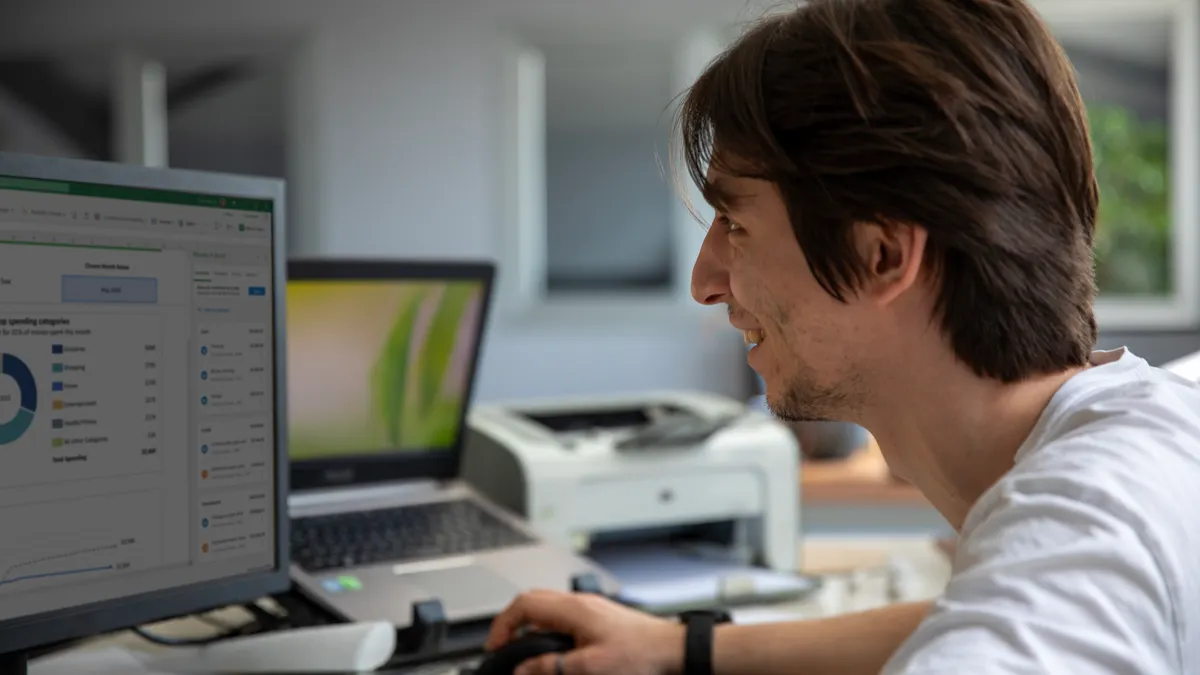
You need a printer already working on one computer, a home network, and permission to change sharing settings on the host device. The topic here is how to share a printer on a home network, and a printer that is already connected by USB or on Wi‑Fi can usually be shared from either Windows or macOS, but the host computer becomes part of the printing path.
That detail matters. If the host is off, asleep, or disconnected from the router, the shared printer is unavailable to everyone else. For a home office, that trade-off is acceptable if the printer is used a few times a day. It is a poor fit for a family that expects quick printing from tablets, laptops, and a TV room PC at any hour.
Two terms help here. Print sharing means one computer publishes a printer to the network. Network discovery means other devices can find that shared printer without typing a long address. Printer permissions control who can use it and whether they can manage it.
If the goal is to print from both Windows and macOS, the setup can still work. The catch is that the host must share the printer in a way that both sides can reach, and the client devices may still need the proper driver or built-in printer support. Microsoft documents printer sharing in Windows, and Apple covers printer sharing in macOS; those are the two system-level references worth checking if a menu looks different from the one described here. For a second reference point, Microsoft also documents network discovery and sharing behavior in Windows support materials, and Apple documents Printer Sharing in macOS support.
How do I share a printer on a home network?
You share a printer on a home network by turning on printer sharing on the computer that is already connected to the printer, then adding that shared printer on the other devices. The host does the publishing; the other devices do the connecting.
Follow the steps in order.
- Confirm which computer is the host. Use the computer that already prints to the device by USB or directly over Wi‑Fi. When this step is right, that computer can print a test page locally before anything is shared.
- Turn on sharing on the host. In Windows, open the printer’s properties and enable sharing from the Sharing tab. In macOS, open Printer Sharing in the Sharing settings and select the printer. When it works, the printer appears as shared rather than private to one machine.
- Give the printer a clear share name. Use a short name like “Office HP” instead of a model number full of spaces or symbols. A simple name is easier for network users to recognize when several printers appear on the network.
- Check the host’s network profile and discovery settings. On Windows, the network should be set to Private so discovery can work normally. On macOS, the Mac should stay reachable on the local network. When this is correct, nearby devices can usually see the shared printer without extra detective work.
- Set printer permissions for the people in the house. Allow the right users or groups to print, and avoid giving management rights to everyone. The result you want is simple: guests can print if you choose, but only one person can change the printer settings.
- Wake and power settings must stay friendly to sharing. Set the host not to sleep too aggressively. If the computer sleeps after 10 minutes, shared printing will stop after that idle period. When the setting is right, the host stays available long enough for other devices to reach the printer.
- Add the shared printer on each client device. On another Windows PC or Mac, open the printer setup area and choose the shared printer from the network list. A successful setup shows the printer in the device’s printer list and lets you send a test page or document.
- Print a short test document from a second device. Use one page with plain text first. If the page queues and prints, the share is working end to end.
That process is where the most common mistake shows up: doing only step 7 and skipping step 6. It creates the classic home-network complaint: the printer works in the morning, then disappears after lunch because the host went to sleep. Another mistake is giving the share a vague name like “HP printer,” which becomes a problem once a second printer joins the network.
If you need device-to-device discovery on a mixed home network, the hub on printer connectivity and device discovery belongs beside this setup guide, because discovery settings often decide whether the shared printer is visible at all. See also the router and network-isolation settings that can block local sharing on some homes, especially when guest Wi‑Fi is turned on.
Windows: turn on print sharing the right way

Windows shares a printer from the computer that already sees it, and the important part is to make the network private before you depend on discovery. That is the difference between a printer that appears in a minute and one that hides behind permission prompts.
Open the Windows printer settings on the host and go to the printer’s properties. In the sharing area, enable sharing for that printer and set a share name that is easy to type or recognize. If the network is set to Public, move it to Private first; Public networks often block discovery and make the printer harder to find on other devices.
Windows also separates user permissions from the share itself. If the host is used by more than one account, check that the intended network users can print and that administrative changes are limited to the people who should manage the device. This is where many home setups fail quietly: the printer appears in the list, but the job never leaves the queue because the account on the host does not have the right access.
A good sign that the Windows side is ready is simple. The printer shows as shared in the settings, the share name is visible, and another computer on the same router can see it without using a cable. If the host is a desktop that stays on for 8 or 10 hours a day, this setup is often enough for a small home office. If it sleeps after 5 minutes, shared printing becomes fragile.
Windows sharing is not the same as installing a printer from scratch. The host still needs a working local printer first, and the client still has to add the shared queue afterward. If the printer disappears from the network list, check discovery and sleep settings before anything else. Microsoft’s Windows support pages on printer sharing and network discovery are the best official place to verify the exact menu names.
macOS: share a printer from one Mac
macOS shares a printer from the Sharing settings, and the Mac must stay awake long enough for other devices to use it. The path is shorter than many people expect, but the sleep setting is the hidden switch that decides whether the share feels reliable.
Open the Mac’s sharing controls and turn on Printer Sharing. Then select the printer or printers you want to expose to the network. When the setup is correct, other devices on the same home network can see the shared printer as available from that Mac.
Apple’s printer sharing depends on the Mac being reachable. If the Mac is set to sleep quickly, the printer may vanish from the network for the rest of the household. A Mac that sleeps after 15 minutes of idle time can be fine for a laptop owner who prints occasionally, but it is a bad host for a family printer used throughout the day.
The practical rule is simple: the Mac should be treated like part of the printer infrastructure, but consult Apple’s support guidance or a local IT professional if you are unsure about the sleep settings. Keep it plugged in if possible, keep it on the same Wi‑Fi or Ethernet network as the other devices, and avoid aggressive energy-saving settings that turn off network access. If the printer is attached by USB, that is fine; the Mac can still publish it to the network.
A successful macOS share shows up in the printer list of other devices, and a test print from a second computer should leave the queue and produce a page. If only one Mac sees the printer, the issue is usually discovery, network isolation, or sleep behavior rather than the printer itself. Apple’s Printer Sharing documentation is the authoritative source for the macOS side.
What printer permissions and sleep settings actually change
Printer permissions decide who can use the shared printer; sleep settings decide whether it is available at the moment someone tries to print. Those are separate problems, and home-network setups often fail because they are treated as one, so consult a professional if the host computer or network policy is unclear.
Start with permissions. If every device in the home should print, the host can allow general printing while reserving administrative control for one account. That keeps settings from being changed accidentally. If only certain people should use the printer, limit access at the share level rather than relying on household discipline. A visible share with the wrong permissions can look broken even though the network is fine.
Sleep settings are the more common surprise. A host computer can share a printer only while it is awake enough to answer the network. If the computer sleeps, shared printing usually stops. If the display sleeps but the computer stays awake, printing can still work. That distinction matters on Windows and macOS alike.
A practical home rule is to set the host to stay awake long enough for normal use, then let the display dim if needed. A desktop host can often remain on all day with little fuss. A laptop host is more fragile because closing the lid may suspend the machine and take the printer offline. If the home relies on the printer every evening, a host that hibernates aggressively is the wrong choice.
This is also where printer sharing differs from a network printer with its own IP address. A true network printer can often stay available even if every computer is asleep. A shared printer depends on the host, so power settings are not a minor detail; they are part of the setup. For comparison, a printer with built-in network support can reduce dependence on a single computer.
How to tell the share is working, and what breaks first
A shared printer is working when a second device can see it on the network and print a one-page test file without error. That is the test that matters, not whether the printer name appears somewhere in a menu.
Start with discovery. If the printer does not appear, check that the client is on the same home network, not a guest Wi‑Fi or a different mesh node with isolation turned on. Then check the host: it must be on, awake, and connected. If the printer appears but jobs stall, look at permissions and the host’s sleep timer.
The first thing to break is often the host computer. A 5-minute or 10-minute sleep timer can make the printer vanish in practice even though sharing is technically enabled. The second thing to break is network visibility. Guest networks, some router settings, and mismatched private/public profiles can hide the printer from clients.
The cleanest home setup is usually the one with the fewest moving parts: one always-on host, one printer share, and a short, recognizable share name. That setup can be ideal for a small household with 2 to 5 devices. It is less ideal if the printer needs to be available from phones, tablets, and laptops while the host is often closed or off. In that case, a printer with built-in network support is usually the better fit. See also the router’s client-isolation setting if shared printing fails even though the host is awake.
When a shared printer is the wrong solution
A shared printer is the wrong solution when the host computer is not meant to stay on. If the Mac or Windows PC is shut down every night, anyone who tries to print after that will hit a dead end.
It is also a poor choice when many devices need frequent access. A shared printer works well for a home office or one family printer. It becomes annoying in a busy house where different people print from different devices at random times. In that case, the host becomes a single point of failure.
However, the setup also gets harder when Windows and macOS have to share the same printer across different user accounts and sleep behaviors. Mixed homes can still make this work; they just need more care with discovery and permissions than a direct network printer would. For example, a printer that supports its own network connection can remove the host computer from the path entirely.
If you want a broader explanation of why devices sometimes fail to see each other on a home network, the printer connectivity and device discovery hub is the right next stop. A router manual can also help if isolation or guest-network settings are blocking local sharing.
Do both computers need the printer driver?
Usually, yes, or at least they need compatible print support. The host computer must have the printer driver or built-in support to talk to the printer directly, and the client often needs enough driver support to understand the shared queue. Many modern Windows and macOS systems can handle common printers without a manual driver hunt, but older models are less forgiving. For specific compatibility questions, check the printer manufacturer’s support pages and Apple or Microsoft documentation.
Why does shared printing stop when the host computer sleeps?
Shared printing stops because the host computer is the device advertising and routing access to the printer. When that host sleeps, it often stops responding to the network, so the shared printer disappears or refuses jobs. A display that sleeps is usually fine; a computer that sleeps deeply is not. Adjust the host’s sleep timer if the printer must stay available.
Can a shared printer be used by both Windows and Mac?
Yes, a shared printer can often be used by both Windows and Mac on the same home network. The host still has to share the printer properly, and the client devices need to find it on the local network. Cross-platform setups are common, but they are more sensitive to discovery settings, permissions, and sleep behavior than a direct network printer.
Drafted with AI; not yet reviewed by a person.