Last updated: October 29, 2026
Quick Answer: Printer setup is usually simple when the printer matches your connection, paper, and operating system; if you want the cleanest first-time setup, check the printer type first, match the connection method second, and only then install the software. Printer setup, installation, and first-time use is the guide for making that process work on the first try.
Printer setup is usually simple if the printer matches your connection, paper, and operating system; it gets messy when any one of those three is off. If you want the cleanest first-time setup, check the printer type first, match the connection method second, and only then install the software.
What Actually Determines the Right Setup Path
The right setup path depends on whether you have a USB printer, a Wi‑Fi printer, or a network printer on Ethernet, and that choice changes almost everything. If the printer is for one desk and one computer, USB is often the quickest path. If the printer needs to serve a laptop, a phone, and a second PC, Wi‑Fi or Ethernet is usually the better call.
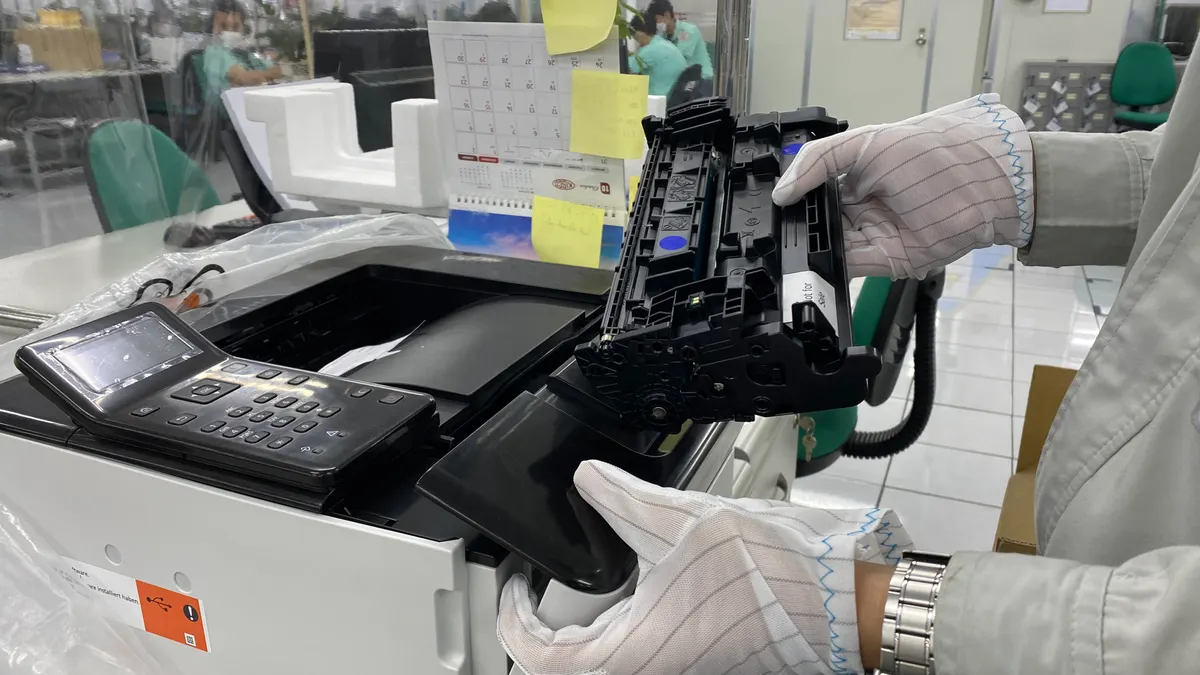
The big mistake is treating every printer like a cheap home inkjet; if you are unsure, consult a professional and check the manufacturer’s support guidance before assuming the setup is the same. A small desktop model, a business laser printer, and an all-in-one with fax and scanning all behave differently. A laser printer may need drum seating, toner lock removal, and a longer warm-up before the first page. An all-in-one may need a scanner driver, not just print drivers. A photo printer may require the correct paper type setting or the output looks dull and muddy.
Cost matters too, especially if you are deciding who to call. A simple setup visit for a home printer is usually cheaper than fixing a printer that was half-installed, then abandoned, then moved to another room. The price changes with access, networking, driver problems, and whether the printer needs physical assembly. A ground-floor office with one USB printer is a short job. A multiuser office with three floors of weak Wi‑Fi is a different job entirely.
Here is the decision point in plain language:
| Situation | Best Path | Why Other Options Fail |
|---|---|---|
| One computer, printer beside it | USB setup | Wi‑Fi adds unnecessary steps and more failure points |
| Several devices need to print | Wi‑Fi or Ethernet | USB ties the printer to one machine |
| Weak wireless signal near the printer | Ethernet if possible | Wi‑Fi dropouts cause missing printers and stalled jobs |
| Need scanning from multiple devices | Software plus network setup | A driver-only install often misses scan functions |
| Old printer with no recent support | Manual driver install | Automatic setup may choose the wrong package or none at all |
If you are hiring help, ask whether the job includes driver installation, wireless joining, test page printing, and scan setup. That is the difference between “printer works on my laptop” and “printer is actually ready for the house or office.”
Quick check: if your printer will live next to one computer, you probably want USB; if it must serve more than one device, you need a network plan.
How Do I Set Up a Printer for the First Time?
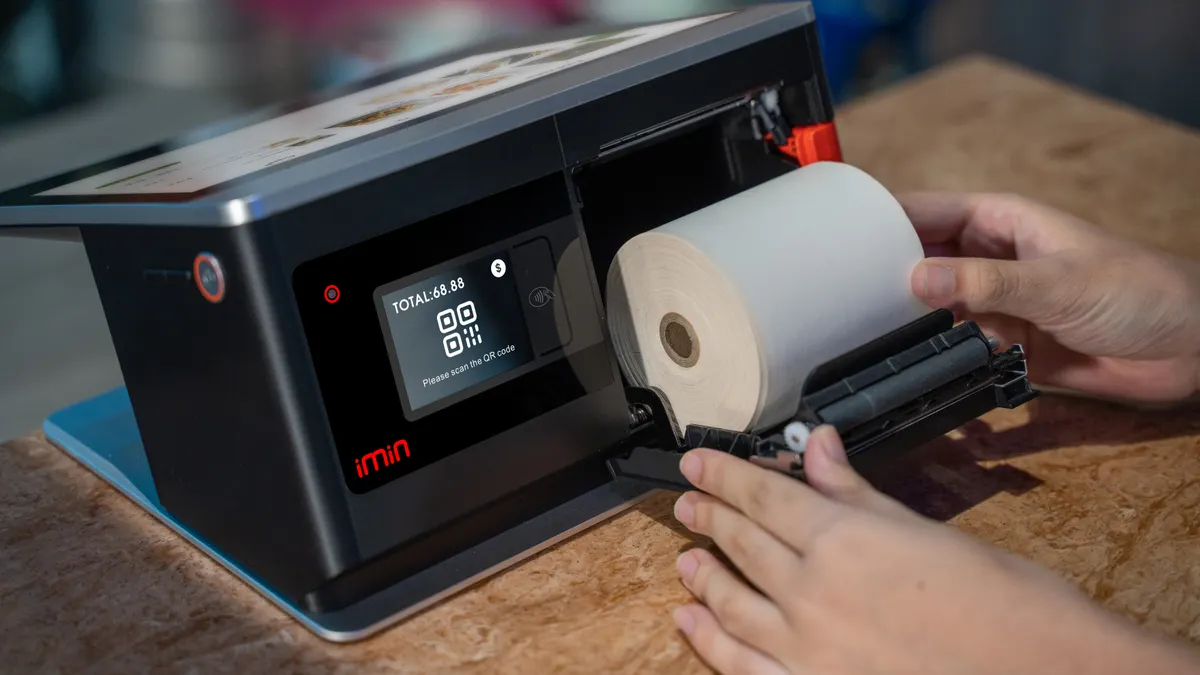
You should unpack it, place it correctly, connect power, install the right software, and print a test page before you call it done. The first-time process is not just plugging it in; the order matters, and skipping one step is how people end up with a printer that shows up once and disappears later.
A standard first-time setup for a home inkjet or desktop laser usually takes about 20 to 45 minutes if the network is normal and the driver is available. It takes longer when the router is hidden in a closet, the printer ships with an old setup app, or the operating system blocks unsigned software. If the printer is a business model with a static IP address, expect more time.
Use this sequence:
- Place the printer on a stable surface with enough clearance for the paper tray, rear access, and output path. Leave room for the lid to open fully.
- Remove any packaging material that holds the printer in transit before use. Laser printers often have toner seal strips and drum protection that must come out before use.
- Load plain letter or A4 paper, not specialty paper, for the first test. Do not start with glossy stock.
- Plug the printer into a direct wall outlet or a protected power strip, then turn it on and let it complete its initial cycle.
- Choose the connection method: USB direct to one computer, or wireless/Ethernet for multiple devices.
- Install the manufacturer’s driver or app from the printer maker’s support page, not a random disc unless the model is old and the disc is known to match the device.
- On Windows, use Settings > Bluetooth & devices > Printers & scanners. On macOS, use System Settings > Printers & Scanners. Add the printer there after the driver is ready.
- Print a test page and confirm that the page is aligned, readable, and not missing black or color bands.
- If it is an all-in-one, run a scan from the computer and from the printer control panel if available.
The first print matters. A page that is faint, streaked, or offset tells you more than the status light does. If the printer is an inkjet and black text is broken, the nozzles may need a cleaning cycle. If a laser print has smudges, the toner or drum may not be seated right. If the printer is networked but invisible to the computer, the issue is often the network name, the Wi‑Fi band, or the driver package.
This is also where the wrong advice causes problems. People often connect the printer before installing software, then wonder why the device appears as “Generic” or loses scan features. Others install every utility the manufacturer offers, then get a cluttered system with tray icons they never wanted. The cleaner method is to install only the main driver package and the scan utility if you truly need it.
Quick check: if your printer powers on, feeds paper, and prints a clean test page after setup, the basic installation is done.
Which Connection Should You Choose: USB, Wi‑Fi, or Ethernet?
You should choose USB for one nearby computer, Ethernet for stable office use, and Wi‑Fi only when convenience matters more than absolute reliability. The wrong connection choice can make a brand-new printer feel broken.
USB is the simplest. It can be the best answer if the printer sits beside a desktop PC, a home office tower, or a single laptop that rarely moves. It is also the least forgiving if you later want another device to print without sharing through the first computer.
Ethernet is the strongest option for a permanent location. If the printer is in a small office, retail back room, or shared workspace, a wired connection avoids the common Wi‑Fi complaints: disappearing devices, slow wake-up times, and printing that works from one room but not another. A wired printer usually becomes easier to support later, especially when multiple people use it.
Wi‑Fi is the most flexible and the most sensitive. It is useful for homes and mobile workers, but it can fail for reasons that have nothing to do with the printer: 2.4 GHz versus 5 GHz band issues, router security settings, guest network isolation, weak signal, or a printer placed too far from the access point. Many printers still pair more reliably on 2.4 GHz than on 5 GHz because of range and compatibility, especially older models.
If you are choosing for someone else, think in terms of pain points:
- Choose USB if the printer is for one machine and nobody else needs to print.
- Choose Ethernet if the printer must stay put and serve a team.
- Choose Wi‑Fi if moving the printer or printing from phones matters more than perfect stability.
For the setup itself, there are real trade-offs. Wi‑Fi may look easier at first because there is no cable, but it often takes more troubleshooting if the printer refuses to join the network. Ethernet takes one cable run, but that cable buys you fewer support calls later. USB is fast, but it locks the printer to one host unless you share it through that computer, which is not ideal.
If you are paying someone to install the printer, ask which connection they recommend for your room layout. A good installer should talk about signal strength, router location, and whether the printer is likely to move. A bad installer says “we can do wireless” and leaves you with a printer that drops offline whenever the door closes.
Quick check: if the printer is staying in one place and serving more than one person, Ethernet usually beats Wi‑Fi; if it is truly for one desk, USB is hard to beat.
What Does a Good Installation Job Include, and What Should You Ask For?

A good installation job includes physical setup, driver installation, network connection, test printing, and a short check that scanning or copying works if the printer has those functions. If someone only unboxes the machine and leaves, that is not a full setup.
This is the section that matters if you are deciding who to call. The answer is not just “can they make it print?” The real question is whether they can make it print on the right devices, with the right software, without leaving broken shortcuts behind. That distinction matters on Windows 11, macOS, and mixed-device offices where one person prints from a laptop and another from a phone.
Ask these questions before you book the job:
- Will the setup include the manufacturer driver, not just the operating system’s default driver?
- Will scan-to-computer or scan-to-email be configured if the printer supports it?
- Will the technician join the printer to the correct Wi‑Fi network, including the right band if there are two?
- Will they print a test page from the computer you actually use?
- Will they show you where to find the printer status, ink or toner level, and paper jam alerts?
- If the printer uses a static IP or reserved address, will that be set correctly?
A full setup should also include cleanup of old printer entries when a replacement machine is installed. Leaving duplicate printers behind causes people to send jobs to the wrong device, especially in offices that have replaced the same model with a newer revision. That is one of the most common bad-job signs: the printer works, but the wrong queue keeps stealing the print job.
You can also ask for a simple walk-through. A proper handoff should show how to load paper, replace cartridges or toner, cancel a stuck job, and rerun the setup utility if the printer loses its connection. If the printer is a business laser model, ask for the toner/drum separation rules and the maintenance schedule, because those parts are not interchangeable on every model.
The price depends on the job size. A straightforward install is one thing. A move from one room to another, plus a reconfigured router, plus shared printing for multiple users, is another. The time changes with the same factors. A small, local install may be quick; a multi-device office can take much longer than the printer itself costs to buy.
Quick check: if the person you hire cannot explain the driver, the network, and the test page, the setup is not likely to hold up.
First-Time Use: What to Do Before You Print Anything Important
You should run a test page, check alignment, and confirm ink or toner performance before you trust the printer for a shipping label, invoice, homework packet, or client document. First-time use is where hidden setup mistakes show themselves.
Start with plain paper. Do not waste specialty stock on a machine that has not proven itself yet. Print the built-in status page or a sample document with text, a logo, and a few lines of color if the printer supports it. Then inspect the result under normal room light, not just on the screen.
Look for these specific problems:
- text that is too light on one side
- missing lines in charts or graphics
- paper feeding at an angle
- smudges near the edges
- color that is off compared with the preview
- repeated noise or grinding from the paper path
If the printer is an inkjet, a first-time maintenance cycle is normal. New cartridges may need priming, and some models run initial cleaning routines that use extra ink. If a laser printer leaves marks, check the toner cartridge seating, the drum unit, and the paper type setting. If the printer is a photo model, choose the paper profile in the driver instead of leaving it at plain paper, or the image will not look right.
You should also check the display or software for firmware updates, but only after the basic print path works. Updating first can create a second variable when the printer is already untested. If the printer is on a company network, ask whether firmware updates need approval. In some offices, printer updates are controlled for security reasons.
For mobile printing, confirm that AirPrint, Mopria, or the manufacturer’s app sees the printer before you assume anything else is broken. If the printer appears on one device but not another, the issue may be the discovery method rather than the printer itself.
Bad first-time use usually looks like this: the printer is online, but only one person can print; test pages fail from one app but not another; or the scanner works locally but not over the network. That is not “just how printers are.” It usually means one piece of the setup was skipped.
Quick check: if your test page is clean and the printer works from the device you actually use, the printer is ready for real jobs.
The 3 Conditions That Change Everything
These three conditions change the setup more than the printer brand does: weak Wi‑Fi, older hardware, and office sharing. If any one of those is true, the standard advice stops being enough.
Here is how to adjust.
| Situation | Best Path | Why Other Options Fail |
|---|---|---|
| Weak wireless signal | Move the printer closer to the router or use Ethernet | Wi‑Fi setup may succeed once, then fail again later |
| Older printer model | Use the exact model driver from the manufacturer support page | Automatic driver detection often picks a generic driver with missing features |
| Shared office printer | Set a reserved IP address and standardize the driver on all devices | Random IP changes and mixed drivers create duplicate queues and print failures |
| Printer with scan/fax functions | Install the full utility package, not just the basic print driver | Basic drivers can print but leave scanning unavailable |
If the Wi‑Fi is weak, do not keep retrying the same setup in the same spot. Move the printer, change the connection method, or improve the access point location. A wireless setup that works only when the printer is on the kitchen counter is not a real install for a back office.
If the printer is older, check the operating system version against the manufacturer’s support page. Some older devices need legacy packages, and some new computers simply cannot use the vendor’s full suite. That is where a technician earns the fee: not by guessing, but by matching the correct driver family to the actual model.
If the printer is shared, the network design matters more than the box. A printer that changes IP address after every router reboot becomes a support headache. A reserved address or fixed network setup avoids that. It also helps when a front desk, a back office, and a laptop user all need the same queue.
This is also where some jobs are not worth forcing. If the printer is several generations old, the software is missing, and the operating system is new, the better answer may be replacement rather than endless troubleshooting. That is not defeat. It is basic cost control.
Quick check: if your printer keeps dropping off the network, relies on old software, or needs multiple users, you are in the “special handling” category.
When the Standard Advice Is Wrong
The standard advice is wrong if you are using a printer for a front desk, a school office, a retail counter, or any space where a failed print job stops work. In those settings, “just connect it by Wi‑Fi” is weak advice; reliability beats convenience.
Here are the edge cases where normal setup rules break down:
-
You need fast, repeated printing at a counter.
What changes: the printer must wake quickly and stay online.
What to do instead: use Ethernet if possible, disable sleep settings that are too aggressive, and pick a printer built for office duty rather than light home use. -
The printer is going in a room with bad signal or thick walls.
What changes: wireless discovery becomes unreliable.
What to do instead: run Ethernet, move the access point, or place the printer where it can see the router. A Wi‑Fi extender can help, but it is not the cleanest fix if the printer is mission-critical. -
You are replacing an old printer with a new one.
What changes: old queues and drivers can linger.
What to do instead: remove the previous printer from every computer, uninstall the obsolete driver package if needed, and install the new queue from scratch. -
The printer has scanning, copying, and faxing.
What changes: printing is only half the setup.
What to do instead: configure the additional functions one by one. Make a scan test to a computer, then from the panel, then from a mobile app if the model supports it. -
The printer will be used by guests or temporary staff.
What changes: you need a simpler path than a login-based network share.
What to do instead: use a stable network printer name, keep the queue obvious, and avoid setups that require one person’s personal computer to stay on. -
The printer is brand new but behaves like it is broken.
What changes: factory defaults may not match your network or paper choice.
What to do instead: confirm paper size, region settings, and the correct wireless band before you assume there is a hardware fault.
The common failure in all of these cases is forcing the cheapest or easiest setup onto the wrong environment. A printer in a quiet home office and a printer in a reception area are not the same job, even if the box looks similar.
Quick check: if the printer must support a business process, not just a person’s desk, use the more durable connection and the fuller software setup.
What a Bad Setup Looks Like
A bad setup looks like a printer that technically turns on but fails under normal use, and it usually shows at least one of four signs within the first day. The printer may disappear from the device list, print from only one app, output blurry or streaked pages, or confuse users with duplicate queues.
Watch for these red flags:
- The printer only appears after a restart.
- One computer prints, but another cannot find it.
- The scan function is missing even though the machine is an all-in-one.
- Test pages work, but PDFs or labels fail.
- The printer name includes multiple copies like “Printer,” “Printer 2,” and “Printer 3.”
- Paper jams happen with standard paper in a fresh tray.
Those are not minor glitches. They usually mean the driver was wrong, the network setup was incomplete, or the device was placed in a bad physical location. A printer that needs repeated re-discovery is not settled in. A printer that works only after one person signs in is not properly shared.
The fix depends on the symptom. If the device disappears, check the network path and IP reservation. If only one app fails, check the print engine settings and default paper size. If the scan feature vanished, the install may have used a print-only driver. If the queue is duplicated, remove the old device entries and reinstall cleanly.
This is the point where people often waste time on the wrong thing. They refill ink when the problem is driver conflict. They blame the router when the paper size setting is mismatched. They replace the printer when the real issue is that the installer skipped the full package.
A decent setup job should leave you with one printer name, one working connection, one test page that looks right, and a clear path for scanning if that matters. If you do not get those four things, the install is not done.
Quick check: if your printer needs constant nudging, relaunching, or rediscovery, the setup was not finished correctly.
What Should You Ask Before Hiring Printer Setup Help?
You should ask about connection type, software support, test printing, and what happens if the printer does not work on the first try. Those answers tell you more than a generic “we set up printers” promise.
Use this checklist before you book the job:
- Do you handle USB, Wi‑Fi, and Ethernet setups?
- Do you install the correct driver for Windows or macOS, not just the default queue?
- Do you configure scan features on all-in-one printers?
- Do you remove old printer entries if this is a replacement?
- Do you print a test page and verify it from the user’s actual computer?
- Do you handle static IP or reserved address setup for shared printers?
- What does a standard install include, and what counts as a separate service?
Ask about timing too. A simple install may be quick; a networked office setup with multiple devices usually takes longer. If someone gives you a single flat promise without asking about the printer model, the room layout, or the number of users, that is a warning sign. The model name matters because a compact inkjet, a monochrome laser, and a multifunction office printer do not need the same work.
If you are comparing providers, ask what they do when the printer is new but the network is not. That is the real test. A competent installer can tell you whether the issue is Wi‑Fi compatibility, software mismatch, or a bad configuration. A weak one talks only about “connecting it” and leaves the rest to you.
This is also where value lives. The cheapest job is not always the cheapest outcome. A printer that is installed badly may cost you more in missed prints, duplicate queues, and wasted time than a proper setup would have cost in the first place.
Quick check: if you cannot get a clear answer about drivers, test pages, and scan setup, keep looking.
FAQ
How long does printer setup usually take?
A straightforward home setup often takes 20 to 45 minutes, while a networked office install can take longer if the printer needs Wi‑Fi troubleshooting, driver matching, or scan configuration. The time jumps when the printer is old, the router is awkwardly placed, or multiple computers need access.
Do I need the manufacturer’s software?
Yes, if you want the full feature set, especially scanning, ink management, or advanced paper settings. The operating system’s built-in driver can print, but it may not include the full control panel or extra functions on many all-in-one models.
Why does my printer print but not scan?
The printer may have only the print driver installed, not the full software package. It can also happen when the scanner is on the wrong network path or the device was added by IP but not fully configured in the vendor app.
Is Wi‑Fi or Ethernet better for a printer?
Ethernet is usually more stable, and Wi‑Fi is usually more convenient. If the printer stays in one place and matters to more than one person, Ethernet is the safer choice. If flexibility matters more than reliability, Wi‑Fi can be fine.
What should a test page tell me?
A test page should show clean text, correct margins, no streaks, and no missing sections. If the printer supports color, the test should also show that each color channel prints evenly and that the page is not skewed or smudged.
When should I stop troubleshooting and replace the printer?
If the model is old, the software is unsupported, the network setup keeps failing, and the repair time keeps growing, replacement may be the smarter choice. That is especially true when the printer is for work and repeated downtime costs more than a new unit.
Key Takeaways
- Match the setup method to the printer’s job: one computer usually favors USB, while shared use usually favors Ethernet or Wi‑Fi.
- A real install includes drivers, connection setup, and a test page; if scanning matters, that has to be configured too.
- Weak Wi‑Fi, older models, and shared office use change the plan fast.
- The best setup is the one that still works after a restart, not the one that prints once on the first try.
- If a printer keeps disappearing, showing duplicate queues, or missing scan functions, the setup is incomplete rather than “normal printer behavior.”
Drafted with AI; not yet reviewed by a person.