Last updated: October 26, 2026
Quick answer: you can print from iPhone to AirPrint printers in 3 steps: connect both devices to the same Wi‑Fi network, open the file or photo, then tap Share or Print and choose the printer. In most cases, AirPrint is enough for basic printing, but it is not always enough for every printer job. If the printer does not appear, the issue is usually network, compatibility, or printer sleep mode—not the iPhone itself.
Key takeaways
- AirPrint is the simplest path because iOS sends the job directly to a compatible printer with no extra driver.
- You need a printer that supports AirPrint and an iPhone on the same local network for the first try.
- Photos, PDFs, webpages, and many email attachments can all print from the same iOS menu.
- Manufacturer apps help when AirPrint is missing a setting you need, but they add another app to manage.
- If the printer does not show up, the fix is usually to wake the printer, check the network, or try again from a different app.
What you need before you print
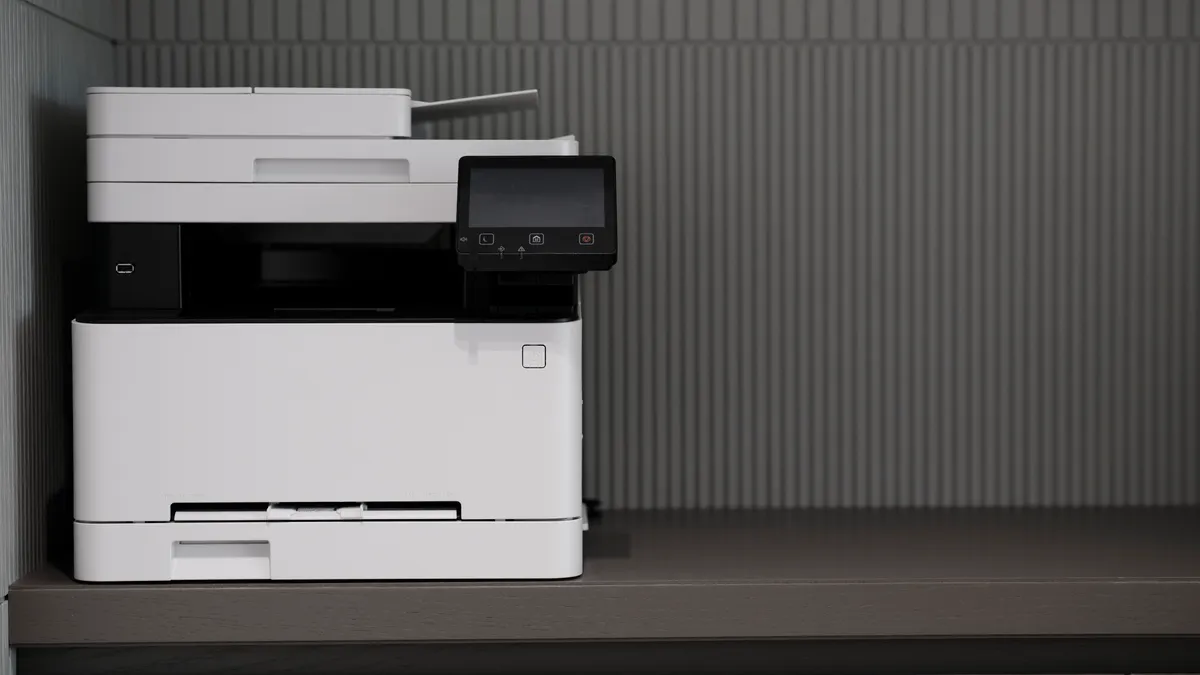
You need an iPhone running a reasonably current version of iOS, an AirPrint-compatible printer, and both devices on the same Wi‑Fi network. AirPrint does not need a cable, a driver download, or a separate setup assistant on the iPhone. It does need a printer that supports the standard. For Apple’s overview of AirPrint, see Apple’s AirPrint support page.
If you are not sure about compatibility, check the printer’s model page or the manual for the word AirPrint. Many office and home printers from HP, Canon, Epson, Brother, and others support it, but not every model does. That detail matters more than the brand name on the front of the printer. For model-specific confirmation, see the printer maker’s support page, such as HP’s AirPrint guide or Brother’s AirPrint support.
This is often the quickest route from iPhone to paper. It is not always the best choice if you need advanced tray control, stapling, secure print release, or vendor-specific color settings. In those cases, a manufacturer app or a computer may give you more control.
If you want a broader setup guide later, the hub page on printer setup should sit alongside this article, not replace it. For related help, see how to connect a printer to Wi‑Fi and how to choose the right paper size.
How to print from iPhone to AirPrint printers
Follow these steps in order. Each one is small on purpose, because AirPrint works best when the path is simple.
- Connect the iPhone and printer to the same Wi‑Fi network. Use the same home, office, or guest network on both devices, not just the same internet connection. When this works, the printer usually shows up without extra prompts.
- Open the item you want to print. That can be a photo in Photos, a PDF in Files, a webpage in Safari, or an email attachment. The share options should appear at the bottom or top of the screen.
- Tap the Share button or the app’s menu, then choose Print. In iOS, this is often the square with the upward arrow. When the print sheet opens, you should see a preview and a printer selection line.
- Tap Select Printer and choose the AirPrint printer. The printer name should match the name shown on the printer or in its settings page. If it appears, the iPhone has found the device on the network.
- Set the copy count, page range, or paper options you need. You may see options such as Copies, Pages, Double-Sided, or color settings, depending on the printer. If the option is there, it is coming from the printer’s AirPrint support, not from a separate app.
- Tap Print in the top-right corner. The job leaves the iPhone and moves to the printer queue. If the printer is awake and ready, you should see paper feed within a short time.
The printer sheet in iOS is intentionally limited. That is normal. If the printer supports duplex printing, for example, you may see a Double-Sided toggle; if it does not, the option will not appear. The same goes for paper size, tray selection, and finish settings.
One practical detail: if the item looks wrong in preview, fix it before printing. A webpage may need Reader view or a different orientation. A PDF may be zoomed out or clipped if the document itself has odd margins. The preview is the last checkpoint before paper is wasted.
Why your AirPrint printer may not show up
An AirPrint printer usually does not appear because the iPhone and printer cannot see each other on the local network. That is the first thing to check, not the Print button.
Start with the basics. Make sure the printer is on, awake, and connected to the same Wi‑Fi network as the iPhone. If the printer has a display, look for the network name on its screen. A printer on Ethernet can still work with AirPrint, but the iPhone still has to reach it on the same local network segment. Apple notes that AirPrint requires an AirPrint-enabled printer and compatible network conditions.
Then check the simplest failure points. A printer in sleep mode may take 10 to 30 seconds to answer. A poor signal can delay discovery. A guest network can block device-to-device visibility even though both devices have internet access. If the iPhone sees some printers but not this one, the printer is often on a different band, network name, or router segment.
A restart often helps more than people expect. Turn the printer off and back on, then restart the iPhone. If the printer was recently renamed, give it a minute to broadcast the new name. If the printer still does not appear, open a different app, such as Photos or Files, and check whether the Print menu behaves the same way there. That shows whether the issue is app-specific or network-wide.
For a vendor-neutral explanation of how AirPrint works, Apple’s AirPrint support page is a useful reference, and the printer maker’s support page is usually the best place to confirm model compatibility. See also Apple’s AirPrint support page and Canon’s AirPrint support.
AirPrint settings you should actually use
The settings you should use are the ones that match the job, not every option the printer offers. Most people only need copies, pages, orientation, and sometimes color or black-and-white.
For a photo, portrait or landscape matters more than almost anything else. If the image is cropped wrong in preview, switch the orientation before printing. For a PDF, check the page range before sending a 40-page file to paper when you only need pages 2 through 4. For a webpage, try Reader mode if you want the article text without ads, sidebars, or broken layout.
Here are the options that matter most in iOS print sheets:
- Copies: use this for more than one copy of the same page or image.
- Pages: useful for PDFs or long documents when you only want selected pages.
- Orientation: choose portrait or landscape if the content is clipped or rotated.
- Paper size and tray: these may appear on some printers, especially office models.
- Double-sided: use it if the printer supports duplex printing and you want to save paper.
The trade-off with AirPrint is control versus speed. You get a fast path to printing, but not the deep settings that desktop printer software sometimes exposes. That is a good trade for photos, tickets, boarding passes, invoices, and short office documents. It is less helpful for specialty paper, labels, envelopes, or finishing options that require exact tray selection.
If the print preview looks wrong, do not force the job through hoping the printer will correct it. AirPrint sends what iOS sees. If the preview is clipped, the paper output usually will be too.
How do I print a PDF from iPhone?
You print a PDF from iPhone by opening it in Files, Mail, Books, or another app that shows the Share menu, then choosing Print and selecting the AirPrint printer. The PDF preview should show page thumbnails or a page count before you send it.
PDFs are often easier than webpages because the layout is fixed. That means what you see in preview is usually what comes out of the printer, including margins and page breaks. If the PDF has 12 pages and you only need 1 through 3, use the Pages option instead of printing the whole file.
If the PDF is in an email attachment, open the attachment first rather than printing from the message list. If it is in Files, tap the document so it opens full screen. Then use Share or the menu, tap Print, choose the printer, and send the job. A successful setup usually gives you a clear page preview and the correct page count before printing starts.
One limitation: some PDF apps add their own sharing rules or hidden toolbars. If the print command is missing, try opening the same file in Files or Safari instead.
How to print photos from iPhone without ruining the image
You print photos from iPhone by opening the image in Photos, tapping Share, choosing Print, and then setting the correct layout before you send it to the AirPrint printer. The preview should show the photo centered on the paper with the crop you want.
Photos are the easiest place to make a mistake because iPhone pictures are often shot in a different aspect ratio than the paper in the printer. A 4:3 photo can crop differently on 4×6, 5×7, or letter paper. If the face or subject is too close to an edge, adjust the crop before printing. The print sheet itself may not give you many editing controls.
A few habits help here:
- Check whether the photo is upright before you print.
- Compare the preview against the paper shape.
- Avoid printing a dark image on cheap glossy stock if you care about detail.
- Use the printer’s photo tray or the correct paper path if the model supports one.
AirPrint is a good fit for casual photo printing because it keeps the workflow simple. It is not the best choice for exact color management, borderless calibration, or archival work where a dedicated photo app might offer more control. For most people printing from an iPhone, that is a reasonable trade.
When a printer app is better than AirPrint
A manufacturer app is better when you need features AirPrint does not show, such as maintenance tools, special paper settings, scan functions, or account-based print release. AirPrint is enough for basic printing, but it is not always enough for every printer job.
Use the printer maker’s app if the printer supports it and you keep running into missing options in the iPhone print sheet. Some apps can expose ink status, firmware prompts, tray choices, and advanced photo layouts that AirPrint leaves out. They can also help when the printer model is old enough to be awkward on a mixed network but still supports the vendor’s software path.
The downside is extra friction. An app adds another login, another update cycle, and another place to look when the printer is not working. AirPrint stays cleaner because the iPhone already knows how to print that way. For a quick office handout or a train ticket, the app is usually unnecessary.
My judgment is simple: start with AirPrint, use the app only when AirPrint leaves out a feature you actually need. That advice is wrong for people who print specialty media every day, but it fits most iPhone users well.
For a deeper setup path, the printer setup hub should point readers to the correct brand-specific and network steps after this article has handled the basic print job. See printer troubleshooting and AirPrint setup tips.
Why is AirPrint not finding my printer?
AirPrint usually is not finding the printer because the iPhone and printer are on different networks, the printer is asleep, or the printer does not support AirPrint on that model. Check the Wi‑Fi name first, then wake or restart the printer, then restart the iPhone. If the printer still does not appear, confirm compatibility on the maker’s support page.
How do I print a PDF from iPhone?
Open the PDF in Files, Mail, Books, or another app that shows the Share menu, then tap Print and choose the AirPrint printer. If the PDF has many pages, use the Pages option to limit the job before you send it. A correct preview should show the right page count and layout before printing starts.
Can I print from iPhone without an app?
Yes, if the printer supports AirPrint and the iPhone can see it on the same network. AirPrint is built into iOS, so a separate printer app is not required for most common jobs. A printer app only becomes useful when you need extra settings, maintenance tools, or a feature AirPrint does not expose.
Drafted with AI; not yet reviewed by a person.