Last updated: October 26, 2026
Key Takeaways
- You need the printer model name, the connection method, and a Windows 11 PC with admin access.
- For many printers, USB plus Windows’ built-in driver is the quickest path; the maker’s package gives full features.
- Use the built-in Windows driver for basic printing, and use the manufacturer package when you need printer-specific functions.
- For USB, connect once, let Windows detect it, and remove old entries before reinstalling.
Installing printer drivers on Windows 11 usually means choosing one of two paths: let Windows pull in a built-in driver, or install the manufacturer’s package for the exact printer model. This guide explains how to install printer drivers on Windows 11 for USB and network printers, and the right choice depends on whether you need only basic printing or the full feature set.
What you need before you start

You need the printer model name, the connection method, and a Windows 11 PC with admin access. That sounds basic, but missing any one of those details can turn a 5-minute install into a half-hour cleanup. The model name is usually on the front label, a back sticker, or the box; it matters because a “laser printer” driver is not the same thing as a model-specific package for, say, an HP LaserJet M209dwe or a Brother HL-L2350DW.
Have one of these ready:
- A USB cable if you are installing by direct connection
- The printer’s IP address or network name if it is already on the network
- The manufacturer’s support page or setup utility if you need full features such as scanning, tray settings, or status monitoring
Windows Update can supply a generic driver for many printers, and that is often enough for plain printing. The manufacturer package is the better choice when the printer has extra functions, the built-in driver is old, or Windows keeps attaching the wrong device name. This article is about printer driver installation on Windows 11, not about adding a printer to the system. For broader setup context, the printer setup hub can sit alongside this page.
How do I install printer drivers on Windows 11?
You install printer drivers on Windows 11 by connecting the printer, choosing either Windows Update, the manufacturer’s installer, or Device Manager, and then confirming that the driver matches the exact printer model. In many cases, a USB cable plus Windows’ built-in driver is the fastest path; for full features, the maker’s package is the better match.
- Turn on the printer and connect it to the PC by USB, or make sure the printer is already on the same network as the PC. If the connection is good, Windows 11 usually reacts within a minute or two and may show a device notification.
- Open Settings > Windows Update > Advanced options > Optional updates > Driver updates. If Windows has a printer driver ready, you will see a printer-related entry you can select and install.
- Restart the PC after the driver installs. A clean restart is often the point where Windows stops showing the printer as “Unknown device” and starts using the model name instead.
- If Windows Update does not offer the right driver, go to the printer manufacturer’s support page and download the Windows 11 package for the exact model. Run the installer, follow the prompts, and let it finish even if it asks you to reconnect the USB cable halfway through.
- Open Device Manager, expand Printers, Print queues, or Universal Serial Bus controllers, and check that the printer appears without a yellow warning icon. If it still shows a warning, update the driver from that device entry and point it to the downloaded package.
- Print a test page from the printer’s properties or from the manufacturer utility. When the driver is working, the test page comes out with the correct model name and normal output, not garbled text or a blank page.
The main choice is simple: use the built-in route when you want basic printing fast, and use the manufacturer route when you need full paper-size control, ink or toner status, or scanner software bundled with the printer package. A generic Windows driver can be enough for day-to-day documents, but it may leave out finishing options, duplex controls, or fax/scanner tools.
Built-in Windows driver or manufacturer package: which should you use?
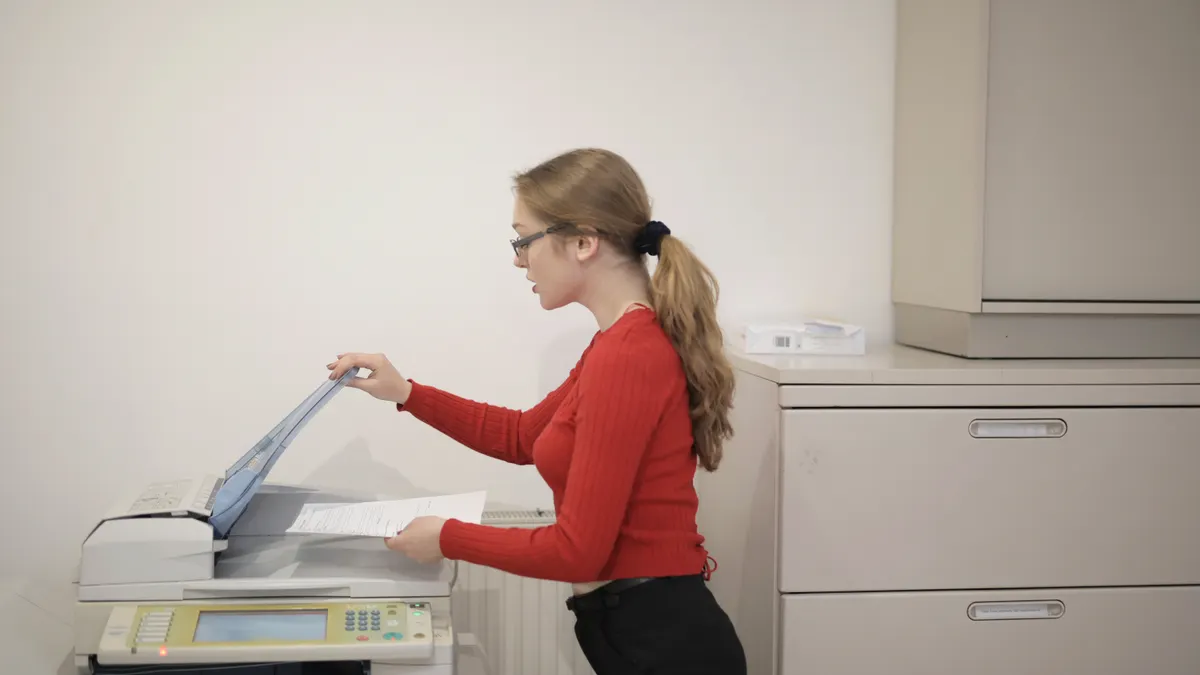
Use the built-in Windows driver for a quick, low-friction install, and use the manufacturer package when the printer has features you actually need. Windows 11 often recognizes a printer through its internal driver library or through Windows Update, which is useful for a simple USB printer in an office or home office. The trade-off is that generic support can be thinner.
The built-in driver is a good fit when:
- You only need to print documents
- The printer is a common model and Windows 11 already recognizes it
- You do not need special tray control, finishing options, or scanning software
The manufacturer package is a better fit when:
- The printer is all-in-one and you need scanning or copying tools
- You want the printer’s exact model name, not a generic class driver
- The printer keeps reinstalling as the wrong model after reboot
One practical downside of the manufacturer package is that it usually installs more than a driver. That can include a status monitor, update helper, shortcut app, and sometimes a background service that starts with Windows. That extra software may be more than a minimal install needs. If you are setting up one plain USB laser printer for a single desktop, the Windows driver may be enough. If the printer is shared by several users or has a scanner bed, the full package is usually worth the extra 5 to 10 minutes.
Do not mix old and new packages if you can help it. A stale driver from a previous model can stick around and create duplicate printer entries, and that often leads to the wrong default printer or jobs sitting in the queue with no obvious cause.
How to handle USB installation without duplicate printers
You handle USB installation cleanly by connecting the cable once, letting Windows finish detection, and removing old entries before you reinstall. For USB, the easiest path can also create duplicate printers if you plug and unplug the device during setup or install more than one driver package for the same model.
Start with the printer unplugged, then install the manufacturer package if you plan to use one. Many installers ask you to connect the USB cable only after the software is ready. If you connect too early, Windows may grab a generic driver and leave the manufacturer installer trying to fight it. When that happens, you can end up with two queues that look almost identical, such as one named by model and another named “Copy 1” or “USB Printing Support.”
If you already have duplicates:
- Open Settings > Bluetooth & devices > Printers & scanners.
- Remove the extra printer entries one by one.
- Open Device Manager and check for leftover printer devices or unknown USB print devices.
- Reboot before reinstalling the driver.
That cleanup matters because duplicate entries can send jobs to the wrong queue, and users usually do not notice until a print job vanishes into the inactive copy. For a small office, that costs time every time someone prints. The fix is not a more aggressive installer; it is a cleaner device list.
A good USB install usually ends with one printer queue, one driver name, and one test page that exits the tray without delay. If you see two nearly matching printers after the install, stop and clean up before adding anything else.
How to install drivers for a network printer on Windows 11
You install a network printer driver on Windows 11 by making sure the PC can reach the printer on the network, then installing the matching driver package and assigning it to the correct network address or queue. Network installs fail most often because the printer is reachable but the driver is wrong, or the printer was added twice under two different names.
A network printer can appear through a hostname, an IP address, or discovery on the local subnet. The driver still matters even when Windows can see the printer. If the printer is a business model with a built-in web page, the manufacturer package often gives better control over trays, print quality, and status reporting than a generic Windows driver.
A practical network install usually follows this pattern:
- Confirm the printer is on the same network segment as the PC
- Get the printer’s IP address from the printer panel, router list, or device page
- Install the manufacturer driver package for Windows 11
- Add the printer using the IP address if Windows does not map it correctly
The common failure is a duplicate queue: one created by discovery, another created manually by IP address. That split can send new print jobs to the wrong entry or leave an old queue with a stale driver attached. When that happens, remove the unnecessary copy and keep the one that matches the current IP address or hostname.
Network installs are also where a printer can “disappear” after a router change. If the IP address changes, Windows can still remember the old address and keep sending jobs nowhere useful. A reserved IP address on the router reduces that problem, but that is a network setup decision, not a driver problem.
Use Device Manager when Windows picks the wrong printer driver
Use Device Manager when Windows 11 installs the wrong printer driver, attaches a generic label, or leaves a yellow warning icon after the normal setup. Device Manager is the cleanup tool, not the first place to start, but it is often the quickest way to fix a bad match after a failed auto-install.
Open Device Manager and look under Printers, Print queues, or Universal Serial Bus controllers. If the printer is misidentified, right-click the device and choose Update driver. From there, you can let Windows search automatically or point it to the downloaded manufacturer files. If Windows keeps insisting on the wrong driver, uninstall the device and check the box that removes the driver software when that option appears.
The important part is not just removing the visible printer. Leftover driver packages can stay in the system and get reused on the next plug-in. That is how a clean reinstall turns into the same mistake twice. If you are trying to replace an old model with a new one, that leftover package can be the reason the new printer keeps inheriting the old name.
A bad job here looks like this:
- The printer appears, but prints gibberish or blank pages
- The model name is wrong, such as a generic class name instead of the exact model
- Windows shows two printers that seem to be the same device
The fix is to remove the wrong device, remove the stale package if possible, then install the correct driver once. That is usually faster than clicking through repeated automatic repairs.
For deeper setup paths and printer selection advice, the printer setup hub can support this page without repeating the same steps.
What to do when the driver installs but printing still fails
You should check the queue, the driver match, and the port before reinstalling again. A successful install does not always mean a successful print, and chasing a second download too early wastes time.
Start with the print queue. If the queue is paused, full of stuck jobs, or pointed to a disconnected port, the driver is not the real problem. Clear the queue and try a single test page. If the printer is a network model, confirm that the port points to the current IP address, not an old one. If the printer is USB, unplugging and replugging after a fresh restart can force Windows to bind the device correctly.
There are three common signs that the install itself was wrong:
- The printer name is generic or clearly belongs to another model.
- A test page prints with scrambled characters, missing graphics, or no output at all.
- The printer works in one app but not another, which often means the wrong port or queue is selected.
Do not keep layering drivers on top of a bad setup. That usually creates more duplicate devices, more stale queues, and more confusion in Device Manager. Remove the bad entry, then install one correct driver and stop there.
If the printer is from a major brand and the manufacturer offers a model-specific tool, use it once rather than mixing several third-party installers. The cleaner the install path, the less likely Windows 11 is to keep resurrecting an old driver later.
Why does Windows 11 keep reinstalling the wrong driver?
Windows 11 keeps reinstalling the wrong driver when an older driver package is still present or Windows Update is supplying a generic match that looks close enough to Windows. The fix is to remove the wrong printer entry, clear the stale driver package if you can, and reinstall the exact model driver from the manufacturer. If the printer is on USB, unplug it during cleanup.
Do I need the manufacturer software to print?
You do not always need the manufacturer software to print. A built-in Windows 11 driver can be enough for basic document printing, especially over USB or for a common office model. Use the manufacturer package when you need scanning, ink or toner status, tray control, duplex options, or when Windows keeps picking the wrong driver.
How do I remove an old printer driver?
You remove an old printer driver by deleting the printer queue first, then removing the device and driver package from Windows 11 if the option is available. Start in Settings under Printers & scanners, then check Device Manager for leftovers. If the old driver stays behind, it can keep returning after a reboot or a new USB connection.
Drafted with AI; not yet reviewed by a person.