Last updated: October 26, 2026
Quick Answer: In most cases, how to fix a printer not printing takes 5 checks: power, connection, paper, ink, and the print queue. A test page is the fastest way to see whether the printer itself is working.
A printer not printing issue usually comes down to something simple: a loose cable, a stalled job, a low supply, or a paper-path snag. Rarely is it dead hardware. Usually, it is one of those five basics.
Key takeaways
- Start with the fastest checks: power, connection, paper, and ink.
- A printer can look ready on the screen and still refuse new jobs if the queue is jammed.
- A test page can quickly tell you whether the printer itself works before you blame the computer.
- If one device prints and another does not, the problem is usually on the computer or network side, not the printer.
- A missing page, faded text, or blinking light points to a different fix than a full paper jam.
What to check first when the printer will not print

Power first, then connection, then paper and ink. That order saves time because those four causes explain most “won’t print” complaints before you ever reach the settings menu.
Check the printer itself. Is it on? Does it have paper in the paper tray? Any warning light? If the printer has an LCD, look for messages about low ink, no paper, door open, or a carriage problem. No screen? Use the control-panel lights instead.
Next, check the connection. A USB printer should have the cable seated firmly at both ends. A Wi‑Fi printer should still be on the same network as the computer. If the printer recently changed networks, moved rooms, or lost power, that connection is the first thing that slips. One computer can print while another cannot; in that case, the printer itself is probably fine. For broader setup help, see the printer troubleshooting hub.
Now look at the paper tray. Load plain paper neatly, with the guides snug but not crushing the stack. An empty tray, an overloaded one, or a crooked stack can stop a job before it starts. This happens a lot after someone “fixes” the tray by shoving in fresh paper at an angle. Sloppy stacks are sneaky.
Finally, check ink or toner. On some inkjet printers, an empty color cartridge stops everything — even black text. A cartridge that is not seated properly can do the same. The printer may look healthy and still do nothing.
If those checks do not reveal the problem, move to the queue and the test page. For broader help beyond this one symptom, the printer troubleshooting hub can handle the bigger picture.
How do I fix a printer not printing step by step?
Restart, reconnect, reload paper, check ink, clear the queue, then print a test page. That sequence isolates the problem without guesswork.
- Turn the printer off, wait 30 seconds, and turn it back on. A full restart clears minor errors that do not show on the screen. When it works, lights return to normal and the printer stops acting stuck.
- Check the cable or wireless connection. For USB, reseat the cable at both ends and try a different port if one is available. For Wi‑Fi, confirm the printer is on the same network as the computer. When it works, the printer appears connected again and can receive a new job.
- Open the paper tray and reload plain paper. Use a clean stack, usually 10 to 20 sheets for a desktop printer, and align the side guides so they touch the paper without bending it. When it works, the tray feeds smoothly and the printer stops asking for paper.
- Check each ink cartridge or toner cartridge. Remove and reseat any cartridge that looks loose, empty, or out of place. If the printer reports low ink or empty toner, replace the cartridge before trying again. When it works, the printer accepts the job instead of stopping at a supply warning.
- Clear the current print job from the queue. Cancel the stuck job and remove anything waiting behind it. A single broken document can block new documents until it is removed. When it works, the queue empties and the next file can start fresh.
- Print a test page from the printer or the computer. A test page separates printer hardware from document problems. When it works, the page comes out with text or color bars, showing that the printer can print even if one app still fails.
If the test page prints but your document does not, the problem is usually in the app, file, or print settings. If the test page does not print either, the issue is still inside the printer, the connection, or the driver path between the computer and printer.
Why a test page matters more than guessing
A test page can tell you fast whether the printer can print at all. It skips the distractions — a damaged Word file, a bad PDF, or the wrong paper size in one app.
Use the printer’s built-in menu if it has one, or print a test page from the operating system. Many printers include a self-test or status page that can be started from the control panel. On a computer, the printer properties or settings panel often has a “Print Test Page” option. The exact menu name varies, but the idea is the same: send a clean page directly to the printer.
If the test page prints, the printer hardware is probably not the problem. Then the next place to look is the document itself, the app, or a setting like paper size or orientation. If the test page does not print, focus on the printer, its connection, or the driver path. That’s the fork in the road.
Do not skip this step because the printer “looks fine.” A machine can be powered on, connected, and full of paper, yet still fail on every real document. A test page cuts through that uncertainty in less than a minute on most models.
For printers with an LCD, watch for a confirmation message or a short burst of activity before the page feeds. For printers without a screen, listen for the feed rollers and carriage movement. If there is complete silence, the job may never have reached the device.
Signs the paper path is the real problem
Paper-path trouble is the likely cause when the printer makes noise but no sheet comes out, or when it stops after half a page. That is different from a full paper jam, which belongs in a separate fix.
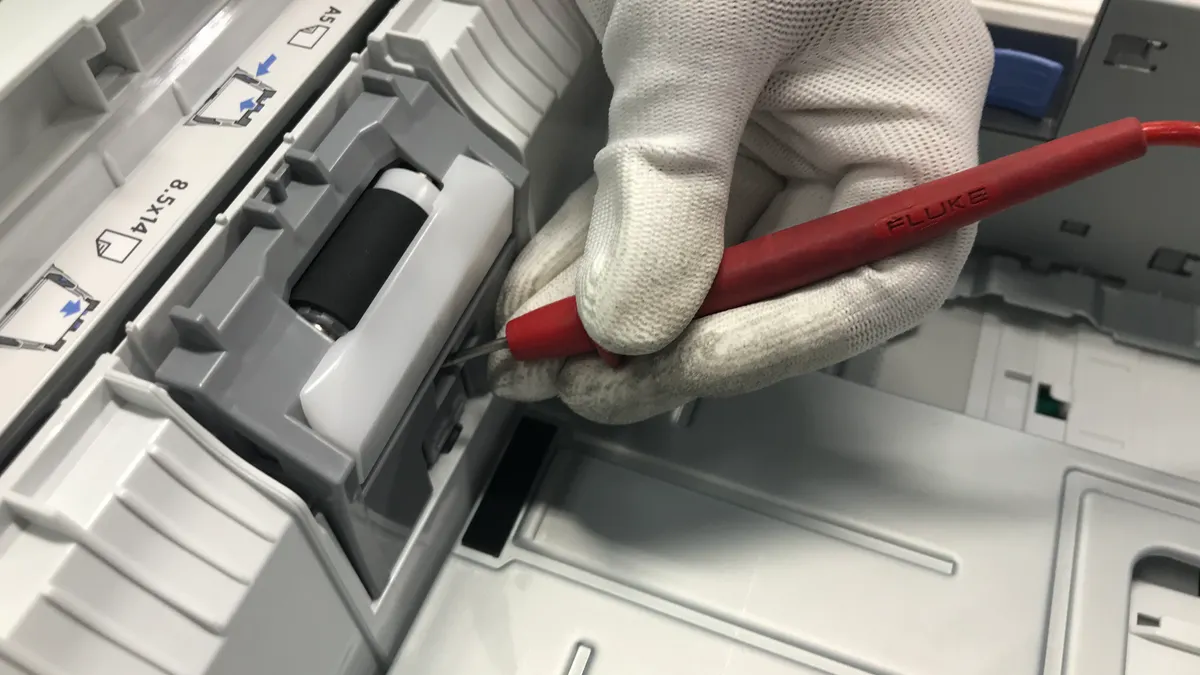
Look for three common clues. First, the paper tray may be empty, even though it looked full from above. Second, the printer may pull several sheets at once because the stack is curled, damp, or overfilled. Third, the printer may pause because a small scrap is left in the feed path near the rollers or rear access door.
Fix the obvious paper issues first. Remove the stack, fan it once, and reload it neatly. Make sure the guides are snug and the tray is not overstuffed. If the paper is glossy, curled, or wrinkled, replace it with plain 20 lb / 75 gsm paper for the test. That gives the rollers the easiest possible job.
If the printer has a rear access door or duplex path, open it and look for scraps of paper. Use a flashlight if needed. A tiny torn corner can stop the feed as easily as a larger jam. Close every door firmly before trying again, because a door left ajar can also block printing.
A printer that feeds but prints blank pages is a different problem from a printer that feeds nothing. Blank pages point more toward ink, toner, or clogged nozzles. No feed points more toward the tray, rollers, or a blocked path.
Connection check: when the printer works on one device but not another
The connection is the likely culprit when one computer prints and another does not. That difference tells you the printer is not completely broken; the path between the device and the printer needs attention.
For a USB printer, unplug the cable from both ends and reconnect it. Try another USB port on the computer if possible. Avoid hubs while troubleshooting, because they add one more point of failure. A USB cable that is loose or damaged can still power the printer but fail to carry print data reliably.
For a wireless printer, confirm that the printer and computer are on the same network name. Many printers silently drop onto a guest network, a different band, or a router they used before. A recent router change can also break the connection without changing anything on the printer display. If the printer has a network report page, print it and check the network name there. The printer’s report can save several minutes.
If you can print from the printer’s own control panel but not from the computer, the hardware is probably okay. That narrows the problem to connection settings, the printer driver, or the computer’s print path. If nothing can reach the printer, the problem is closer to the device itself.
This is also the point where people often waste time restarting the wrong thing. Rebooting the computer may help if the queue or driver is stuck, but it will not fix a disconnected USB cable or a printer that has wandered onto the wrong Wi‑Fi network. It will not fix a bad network name either.
When ink, toner, or cartridge seating stops printing
Ink or toner is the cause when the printer lights complain about supply, the page comes out blank, or black text fails while the rest of the setup looks normal. That is especially common on inkjet printers with separate cartridges.
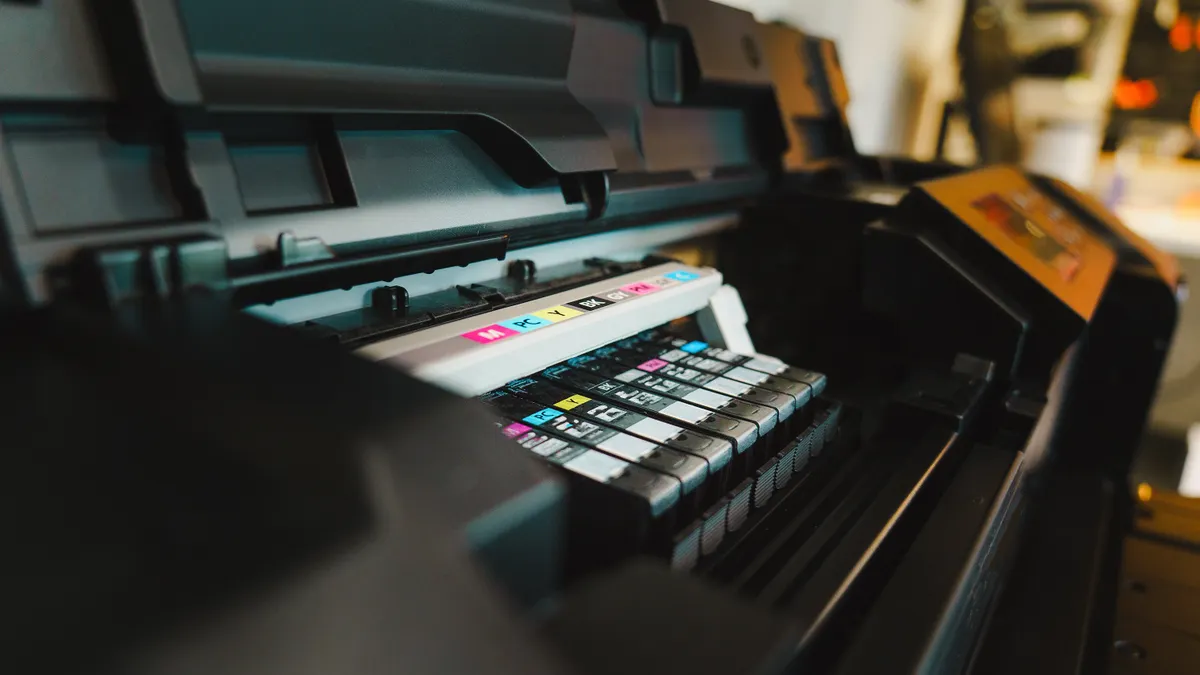
Open the cartridge area and make sure each cartridge clicks fully into place. A cartridge that is tilted, half-seated, or still has protective tape on it can stop printing. If a cartridge is empty or nearly empty, replace it before testing again. Some printers will not continue with one empty color cartridge, even if you only want black text.
Do not assume a “low ink” warning means the printer still has enough to finish the job. Some models are strict about supply levels, especially with color cartridges. A printer may also pause if the wrong cartridge model is installed, even if it fits physically.
If the printer prints faintly rather than not at all, the cartridge may be low, the printhead may need cleaning, or the toner may be unevenly distributed. That is a different lane from a total no-print failure, but the starting point is the same: confirm that the consumable is seated and usable.
If the printer can feed paper but the page is blank or nearly blank, look at ink or toner before changing cables or reinstalling drivers. If the printer cannot even start the page, look earlier in the chain.
Common mistakes that waste time
The biggest mistake is chasing software before checking the printer itself. That costs time because a dead paper tray or empty cartridge will not be fixed by reinstalling a driver. Start with the physical checks, then move into the computer.
Another common mistake is sending ten more print jobs while the first one is still broken. That fills the queue and makes the symptom look worse than it is. Cancel the bad job first, then retry one clean page.
A third mistake is loading paper loosely or overfilling the tray. Too much paper can cause double-feeds, and paper that is pressed too tightly against the guides can fail to advance. Use a smaller stack for testing, usually 10 to 20 sheets, and keep the guides aligned.
A fourth mistake is ignoring the test page. Without it, you cannot tell whether the printer itself is the problem or whether only one document or app is failing. That distinction saves a lot of guesswork.
Do not stop at “the printer says ready.” Ready only means the device has power and is waiting. It does not guarantee that it can receive a job, pull paper, or print cleanly.
When this is not a printer problem
This is not the printer problem if the test page prints but one document still refuses to come out. In that case, the issue is usually the file, app, or page setup, not the printer.
It is also not the printer problem if only one computer fails while another prints normally over the same printer. That points to the computer’s queue, driver, or connection path.
If the printer powers on, loads paper, and passes a test page, do not replace hardware yet. That would be the wrong move and often the most expensive one. The better next step is to check the document source, the application, and the print settings one by one.
If you want a broader map of symptoms, the printer troubleshooting hub is the right place to go next. This guide is for the first-response fix: the fast checks that solve the most common “printer not printing” case before you spend money or time on deeper repairs.
Why is my printer not printing anything but says ready?
The printer is usually waiting for a job it cannot process, or the job is stuck before it reaches the device. Check the queue, then print a test page. If the test page prints, the printer is fine and the problem is likely the app, file, or settings on the computer.
What should I check first if my printer won’t print?
Check power, paper, ink, and the connection first. Those four items cause most printer not printing problems and take less than a few minutes to inspect. If any of them is wrong, fix it before changing drivers or reinstalling software.
How do I troubleshoot a printer that powers on but doesn’t print?
Start with a restart, then run a test page. A printer that powers on but does not print is often stuck on a queue issue, a loose connection, an empty tray, or a cartridge problem. If the test page fails, the issue is on the printer side; if it works, look at the computer or document.
Drafted with AI; not yet reviewed by a person.