Remember that time your friend showed off their 3D-printed gadget, and you were totally amazed? You might have thought, “That’s cool, but it seems complicated.” Well, it doesn’t have to be! This guide will take you step-by-step through the process of printing 3D files, from start to finish. We’ll explore everything you need to know to get started, so you can bring your ideas to life. By the end, you’ll feel confident about printing 3D files and ready to create your own cool projects. Prepare to transform those digital designs into tangible objects!
Key Takeaways
- Learn the essential steps to prepare and then print 3D files.
- Understand the different types of 3D printers and their suitability for various projects.
- Discover the best file formats and software to use for printing 3D files successfully.
- Explore tips for troubleshooting common printing problems, saving time and materials.
- Find valuable insights for post-processing and finishing your 3D-printed creations.
Getting Started with 3D Printing
Before you jump into the exciting world of 3D printing, you’ll need a basic understanding of the process. It’s not as difficult as it might appear. The process involves converting digital designs into physical objects layer by layer. This section will cover the basics, from choosing the right 3D printer and the necessary materials, and preparing your designs for the printer.
Choosing the Right 3D Printer
The first step is selecting a 3D printer that fits your needs. There are many options available, from beginner-friendly models to advanced, professional-grade machines. Consider your budget, the size and complexity of the objects you want to print, and the types of materials you’d like to use. It is wise to consider the long-term running costs of the printer, not just the initial purchase price.
- Fused Deposition Modeling (FDM) Printers: These are the most common and generally the most affordable type. They work by melting plastic filament and extruding it layer by layer. They are an excellent starting point for beginners, given the low entry cost and ease of use.
- Stereolithography (SLA) Printers: These printers use a liquid resin that is cured by a laser or a light source. SLA printers create objects with high detail and smooth surfaces, making them ideal for miniatures, jewelry, and other projects where fine detail is important.
- Digital Light Processing (DLP) Printers: Similar to SLA, DLP printers use a projector to cure resin. They are often faster than SLA printers, but the print area may be smaller. The quality is usually very similar to SLA.
- Selecting the right printer: The best printer depends on your needs. FDM is a great entry-level option, while SLA and DLP are great for detail.
FDM printers are popular because they are often easy to use and maintain. They are great for beginners as you can quickly learn the process. The simplicity of FDM makes them suitable for various projects, from simple prototypes to functional parts. A major downside is the visible layer lines on the finished product, and the need for support structures on complicated designs. The quality can vary, depending on the printer and the filament used. FDM printers are ideal for printing basic, non-detailed objects.
SLA offers a higher level of detail compared to FDM, perfect for models, miniatures, or jewelry. The liquid resin used is cured using UV light, producing very smooth surfaces. This leads to a higher post-processing effort in some cases, to get the desired finish. SLA prints are very accurate and are excellent for complex designs. These printers are also typically more expensive than FDM printers, and the resins can be sensitive to UV light and require careful handling. Consider SLA if you need high-resolution prints.
DLP printers cure resin in layers using a projector, allowing fast printing. They offer high resolution, suitable for detailed models. DLP printers often have a smaller build volume than FDM. The speed and detail offered by DLP make it suitable for various projects. The cost is often somewhere between FDM and SLA, but you can find affordable options to start with. Like SLA, DLP prints usually need post-processing to remove support structures.
The type of printer you choose largely depends on the specific things you intend to create. The best option for you will depend on your budget, experience level, and desired results. Consider your project’s needs, such as resolution, size, and material compatibility. FDM printers are the simplest and most cost-effective. SLA and DLP offer greater detail and are suitable for more complex models. Research different brands and models, and read reviews to ensure you make an informed decision.
Essential Materials
The materials used in 3D printing, often called filaments, directly impact the final product. Understanding the different types of filaments, their properties, and how they interact with your printer is a key part of the process. Each type offers its unique advantages and disadvantages.
- PLA (Polylactic Acid): This is a popular choice for beginners because it’s easy to print with, biodegradable, and produces low odor during printing. PLA is a good choice for prototypes, toys, and decorative objects.
- ABS (Acrylonitrile Butadiene Styrene): ABS is a durable plastic, known for its strength and heat resistance. It is often used for creating functional parts, toys, and automotive components. It can be a little more challenging to print, requiring a heated bed and a controlled environment.
- PETG (Polyethylene Terephthalate Glycol-modified): PETG is a good compromise between PLA and ABS, offering a good combination of strength, flexibility, and ease of printing. It’s a popular choice for items like containers, functional parts, and anything needing some flexibility.
- Other Materials: Besides the above, you can also consider nylon, TPU (thermoplastic polyurethane) for flexible prints, and specialized materials like wood-filled filaments. Each offers different properties.
PLA is a plant-based plastic and is considered eco-friendly, made from renewable resources like corn starch. It melts at a lower temperature than other plastics, making it easy to print, and is less prone to warping. PLA has limited heat resistance and will soften and deform at higher temperatures, making it unsuitable for objects that will be exposed to heat or direct sunlight. Its ease of use, wide availability, and low cost make PLA a favorite for beginners, though it has limited applications in very durable products.
ABS has a high melting point, making it suitable for parts that will endure high temperatures. This filament is strong and durable, allowing for practical and long-lasting items. A heated bed and an enclosed printer are typically needed to prevent warping, which can be an issue with ABS. ABS produces fumes while printing, so it is necessary to print in a well-ventilated area. Common uses include parts for vehicles and appliances. ABS provides strong and functional parts. ABS is an excellent choice when durability is needed.
PETG combines strength and flexibility. PETG is very easy to print, making it an excellent choice for a wide variety of users. It is less prone to warping compared to ABS and can withstand higher temperatures than PLA. PETG is waterproof, chemical resistant, and good for outdoor use. PETG is more robust than PLA and has lower odor levels compared to ABS. It provides a good balance between ease of use and material characteristics. The broad range of properties makes PETG a good choice for various 3D-printing projects.
Beyond the basics, you have access to a wide array of options, each with unique properties. Nylon is tough and durable, making it suitable for mechanical parts. TPU is rubbery and flexible, perfect for seals and grips. Wood-filled filaments give the finished product the appearance of wood. These specialty filaments allow you to tailor the output of your printing 3D files to your specific needs. Explore these diverse options to expand your creative scope.
Understanding 3D File Formats
Before you can start printing 3D files, you need to know about the file formats. The choice of file formats is a key aspect of making sure your design translates accurately to the physical world. Some files describe the geometric details of the model, while others provide the settings that the printer should use.
- STL (Stereolithography): This is the most common format for 3D printing. STL files describe the surface geometry of a 3D model as a collection of triangles. The simple format is widely supported by 3D printers and slicing software.
- OBJ (Object): OBJ files are another format that stores 3D model data. They support colors and textures, making them suitable for models with visual details. OBJ files often include information about the materials used in the model.
- AMF (Additive Manufacturing File Format): AMF is a more advanced format, supporting features like colors, materials, and internal structures. AMF is gaining popularity, but might not be supported by every printer.
STL files are a standard for 3D printing, making them universally compatible. They describe the surface of your model with a series of triangular facets. The file defines how the printer will build the object, layer by layer. While simple, STL files are not well-suited for complex shapes. The more triangles needed to define the surface, the larger the file size will be. STL is an excellent choice for most basic 3D printing applications.
OBJ files can also save color and texture information, enabling more complex visual representations. This adds a level of realism to your 3D-printed creations. Support for color makes it perfect for visual models and art pieces. While OBJ files can be larger than STL files, they provide a higher degree of visual fidelity. The format is a useful choice when aesthetics are a primary concern.
AMF is an advanced file format. AMF supports multiple materials and internal structures. This format provides more design possibilities. This format allows for intricate designs. AMF is becoming more popular, but it is not universally supported yet. As 3D printing technology develops, AMF will become a more common file format.
Preparing Your 3D Files for Printing
After selecting your model and file format, you need to prepare your design for printing. This process includes using slicing software, adjusting settings, and making sure the object is ready for the printer. Getting this stage right is key to success.
Using Slicing Software
Slicing software converts your 3D model into instructions that the 3D printer can understand. It takes your STL or OBJ file and slices it into layers, generating a G-code file that controls the printer’s movements and settings. Choosing the correct settings, which tell the printer how to print each layer, will affect the result.
- Common Slicing Programs: Popular choices include Cura, PrusaSlicer, and Simplify3D. They all offer different features and capabilities. Some are free, others have a cost associated with them.
- Importing and Orienting Your Model: Import your model into the slicing software, and then position it on the virtual build plate. Correct orientation can make a big difference, especially to the required support structures.
- Adjusting Settings: The settings control the quality, speed, and material usage. There are various settings to tune, including layer height, infill density, print speed, temperature, and support structures.
Each slicing program offers its features and advantages. Cura is free and is well-regarded. PrusaSlicer is known for its excellent support for Prusa printers. Simplify3D is a feature-rich program that provides great control over the printing process. Consider your printer and your experience level when choosing a program. Do some research to compare software and pick the one that matches your needs.
You can adjust the position of your model. By rotating the model on the build plate, you can optimize for print quality. Correct orientation minimizes the need for support structures. Experiment with various orientations. This allows for achieving the best results with your model.
Layer height determines the vertical resolution of your print. Infill density affects the strength and material use. Print speed influences how quickly the model is printed. Temperature settings are critical for proper material melting and adhesion. Support structures are needed for overhanging parts. You will need to explore these settings to get the best results. A good starting point is usually the software’s default settings, but these can be tweaked to meet your needs.
Understanding Slicing Settings
Mastering slicing settings is vital to achieving successful 3D prints. These settings control the way the printer behaves during the printing 3D files, influencing the quality, speed, and material use. Experimentation is key, so that you find settings that work well for your printer and filament.
- Layer Height: This setting dictates the thickness of each layer of the print. A smaller layer height results in a finer resolution and smoother finish, but the print will take longer.
- Infill Density and Pattern: Infill is the internal structure of the print, and it’s essential for strength. Infill can be a percentage (0% means solid, 100% means hollow). You can choose from various patterns.
- Print Speed and Temperature: Print speed impacts the printing duration, while temperature is critical for melting the filament. Correct temperatures ensure good layer adhesion.
- Support Structures: These are necessary for overhanging parts. Support structures prevent the object from collapsing during printing. You’ll need to remove them after printing.
Layer height has a significant impact on print quality and print time. Higher layer heights (e.g., 0.2mm – 0.3mm) are faster and can be adequate for basic prints. Lower layer heights (e.g., 0.1mm or less) give better detail. Keep in mind that lower layer heights mean longer printing times. This adjustment involves a balance between resolution and printing speed. A smaller layer height means you get a more detailed and smoother finish.
Infill contributes to the strength and material use of the printed item. Higher infill percentages provide better strength. Common infill patterns include grid, honeycomb, and triangles. The choice of the infill pattern can affect both the strength and the printing time. These choices affect the final product’s characteristics, like strength and print time. Adjust the infill to find the right balance between material use, strength, and print speed.
Print speed and temperature are key variables. Higher print speeds can reduce printing time, but this can sacrifice quality. Adjust the print speed based on the size and complexity of the object. Temperature is important for melting the filament properly. Using the wrong temperature can lead to layer adhesion issues. Follow the filament manufacturer’s recommendations for temperature settings. Experiment with different settings to get the optimal balance between speed and quality.
Support structures are important when the model includes overhangs. Support structures help to prevent drooping and ensure that the print will remain intact. The slicing software generates these structures automatically, though you might need to adjust them based on the model. Support structures must be removed after the print is complete. They will come in contact with the printed object. Removing them can be time-consuming and may leave marks. Carefully consider the design and orientation of your 3D models to minimize the need for supports. Always remember to select the correct type of support structure to make removal easier.
Common Slicing Software Features
Slicing software offers many useful features beyond just converting a model into G-code. Understanding these features can help improve your prints. Each piece of software will vary in the features that it provides.
- Automatic Support Generation: Slicing software can generate support structures for overhanging sections. This makes it easier to create complex designs.
- Model Repair: Sometimes, 3D models have errors. The software can automatically fix these issues. Repair tools can fill gaps or correct other issues.
- Print Preview: Print preview allows you to visualize how your model will be printed layer by layer. This helps you to identify potential issues and adjust settings.
Automatic support generation simplifies the process, particularly for complex designs. These automatic support structures are generated by the software. This can save time by minimizing the effort involved in manually setting up supports. You might need to adjust these supports to fine-tune them. This process assists with the 3D printing process, allowing for more intricate designs.
When you prepare your 3D model, you might encounter issues like non-manifold geometry, or holes in the model. Model repair tools help you fix these issues. Using the software can often automatically identify and fix common issues. This is a very helpful feature for beginners and saves time. Repairing the model makes sure it is suitable for printing.
Print preview allows you to visualize the way that your model will be printed. This can help with identifying possible issues before starting a print. Reviewing each layer helps determine whether the model is aligned. You can find any potential problems, and then fix them before you print. This is a helpful tool for reducing failed prints.
Troubleshooting Common Printing Issues
Even with careful preparation, 3D printing can be challenging. Problems can and do happen. Understanding some of the most common issues will help you fix them. This section helps with troubleshooting, so you can achieve better results.
Common Problems and Solutions
3D printing problems arise from various sources, but most issues can be solved by adjusting settings or using best practices.
- Warping: This is when the print curls up from the build plate. It’s often due to the material contracting as it cools.
- Stringing: Thin strands of filament appear between parts of the print. This occurs because the filament is oozing out of the nozzle.
- Layer Separation: The layers of the print are not adhering to each other. This is often the result of insufficient temperature or print speed.
- Under-Extrusion: Not enough filament is being extruded, resulting in gaps or weak areas in the print. This can be caused by a clogged nozzle or an incorrect extruder setting.
Warping is common, especially with ABS materials. The solution includes using a heated bed and applying adhesive. Ensure that the first layer adheres correctly to the build plate. Keep your print in an enclosed environment. The correct settings will address most issues.
Stringing is often caused by the nozzle dripping the material when it moves between locations. Reducing the print temperature, increasing the retraction settings, and adjusting the print speed can resolve this. Careful calibration of the printer can help prevent this.
Layer separation leads to a weaker print. Make sure you use the proper temperature. You must use the correct printing speed and settings. Adjusting the settings will ensure the layers will adhere to each other properly. Review your settings and settings on your printer.
Under-extrusion causes the print to have gaps or weak areas. Examine the nozzle for blockages, and ensure the extruder settings are correct. Adjust the settings to improve the flow of filament. Calibrate the extruder to avoid under-extrusion issues.
Advanced Troubleshooting Techniques
If you’re still experiencing issues, you can take some advanced steps. These techniques require a deeper understanding of your 3D printer and the materials used. They will help you improve the outcome.
- Leveling the Bed: A leveled build plate is crucial for the first layer adhesion. This can be critical for printing 3D files correctly.
- Nozzle Calibration: Calibrating your nozzle height ensures the correct distance between the nozzle and the build plate. Proper nozzle height is important for layer adhesion.
- Temperature Tuning: Finding the right temperature for your filament is essential. Fine-tuning the temperature can improve layer adhesion and print quality.
Ensure the build plate is level for successful printing. Most printers offer bed-leveling features. Calibrate your printer using the bed-leveling feature. A level bed helps in the first layer adhesion and avoids problems.
Calibrating the nozzle height is necessary for optimal printing. Too close, and the filament won’t flow, or the bed will be scratched. Too far, and the first layer won’t stick. You can get better results when the nozzle is the correct distance from the bed.
Adjusting the temperature will optimize your print. Experiment with different temperatures to ensure the filament melts and adheres to each other. Incorrect temperatures can cause layer separation and other issues.
Post-Processing and Finishing Your Prints
After your print is complete, the work isn’t done yet. Post-processing and finishing techniques will transform your creations into professional-looking objects. This stage includes removing supports, cleaning up the surfaces, and applying any desired finishes.
Removing Supports and Cleaning Up
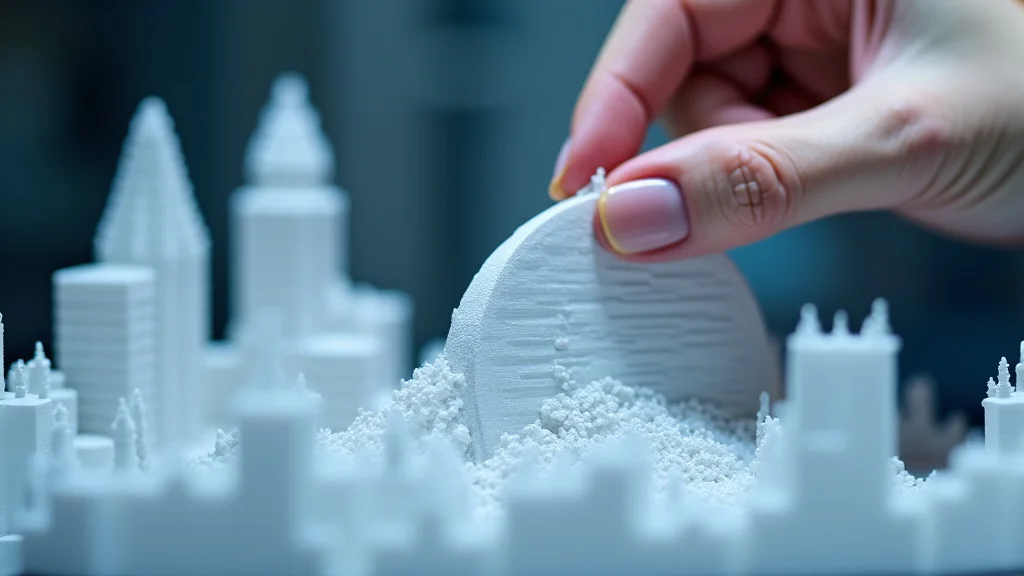
Support removal is an important step. This process requires patience. Proper support removal preserves your final model. You should use the correct tools to avoid damaging the object.
- Support Removal Tools: Using the right tools will make the process much easier.
- Post-Processing Techniques: Sanding, filing, and other methods will smooth out the surfaces.
- Cleaning Up: Remove any remaining filament residue to ensure the object is pristine.
Use side cutters, pliers, and a hobby knife. With some models, you might need a heat gun to soften the support material. The right tools help you get a cleaner result. Proper tool choice helps make the process more simple and minimizes damage.
Sanding and filing can fix imperfections. Smoothing the surface gives a more professional finish. You can use sanding blocks, and fine-grit sandpaper for this process. Take the time to make the surface look great. You can also use other products like filler primer to fix flaws.
Clean off any remaining plastic fragments. You can use a brush or a tool. Make sure that your model is clean and tidy before any surface finishing is applied.
Surface Finishing Techniques
Various techniques improve the appearance and durability of your 3D prints. These methods improve the quality and look of your prints. Surface finishing often impacts both appearance and function. Consider each technique depending on what you are making.
- Sanding and Polishing: This creates a smooth and professional finish.
- Painting and Finishing: Painting gives you the ability to customize your model. Apply paint to improve the appearance and protect it.
- Vapor Smoothing: This process makes the surface smooth by using a solvent. Vapor smoothing can be applied to ABS.
Sanding is a crucial part of surface finishing, giving your model a very smooth surface. After printing, you may find layer lines or other imperfections. This can be resolved with sanding. Start with coarse sandpaper and work your way to finer grits. The outcome of sanding is a smooth, polished surface.
Painting is a creative way to enhance the look of your 3D prints. You can match the color of the object, or add details. Before painting, make sure the surface is clean. Use a primer to help the paint stick. This gives a finished look to the model.
Vapor smoothing dissolves the outer layer of the print, resulting in a smooth finish. It is often used with ABS prints. The smoothing process is completed with a solvent. The result is a smooth and shiny surface. This can significantly improve the appearance of the model.
Advanced Finishing Techniques
For high-end and more specialized applications, you can explore advanced finishing techniques. These methods add extra complexity, and can be used to improve the look and longevity of your prints.
- Priming: Priming the print will prepare it for painting. Priming helps the paint adhere to the surface.
- Coating and Sealing: This can protect the surface of the model. Sealants can be used to improve resistance to UV light, water, and other factors.
- Heat Treatment: Some filaments can be heat-treated to improve their mechanical properties. Heat treatment can also strengthen certain materials.
A good primer is designed to enhance the paint’s look and hold. Primers can fill in small imperfections, providing an even surface. Priming is a helpful step before painting your 3D print. Using primer means the paint will be much more durable.
Coatings and sealants safeguard your print, increasing its durability. They add a layer of protection against environmental factors. Depending on the product, you can use coatings for UV resistance, water resistance, and greater durability. Coatings and sealants are very helpful for objects that are going to be used outdoors.
Heat treatment can improve both the strength and the thermal resistance of your print. You can put your print in an oven, following specific settings. You will be able to improve the mechanical characteristics. Heat treatment is a good choice for parts which are exposed to stress. Carefully follow the manufacturer’s advice when performing heat treatment. Always be safe when using heat.
Common Myths Debunked
Myth 1: 3D printing is only for experts.
Reality: While there’s a learning curve, 3D printing is becoming increasingly accessible. Modern 3D printers and software are designed to be user-friendly, and there’s a lot of online resources to help you along the way. With some practice, anyone can learn to print 3D files successfully.
Myth 2: 3D-printed objects are always weak and fragile.
Reality: The strength and durability of a 3D-printed object depend on the material, design, and settings used. Some materials, such as ABS and PETG, are very strong and can be used for functional parts. The design, including infill pattern and density, also contributes to the object’s strength.
Myth 3: You need expensive equipment to get started.
Reality: You can find affordable 3D printers for beginners. The cost of a 3D printer can vary widely, from a few hundred dollars to many thousands. While more expensive printers offer advanced features, you can achieve great results with a budget-friendly option. The key is to start with a printer that matches your needs and budget.
Myth 4: 3D printing is always a slow process.
Reality: The printing time depends on the size, complexity, and resolution of your model. Some 3D printers can print at relatively high speeds. There are high-speed 3D printers on the market. Modern technology is reducing printing times, though larger and more complex projects will still require more time.
Myth 5: 3D printing is only for prototypes and toys.
Reality: 3D printing has applications across many industries, including manufacturing, medicine, and aerospace. 3D printing is widely used in making custom parts, medical devices, and even houses. As the technology continues to develop, the uses of 3D printing are expanding.
Frequently Asked Questions
Question: What software do I need to create 3D models?
Answer: There are many free and paid 3D modeling programs. Some popular options include Tinkercad (beginner-friendly), Blender (free, open-source), and Fusion 360 (for more advanced users).
Question: How do I find 3D models to print?
Answer: There are many online marketplaces and repositories. You can download pre-made models from sites like Thingiverse, MyMiniFactory, and Cults3D. You can also create your models using 3D modeling software.
Question: Can I print in multiple colors?
Answer: Yes, you can print in multiple colors. Some 3D printers can print with multiple filaments at the same time. The other method is to pause the print to switch filaments manually. You can also change the filament manually on most models.
Question: What should I do if my print fails?
Answer: There are many reasons for print failure. Check the bed leveling, the nozzle temperature, and the filament. Make sure the model is correctly oriented. You may need to adjust your settings or level the bed again. You will learn troubleshooting skills over time.
Question: Is 3D printing environmentally friendly?
Answer: 3D printing can be more environmentally friendly than traditional manufacturing methods in some cases. It uses less material and has fewer waste products. When you can reuse your filaments, you will contribute towards environmental sustainability. Using eco-friendly filaments like PLA also helps. You can minimize waste by properly managing your prints.
Final Thoughts
Exploring the possibilities of printing 3D files opens a door to creativity and innovation. This exploration can be a rewarding experience. We’ve covered the key steps and techniques, from choosing the right printer and materials to preparing your models and troubleshooting common issues. You’ve also seen ways to finish your creations with post-processing techniques. Remember that practice makes perfect, and each print is a learning opportunity. Start small, experiment with different settings, and don’t be afraid to make mistakes. Now it is time for you to turn your ideas into reality. Start creating today!