Remember that time you needed birthday invitations in a hurry, and the print shop was closed? Or maybe you wanted personalized thank-you notes that didn’t look generic? Creating and printing your own cards offers a solution. This guide will walk you through the process, providing you with the knowledge to make professional-looking cards from home. You’ll learn about different card types, design software, and the best ways to get great results. Get ready to explore the possibilities of printing your own cards and impress your friends and family with custom stationery.
Key Takeaways
- Discover different types of cards you can create at home.
- Learn about the software and tools needed for designing cards.
- Understand the different types of paper suitable for card printing.
- Explore various printing methods, from inkjet to laser printers.
- Get tips on designing visually appealing cards.
- Find out how to ensure your cards have a professional finish.
The Versatile World of DIY Card Creation
The ability to create and print your own cards opens up a vast world of possibilities. You’re not limited to mass-produced designs; instead, you can craft personalized greetings, invitations, and announcements that reflect your unique style. The options range from simple thank-you notes to elaborate wedding invitations, business cards, and even custom photo cards. This flexibility empowers you to make cards for any event or occasion, ensuring they perfectly match your vision and needs. Instead of buying generic stationery, you can create something special, adding a personal touch that leaves a lasting impression.
Types of Cards You Can Print
The beauty of printing your own cards lies in the variety available. The card types you can make are seemingly endless and only restricted by your imagination. You can create everything from everyday cards, like thank-you notes and birthday cards, to more specialized designs such as business cards or promotional flyers. These are some of the most popular types of cards you can print yourself. Let’s delve deeper into each, along with some examples.
-
Greeting Cards: From simple birthday wishes to heartfelt messages, create customized greeting cards that express your feelings. These cards are perfect for any occasion.
Greeting cards are one of the most common applications of DIY card printing. They allow for complete personalization, letting you tailor the design and message to the recipient and the occasion. You can use your own photos, add inside jokes, or write lengthy messages that would be impossible with store-bought cards. This makes each card a unique keepsake.
-
Invitations: Design and print custom invitations for parties, weddings, and other events, ensuring they match your theme and style.
Invitations are a great area to explore when you’re printing your own cards. With complete creative control, you can produce invitations that perfectly reflect the event. This includes selecting colors, fonts, and images that set the right tone. Custom invitations allow you to build excitement and anticipation for the event. They also allow you to include essential information clearly and creatively.
-
Thank-You Notes: Show your appreciation with personalized thank-you notes that express your gratitude.
Thank-you notes provide a chance to thank people for gifts or favors. By printing your own cards, you can create personalized thank-you notes that look stylish and meaningful. They create a tangible expression of gratitude that many people appreciate. Whether it’s thanking someone for a birthday present or showing appreciation for a kind deed, a handmade note shows you care.
-
Business Cards: Create professional business cards to share your contact information and make a lasting impression.
Business cards are crucial for building a brand. Printing your own provides full control over the design, allowing you to showcase your personal style and company branding. You can experiment with different card stocks, finishes, and design elements to make a memorable card. In a world full of digital media, a tangible business card can leave a stronger impression.
-
Photo Cards: Feature your favorite photos on custom cards, perfect for holidays, announcements, and personal keepsakes.
Photo cards are a heartfelt option, allowing you to incorporate memorable photos into your card designs. They are great for sending holiday greetings, creating announcements, or producing keepsakes. You can add text, special effects, and other design elements to make each card uniquely personal. By including pictures, photo cards become more than just greetings; they become treasured mementos.
Designing Your Cards
Designing your own cards opens a creative outlet. The design process is where you can let your imagination run wild. You can create professional-looking cards by using various software programs, choosing the right fonts, and applying design principles. By exploring these tools and techniques, you can start creating cards that reflect your style and make a great impression.
-
Choosing Design Software: Select user-friendly software for designing your cards, such as Canva, Adobe Spark, or Microsoft Publisher.
The right design software makes the design process easy. Canva is an intuitive, web-based tool with a range of templates and tools for beginners. Adobe Spark provides simple templates, but it also allows advanced customization. Microsoft Publisher has extensive features for more detailed designs. The choice will depend on your needs and skill level.
-
Selecting Fonts and Typography: Experiment with different fonts to find the perfect match for your card design. Consider readability and the overall aesthetic.
Choosing the right fonts is key to card design. Fonts not only convey the message but also set the tone of the card. Consider how the font is read. Use clear fonts for main content and more decorative fonts for headlines. Make sure the font is legible at the card size. A good choice of fonts can elevate the overall look of your cards.
-
Incorporating Images and Graphics: Use high-resolution images and graphics to enhance the visual appeal of your cards.
High-quality images and graphics are key for eye-catching cards. Start with high-resolution images so that they will not appear pixelated when printed. You can use stock photos, clip art, or your own images. Make sure the images are appropriate for the occasion and card theme. Properly integrated images can turn a simple card into a visual masterpiece.
-
Applying Design Principles: Use layout and design principles such as balance, contrast, and color to make your cards visually appealing.
Follow design principles to make your cards look professional. Keep the layout balanced, with elements arranged in a pleasing manner. Use color to create a mood and focus on key aspects of your design. Proper use of design principles will help create cards that are easy on the eye and engaging.
Choosing the Right Tools for Printing
To start printing your own cards, you need the proper tools. This involves selecting a suitable printer and paper type. By learning about printers, papers, and other tools, you’ll be well-prepared to make quality cards at home. Careful selection helps you achieve great results.
Selecting a Printer
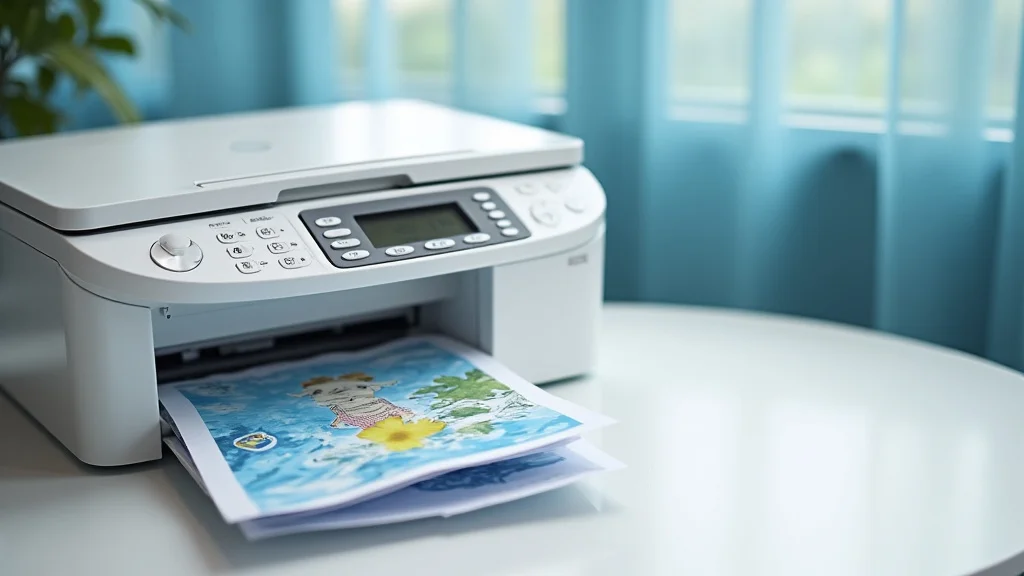
The printer you choose affects the card quality. Inkjet and laser printers each have advantages, depending on your needs. The choice also impacts factors like cost, speed, and print quality. You should consider what you need to be successful.
-
Inkjet Printers: These printers are good for photo cards. They use liquid ink sprayed onto the paper. They usually provide excellent color quality and are versatile for a range of paper types.
Inkjet printers are great for printing cards that need excellent color quality, especially photo cards. Inkjet printers can produce photo-realistic images with smooth color gradients. They often handle a wider variety of paper types than laser printers. The liquid ink used in these printers works well for producing vibrant, detailed images.
-
Laser Printers: Laser printers use toner and are often faster, better for large print runs, and better suited for text-heavy designs.
Laser printers are efficient for high-volume printing. They are often faster than inkjet printers and are excellent for printing text and graphics. These printers use toner, a fine powder that is fused onto the paper. This makes them ideal for producing cards with crisp, sharp text. Because they are often very efficient, they are good for printing business cards and other cards.
-
Considerations for Printer Resolution: High resolution leads to sharp, detailed prints. Pay attention to the dots per inch (DPI) specification. A higher DPI results in better quality.
Print resolution is a key part of choosing a printer. Higher resolutions lead to better quality. Look at the dots per inch (DPI) specification. High DPI numbers are best for producing detailed prints. Good resolution makes colors blend and results in sharp, detailed images.
Choosing the Right Paper
The paper type impacts the final look and feel of your cards. Consider different weights, finishes, and sizes of paper. The choices available let you customize your cards. Careful selection helps create a professional product.
-
Card Stock: Card stock is usually recommended for cards. It is thicker and more durable than regular paper, providing a professional feel.
Card stock is a popular choice for cards. It is stronger than regular paper and helps the cards to stand up well. Card stock provides a sturdy base. The variety of card stocks available provides flexibility when creating cards.
-
Paper Weight: The weight of the paper determines how thick the card feels. A higher paper weight equals a more premium feel.
The weight of the paper affects the overall feel of your cards. Paper weight is measured in pounds (lbs) or grams per square meter (gsm). A higher weight generally means a thicker and more robust card. For greeting cards, a weight of 80 to 120 lbs is typically used. Business cards usually use heavier stock, between 100 and 120 lbs.
-
Paper Finishes: Choose from different paper finishes like matte, glossy, or textured paper for different effects.
The paper finish affects both the look and feel of the cards. Matte paper has a non-reflective surface, ideal for cards with a classic feel. Glossy paper offers a shiny surface that makes colors look vibrant. Textured paper adds a tactile element, making the cards more unique. The paper finish can affect how colors print and the overall impression the card creates.
-
Paper Sizes and Types: Select the appropriate size and type of paper for your card design. Standard sizes include A7 and A2.
The choice of paper size and type should fit the design and purpose of the card. Common sizes include A7 (5 x 7 inches) for greeting cards and A2 (4.25 x 5.5 inches) for smaller cards. You can also get card stock that is pre-scored for easy folding. If you plan to print multiple cards, then the paper size is important.
Printing Your Cards: A Step-by-Step Guide
Printing your own cards correctly requires careful preparation and execution. Following these steps helps guarantee you get excellent results. This method will help you produce quality cards at home.
Preparing Your Design for Printing
Correctly preparing your design ensures that the finished cards look good. Proper preparation can prevent problems like blurry images or incorrect print sizes. Proper preparation helps create great looking cards.
-
Resolution and Image Quality: Ensure that images are high resolution (at least 300 DPI) to prevent pixelation during printing.
Start with high-resolution images when preparing your design. A resolution of at least 300 DPI (dots per inch) is best for sharp, clear prints. Using low-resolution images can result in pixelated or blurry prints. When designing, zoom in on your images to check clarity. Make sure your images are clear before printing.
-
Color Mode: Use CMYK color mode for printing. It produces colors that match the printed results on a printer.
The color mode is an important part of a print design. CMYK (Cyan, Magenta, Yellow, Key/Black) is the standard color mode for printing. This will make your prints look like the design on the screen. Avoid RGB color mode, which is designed for screens. If you use RGB, colors may appear different after being printed.
-
Bleed and Trim Marks: Include bleed areas and trim marks to ensure the design extends to the edge of the card.
Setting up bleed areas and trim marks can help. Bleed is a printing technique in which the image extends beyond the trim edge. This makes sure that there are no white borders after cutting. Use trim marks to show where the card should be cut. These steps result in a professional-looking finish.
-
Proofing and Testing: Print a test copy before the final print run to check for any errors or adjustments.
Make a test print before you start printing cards. Print a copy on regular paper to check for issues like incorrect colors or layout problems. This can help you make changes. Test prints can save time and money by preventing errors in your final run.
The Printing Process
The printing process involves setting up your printer and card stock. Following these steps ensures your cards are printed smoothly. These steps will help you create excellent cards.
-
Printer Settings: Configure your printer settings for the correct paper type and size. Choose the best print quality for your needs.
Carefully configure your printer settings. Select the correct paper type, such as card stock. Choose the proper paper size. Select the best print quality setting, such as “high” or “best.” Review the preview to make sure everything looks correct before printing. Properly configured settings are key for quality prints.
-
Loading the Paper: Load the card stock into the printer’s paper tray, making sure it is properly aligned.
Load the card stock carefully into your printer. Make sure that the paper is properly aligned. Refer to your printer’s manual for proper loading instructions. Properly loading your card stock ensures the printer will be able to feed the paper and print correctly. This will prevent paper jams or other problems.
-
Print Preview and Alignment: Before printing, do a print preview to check the alignment of the design on the card.
Before printing, review the print preview to make sure everything looks correct. This lets you see how your design will appear on the card. Check the alignment of text, images, and other design elements. If you see any alignment problems, then make adjustments. Doing a print preview can save time.
-
Printing the Cards: Start the print job and monitor the printing process to prevent jams or other issues.
Once you are set up, start printing your cards. Watch the printer to prevent paper jams. If you are printing multiple cards, make sure you have enough ink or toner. If your printer has issues, stop the print job and try again. Monitoring the process will allow you to correct any problems.
Finishing and Trimming
After you print, you can cut and finish your cards. Proper trimming and finishing gives your cards a professional look. The finishing process is crucial for creating professional cards.
-
Trimming the Cards: Use a paper cutter or scissors to trim the printed cards to the correct size.
After printing, you need to trim the cards to the desired size. A paper cutter offers the most precise results for straight edges. For small quantities, use scissors. Make sure you cut exactly along the trim lines. Careful trimming results in cards with crisp, clean edges.
-
Folding Cards: If you are making folded cards, score the cards carefully before folding them to prevent cracking.
For folded cards, score the card stock to make folding easy and neat. Scoring involves creating a crease along the fold line. Use a bone folder or other scoring tool. Properly scoring the cards helps prevent cracking and makes for a neat, professional fold.
-
Adding Embellishments: Add embellishments, such as glitter, ribbons, or stickers, to further personalize the cards.
Embellishments can add visual appeal to your cards. These include glitter, ribbons, or stickers. Make sure that embellishments fit the style of your card. Use embellishments to add a unique touch.
-
Packaging the Cards: Package the finished cards with envelopes, ready for use or distribution.
After you have trimmed and embellished your cards, it’s time to package them. Put the cards in envelopes. This gives them a finished, ready-to-send appearance. Proper packaging adds a professional touch and ensures your cards look their best.
Common Myths Debunked
Myth 1: Printing Your Own Cards Is Difficult
Many people assume that printing your own cards is too difficult or requires specialized skills. However, with the availability of user-friendly software and step-by-step guides, anyone can learn to design and print cards at home. The process involves selecting software, choosing card stock, setting up your printer, and printing.
Myth 2: DIY Cards Always Look Amateurish
Some people believe that cards made at home will look amateurish compared to professionally printed ones. This is not always the case. By using high-quality paper, clear designs, and a bit of practice, you can produce professional-looking cards. Many online resources and templates can help you design attractive and well-crafted cards.
Myth 3: You Need an Expensive Printer to Get Good Results
You don’t need a top-of-the-line printer. While high-end printers can produce great results, good-quality cards can be made with a mid-range inkjet or laser printer. The printer type depends on the need. Focus on resolution and ink or toner quality.
Myth 4: Designing Cards Requires Graphic Design Expertise
While having experience in graphic design is helpful, it is not required. Design software simplifies the design process. Many programs have easy-to-use templates and features. You can make amazing cards using basic design principles and resources.
Myth 5: It’s Always Cheaper to Buy Pre-Made Cards
It can often be cheaper to print your own cards, especially if you print in bulk. The cost of materials, like paper and ink or toner, is often lower than the price of store-bought cards. Printing your own cards gives you creative control and saves money.
Frequently Asked Questions
Question: What software is best for designing cards?
Answer: Popular choices include Canva, Adobe Spark, and Microsoft Publisher, which offer user-friendly interfaces and pre-made templates.
Question: What type of paper is best for printing cards?
Answer: Card stock is recommended. It is thicker and more durable than regular paper, providing a professional look and feel.
Question: What printer is best for printing your own cards?
Answer: Inkjet printers work well for photo cards, while laser printers are faster and better suited for text-heavy designs.
Question: How do I make sure my cards look professional?
Answer: Use high-resolution images, choose a suitable color mode (CMYK), and trim the cards carefully for a clean finish.
Question: Can I print on both sides of the card?
Answer: Yes, most printers support duplex printing, which allows you to print on both sides. Check your printer’s settings.
Final Thoughts
Embarking on the journey of printing your own cards offers an amazing level of creative freedom. You are no longer confined to the limitations of store-bought options. You can now craft cards that perfectly match your vision and needs. With the right tools and a bit of practice, you can easily create beautiful, high-quality cards at home. This guide has given you a head start, from selecting the right software and paper to mastering the printing process. So, get ready to explore your creativity. Experiment with designs, personalize your messages, and make memorable cards that will impress those around you. Take the initiative, and start printing your own cards today.