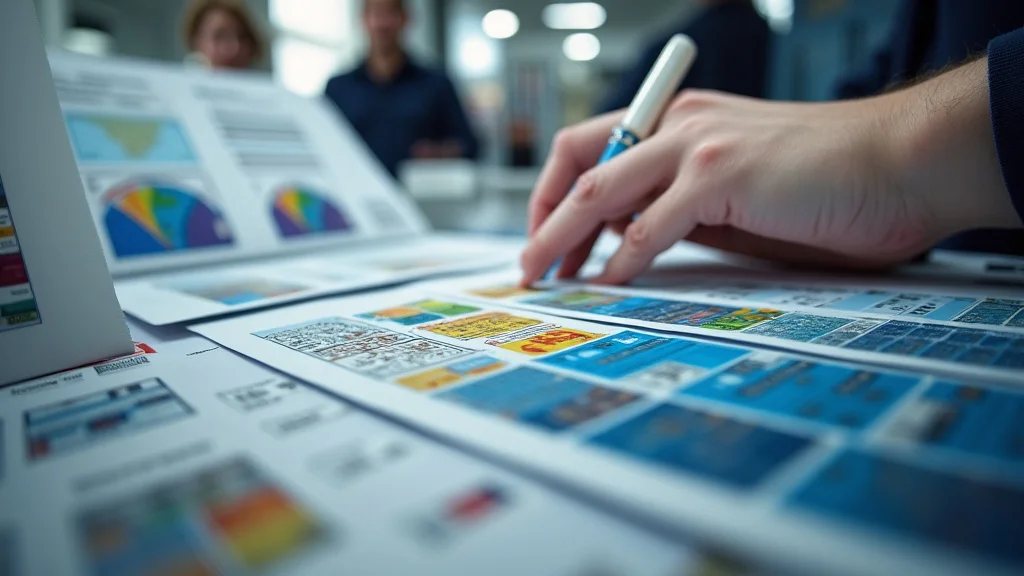
Remember that time you tried to print a picture for your grandma, and it came out looking…well, not quite like the original? The colors were off, the image was blurry, and it was a complete disappointment. We’ve all been there! This guide is here to help you avoid those frustrations and achieve perfect results every time you’re printing images. You’ll learn the essential techniques, from choosing the right paper to understanding color profiles, ensuring your photos look stunning. This detailed resource will boost your knowledge and guide you to top quality prints, improving your knowledge about printing images. Get ready to transform your photos from digital files into beautiful keepsakes.
Key Takeaways
- Discover the best paper types for different printing images needs, from glossy to matte.
- Learn how to choose the ideal resolution for sharp and detailed prints.
- Understand the importance of color profiles and how they impact image appearance.
- Find out how to calibrate your printer for accurate color reproduction.
- Explore different printing images techniques for optimal results.
- Master the basics of image editing to prepare your photos for print.
Choosing the Right Paper for Your Prints
One of the first, and often overlooked, steps in achieving high-quality prints is selecting the appropriate paper. The type of paper you choose has a significant impact on the final look and feel of your images. Different papers are designed to handle ink differently, affecting color saturation, detail, and overall image clarity. There are numerous paper types, each offering unique characteristics and intended uses. Consider the desired aesthetic and purpose of your prints when making your choice.
Paper Types and Their Characteristics
Different paper types offer unique benefits, and selecting the correct one can dramatically influence the final result of your printing images. Several factors influence your choice, including the intended use of the print, the desired look and feel, and the specific characteristics of your image. Here’s a breakdown of common paper types:
- Glossy Paper: Glossy paper has a shiny, reflective surface that enhances the vibrancy and contrast of your images. It is an excellent choice for photos with bright colors and sharp details, making them appear more vivid. The glossy finish tends to make colors “pop,” making it a popular choice for portrait photography, landscape prints, and marketing materials where visual impact is critical. However, it can be prone to glare and fingerprints, so handling with care is recommended.
- Matte Paper: Matte paper features a non-reflective surface, which is ideal for a more understated, elegant look. It absorbs light, resulting in a softer appearance and reduced glare, making it a good option for images meant to be viewed from various angles without distortion. Matte paper is well-suited for images with subtle details, black and white photographs, and prints that will be framed.
- Semi-Gloss/Satin Paper: Semi-gloss or satin paper strikes a balance between glossy and matte finishes. It offers a slight sheen that enhances color saturation and detail without the strong glare associated with glossy paper. This versatility makes it suitable for a wide range of prints, offering a professional appearance suitable for both display and portfolio use. The surface is also less prone to fingerprints than full gloss.
- Fine Art Paper: Fine art paper encompasses a range of high-quality papers designed for professional photography and art prints. These papers often have textures and finishes that resemble traditional art materials. Options include cotton rag, baryta, and watercolor papers, each offering a unique look and feel. Fine art papers are archival, meaning they are designed to last for many years without fading or degrading, making them suitable for museum-quality prints.
- Specialty Paper: Beyond the standard types, various specialty papers can enhance your prints. Metallic paper adds a metallic sheen to your images, making them shimmer and adding visual interest. Canvas paper offers a textured surface that mimics the look of a painting, ideal for artistic prints. Other options include textured papers, adhesive-backed papers, and even fabric-based papers, allowing for unique creative expressions.
Glossy paper is often the best choice for images that are meant to be eye-catching. The glossy surface causes light to reflect, which intensifies the colors and makes the images feel more vibrant and lively. The smooth texture feels sleek and looks professional.
Matte paper has a smooth, non-reflective surface, which is good for viewing from different angles. It reduces glare and creates a softer feel, giving a refined, sophisticated appearance. The paper surface helps enhance subtle details and contrasts.
Semi-gloss paper combines the best aspects of glossy and matte papers. It reflects light in a mild way, which increases color richness and fine details. It’s a great choice for many photographs because it is less likely to show fingerprints and glare.
Fine art paper is the premium option, made with high-quality materials and processes. These papers often have textures like cotton rag or watercolor. These are archival, meaning they’re made to last a long time, making them a great choice for important photographs or art pieces.
Specialty papers offer many unique looks. For example, metallic paper adds a shimmering effect, while canvas paper gives a textured, artistic feel. These options are good for specific creative projects where you want a different look and feel.
Factors to Consider When Choosing Paper
Several factors should guide your paper selection. The intended purpose of your print directly affects paper choice; a family portrait for the living room differs from a portfolio print intended for a gallery. The type of image also impacts paper selection. Vibrant, colorful images generally benefit from glossy or semi-gloss paper, while black-and-white photos or those with a softer feel often suit matte or fine art papers. The archival quality of the paper is critical if you want prints to last for many years without fading or degradation. Consider the paper’s weight (measured in grams per square meter, or GSM), as heavier papers generally feel more substantial and offer a higher-quality appearance. The paper’s surface finish, whether glossy, matte, or textured, impacts how light interacts with the image, altering the overall impression. For example, a glossy surface will intensify colors, while matte will reduce glare and soften the image.
- Image Type: Consider the style of your photographs. High-contrast and color-rich photos often look best on glossy or semi-gloss papers. Soft, subtle images or black-and-white photos usually pair well with matte papers. Fine art papers add a sophisticated touch to artistic prints.
- Print Longevity: If you want your prints to last a long time, choose archival-quality paper. These papers are designed to resist fading and yellowing over many years, maintaining image quality over time. Look for papers labeled as acid-free and with high archival ratings.
- Print Display Location: The display location affects your choice. Prints displayed in direct sunlight are more susceptible to fading, so choose UV-resistant papers and inks. Prints that will be handled frequently may benefit from a more durable paper, such as semi-gloss or a paper with a protective coating.
The kind of image you are printing can help you decide what paper to use. Photos with bright colors and lots of contrast tend to look best on glossy papers, while softer or black-and-white photos look better on matte papers.
If your goal is to make prints that last for years without fading or changing, choose archival paper. These papers are created to last and often have ratings to help you find the best choices.
Where you plan to display your prints should affect your choice. Prints in direct sunlight will fade faster, so select UV-resistant paper and inks. If prints are often handled, a more durable paper will be beneficial.
Understanding Resolution and Image Size
Resolution and image size are key considerations when preparing your images for printing images. Resolution refers to the level of detail captured in an image, measured in pixels. Image size determines the physical dimensions of the print. The resolution and size must be matched to ensure sharp, clear prints. A low-resolution image will appear blurry when enlarged, while a high-resolution image offers greater flexibility in terms of print size. Failing to properly manage resolution can lead to unacceptable results, so a good understanding of these factors is critical for successful printing.
Resolution Explained
Resolution determines the level of detail within your image. It’s measured in pixels per inch (PPI) or dots per inch (DPI), with DPI used more frequently when speaking of printing images. The higher the resolution, the more detail is present. When an image is printed, the printer converts the image’s pixels into tiny dots. A higher DPI means the printer can place more dots within each inch of the print, resulting in a sharper and more detailed image. The ideal resolution depends on the size of the print and the viewing distance. For example, images viewed up close, like photographs, will need a higher DPI (such as 300 DPI) to show sharp detail, while larger prints viewed from a distance may require less.
- PPI vs. DPI: While the terms are sometimes used interchangeably, they are distinct. PPI (pixels per inch) refers to the pixel density of an image on a digital screen, while DPI (dots per inch) refers to the printer’s ability to print dots. When preparing images for printing, knowing the required DPI is essential.
- Calculating the Right Resolution: Determine the desired print size and the intended viewing distance. Generally, a resolution of 300 DPI is recommended for high-quality prints viewed up close. For larger prints or those viewed from a distance, a lower DPI might suffice. To calculate the resolution needed, multiply the print’s dimensions (in inches) by the desired DPI.
- Resampling and Upscaling: If your original image has a low resolution, you might consider resampling or upscaling it to increase its size. This process adds pixels to the image to make it larger. However, be aware that upscaling can potentially reduce image quality, leading to a softer appearance, so it’s usually better to start with a higher resolution image.
PPI is for screen resolution, while DPI is for printers. Higher DPI ensures your printed image is sharper.
To figure out what resolution you need, multiply your print’s size by the DPI (dots per inch). Higher DPI is better for sharp images.
If your image is too small, you may be able to add pixels (upscaling). Keep in mind that upscaling may reduce the quality of the image, so it’s usually best to start with a high-resolution image.
Image Size and Aspect Ratio
Image size refers to the physical dimensions of your print, such as 4×6 inches or 8×10 inches. The image’s aspect ratio (the ratio of its width to its height) influences how well it fits different print sizes. A mismatch between the image’s aspect ratio and the paper size can cause the image to be cropped, resulting in parts of your photo being cut off, or require the addition of white borders. Knowing your image’s original dimensions and the paper’s dimensions allows for accurate planning.
- Aspect Ratio: The aspect ratio describes the proportional relationship between an image’s width and height. Common aspect ratios are 4:3 (typical of many cameras), 3:2 (common in DSLR cameras), and 16:9 (widescreen).
- Choosing the Right Print Size: Select a print size that matches your image’s aspect ratio or accept the need for cropping or adding borders. Many photo-editing programs allow you to crop images to fit different print sizes accurately.
- File Formats: When saving your images for printing images, consider using file formats like TIFF or JPEG. TIFF files are lossless, preserving the maximum amount of image detail, making them ideal for high-quality prints. JPEGs are commonly used and offer a good balance between image quality and file size. Be sure to save the image with the correct resolution.
The aspect ratio describes the image’s width-to-height ratio. Knowing this will help when choosing a paper size.
Choose a paper size that matches your image’s aspect ratio. Photo-editing programs allow you to adjust the image to fit your print size.
Choose TIFF or JPEG file formats for high-quality images. TIFF saves all details, while JPEG balances quality and size.
Color Management for Accurate Printing
Color management is the system used to ensure that the colors in your image are accurately reproduced when you’re printing images. It involves several components working together, including your computer monitor, your printer, and the software you use to edit and print your photos. Properly managing color is key to avoiding disappointment and achieving prints that match the colors you see on your screen. Without it, the colors in your prints may look drastically different from what you expect, potentially resulting in skewed hues, muted tones, and an overall loss of detail. The goal is to create a consistent color experience across all your devices, so you see consistent results.
Color Profiles and Their Importance
Color profiles act as a translator, ensuring that your colors are interpreted consistently across different devices. They are sets of data that characterize a device’s color space—how it interprets and displays colors. A color profile details the specific range of colors (gamut) the device can produce, such as your monitor or printer. When you edit your photos, your computer uses a color profile (such as Adobe RGB or sRGB) to display the colors accurately. During the printing images process, the printer uses a different color profile to match the colors to what the printer can reproduce. The printer profile tells the printer how to interpret the colors from the image file to produce the correct hues.
- sRGB: sRGB is the most commonly used color space, suitable for general use and for images that will be shared online or printed on standard printers. It has a narrower color gamut than other profiles, meaning it can reproduce a more limited range of colors.
- Adobe RGB: Adobe RGB offers a wider color gamut than sRGB, which means it can reproduce a broader range of colors. This profile is often preferred for professional photography and printing because it captures richer colors, particularly in the greens and blues.
- Printer Profiles: Printer profiles are specific to your printer model, ink type, and paper type. These profiles describe how your printer reproduces color, allowing your computer to adjust the image colors to match the printer’s capabilities.
sRGB is the most used color space, and it works well for general use and common printers.
Adobe RGB has a broader range of colors and is used for professional work, offering more vivid results.
Printer profiles are specific to your printer, ink, and paper, helping match colors accurately to the printer’s potential.
Calibrating Your Monitor and Printer
Calibrating your monitor and printer is essential for accurate color reproduction. Calibration involves adjusting your monitor’s display settings to show colors accurately. It also involves using the printer’s profiles to tell it how to interpret the image. This process ensures the colors you see on your screen match the colors printed. Without proper calibration, the colors in your prints might look different from what you expect, leading to disappointment and wasted ink and paper. The tools and steps needed to perform calibration can vary depending on the device.
- Monitor Calibration: Use a hardware color calibrator or the monitor’s built-in settings to calibrate your display. A hardware color calibrator, such as those made by X-Rite or Datacolor, measures the colors your monitor is producing and adjusts the settings to ensure accurate color reproduction. Most operating systems also offer built-in monitor calibration tools.
- Printer Calibration: Install the correct printer drivers and software, which usually includes the necessary color profiles for your printer and paper. In your print settings, ensure that you select the correct paper type and color profile for your image.
- Test Prints: Perform test prints using different settings to confirm that colors match the image on your monitor. This iterative process, where you make adjustments and test again, helps refine the color management process until you achieve accurate color reproduction.
Use a hardware color calibrator or your monitor settings to calibrate the display.
Install printer drivers and software with the correct color profiles. Choose the right paper and profile in the print settings.
Perform test prints to make sure the colors on paper match what you see on your monitor.
Preparing Your Images for Printing
Before printing images, there are a few important steps to take in photo editing. This part helps to ensure your prints look their best. Proper preparation involves editing your images to address potential issues like color inaccuracies or sharpness, choosing the right file format, and making appropriate adjustments for print. Neglecting these steps can lead to prints that don’t meet your expectations. Preparing images well allows you to improve their appearance and make sure your prints represent your creative intent.
Image Editing Basics
Image editing involves adjusting different aspects of your photos to prepare them for print. The goals are to fix any flaws, improve overall appearance, and make sure the colors and details are well-represented. Common adjustments include brightness, contrast, color balance, and sharpness. A little adjustment can go a long way in improving the final look of your prints.
- Brightness and Contrast: Adjusting the brightness and contrast helps make the image look as it should, with proper levels of light and shadow. Adjust brightness to lighten or darken the overall image, and use contrast to enhance the difference between light and dark areas.
- Color Correction: Use color balance tools to correct any color casts or imbalances, such as a yellowish tint in a photo. Fine-tune the colors in your image to ensure that they appear as you want them to look.
- Sharpening: Apply sharpening to increase the image’s detail. Be careful not to over-sharpen, as this can lead to unwanted artifacts and a grainy look. Subtle sharpening usually works best for printing images.
Adjust brightness and contrast to ensure the image appears as intended, with the proper light and dark levels.
Use color balance tools to fix color imbalances and ensure the colors in your image look correct.
Use sharpening to improve the details in your images, but don’t overdo it or the image may appear grainy.
Choosing the Right File Format and Saving Your Images
Selecting the right file format is important when saving your photos for printing images. The choice depends on the specific needs of your project. Two common formats are TIFF and JPEG. TIFF files are lossless, preserving all image data. JPEGs are lossy, meaning some data is discarded to reduce file size. Choosing the best format helps to balance image quality with file storage.
- TIFF: TIFF (Tagged Image File Format) files are lossless, preserving the most image data. They are ideal for high-quality prints where detail is critical. TIFF files are usually larger in size than JPEGs.
- JPEG: JPEG (Joint Photographic Experts Group) files use lossy compression to reduce the file size, which can be beneficial for sharing images and storing many photos. When saving a JPEG, you can select the level of compression, with higher compression reducing file size but potentially impacting image quality.
- Saving Your Images: When saving your image for printing, it’s best to save in a lossless format like TIFF or at the highest quality JPEG setting to retain as much detail as possible. Ensure that you have the correct color profile selected, typically sRGB for general use or Adobe RGB for professional prints.
TIFF files are best for maximum detail and quality. These are lossless files, though they may take up more storage space.
JPEG files are smaller and use lossy compression. You can control the amount of compression, balancing size and image quality.
Save your photos as TIFF files or with the highest quality JPEG settings. Make sure you select the correct color profile.
Print Settings Optimization
Before you send your images to print, you must configure your print settings to ensure the highest quality. This involves selecting the correct paper type, resolution, and color profiles to match your image and printer. These settings work together to determine how your image will look on paper. Choosing the proper print settings can improve the clarity, color, and overall quality of your printed photos.
- Paper Type Selection: Choose the paper type that matches the paper loaded in your printer. Select it from the printer’s settings or in the printing software. This will tell the printer how to apply ink to the specific paper, to produce the desired image.
- Color Profile Selection: Make sure you have the correct color profile selected for your printer. This ensures that the colors are accurately reproduced. The settings will match the specific profile you’ve created or selected for the printer, paper, and ink combination.
- Print Quality Settings: Most printers offer different print quality options, such as draft, normal, and high quality. For high-quality printing images, select the highest-quality setting available. This will usually result in more ink being applied, which improves detail and color accuracy.
Make sure to select the correct paper type in the print settings to match the paper in your printer.
Choose the right color profile. This helps the printer interpret colors accurately.
For best results, select the highest print quality setting. This will apply more ink and increase detail and color accuracy.
Common Myths Debunked
Myth 1: Any Printer Is Good for Printing High-Quality Photos
Reality: Not all printers are created equal. While most modern printers can produce acceptable results, the quality of your prints depends heavily on the printer’s resolution, ink technology, and the types of paper it supports. Printers designed for photo printing images, typically using dye-based or pigment-based inks and supporting a range of paper types, are better suited for achieving professional-quality results. Consider the printer’s DPI, color accuracy, and overall build quality when choosing a printer.
Myth 2: Higher DPI Always Means Better Prints
Reality: While DPI (dots per inch) is an important factor in print quality, it’s not the only one. A printer with a very high DPI may still produce poor results if it lacks color accuracy or uses low-quality inks. The type of paper, the printer’s color management capabilities, and the image’s resolution all play important roles. Focusing on a balanced approach—matching your image’s resolution to the print size and using a printer with a suitable DPI and effective color management—will produce the best prints.
Myth 3: All Photo Papers are the Same
Reality: Photo papers vary greatly in finish, weight, and composition, and these features significantly affect the final look and feel of your prints. Different paper types such as glossy, matte, semi-gloss, and fine art papers affect how the ink absorbs the colors and how light reflects off the surface. Some papers are designed to produce vivid colors, while others provide a softer, more subtle appearance. Fine art papers offer archival quality and unique textures, making the choice of paper critical to achieving your desired print results.
Myth 4: Professional-Grade Printers Are Only for Professionals
Reality: While professional-grade printers are often more expensive, they are also more accessible than ever. The price of quality printers has fallen in recent years. Many home users can benefit from these advanced machines. These printers offer superior print quality, better color accuracy, and support for various paper types. The improved results can make these printers a worthwhile investment, especially if you regularly print photos or art prints.
Myth 5: It’s Impossible to Print Colors That Match Your Screen
Reality: Matching colors between your screen and your prints is very attainable with proper color management. This includes calibrating your monitor, using color profiles that match your printer and paper, and ensuring you have the right settings selected when printing images. Color calibration tools can also ensure accurate color reproduction. Regular calibration and careful settings selection are crucial to achieving consistent and reliable color results.
Frequently Asked Questions
Question: What is the best resolution for printing photos?
Answer: A resolution of 300 DPI (dots per inch) is generally recommended for high-quality prints, particularly when viewed at a normal distance.
Question: What’s the difference between sRGB and Adobe RGB?
Answer: sRGB is a standard color space, while Adobe RGB offers a broader color range, allowing for more vivid and accurate color reproduction.
Question: How do I choose the right paper type?
Answer: Consider the type of image, the desired aesthetic, and the intended use of the print. Glossy paper is great for vibrant images, while matte is good for softer, more elegant looks.
Question: Can I print photos from my phone?
Answer: Yes, you can print from your phone using wireless printing images capabilities or by transferring images to a computer and printing from there.
Question: Why do my prints look different from my screen?
Answer: This can be due to incorrect color profiles, uncalibrated monitors, or mismatched print settings. Calibrating your monitor and using the correct color profiles can help.
Final Thoughts
Mastering the art of printing images can transform how you experience your favorite photos. You’ve learned how to pick the right paper to fit each photo’s unique character, from glossy’s vibrant sheen to matte’s subtle elegance. Understanding image resolution and print sizes will ensure your images come out sharp and detailed. Color management, with its secrets of color profiles and printer calibration, promises accurate, true-to-life prints. You have also explored editing essentials to perfect your images before they ever hit the print button. Now you are fully equipped with all the essential knowledge needed for quality results every time. Armed with these skills, you can celebrate your best shots, display them in perfect clarity, and share cherished memories in the best way. Go ahead and start printing those images today!