Remember that time you needed to print an important document from your phone, but your printer just wouldn’t cooperate? We’ve all been there! Trying to figure out how to print from iPhone to HP printer can feel like a tech puzzle. This guide is here to simplify the process. You’ll learn the straightforward steps to get your iPhone and HP printer working together seamlessly. This post ensures you’ll know exactly what to do, saving you time and frustration. By the end, you’ll be able to print your photos, documents, and emails with ease. Get ready to experience effortless printing!
Key Takeaways
- You can easily connect your iPhone and HP printer using AirPrint.
- Ensure your HP printer is compatible with AirPrint for a simple setup.
- The process is quick, requiring only a few taps on your iPhone.
- Learn troubleshooting tips for when things don’t go as planned.
- Explore other printing methods if AirPrint isn’t an option for your model.
- Discover the benefits of printing wirelessly.
Connecting Your iPhone to Your HP Printer
The primary method for printing from iPhone to HP printer is through Apple’s AirPrint technology. AirPrint is built into your iPhone and iPad, allowing you to print directly to compatible printers without installing additional drivers or software. This simplifies the process, making it a breeze for users of all technical skill levels. To get started, you’ll need a few things: a compatible HP printer, an active Wi-Fi connection, and, of course, your iPhone. The following sections will detail each step, ensuring you get everything working smoothly.
What is AirPrint and Why Use It?
AirPrint is Apple’s built-in technology that allows iPhones, iPads, and other Apple devices to wirelessly print to compatible printers. It’s designed to be simple and user-friendly. When you use AirPrint, your iPhone communicates directly with the printer over your Wi-Fi network. This method eliminates the need for complicated setups or extra software installations. You can print photos, documents, emails, and web pages with just a few taps. It’s a convenient and easy solution for anyone looking to print from their iPhone.
- Ease of Use: AirPrint is designed to be very simple.
- No Extra Software: You don’t need to install printer drivers or additional apps.
- Wireless Convenience: AirPrint allows for wireless printing.
- Wide Compatibility: Most modern HP printers support AirPrint.
- Direct Printing: Print directly from many apps, such as Photos or Mail.
AirPrint is a convenient way to print directly from your Apple devices without extra setup. Its ease of use and wireless functionality make it a popular choice.
Checking HP Printer Compatibility with AirPrint
Not all printers are AirPrint compatible. The good news is that many modern HP printers are. Before you attempt to print, it’s essential to confirm that your HP printer supports AirPrint. This information is usually available on the printer’s box, in the user manual, or on the HP website. Look for the AirPrint logo. If your printer supports AirPrint, you’re ready to proceed to the next steps. If it doesn’t, there might be other options, such as using an HP app or a third-party printing app.
- Check the Printer Box: Look for an AirPrint logo on the printer’s box.
- Read the User Manual: The manual will specify if your printer is compatible.
- Visit the HP Website: Search your printer model on the HP support site.
- Look for the AirPrint Icon: This is the easiest way to identify if it is compatible.
It’s important to verify your printer’s compatibility to ensure a smooth printing process. Check the box, manual, or the HP website to check for AirPrint support.
Setting Up Your HP Printer for Printing
Before you can print from your iPhone, your HP printer needs to be set up and connected to your Wi-Fi network. This often involves turning on the printer, following the on-screen instructions, and entering your Wi-Fi password. Make sure your iPhone and printer are connected to the same Wi-Fi network. This is important because AirPrint uses Wi-Fi to communicate between the devices. Once your printer is on the network, it should be discoverable by your iPhone. Refer to your HP printer’s manual if you have any difficulties.
- Power On the Printer: Make sure your printer is on and ready to go.
- Connect to Wi-Fi: Connect your printer to your home Wi-Fi network.
- Check Network Connection: Confirm both your iPhone and printer are on the same network.
- Refer to the Manual: Consult your HP printer manual for specific setup steps.
Correct setup and Wi-Fi connection is the foundation of successful printing. Ensure both your devices are on the same network for the best results.
Printing from Your iPhone Using AirPrint
Once your HP printer is ready, printing from your iPhone is straightforward. The exact steps may vary slightly depending on the app you are using, but the general process remains the same. The whole thing only takes a few taps. Whether you’re printing a document from Pages, an email from Mail, or a photo from your Photos app, the steps are nearly identical. This section will guide you through the process, providing clear instructions for a smooth printing experience. After setting everything up, printing becomes really simple.
Printing a Photo from Your iPhone
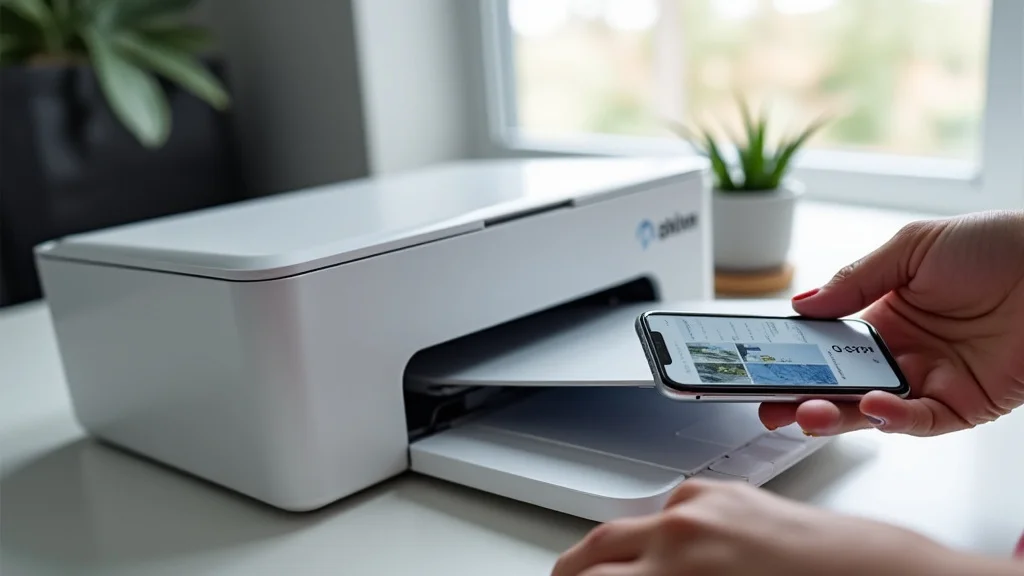
Printing a photo from your iPhone is a common task. Here’s how you do it: Open the Photos app. Select the photo you want to print. Tap the “Share” button. Scroll down and tap “Print.” Select your HP printer from the list of available printers. Adjust the print settings, like number of copies and paper size. Tap “Print.” Within moments, your photo should start printing from your HP printer. It’s that easy!
- Open the Photos App.
- Select the photo you want to print.
- Tap the Share Button.
- Scroll down and tap “Print”.
- Select your HP printer.
- Adjust settings, then “Print.”
Printing photos is a simple process using AirPrint. It should only take a few moments. Follow the above steps for instant results.
Printing a Document from Other Apps
Printing documents from other apps, such as Mail, Notes, or Pages, is also quite easy. The steps are similar to printing a photo. Open the document you wish to print. Look for a “Share” or “Print” option in the app’s menu. Tap the “Print” option. If a print option isn’t available, look for a “Share” icon (usually a box with an up arrow). From the sharing options, select “Print.” Choose your HP printer. Adjust the settings. Finally, tap “Print.” Your document will start printing shortly thereafter. Note that the available options and icon locations may vary slightly depending on the app you’re using. However, the basic principle remains consistent across most apps that support printing.
- Open Your Document: Locate the document in its app.
- Find the Print Option: Look for “Share” or “Print” in the menu.
- Select Your Printer: Choose your HP printer from the available list.
- Adjust Settings: Customize your print settings as needed.
- Tap Print: Start printing the document.
No matter the app, the process is very similar. Look for a “Print” or “Share” option within the application.
Adjusting Print Settings
Before you print, you can adjust several print settings to customize the output. These settings can vary depending on your printer model and the app you’re printing from, but common options include the number of copies, paper size, and color or black and white. You can often also choose the paper orientation (portrait or landscape), the print quality, and whether to print on one or both sides of the paper. Pay attention to these settings to get the exact output you want. It’s always smart to double-check the settings before you start printing to avoid wasting paper or ink. Take some time to get familiar with these settings.
- Number of Copies: Specify how many copies you need.
- Paper Size: Select the correct paper size.
- Color or Black and White: Choose your desired color mode.
- Paper Orientation: Adjust between portrait and landscape.
- Print Quality: Select high, normal, or draft quality.
Knowing how to adjust print settings is important for making sure your prints are exactly as you want them.
Troubleshooting Common Printing Issues
Even with AirPrint, you may encounter problems. Here are some solutions to help you solve these issues. These problems can be frustrating, but many are easily fixable. You may encounter issues such as the printer not showing up, failed print jobs, or low print quality. This section will guide you through common troubleshooting tips to help you get back to printing without delay. By knowing how to address these, you can minimize downtime and enjoy a smooth printing from iPhone to HP printer experience.
Printer Not Showing Up on the iPhone
If your HP printer isn’t showing up on your iPhone, there are a few things you can check. First, make sure your printer and iPhone are connected to the same Wi-Fi network. Next, confirm that the printer is turned on and ready. Then, restart both your printer and your iPhone. You may also need to update the firmware on your HP printer. To do this, check your printer’s manual or the HP support website for instructions. These steps usually solve the problem. Sometimes, simply restarting devices is enough to resolve the issue. If the printer still doesn’t appear, you may need to reset your network settings on your iPhone or reinstall your printer on your Wi-Fi network.
- Check Wi-Fi Connection: Ensure both devices are on the same network.
- Power Cycle: Turn the printer and iPhone off and on again.
- Update Firmware: Keep your printer’s firmware current.
- Restart the Router: Sometimes, your router causes the problem.
- Reinstall the Printer: Remove and add the printer on your network.
If your printer does not show up, double-check your Wi-Fi connection. Then try the other suggestions in the list above.
Print Job Failed or Errors
If your print job fails or you receive an error message, start by checking the obvious things. Make sure the printer has enough paper and ink. Also, verify that the printer is not experiencing any hardware issues, such as a paper jam. Sometimes, canceling the print job and trying again resolves the issue. Also, check the printer queue to see if other print jobs are causing delays. If you continue to have problems, try restarting both your iPhone and your printer. You can also try to update your printer’s drivers or firmware. Review the error message carefully; it often provides clues about the cause of the problem.
- Check Paper and Ink: Make sure you have enough of both.
- Inspect for Jams: Remove any paper jams that you find.
- Cancel and Retry: Cancel the print job and try printing again.
- Restart Devices: Restart both your iPhone and printer.
- Check the Queue: Ensure no other jobs are blocking yours.
When you get an error message, follow the basic troubleshooting steps. These steps can often help you solve the problem.
Poor Print Quality Issues
Poor print quality can be caused by various factors, such as low ink levels, clogged print heads, or incorrect settings. The first step is to check the ink levels of your printer. If the ink is low, replace the ink cartridges. Then, run a print head cleaning cycle from your printer’s settings. This helps clear any clogged nozzles. Also, check your print settings on your iPhone and make sure you’ve selected the correct print quality. Try adjusting the print quality to see if it improves the output. Sometimes, using the wrong type of paper can also affect print quality. Ensure you’re using the recommended paper type for your printer. If problems persist, consult your printer’s manual or HP support for more advanced solutions.
- Check Ink Levels: Replace any empty ink cartridges.
- Clean Print Heads: Run a cleaning cycle from your printer’s menu.
- Adjust Print Quality: Select the highest quality setting.
- Use the Correct Paper: Use paper recommended for your printer.
- Review Printer Settings: Double-check all other settings.
Poor print quality is usually due to ink levels or incorrect settings. Correcting these can quickly improve the quality of your output.
Other Methods for Printing from Your iPhone to an HP Printer
While AirPrint is the easiest method for printing from iPhone to HP printer, it’s not always available or may not work. Some older printer models do not support AirPrint. In these cases, there are other methods you can use. You can explore using the HP Smart app or third-party printing apps. This section will introduce these other methods. They provide options for printing from your iPhone to an HP printer when AirPrint is not available or has problems. These methods help to provide you with alternatives.
Using the HP Smart App
The HP Smart app is a free app designed for HP printers. It lets you print from your iPhone to your HP printer, even if your printer doesn’t support AirPrint. To use the app, first, download and install the HP Smart app from the App Store. Make sure your iPhone and printer are connected to the same Wi-Fi network. Open the HP Smart app and follow the setup instructions to add your printer. Once your printer is added, you can print photos, documents, and more directly from the app. HP Smart often provides more advanced features than AirPrint, such as scanning capabilities and the ability to monitor ink levels. The HP Smart app can be especially helpful if your printer is not AirPrint-compatible or if you want more control over your print jobs.
- Download the HP Smart App: Get it from the App Store.
- Connect to Wi-Fi: Ensure both devices are on the same network.
- Add Your Printer: Follow the app’s setup instructions.
- Print Directly: Use the app to print from your iPhone.
- Explore Features: Enjoy extra options like scanning.
The HP Smart app offers an effective way to print from your iPhone, especially if AirPrint is unavailable or your printer is an older model.
Third-Party Printing Apps
If you cannot use AirPrint or the HP Smart app, consider third-party printing apps. Many apps are available in the App Store that support printing from your iPhone to various printers. These apps usually provide a range of features. Some common third-party printing apps include Printopia and Printer Pro. These apps offer a flexible way to print. They allow you to print to a wider range of printers, especially those that do not support AirPrint. Before using a third-party app, ensure that it is compatible with your printer model. Also, consider the app’s security and privacy practices. While these apps can broaden your printing capabilities, always prioritize your data security. Carefully review the app’s settings and user reviews before you start using it.
- Find Printing Apps: Explore apps such as Printopia or Printer Pro.
- Check Compatibility: Make sure the app works with your printer.
- Download the App: Install the app from the App Store.
- Connect to Printer: Follow the app’s setup steps.
- Start Printing: Enjoy printing capabilities.
Third-party printing apps provide flexible solutions, allowing you to print from your iPhone to a variety of printer models.
Common Myths Debunked
There are some common misconceptions about printing from iPhones to HP printers. Let’s clear up some of those misunderstandings. This section aims to clear any confusion and give you accurate information. By addressing these myths, you’ll gain a clearer perspective on the process and what to expect.
Myth 1: AirPrint Works with All Printers
AirPrint is very user-friendly, but it doesn’t work with every printer. This is not the reality, however. AirPrint is specifically designed to work with printers that are AirPrint-compatible. If your HP printer doesn’t have the AirPrint logo, it might not work. Always verify your printer’s compatibility before attempting to use AirPrint.
Myth 2: You Need to Install Printer Drivers on Your iPhone
One of the biggest benefits of AirPrint is that it doesn’t require any additional software or drivers on your iPhone. Unlike the days of old when you had to install drivers on your computer, with AirPrint, the iPhone communicates directly with the printer. Therefore, you do not need to install extra drivers.
Myth 3: You Can Only Print Photos with AirPrint
AirPrint is not limited to printing only photos. You can use it to print documents, emails, web pages, and more. AirPrint supports various file types and apps. This makes it a flexible tool for your printing needs. You’re not restricted to printing just photos; you can easily print many different types of files.
Myth 4: Printing from iPhone to HP Printer is Always Complicated
Many people believe that printing from an iPhone to an HP printer is difficult. The truth is, the process is quite simple, especially with AirPrint. With just a few taps, you can start printing your documents or photos. Many modern printers offer easy setups and wireless capabilities. This means you do not have to be an expert to make it work.
Myth 5: AirPrint Requires a Wired Connection
AirPrint uses Wi-Fi to communicate between your iPhone and printer. A wired connection is not needed. The only requirement is that both devices are on the same wireless network. Once both devices are connected to the same Wi-Fi, you can print wirelessly, which adds convenience.
Frequently Asked Questions
Question: How do I know if my HP printer is AirPrint compatible?
Answer: Check the printer’s box, user manual, or HP website. Look for the AirPrint logo.
Question: What if my HP printer isn’t AirPrint compatible?
Answer: You can use the HP Smart app or a third-party printing app.
Question: Do I need to install any drivers on my iPhone?
Answer: No, AirPrint does not require any additional drivers on your iPhone.
Question: Can I print documents and photos with AirPrint?
Answer: Yes, AirPrint supports various file types, including documents, photos, emails, and web pages.
Question: My printer isn’t showing up on my iPhone. What should I do?
Answer: Make sure your iPhone and printer are on the same Wi-Fi network and that the printer is turned on. Also, try restarting both devices.
Final Thoughts
Printing from iPhone to HP printer doesn’t have to be a hassle. With AirPrint, the process is made simple and user-friendly. You can easily print your documents and photos with just a few taps. We’ve explored the steps, from checking printer compatibility and connecting to your Wi-Fi to adjusting print settings. We’ve also explored the various troubleshooting steps and alternate methods, like the HP Smart app and third-party options. Now, you should feel confident in your ability to print from your iPhone. So, the next time you need to print something from your phone, follow these steps and enjoy a seamless printing experience. Remember to keep your printer’s firmware updated and ensure both your devices stay connected to the same Wi-Fi network. Happy printing!