Remember that time you spent hours perfecting your wedding invitations, only to be utterly frustrated by your HP printer’s refusal to cooperate with your envelopes? We’ve all been there! This guide is created to save you time and frustration, providing a step-by-step tutorial on how to get the perfect print on envelopes using your HP printer. You will gain a clear, concise, and easy-to-follow guide, helping you become an envelope printing pro. Get ready to boost your skills and confidence as you master the art of envelope printing.
Key Takeaways
- You’ll learn how to properly load different envelope sizes into your HP printer.
- You’ll discover the optimal settings for high-quality envelope printing.
- You’ll find how to troubleshoot common printing issues.
- You’ll understand the importance of choosing the correct paper type in the printer settings.
- You’ll be guided through setting up your software to print addresses correctly.
- You’ll avoid paper jams and print errors with ease.
Getting Started with Your HP Printer and Envelopes
Before you begin, make sure you have everything you need. This includes your HP printer, the envelopes you wish to print on, and your computer. It is important to have the correct paper type selected, as this significantly impacts the quality and the success of the printing. Furthermore, a clean printer helps to avoid problems like ink smudging. Proper preparation means everything.
Choosing the Right Envelopes
Selecting the correct envelopes is more than just about aesthetics; the right choice makes the printing process much easier. Consider the type of paper and size. Standard sizes such as the #10 (4 1/8 x 9 1/2 inches) are common for business correspondence. Other common sizes are A7 (5 1/4 x 7 1/4 inches), often used for invitations, and A2 (4 3/8 x 5 3/4 inches) for smaller cards. Always check your printer’s manual to verify the envelope sizes it supports. Using an envelope that is too thick could damage your printer. Thin paper may cause it to wrinkle. Also, the finish of the envelope matters. Glossy or textured envelopes may not work well with all printers and can affect ink adhesion. Plain, uncoated envelopes generally offer the best results.
- Paper Type: Opt for uncoated paper for optimal ink absorption and prevent smudging.
- Size Compatibility: Verify that your HP printer supports the envelope size you intend to use.
- Envelope Thickness: Choose envelopes within the recommended thickness range specified in your printer’s manual.
- Finish: Avoid glossy or heavily textured envelopes, as they can cause printing issues.
- Quality: Purchase high-quality envelopes to guarantee a professional appearance.
Loading Envelopes into Your HP Printer
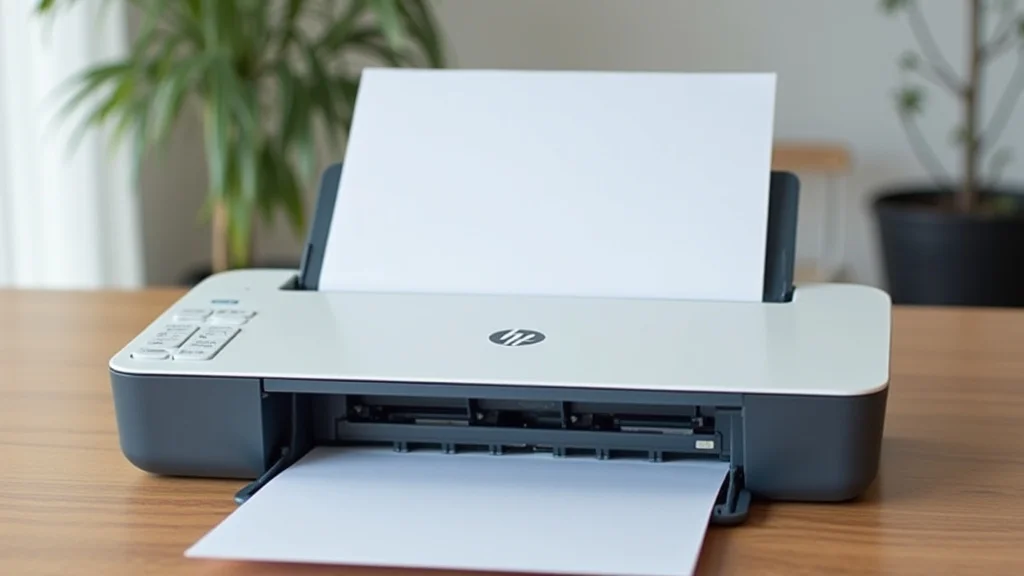
Loading envelopes correctly ensures smooth printing and prevents paper jams. Different HP printer models may have slightly different paper tray designs, but the basic principles are the same. Locate the paper tray on your printer. Open it and look for guides that adjust to the size of your envelopes. These guides are important to ensure that the envelopes feed properly into the printer. Then, place the envelopes into the tray. Depending on your printer, you might need to load the envelopes with the flap up or down, or with the print side facing up or down. Always check your printer’s manual for specific instructions for your model. Remember to fan the envelopes before loading to prevent them from sticking together. Adjust the paper guides to snugly fit the stack of envelopes. Overly tight guides can cause the envelopes to jam, while loose guides could cause the envelopes to shift during printing.
- Locate the Paper Tray: Open the paper tray on your HP printer.
- Adjust the Guides: Adjust the paper guides to match the width of your envelopes.
- Orientation: Load the envelopes into the tray, typically with the print side facing up or down (check your printer’s manual).
- Stacking: Fan the envelopes before loading to prevent sticking, and load them in a neat stack.
- Secure the Stack: Ensure the envelopes fit snugly between the guides, without being too tight.
Optimizing Printer Settings for Envelope Printing
After loading the envelopes, you’ll need to configure your printer settings. Access the print settings from your computer, either through your word processing software or the operating system’s print dialog. The goal is to set up your printer for the envelopes’ paper type and size. The settings should match your envelope’s dimensions. Selecting the correct paper type tells the printer how much ink to use and how to handle the paper. These adjustments will guarantee clean, professional-looking prints.
Selecting the Correct Paper Type and Size
In your printer settings, you’ll find options for “Paper Type” and “Paper Size.” Here, select the envelope size you’re using. Many printers offer pre-defined envelope sizes like “Envelope #10” or “Envelope DL.” If your specific size isn’t listed, choose the closest match, or define a custom size. More importantly, select the correct “Paper Type.” Common options include “Plain Paper,” “Envelope,” or a specific envelope type (if available). Choosing the proper paper type is crucial for ink absorption and print quality. If you select the wrong paper type, the ink might smear, or the prints will look faded. These settings dictate how the printer manages ink and paper feed, directly impacting print quality.
- Paper Size Selection: Choose the exact size of your envelopes (e.g., #10, A7, DL).
- Paper Type: Select “Envelope” or “Plain Paper” from the paper type options.
- Custom Sizes: Create a custom paper size if your envelope dimensions are not pre-defined.
- Orientation: Ensure the orientation is correct to print on the correct side of the envelope.
- Test Print: Always perform a test print to confirm the settings before printing a large batch.
Choosing the Right Print Quality and Resolution
Print quality determines the clarity of the text and images printed on your envelopes. In your printer settings, you’ll usually find options for print quality or resolution. For envelopes, a medium to high print quality setting is generally suitable. High settings will use more ink and take a little longer to print, but this produces sharper results. This means the text and graphics will look crisper and more professional. However, for most envelopes, the standard setting should be sufficient. Also, resolution is measured in dots per inch (DPI). Higher DPI means more dots are printed per inch, which improves detail. For envelopes, a resolution of 300 DPI or higher is often ideal. Test printing a sample envelope can help you determine the optimal setting for your needs.
- Print Quality: Select “Normal” or “High” quality based on your needs.
- Resolution: Set the resolution to 300 DPI or higher.
- Grayscale vs. Color: Choose grayscale or color depending on your envelope design.
- Test Prints: Print a test page to verify settings before printing a batch.
- Ink Usage: Note that higher quality uses more ink.
Software Settings for Envelope Printing
Your word processing software or email client is essential for formatting addresses and printing them correctly on envelopes. Proper setup ensures the address is printed in the right spot, with the correct font and size, and avoids any accidental overlap with the envelope’s flap. Most software provides options for specifying the envelope size, the sender’s address, and the recipient’s address. Understanding these settings is vital for efficient and accurate envelope printing. The more time you spend setting up the envelope and addresses will save you time in the long run and guarantee your envelopes look professional. Incorrect settings will make the envelopes hard to read or, worse, can render them undeliverable.
Formatting Addresses and Return Addresses
Formatting the address correctly is key for mail delivery. Begin by entering the recipient’s name and address. Choose a font and size that’s easy to read without being too large. A font size of 10-12 points is generally suitable. Then, place the address in the correct position on the envelope. The address block should typically be in the lower-right area. The return address should be placed in the upper-left corner. Most software includes templates or tools for automatically positioning addresses. You can adjust the margins or use a custom layout to fit your needs. Remember to test print before printing a large batch.
- Font and Size: Select a readable font, such as Arial or Times New Roman, at 10-12 points.
- Address Positioning: Position the recipient’s address in the lower right, and the return address in the upper left.
- Spacing: Ensure adequate spacing between lines and sections of the address.
- Alignment: Left-align the address for a clean look.
- Address Verification: Confirm the address for the correct format before printing.
Printing Envelopes from Different Software
Whether you’re using Microsoft Word, Google Docs, or a dedicated mailing software, the process of printing envelopes is similar. Start by selecting “Envelopes” from the software’s menu. Input the recipient’s and sender’s addresses. Choose your printer and verify your printer settings. This may include the paper type and size. Preview your envelope before printing. Check the alignment of the address and return address. Then, send a test print. This will help you identify any necessary adjustments. Different software may have slightly different interfaces, but the basic steps remain consistent. Once you have tested the settings, you can print a batch of envelopes.
- Word Processing Software: Microsoft Word, Google Docs, and other word processors have envelope printing features.
- Mailing Software: Specialized software, such as Avery Design and Print, offers more features for address management.
- Envelope Templates: Use pre-designed templates to simplify the process.
- Print Preview: Always preview your envelope before printing to check the layout.
- Batch Printing: Most software can print multiple envelopes at once.
Troubleshooting Common Envelope Printing Issues
Even with careful setup, you may encounter problems. These are common but easily fixed. Paper jams, smudged ink, and misaligned printing are typical issues. Many of these problems can be corrected with a few simple steps. Learning how to troubleshoot will save you time and frustration. Proper troubleshooting helps you to resolve printing problems quickly, ensuring your envelopes look professional.
Dealing with Paper Jams
Paper jams can be a very common issue with envelope printing. They happen when the printer fails to feed the envelopes smoothly. This can be caused by a variety of factors. To resolve a jam, first, turn off the printer and unplug it from the power source. Then, carefully open all access doors and remove the jammed envelope. Check for any small pieces of paper stuck inside. Also, check the paper path for obstructions. Often, you can remove the envelope by pulling it gently in the direction of the paper feed. If the envelope is difficult to remove, consult your printer’s manual for specific instructions. After removing the jam, close the doors and reload the envelopes. Then, turn on your printer. If jams happen repeatedly, examine your envelope’s thickness and texture to ensure they meet your printer’s specs.
- Power Off and Unplug: Turn off the printer and unplug it before attempting to remove the jam.
- Open Access Doors: Open all access doors to locate the jammed envelope.
- Gentle Extraction: Remove the jammed envelope carefully, in the direction of the paper feed.
- Clear Obstructions: Check for any small pieces of paper or obstructions in the paper path.
- Reload and Test: Reload the envelopes correctly and perform a test print.
Addressing Print Quality Problems
Poor print quality on envelopes often results from incorrect settings. If the text appears blurry or faded, check your print quality settings. Set it to “Normal” or “High” within your printer’s settings. Also, make sure that you have chosen the appropriate paper type. If the paper type is incorrect, the ink won’t adhere correctly and will appear smudged. If the ink is smudging, your printer heads might need cleaning. You can typically clean your printer heads from the printer’s control panel or your computer’s printer settings. Furthermore, verify that your ink cartridges aren’t low. Low ink can cause faded printing. If these solutions don’t work, you could have a printer problem. In this case, contact the manufacturer’s support.
- Print Quality Settings: Adjust print quality to “Normal” or “High”.
- Paper Type: Confirm the correct paper type selection.
- Printer Head Cleaning: Clean the printer heads if the text is blurry or faded.
- Ink Levels: Check ink cartridge levels and replace them if necessary.
- Test Prints: Print test pages to evaluate the changes.
Advanced Tips and Tricks for Envelope Printing
Once you are comfortable with the basic steps, consider these tips to enhance your envelope printing. Use advanced techniques, such as using custom paper sizes, and explore features like duplex printing (if your printer supports it). This will allow you to get the most out of your printing envelopes on HP printer. By taking these advanced tips into consideration, you will produce more professional results and save valuable time.
Using Custom Paper Sizes
If your envelopes aren’t a standard size, creating a custom paper size in your printer settings is essential. This can be necessary for unique or less common envelope dimensions. To do this, go to your printer settings and find the option to create a new paper size. Enter the precise width and height of your envelope. Ensure you measure the envelope accurately. After defining your custom size, save the setting. Then, when printing, select this custom size from the available options. The correct paper size prevents the printer from misinterpreting your envelope’s dimensions, avoiding print errors. This step allows the printer to correctly feed and print your envelopes. Be careful to measure the envelope and enter the measurements precisely. Failing to do so will result in misaligned prints.
- Measure Precisely: Measure your envelopes accurately for width and height.
- Custom Size Creation: Go to your printer settings and create a new custom paper size.
- Input Dimensions: Enter the envelope’s exact dimensions in the designated fields.
- Save the Setting: Save the custom paper size for future use.
- Select the Custom Size: When printing, choose the custom size you created.
Optimizing for Different Envelope Materials
Different envelope materials require different printing strategies. For example, textured envelopes often require reduced print speeds to prevent ink smearing. With thicker envelopes, you may need to reduce print quality to prevent paper jams. Experiment with these settings for the best results. For metallic or glossy envelopes, you may need to use a specific type of ink that adheres well. Before printing a large batch, always do a test print. This will ensure that the settings are optimized for your chosen envelope material. Remember that the goal is to produce a high-quality print. Different materials will need different settings to provide the best possible outcome.
- Material Adjustments: Adjust settings based on the material of your envelope.
- Print Speed: Lower the print speed for textured envelopes.
- Print Quality: Adjust print quality to suit the material.
- Test Prints: Perform test prints to identify the optimal settings.
- Ink Considerations: Consider special inks for metallic or glossy envelopes.
Common Myths Debunked
Myth 1: Any Printer Can Print on Any Envelope
In reality, not all printers are designed to handle every type of envelope. Some printers struggle with thicker envelopes, textured surfaces, or certain sizes. HP printers, in particular, have specifications regarding envelope sizes and types they support. Always check your printer’s manual to ensure it supports the envelopes you want to use to prevent damage or printing problems.
Myth 2: You Must Use a Specific Software for Envelope Printing
While specialized software offers extra features, you don’t need it. Basic envelope printing can be performed using common word processing software such as Microsoft Word or Google Docs. These programs allow you to format addresses and control print settings. This means you do not need to invest in any additional software to complete this task. Focus on mastering the basic settings in software you already use.
Myth 3: You Can Print on Both Sides of an Envelope
While some printers have duplex printing capabilities, printing on both sides of an envelope is usually not practical. Envelopes are not designed for this. You generally print on one side only. If you try to print on both sides, you may experience problems like jams or smearing. This might be because the envelope is usually sealed.
Myth 4: Paper Jams Are Unavoidable
Paper jams can be avoided. Many jams occur due to incorrect paper loading, incorrect settings, or using incompatible envelopes. Take care when loading envelopes and select the correct paper type and size in the printer settings. Checking the condition of the envelopes also helps avoid paper jams. Using the correct settings and being careful during loading can significantly reduce the frequency of paper jams.
Myth 5: All Envelopes Print the Same
Print results differ based on the envelope type. Textured and glossy envelopes can need different print settings compared to plain paper. Plain paper generally delivers the best results. Consider the paper quality, ink absorption, and appearance. Selecting the correct type of envelope is essential for high-quality printing. These factors affect the final print quality, so selecting the proper envelope for your needs is essential.
Frequently Asked Questions
Question: How do I choose the correct paper type in my printer settings?
Answer: When selecting the paper type, look for “Envelope,” “Plain Paper,” or a specific envelope size option (e.g., “Envelope #10”). Choose the option that best matches the envelopes you’re using to ensure the printer uses the correct settings for ink absorption and paper handling.
Question: What if my HP printer doesn’t have an envelope setting?
Answer: If your printer lacks a specific envelope setting, you can typically use the “Plain Paper” setting. Experiment with this setting to see what print quality works best for your envelopes.
Question: How can I prevent paper jams when printing envelopes?
Answer: Prevent paper jams by correctly loading envelopes into the tray, ensuring they are not overfilled, and aligning the paper guides to fit the envelopes snugly. Additionally, choose envelopes within your printer’s size and thickness guidelines.
Question: What’s the best font size for printing addresses on envelopes?
Answer: A font size between 10 and 12 points is generally the most readable and suitable for envelopes. Select a clear, easy-to-read font like Arial or Times New Roman to ensure readability.
Question: Can I print return addresses automatically?
Answer: Yes, most word processing software allows you to include a return address automatically. In the envelope settings, you can often save your address, so it’s ready to go for your printing needs.
Final Thoughts
Mastering the art of printing envelopes on HP printers might seem complex, but it is manageable. Starting with the fundamentals will provide you with a foundation for success. Choose the right envelopes, load them properly, and configure your printer settings accurately. Properly setting up software for addressing is also key. Don’t worry about paper jams or quality issues, as these can be fixed easily. Remember to troubleshoot, test, and improve settings. With these skills, you’ll be prepared to manage any envelope printing job. So go ahead, start printing, and enjoy the professional results and time savings!