Last updated: October 21, 2026
Quick answer: most printer-to-Wi‑Fi setups take 5 to 10 minutes, and the best method is usually the printer’s control panel if it has one.
Key Takeaways
- Power on the printer, confirm the router is broadcasting, and have the Wi‑Fi name and password ready.
- From the printer menu, pick the SSID, enter the password, and wait for confirmation.
- Use WPS only when both devices support it.
- Use the maker’s setup app when the printer has no usable screen or setup stalls.
How to connect a printer to Wi‑Fi means joining the printer to your home or office Wi‑Fi network so it can print without a USB cable. In most cases, how to connect a printer to Wi‑Fi starts with the printer’s touchscreen or wireless menu, then moves to WPS or the maker’s setup app if needed. If the printer sees the router but will not join, the fix is usually in the SSID, password, router band, or security settings.
What you need before you start
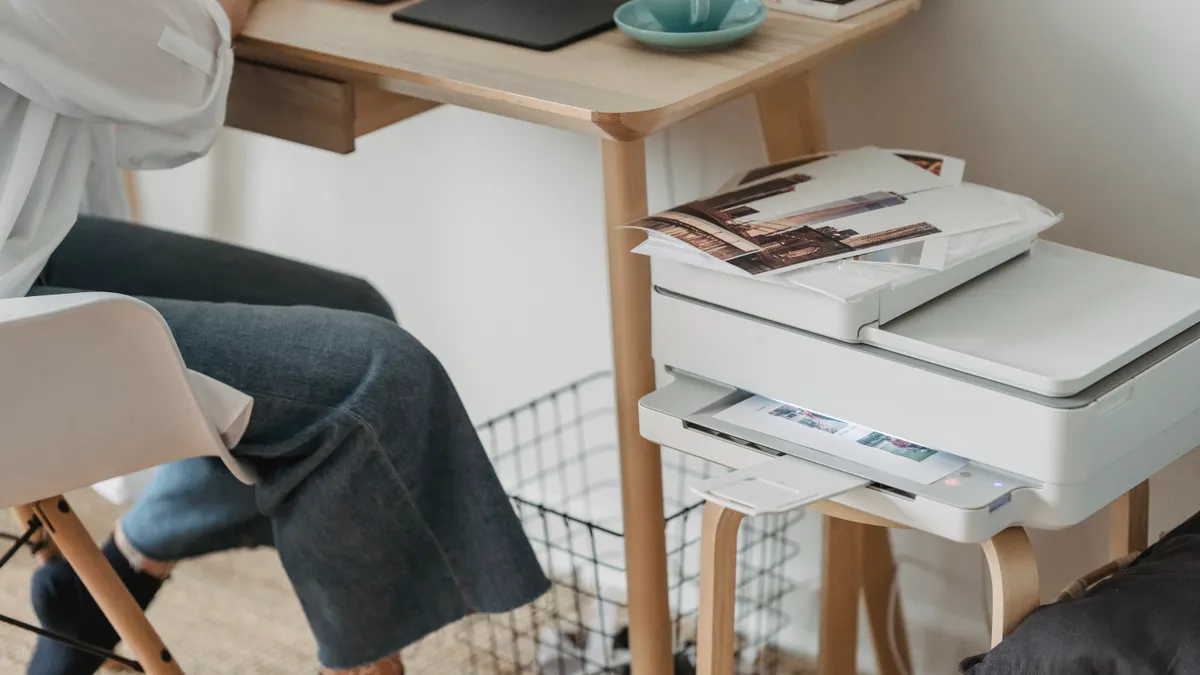
Have the printer powered on, the router broadcasting, the Wi‑Fi network name, and the password ready. If the printer has a touchscreen, the job is usually a 5- to 10-minute setup. If it uses WPS or an app, the timing depends on the router and the printer model, but the same basic information is still required.
The biggest mistake is starting without the exact SSID. Some printers show several nearby networks, including guest networks and neighbors’ routers, so the right one is not always obvious. You also want the router within range during setup, not across the house behind two brick walls or a metal cabinet.
Before touching the printer, look for these details:
- the exact Wi‑Fi network name, not a nickname
- the Wi‑Fi password
- whether the network is 2.4 GHz, 5 GHz, or both
- whether the router has WPS enabled
- whether the printer is already tied to another network
If the printer has previously been used elsewhere, a reset of its Wi‑Fi settings may be needed first. That clears the old network and keeps the printer from trying to reconnect to a router that is no longer there.
For broader setup help, the main printer setup hub can cover the rest of the installation once the network link is done.
How do I connect a printer to Wi‑Fi from the printer’s control panel?
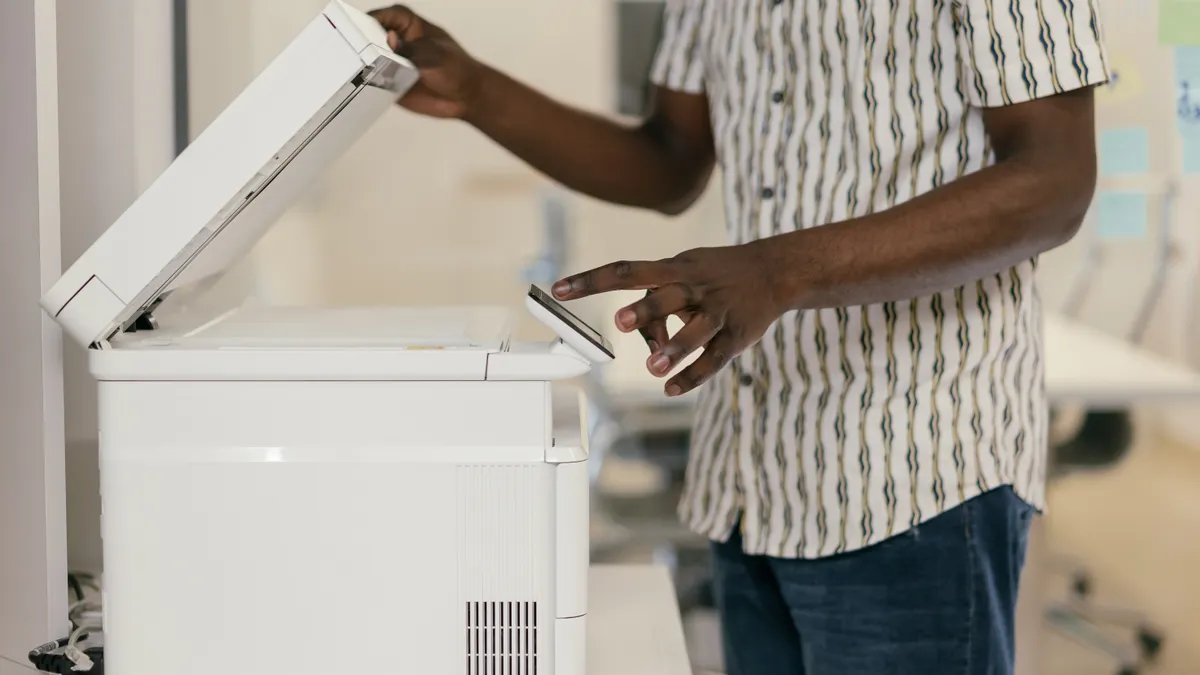
Use the printer’s network menu, choose your SSID, enter the password, and wait for a connection confirmation. For many modern printers with a screen, this is often the simplest route, and it usually avoids the limitations of WPS or a phone app.
-
Open the printer’s Settings, Network, or Wireless menu.
You should see options like Wireless Setup Wizard, Wi‑Fi Setup, or Network Setup on a touchscreen or button menu. -
Choose Wireless Setup Wizard or the equivalent scan option.
The printer should search for nearby networks and show a list of SSIDs, usually within a few seconds. -
Select your Wi‑Fi network name.
The printer should prompt for the password or open an on-screen keyboard. If you see both 2.4 GHz and 5 GHz versions of the same name, pick the one your printer supports. Many printers prefer 2.4 GHz. -
Enter the Wi‑Fi password exactly as written.
You should see a confirmation such as Connected, a Wi‑Fi icon, or a signal bar on the display. If the password is wrong, the printer may return to the list or show an authentication error. -
Print or display a network report if the printer offers one.
The report should show the SSID and an IP address. That is the clearest sign the printer joined the network, not just the router list.
This method works well when the router uses normal WPA2 or WPA3 home settings and the printer has current firmware. It is less useful on older models with tiny screens or on networks with unusual security settings.
For more help with printer setup, Wi‑Fi troubleshooting, or router security settings, those guides cover the related steps in more detail.
How to use WPS when the printer and router support it

Use WPS only if both the printer and router have a WPS button or menu option. WPS can be quick, but it is not available on every router, and some printers hide it behind a menu labeled Push Button, WPS PIN, or Easy Connect.
-
Check that the router has WPS enabled.
You may see a WPS button on the router itself or a WPS setting in the router admin page. If WPS is disabled, the printer cannot join this way. -
Put the printer in WPS setup mode.
On many models, that means opening Wireless, selecting WPS, and choosing Push Button or Start. The printer should wait for the router, often for about 2 minutes. -
Press the router’s WPS button.
On many routers, the WPS light blinks for a short period. The printer and router should exchange network details automatically. -
Wait for the printer to confirm the connection.
A Wi‑Fi icon, “Connected” message, or network status page should appear. If the printer times out, the router may not support WPS, or the feature may be disabled.
WPS is convenient, but it is the least controlled setup method. It gives you less visibility into what failed if the printer does not connect, and some routers only support it for a short window. If the printer has a screen and the router password is available, the control-panel method is usually the better choice.
WPS also does not fix a bad network name or a weak signal. If the printer is far from the router or trying to join a guest network with restrictions, WPS will usually fail just as hard as manual setup.
What if the printer needs an app setup instead?
Use the maker’s setup app when the printer has no usable screen or the on-device setup stalls. App-based setup is common on entry-level inkjet models and some compact laser printers, and it usually starts by temporarily connecting the printer to a phone or computer during setup.
-
Install the printer maker’s official setup app.
The app name depends on the brand, but it should be the one the printer manual names. A wrong app often finds the printer but cannot complete network setup. -
Put the printer into setup mode.
Many printers flash a wireless light or ask you to hold a wireless button for several seconds. The device should be discoverable during this stage. -
Follow the app’s prompts to choose the Wi‑Fi network.
The app usually asks for the SSID and password, then sends the network details to the printer. -
Wait for the app or printer light to show success.
A solid wireless light, connected status, or printed confirmation page usually follows. If the app says the printer is offline but the printer light is steady, the setup may still have worked.
This route is useful when the printer is too minimal for comfortable on-device setup. It is also the fallback if the touchscreen is frozen or the wireless menu is buried behind a maze of button combinations. The trade-off is dependence on the brand’s app and setup flow, which can be clumsy on older phones or unsupported operating systems.
Do not confuse app-based setup with Wi‑Fi Direct. Wi‑Fi Direct creates a direct link between device and printer, which is handy for temporary printing but not the same as joining the home router.
Why does the printer see the router but still fail to join?
The printer usually sees the router but fails to join because of a password mismatch, a band mismatch, or an incompatible router setting. That is the most common failure pattern because the scan step works, but authentication or network handoff does not.
Start with the SSID and password. A network name with a space, a hidden extra character, or a lookalike symbol can sink setup fast. If the password uses mixed case, special characters, or a long passphrase from a password manager, retype it carefully. One wrong character is enough to fail the connection.
Next check the band. Many printers are built for 2.4 GHz Wi‑Fi, not 5 GHz-only networks. If your router broadcasts both bands under one name, the printer may choose the wrong one or struggle with band steering. Temporarily separating the 2.4 GHz and 5 GHz names in the router can make setup easier.
Security settings matter too. Some older printers do not like WPA3-only mode. If the router is set to WPA3 exclusively, the printer may see the network but refuse to join. A mixed WPA2/WPA3 mode is often more compatible, but router changes should be made carefully and only if you know how the rest of your devices will react.
Distance and signal strength matter here too. A printer in a basement or behind thick walls can see the router weakly enough to list it, but not strongly enough to complete the handshake. Moving the printer closer for the first connection often solves the issue in under 10 minutes.
If the printer still refuses after a password recheck, restart both devices. Power the printer off for 30 seconds, reboot the router, then try again. That clears stale network state far more often than people expect.
When Wi‑Fi Direct is the better fallback
Wi‑Fi Direct is the better fallback when you need to print now and the router setup is not cooperating. It creates a direct printer-to-device connection without joining the main Wi‑Fi network, which is useful for a guest room, a temporary office, or a printer that will not authenticate with the router.
The advantage is a quick temporary link. The downside is that Wi‑Fi Direct is not the same as regular Wi‑Fi setup, so it does not solve the real network problem. It also means you may have to switch your device off the home network and onto the printer’s own broadcast during use.
Use Wi‑Fi Direct if:
- the router password is unknown and cannot be recovered right away; if recovery is not possible, consult the router maker or a professional
- the printer is too old for a current router’s security mode
- you need a temporary connection for a one-off job
- the router is working but the printer still will not join after multiple attempts
Do not treat Wi‑Fi Direct as a long-term fix for a household printer. It can make day-to-day printing more annoying because the printer is not fully on the network. For a shared home or office printer, a normal SSID connection is the better finish.
How to tell the setup actually worked
A successful setup shows up in the printer’s status page, wireless icon, or network report, not just in a hopeful green light. The clearest proof is an IP address assigned by the router and the correct SSID listed on the printer.
Look for these signs:
- a solid wireless indicator instead of a blinking one
- the router’s SSID on the printer screen or report
- an IP address in the printer’s network details
- no “not connected” warning after a restart
If the printer only shows that it remembers a network name, that is not enough. Some printers store the SSID before the password is accepted, so a remembered network can still fail when a job is sent later. A real connection should survive a power cycle and still show as online after the printer restarts.
A bad job usually leaves one of three clues: the printer joined the wrong SSID, it joined but dropped off after a few minutes, or it never got a valid network address. That last one often points back to the router security mode or a weak signal, not the printer itself.
If the setup succeeded but the printer disappears again the next day, the router may be handing out unstable addresses or changing bands too aggressively. In that case, a fixed 2.4 GHz setup and a stable SSID name are often more reliable than clever router features.
For printer network troubleshooting, Wi‑Fi Direct guidance, or printer setup, those related pages cover the next steps.
Why won’t my printer find my wi‑fi network?
The printer may be out of range, on the wrong band, or looking for an SSID it cannot use. Weak signal, 5 GHz-only routers, hidden network names, and router security modes such as WPA3-only can all keep a printer from listing the network. Move the printer closer, confirm the 2.4 GHz band, and retry after restarting the router.
How do i reset printer wi‑fi settings?
Resetting Wi‑Fi settings usually means opening the printer’s network menu and choosing a wireless reset, network reset, or restore network defaults option. That clears saved SSIDs and passwords so the printer can start fresh. On some models, the reset is under Settings > Network > Restore Defaults and takes less than 2 minutes.
Can i connect a printer without a computer?
Yes, many printers can join Wi‑Fi from the control panel, through WPS, or with a setup app on a phone. A computer is not required if the printer has its own wireless menu or supports push-button WPS. The exception is older models that need a USB-based setup utility to finish network configuration.
Sources
- FCC: Wireless routers and Wi‑Fi basics
- Wi‑Fi Alliance: Wi‑Fi Protected Setup
Drafted with AI; not yet reviewed by a person.